10 Zip File Reader Tools: Desktop and Online Options
Compare 10 zip file reader options, from free desktop archivers to online unzip tools, with previews, safety notes, and picks for each need.
A client, school, or employer sends you a ZIP file. You double-click it, but the contents don't appear where you expected, or your computer asks which app should open it. Before extracting everything onto your desktop, it's useful to know which ZIP file reader is already installed, what each tool can preview, and when an online unzipping service or file-hosting platform makes more sense.
The right choice depends on your goal. You may only need to browse a folder, select one document, open an archive created on another operating system, inspect a suspicious attachment, or turn a finished ZIP into a link someone else can open. The tools below are organized around those everyday jobs, with practical limits included.
1. Windows File Explorer Built-in for Windows 11 and 10
A ZIP file often needs only one thing first. A quick, safe look before you extract anything.
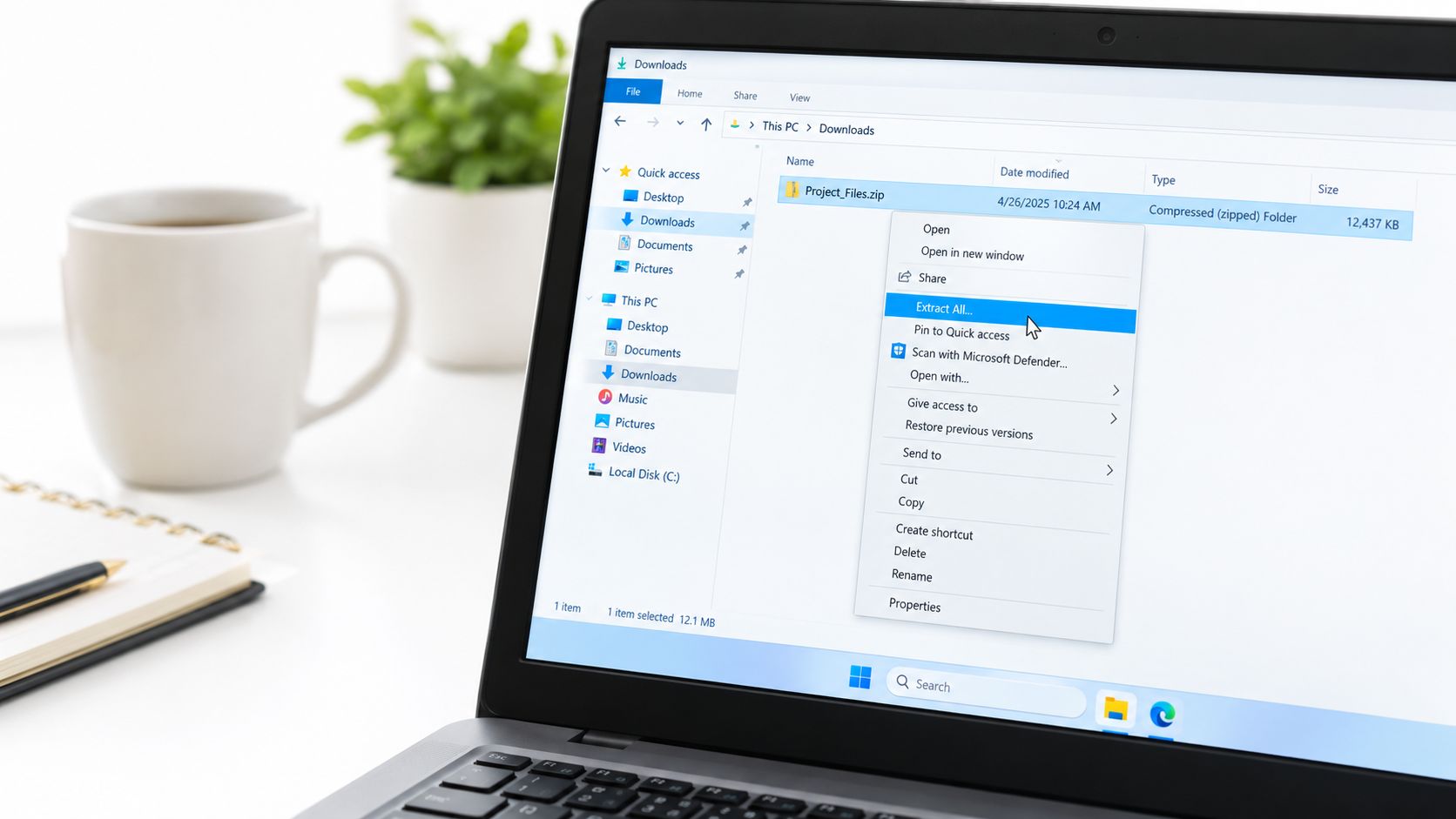
On a Windows PC, the built-in file manager already handles that basic job for everyday archives. Open the ZIP, review the folder names, and decide what to do next. The current Windows release supports ZIP operations, and the standard steps for opening, extracting, and creating ZIP files are outlined in ZIP and file-management guidance.
That makes it a practical starting point when your goal is simple. If someone sends website-files.zip, you can open the archive, spot files such as index.html, an images folder, or a README.md, and check whether the contents match what you expected. For a student, that might mean confirming the assignment folders are there before extracting them. For a recruiter or client, it can mean checking the structure of a portfolio or project handoff without adding another app.
The easiest path for everyday ZIP files
If the archive looks normal, use Extract All and choose a destination folder you recognize. That small step keeps Downloads and the desktop from turning into a mess. If you only need one or two items, you can also open the ZIP and copy selected files into another folder.
You can create a ZIP the same way, with the built-in menu:
- Create a ZIP: Select files or a folder, right-click, and choose Send to > Compressed (zipped) folder.
- Keep things organized: Extract into a named project folder instead of a general location.
- Preview first: Check filenames and folder structure before opening unfamiliar files.
This built-in option fits people who want the least setup and already trust the source. It is less helpful when you need more control over previewing, handling unusual archive formats, or working with protected files. Built-in ZIP handling can also fall short with encrypted archives, and a successful extraction does not automatically mean the archive behaved the way you expected.
2. macOS Archive Utility Built-in
You download a ZIP on a Mac, double-click it, and the contents usually appear right beside the original file. That low-effort flow works well when the archive comes from someone you know and you just need the files. An educator opening student work, a professional reviewing a shared project folder, or a freelancer grabbing a portfolio template from an Upfling link can get moving quickly.
The trade-off is control.
On macOS, the default archive handler is built for speed, not inspection. You may end up with both portfolio-template.zip and an extracted portfolio-template folder sitting in Downloads before you have checked what is inside. If your browser is set to open downloaded files automatically, that preview step can disappear entirely. For non-technical users, that matters. Previewing names and folders first is often the easiest way to catch something unexpected before you open it.
Automatic extraction is convenient, not always ideal
If you want a safer routine, keep automatic opening turned off and review the ZIP in Downloads first. Then decide whether to extract it. This approach fits the common jobs people have. Open it safely, check the folder structure, or pass it on to someone else without sending a messy bundle of loose files.
Creating a ZIP is simple too. Right-click a file or folder and choose Compress. Before you do, place everything inside one clearly named folder so the recipient gets a tidy package instead of scattered documents.
Practical rule: A ZIP can be readable without being safe. Preview names and folders before opening scripts or executable files from an unexpected attachment.
This built-in option is a good fit for ordinary ZIP sharing and very light setup. It falls short when you need to preview contents in more detail, separate several archives cleanly, or understand why a protected archive will not open. It also does not help if your real goal is to share the finished result as a public link rather than extract it locally.
3. 7-Zip for Desktop
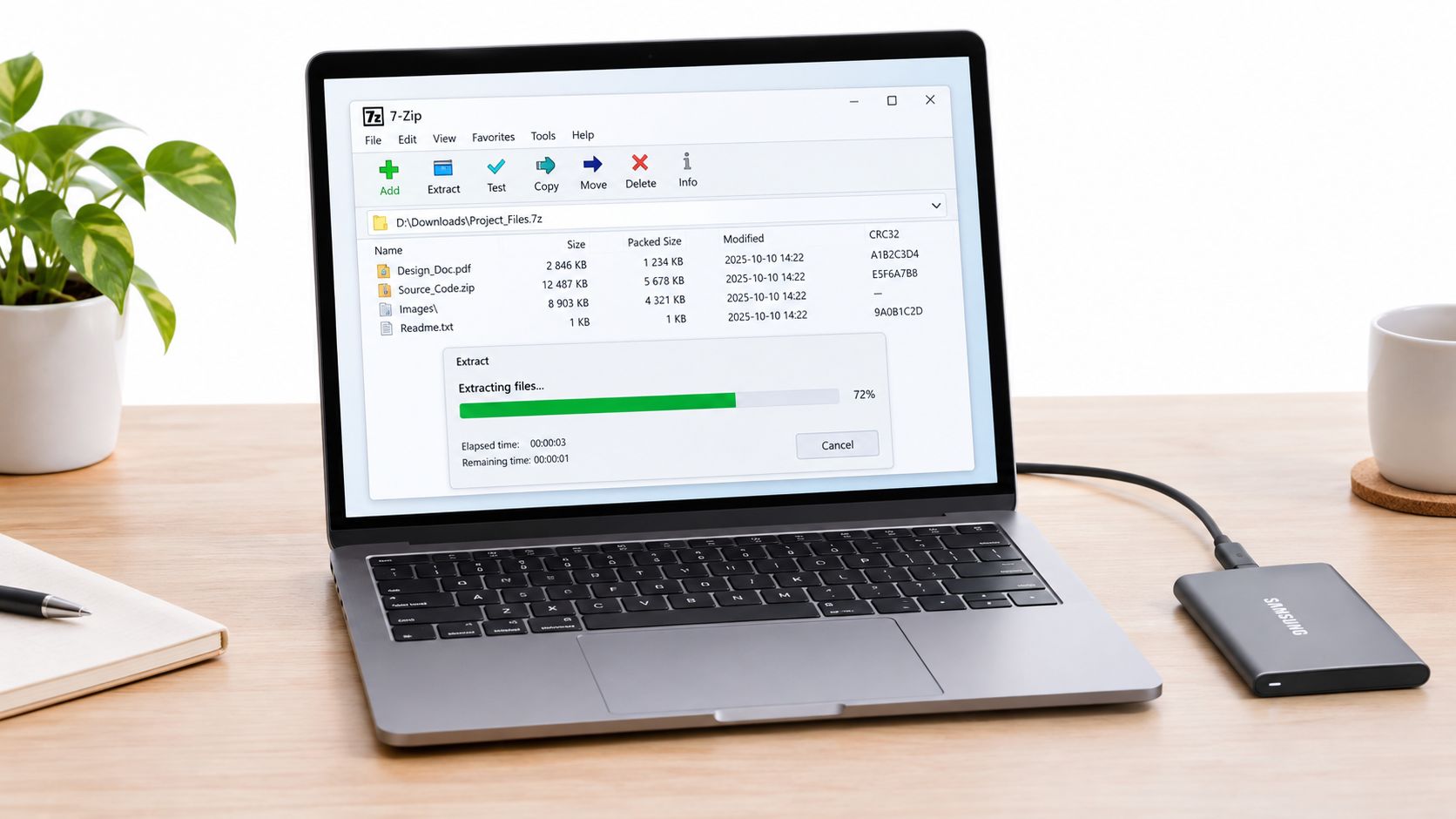
Desktop archive managers make sense when opening a ZIP is only part of the job. You may need to check the folder layout before extracting, keep each download in its own folder, or confirm the archive is intact before passing it on to someone else. That extra control helps with ordinary work, not just technical tasks.
A common example is a freelancer receiving a design package with fonts, images, and nested folders. A desktop archiver should let you browse the archive first, so you can spot whether the contents look orderly or suspicious before files land in Downloads or on the desktop. It should also offer a clear extraction destination, especially when several ZIP files arrive on the same day.
Control without much complication
Useful desktop archivers usually cover four practical needs:
- Preview: Browse filenames and folders before extracting.
- Organization: Send each archive into its own named folder instead of mixing files together.
- Integrity checking: Run a built-in test to catch a damaged or incomplete archive before you rely on it.
- Explorer integration: Start common actions from File Explorer instead of opening a separate window every time.
This setup fits educators sorting student submissions, office staff handling forms from different clients, or anyone passing a ZIP along after a quick review. Opening one document from inside the archive can also be handy when you only need to confirm what is there, not unpack everything.
The trade-off is straightforward. More control usually means more visible options, and that can feel technical if you only open a ZIP once in a while. Previewing an archive is still only a first check. A ZIP can list files normally and still contain scripts, executables, or other items you should treat carefully. Support for large archives, Unicode filenames, encryption, and different compression methods also means a ZIP reader may show the contents without preserving every detail the way you expect after extraction.
4. PeaZip
A cross-platform archiver makes sense when the same ZIP needs to be opened on different computers and you want the process to feel familiar each time. That matters for a distributed agency, a project manager handling several client archives, or an educator checking course materials before passing them on. A portable version also helps in a locked-down setting where software installation is not an option, such as working from a USB drive on a shared machine.
Useful when verification matters
This kind of tool is built for three common jobs. Open a ZIP safely, preview what is inside before extracting, and pass it on without creating extra confusion for the next person. You can inspect filenames and folders in the app window first, then choose an extraction destination instead of dropping everything onto the desktop. If the archive supports it, built-in verification or testing helps catch a damaged or incomplete ZIP before you rely on the files inside.
That extra check is useful for submissions, presentations, and client deliverables. A ZIP can look normal in a quick preview and still fail when someone tries to extract or use the files later.
Password protection can help limit who opens an archive, but it does not stop a recipient from copying what they can already access. Treat it as an access control, not a full usage control. If you need to send sensitive files, send the archive and the password through separate channels, such as email for the file and text message for the password.
The trade-off is setup and visible choice. More formats, testing options, and extraction controls give you better oversight, but they also add buttons and menus that casual users may never need. For a single ordinary ZIP on your own computer, a built-in reader is usually quicker. For repeat work across operating systems, or for cases where previewing and verification matter before you extract or forward a file, this type of archiver is a better fit.
5. The Unarchiver for macOS
For mixed archive formats on a Mac, a lightweight extraction utility with a saved destination folder and batch handling gives you more control than the built-in handler. That matters when the job is simple but repetitive. Open files safely, check what is inside, then put everything in the right place the first time.
A freelancer might get several project archives in one email thread, each meant for a different client folder. With a utility like this, they can send each archive to a chosen location instead of extracting everything onto the desktop and sorting it later. It also helps with less common archive types, so a Mac user is not stuck when a sender uses something other than a standard ZIP.
A better fit for repeated Mac workflows
The practical advantage is setup. If work files usually belong in one folder, saving a default extraction destination cuts down on cleanup. Batch extraction helps too. Drop in several archives, let them process, and keep your downloads folder from turning into a mix of loose files and duplicate folders.
Preview still matters. Before extracting, check the folder names and file structure and make sure they match what you expected to receive. If an archive arrives out of the blue, look closely at filenames before opening anything. Scripts, app files, and other executable content can sit inside an archive that otherwise looks ordinary.
This kind of utility is strongest when you receive files often, especially from different people using different archive formats. It gives more control over where files go and reduces small mistakes that add up over a week.
Its limit is just as clear. It is mainly for extraction and file handling, not for publishing or sharing completed work. If your only job is opening one normal ZIP on your own Mac, the built-in option is usually faster. If you regularly sort incoming archives, preview contents, and want cleaner batch workflows, a dedicated extractor is the better fit.
6. WinRAR
Some desktop archive tools suit people who do more than open the occasional ZIP. They help when a file will not open cleanly, when you want to preview and test an archive before sending it on, or when a project needs to be split into smaller parts. That extra control usually comes with more setup choices, and in some cases a paid license.
A practical example is a team receiving an archive that looks incomplete after download. Before asking the sender to upload it again, they may try a repair option or at least test the file to confirm the problem. Another common case is sending a large folder through a channel that rejects the full upload. Splitting the archive into volumes can make handoff easier, though it also gives the recipient more pieces to keep track of.
More power, more decisions
If you use this kind of archive manager, start with Test Archive before sharing an important file. It can catch integrity problems early. It does not make the contents safe or verify that every file inside is trustworthy.
Preview matters here too. Check filenames and folder structure before extracting, especially if the archive came from someone you do not know well. If you only need one document, extract to a dedicated folder instead of dropping everything into Downloads and sorting it out later.
Some commercial archivers also include encryption. That can keep files unreadable until the recipient enters the correct password, which is useful when you need to pass along sensitive material. The limit is simple. Once an approved recipient opens the archive, the password no longer controls what they do with the files. Share the password separately, not in the same message.
This type of tool fits recurring work, not casual use. Choose it if archive repair, split volumes, stronger handling options, or frequent preview-and-send workflows are part of your routine. If your job is just opening a normal ZIP once in a while, a simpler built-in option is easier.
7. Bandizip for Mobile and Desktop
A cross-device archive manager makes sense when a ZIP lands on your phone first and the job cannot wait until you are back at a desk. It gives you a way to preview contents, pull out one file, or pass the archive along from mobile or desktop without turning a quick check into a messy extraction.
That fits common, non-technical situations. A freelancer might receive a client ZIP while traveling and want to confirm the folder names before downloading everything. Someone in an interview might open a portfolio archive on a phone, check that the right files are there, and share a few images. A small team may also need to open an archive stored in popular cloud storage accounts instead of moving it between devices first.
Preview first on a small screen
Preview is the key advantage here. Phone storage fills up fast, and file apps are less forgiving when you extract a whole archive into the wrong place. Check filenames, look at the folder structure, and pull out only the document or image you need. The same habit helps on desktop too, especially when a project ZIP includes more files than you expected.
Cloud connections are convenient, but they do not change the basic safety rules. If you create a password-protected archive for sensitive work, send the password in a separate message. Use a strong, unique password that does not rely on names, birthdays, common words, or a reused login.
Mobile access also has limits.
A ZIP can still hide misleading filenames, scripts, or files that expand far beyond what the compressed size suggests. If you run a public upload flow, the safer approach is to validate archives before extraction and set limits for archive size, uncompressed size, number of entries, filename length, nesting depth, and expansion ratio. Fast preview helps you decide whether to open, extract, or forward a ZIP. It does not confirm that the contents are safe.
8. Online-Convert.com
You get sent a ZIP on a work laptop that blocks installs, or you need one file from an archive on your phone. A browser-based extraction service can help in that moment. Upload the ZIP, let the service process it, and download the files you need. Setup is minimal, which is the main appeal for shared computers, locked-down devices, and quick one-off tasks.
The trade-off is clear. You are handing the archive to a third party, so this route fits non-sensitive files far better than tax forms, private client documents, ID scans, or unreleased creative work. It also gives you less control if you need to inspect the archive closely before you pull files out.
Preview matters here. If the service shows filenames or folder structure before a full download, it is easier to decide whether to extract, skip it, or pass it on. That saves time when the ZIP holds a mix of documents, images, and folders and you only need one item.
Keep the browser tab open until processing finishes. Slow connections, session timeouts, and interrupted uploads can break the job. Once the files are ready, download them promptly and place them in a clearly named folder instead of leaving them buried in a general downloads stack.
This approach works best for occasional access. It is a weak fit for very large archives, confidential material, or situations where you need to diagnose compatibility problems in detail. If your real goal is just to send a finished PDF, image set, or website folder to someone else, sharing a direct link can be easier than asking them to open a ZIP. For that use case, online PDF sharing with Upfling offers a more direct handoff.
9. CloudConvert for Web and API Workflows
A repeatable archive workflow matters when a team gets ZIP files every day and needs the same result each time. In that setup, the job is not just opening one attachment. It is extracting files, previewing what is inside, passing the right items to the next step, and keeping the process predictable.
For non-technical users, the main question is simple. Can the system show enough about the ZIP before full extraction, and can it handle the file safely without extra manual work? Selective extraction helps when an archive contains dozens of folders but only one image, document, or export is needed. API-based handling also reduces copy-and-paste desktop work when the same intake process repeats across client deliveries or shared team inboxes.
Automation needs stronger guardrails
ZIP is useful here because the format supports file listings and archive metadata through its central directory, which can often be checked before every item is decompressed. That makes it practical for previewing contents and routing files in a pipeline. The Library of Congress ZIP format description notes ZIP as a de facto industry standard for portable archives and cross-platform exchange.
Safety still decides whether this approach fits. A hosted workflow should validate filenames, limit extraction size, contain the unpacking process, and scan files before anything is published or handed to another system. ZIP bombs and path traversal are the obvious risks. Poorly controlled extraction can also create messy output, overwrite files, or place content outside the intended folder.
This kind of setup fits teams that need archive handling to behave the same way every time.
It is a weak fit for someone opening a family photo backup or a school handout once. It fits better when archive intake is part of a content pipeline and the next action is clear, such as converting, publishing, or handing files to another service. If you need to connect archive processing to publishing or downstream automation, Upfling's API documentation shows one way to integrate that step.
10. Upfling
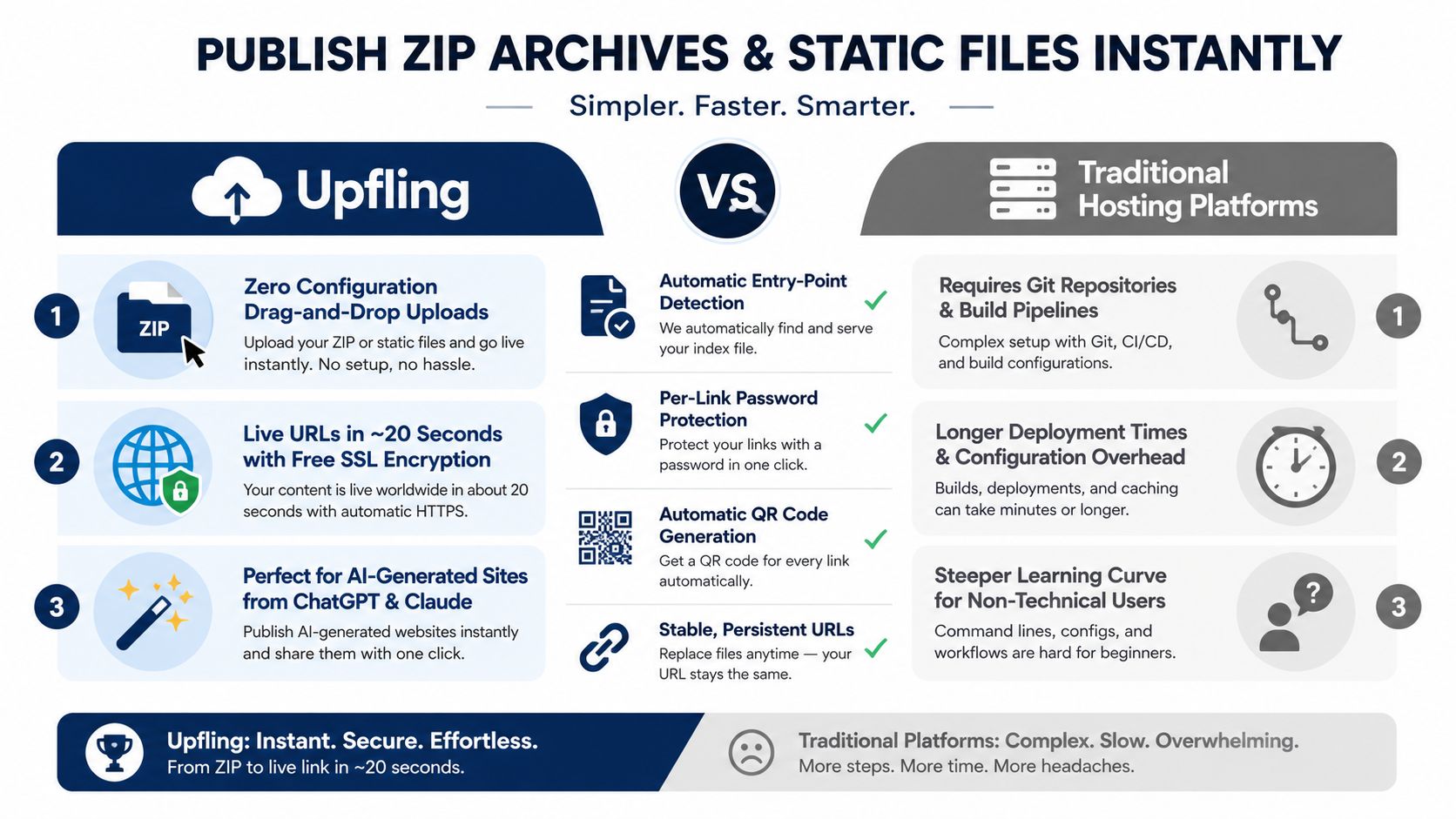
Upfling changes the job from “How do I open this ZIP?” to “How do I let someone access the finished files?” Upload a ZIP, folder, HTML page, PDF, image, or document, and Upfling turns it into a live, shareable URL in about twenty seconds. You don't need a Git repository, build pipeline, or deployment configuration.
A freelancer can upload a client's website ZIP and send an approval link instead of asking the client to download and extract the archive. A job seeker can share a PDF resume alongside HTML portfolio samples through one password-protected link. An educator can publish workshop materials and give students a QR code to scan during class.
Better for finished work than private inspection
Upfling detects an entry point such as index.html, scans uploaded files for phishing and malware, provides SSL on every link, and generates a QR code for sharing. Organize a website archive with index.html or README.md at the expected entry point so the platform can identify what visitors should see.
You can replace files from the dashboard without changing the public URL. That helps an agency update a client preview while keeping the same link in an email or presentation. Password protection, custom domains, analytics, API access, and MCP server integration add options for professional sharing.
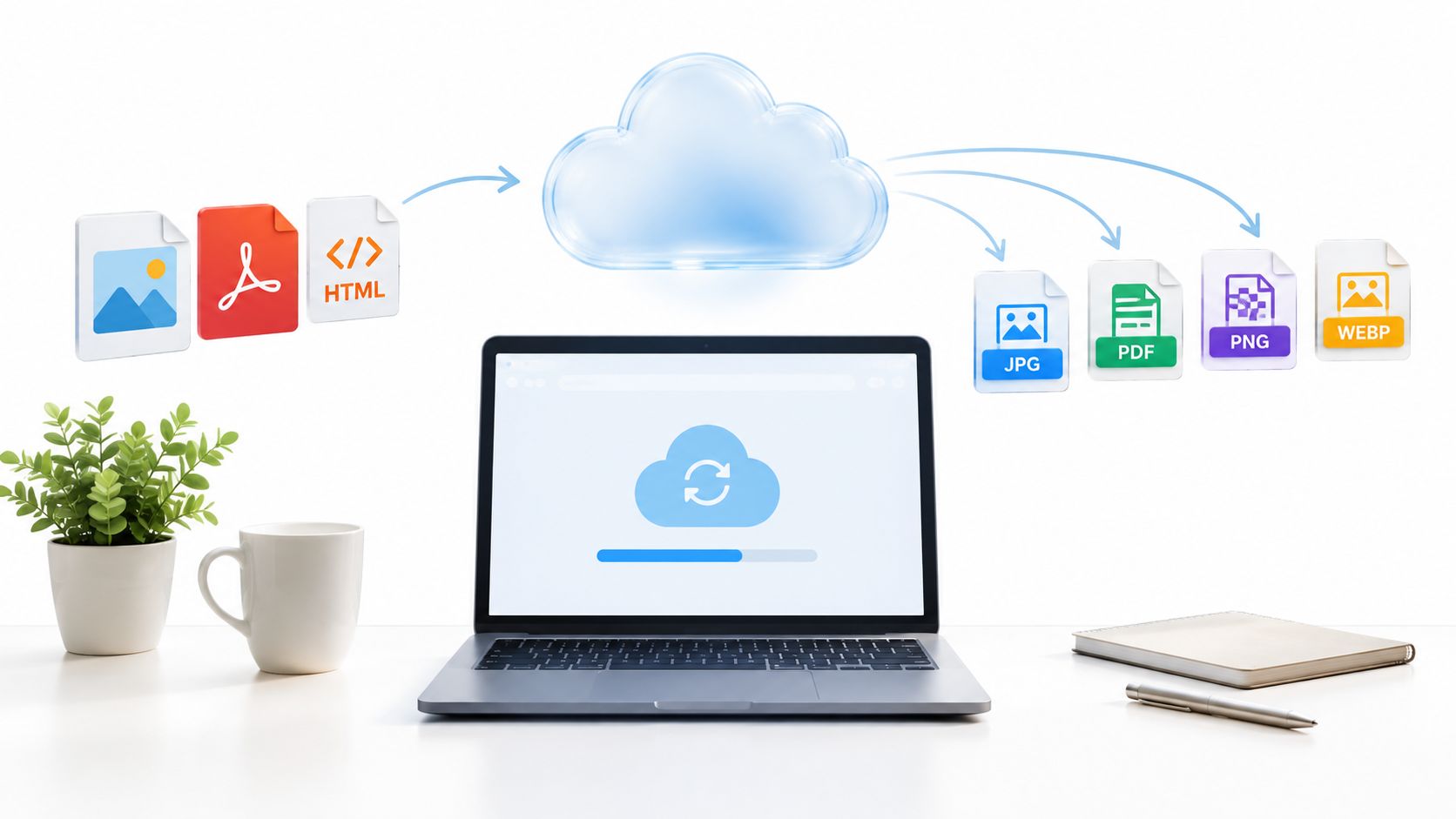
Upfling isn't a replacement for a local ZIP file reader when you need to inspect a private archive, extract one file, or diagnose encryption. It's the better fit after the contents are ready to show. If the goal is to publish a website, share a PDF, deliver a portfolio, or provide stable client access, turning a file into a link with Upfling avoids making every recipient manage archive software.
Top 10 Zip File Readers, Feature Comparison
| Tool | Core features | Speed & ease (UX) | Best for / Target audience | Value / Unique selling point | Price |
|---|---|---|---|---|---|
| Windows File Explorer (Windows 11/10) | Native ZIP browse/extract/create, drag‑drop | Immediate, integrated into File Explorer | Windows users needing basic ZIP tasks | No install, familiar UI, fast local extraction | Free (built-in) |
| macOS Archive Utility (Built‑in) | Auto extraction, compress via Finder, preserves permissions | Zero‑config, automatic on download | macOS users preferring seamless behavior | Automatic extraction and tight Finder integration | Free (built‑in) |
| 7‑Zip | Open‑source, 7Z/ZIP support, high compression, CLI | Lightweight, fast, technical options | Power users, Windows/Linux developers | Superior compression, reliable multi‑format support | Free |
| PeaZip | 180+ formats, cross‑platform, portable, verification | Modern UI, drag‑drop, portable use | Distributed teams across OSes | Cross‑OS consistency, archive verification, portable mode | Free |
| The Unarchiver (macOS) | 30+ formats, preview, batch extract | Lightweight, more control than Archive Utility | Mac professionals needing extra format support | Better format support and batch extraction | Free |
| WinRAR | ZIP/RAR/7Z support, repair, encryption, volume split | Mature, reliable, Explorer integration | Professionals handling large/encrypted archives | Archive repair, strong encryption, multi‑part archives | Paid after 40‑day trial (~$29) |
| Bandizip (Desktop & Mobile) | 30+ formats, cloud integration, mobile apps, preview | Consistent across devices, mobile friendly | Mobile‑first freelancers and remote workers | Direct cloud access, mobile extraction & previews | Free basic; subscription for mobile premium |
| Online‑Convert.com (Web) | Browser extraction/conversion, no install | Accessible anywhere, simple web UI | Users on restricted devices or kiosks | No software required; works on any browser | Free with upload limits |
| CloudConvert (Web & API) | 200+ formats, selective extraction, API, webhooks | Professional, automated workflows | Developers, agencies needing automation | API + webhooks, cloud storage integration, selective download | Freemium; paid plans for heavy use |
| Upfling (recommended) | Drag‑and‑drop ZIP/folder uploads, automatic entry‑point, SSL, QR, replace files without changing URL, analytics, API | Zero‑config, live URL in ~20s, privacy‑friendly analytics | Freelancers, agencies, educators, indie makers, AI‑generated sites | Instant shareable live links, persistent URLs, per‑link access control, publish from ChatGPT/API | Free plan (no credit card); paid tiers for advanced features |
Matching Your Zip File Reader to the Job
Start with the reader already on your computer. Windows File Explorer handles ordinary ZIP files on Windows, and Archive Utility handles routine ZIP extraction on macOS. Those choices reduce setup effort and are usually enough when a colleague sends a folder of documents, a student receives assignment materials, or a client shares a small collection of images.
Add a dedicated application when your needs become specific. 7-Zip is practical for Windows users who want archive testing and a clearer preview workflow. PeaZip makes sense for people working across Windows, Linux, and macOS. The Unarchiver gives Mac users more control over extraction and mixed archive formats. WinRAR earns consideration when repair, RAR files, encryption, or split archives appear regularly. Bandizip is convenient when the same archive work happens on both desktop and mobile.
Online tools solve a different problem. They help when you're traveling, using a shared computer, or working on a device where software installation is restricted. They aren't the right default for confidential documents. Uploading a private client archive to an external service creates a separate privacy decision, so use local software whenever the material is sensitive and you don't need the convenience of a browser.
CloudConvert is best when extraction is part of a repeatable process. Selective extraction, cloud storage connections, API calls, and webhooks can reduce manual work for agencies and developers. But automation must still enforce archive limits, reject unsafe paths, inspect encrypted entries, and isolate extracted files. A reader that opens an archive quickly but can be exhausted by hostile input isn't suitable for a public upload workflow.
Before you extract: Browse the file list, check for encryption, look for unexpected scripts or executable files, and extract into a dedicated folder.
A ZIP reader should distinguish opening from extracting. Browsing client-files.zip may show Invoices/, Photos/, and index.html without putting everything on your desktop. Selective extraction reduces clutter and gives you a chance to reject an archive that doesn't match what you expected.
Security matters even for familiar file types. Archives were the most common malware-delivery category detected by HP Wolf Security in Q2 2025, representing 40% of detected threats according to its September 2025 threat insights report. The same report notes that about 5% of malicious archives observed in one campaign were password-protected. A password prompt should therefore be treated as access control, not proof that the contents are harmless.
When you're passing on finished work rather than reading an incoming archive, use a publishing workflow. Upfling can turn a ZIP-based website, PDF, image collection, or document folder into a shareable URL, with password protection, SSL, QR codes, and file replacement available for ongoing client work. That removes the extraction step for the recipient and makes the result easier to review on a phone.
Choose the smallest tool that safely solves the job. Use a built-in reader for ordinary archives, a desktop application for repeated or complicated work, a browser service for non-sensitive one-off extraction, an API workflow for automation, and a hosting service when people need to view or download the finished result.
Upfling turns ZIP archives, folders, HTML, PDFs, images, and documents into live shareable URLs in about twenty seconds, so clients and students don't need to install a ZIP file reader just to view finished work. Upload a portfolio, website, or course folder, add password protection when needed, and invite your audience to visit Upfling to publish and share it.
Built with Outrank tool