Password Protected Website: How to Lock a Link
Make a password protected website for one link or a whole folder, with plain steps for static pages and safer password sharing.
Your client's landing page is ready for review. You've got an index.html file, an images folder, and a message waiting in chat. The client needs to see the draft before anyone else does, but you don't want to build a membership system just to collect feedback.
A password protected website can give you that simple checkpoint. The important decision isn't just how to add the password. It's whether a shared secret is enough for the material you're about to publish, and what you'll do when the review ends.
Pick the Right Password Gate for Your Link
For a freelancer sharing a draft, an access gate is usually all that's needed: the visitor opens a URL, enters a password, and sees the page. Most short reviews don't need individual accounts.
Ways to password protect a page or file
| Method | Best for | What the visitor does | Remove one person | Skill needed |
|---|---|---|---|---|
| Shared password on one link | Client preview, PDF, resume, short classroom share | Opens the URL and types one password | No, change the password for everyone | None |
| HTTP basic authentication | Whole folder already on a web host | Browser popup asks for username and password | No, one shared login for the folder | Host control panel |
| Separate user accounts | Membership or long-lived private area | Signs in with their own email and password | Yes, disable that account | A developer or app |
| Password manager share | Teammates who already share a vault | Autofill from the shared item | Yes, remove them from the vault | A manager account |
Choose a shared link for a proposal, resume, classroom file, or short client preview that doesn't need individual identities. Choose HTTP basic authentication when the entire folder already lives on a traditional host. Choose separate accounts when you must withdraw one person's access without interrupting everyone else. Use a password manager share to distribute an existing secret, not to add a different lock to the website.
That last distinction matters. Removing someone from a shared vault stops future access to that vault item, but it doesn't erase a password they've already copied. You may still need to replace the website's password.
Decide by sensitivity and audience
Start with the consequence of disclosure. An unfinished bakery homepage is different from a proposal containing private customer records. A resume intended for selected recruiters is different from a document containing identity information.
Next, consider who needs access. A small, stable review group is easier to manage than a class with changing participants or an agency project involving outside contractors. Audience turnover matters as much as audience size.
Finally, ask how difficult removal would be. If changing the password means contacting everyone during a live workshop, a shared login may become a practical burden.
For a document rather than a website folder, the same decision applies when you share a PDF online. The file format doesn't determine how private the contents need to be.
Practical rule: If a leaked password would only reveal a replaceable draft during a short review, a shared link can be enough. If disclosure would expose material you can't easily replace or contain, use recipient-specific accounts with appropriate controls, or don't publish the file.
A shared password reduces casual discovery. It doesn't establish who is reading, prevent forwarding, or make highly sensitive material safe by itself.
Choose a Password People Can Type and Share
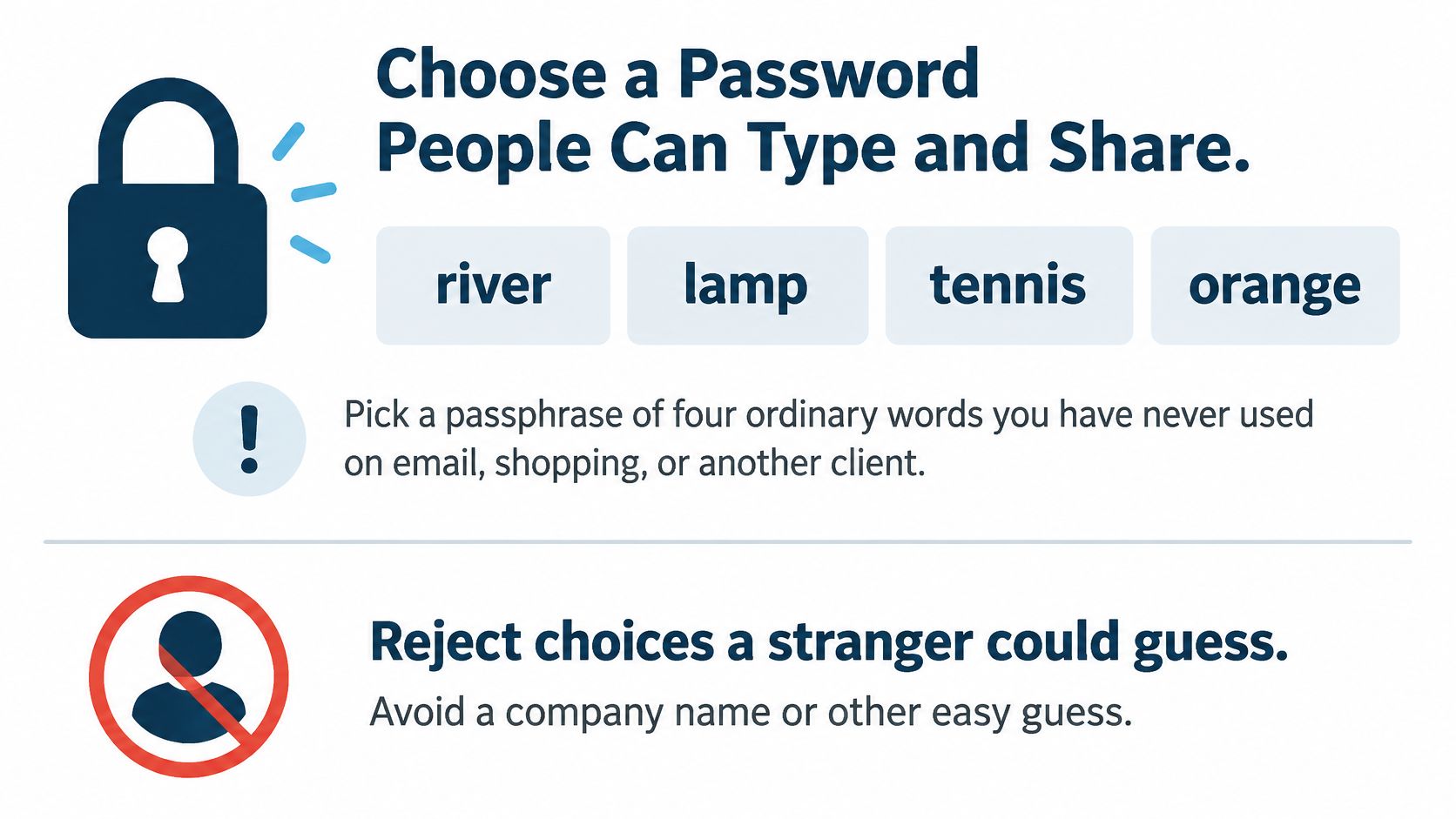
For a client preview, choose a fresh passphrase made from four ordinary words, such as river lamp tennis orange. Use a phrase you haven't used for email, shopping, or another client, and create your own rather than copying the example.
Avoid choices a stranger could guess, such as password123, a company name plus 2026, or a familiar password with punctuation added. A number or symbol won't rescue a predictable phrase.
The OWASP Authentication Cheat Sheet recommends screening common and previously breached passwords, changing credentials when you learn they've been compromised rather than on an arbitrary schedule, and allowing at least 64 characters. Use a breached-password check if your publishing tool provides one.
Make entry and recovery manageable
Ordinary words can be easier to type from a phone or handout than a jumble of characters. Check the password field before sharing the preview, and make sure it works for your intended readers.
- Allow paste and autofill. Blocking them makes readers type the phrase manually.
- Check the field label. A screen reader should identify the password field and announce a useful error when entry fails.
- Keep a recoverable copy. Save the phrase in your password manager so you can resend it if needed.
- Share copyable text. A recipient shouldn't have to decipher a photo of a sticky note.
For a paper classroom handout, use a phrase for that session and replace it afterward. Give learners a private way to ask for help instead of having them announce passwords in the room.
Send the password through a different channel from the URL, such as a text message after an email. Change it promptly if it reaches the wrong person.
A shared password can reduce casual discovery, but anyone who receives it may pass it on. The right phrase is easy for the intended reader to enter and isn't used anywhere else.
How to Password Protect One Static Link
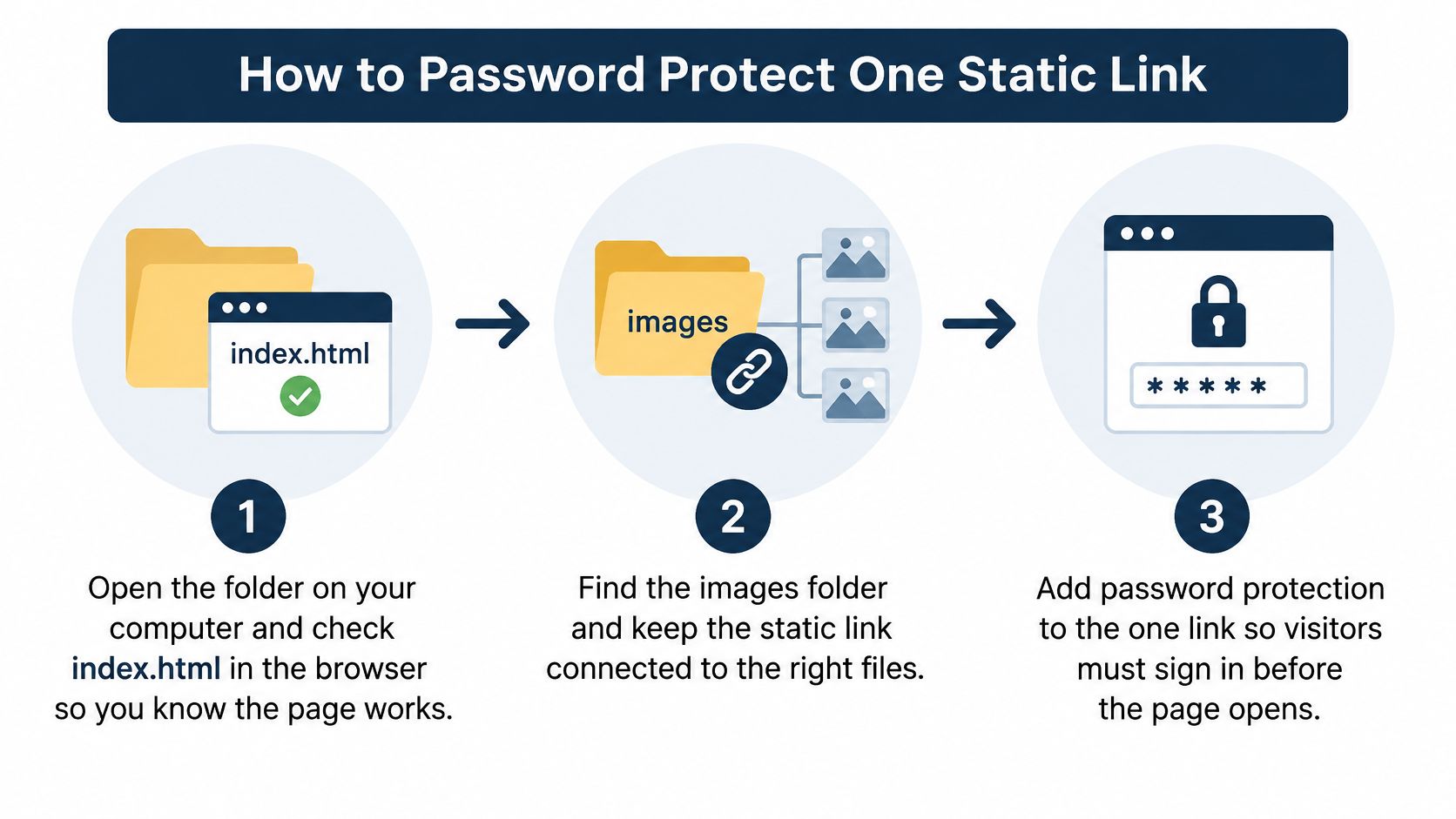
A preview can look fine on your computer and still break after upload. If index.html points to an images folder, publish both together so the live page can load its pictures and styles.
Prepare and publish the preview
Check the folder locally. Open
index.htmlin your browser and review the headings, images, buttons, and navigation. Fix missing files or broken paths before publishing.Upload the complete folder or a ZIP archive. With free static site hosting, drop the folder or ZIP onto Upfling's upload area and publish. The site gets an HTTPS address in about 20 seconds. Keep supporting files in the upload so the page can find them.
Set a password for the site. Open its settings and add a fresh passphrase before sharing the URL. An unpublished address is not the same as a password-protected one.
Copy the published URL. Use the live address, not the local file address on your computer. Check that it points to the client preview you intend to share.
The published site needs the full folder and its own access setting.
Deliver and maintain the link
Send the URL. Follow the separate-channel advice in Section 2. Include what the client should review and where to leave comments.
Ask the client to check a specific detail. They should open the URL, enter the password, and confirm they see the expected draft, such as the correct homepage headline.
Update the preview without breaking its address. Replace the site files when the draft changes. You can also edit in the browser or rename the slug, but avoid changing the slug during an active review unless you share the new address.
End access deliberately. Change the password if a different group needs access. Remove it only when the page is ready to be public. If the site should no longer be available, delete it with one click.
The same approach works for a PDF, resume, or photo set. Check that the PDF is the intended version and its filename does not expose confidential details. Remove unrelated photos before uploading.
A shared password reduces casual discovery, but it cannot block one forwarded recipient while keeping access for everyone else. Consider the sensitivity of the files, the size of the audience, and how easily you can replace the password if access spreads.
How HTTP Authentication Protects a Whole Folder
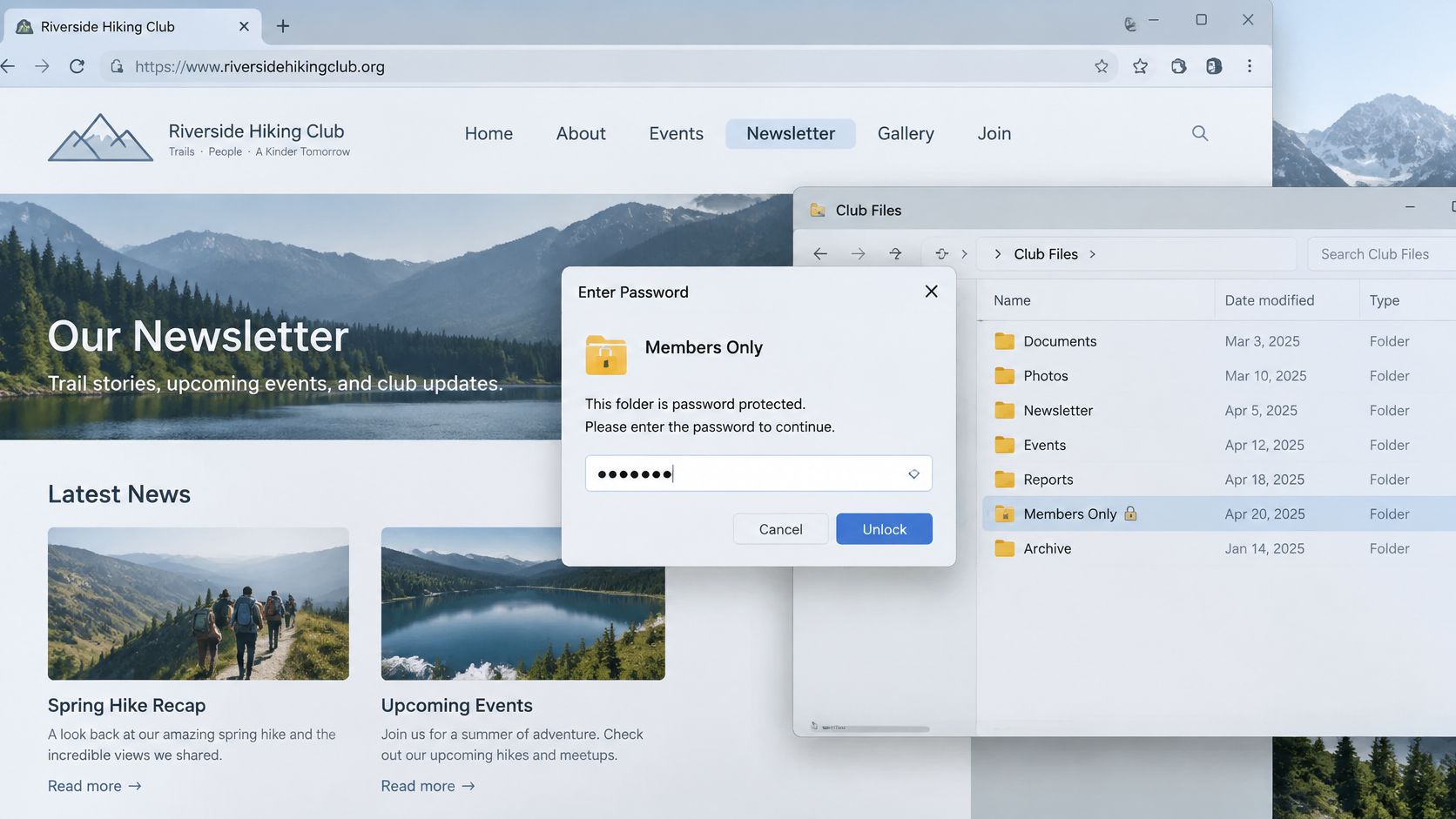
A small club's newsletter folder needs one lock for every file in it. HTTP basic authentication makes the browser ask for a username and password before the server delivers the folder's protected pages, images, and documents. It suits a site stored in a folder on ordinary web hosting.
The prompt appears outside the page's design.
Use the hosting control panel
Sign in to your host's control panel. Find an option called directory privacy or password-protect directory. Use the control panel rather than editing server configuration files by hand.
Select the folder containing the private site. Check its name against your uploaded files. Selecting only
index.htmlcan leave other files open. Locking the whole hosting account can also block public pages stored there.Create a group username and passphrase. Keep these separate from your hosting administrator credentials. Visitors need access to the newsletter, not the tools that manage the hosting account.
Test the homepage in a fresh private window. The browser should ask for credentials before displaying the page. Use HTTPS to encrypt the connection. The popup itself does not encrypt traffic.
Test direct file addresses. Open an image and a PDF in a fresh private session. Each should prompt for authentication before loading.
Distribute the credentials separately. Send the username and passphrase in separate messages. Explain that these are for the newsletter, not anyone's personal account.
Check the boundary, not the appearance
A password form can look convincing while leaving files exposed. If the homepage checks a password but the PDF does not, someone with the PDF's address can open it directly. The server must check access before sending each protected file.
The NIST authentication guidance calls for rate limiting failed authentication attempts. Check whether your hosting setup slows repeated guesses. A hard-to-guess folder name is not a substitute.
This video provides another visual reference for website password protection.
A group login treats everyone as one account. If a member leaves, HTTP basic authentication offers no separate user access to disable. You must change the shared credentials, which also means updating them for everyone who remains.
If your files are only in a folder on your laptop and you have no hosting control panel, use a single-link publishing workflow instead. Server configuration is extra work for a temporary preview.
Fixes When the Locked Page Still Leaks
Test the image and PDF addresses first. A locked homepage with public files is still open to anyone who has those direct links.
While signed in, copy the addresses of the files a reviewer might need. Then open each one in a fresh private window. Include old filenames and downloadable documents, not only files linked in the page navigation.
Password gate problems and fixes
| What you see | Why it happens | Fix |
|---|---|---|
| Image or PDF opens with no prompt | Only the home page was locked | Protect the whole folder and retest the direct file address in a private window |
| Popup keeps rejecting the password | Browser stored the old HTTP login | Close the tab or clear that site's data, then retry |
| Someone still has access after you changed the password | Their signed-in session was still active | Change the password, reload the old session, and use the host's session-revocation control if the session still loads |
| Review left open on a shared computer | No idle limit | Sign out and clear site data on shared machines; choose a host that asks for the password again after about 30 minutes idle and 8 hours |
| Stranger opens a private draft | Password was reused or forwarded | Set a new unique passphrase and resend it on a second channel |
The timeout example follows the OWASP Session Management Cheat Sheet. Its lower-risk examples support a client-preview setting of about 30 minutes of inactivity and a fresh login after eight hours.
End sessions on the server
After login, a site commonly gives the browser a session identifier, a temporary credential that lets the visitor continue browsing. Changing the password may leave an existing session active.
Deleting a cookie from your laptop removes only that laptop's copy. The server must invalidate the session too. After changing the password, reload the old session. If it still loads, use the host's session-revocation control.
A browser may also remember HTTP credentials. If closing the tab doesn't clear a rejected login, close the browser or clear that site's stored data before retrying. Repeatedly entering the same password won't clear cached credentials.
On a borrowed computer: Sign out before leaving, then clear the site's stored data. Closing the page isn't a reliable substitute for ending access.
Separate password failure from file exposure
A correctly protected folder can still be entered with a stolen password. In its 2025 Data Breach Investigations Report, Verizon found credential abuse involved 22% of breaches, making it the most common initial access vector in that dataset.
For a preview, the password might be reused from another account or forwarded beyond the review group. Resetting it blocks future entry with the old password, but it can't retrieve copies someone already downloaded.
A shared password mainly reduces casual discovery. Its limits matter more when the material is sensitive, the audience is large, or you need to cut off one person without changing access for everyone else. Screenshots, downloads, and forwarded content remain with people who were allowed in.
Lock the Preview and Send the Password Separately
Before sending a client preview, judge the lock by three things: how sensitive the material is, how many people will receive access, and how easily you can cut off one person. A shared password can reduce casual discovery for an ordinary folder, PDF, resume, or AI-built page. It is a poor fit when each reviewer needs separate access or individual revocation.
For a practical handoff, share a website with a client using a recognizable preview link and a clear request for feedback. Send the password through a separate channel, and make sure the recipient knows which preview it opens.
Understand the paid-plan boundary
Password protection is available on Upfling's Lite, Pro, and Business plans. Choose a plan based on the publishing features and capacity you need; the Free plan does not include password protection.
Before you send: Confirm the draft is suitable for shared access, the lock is enabled, and the password will travel separately.
During revisions, replace files on the existing site to keep the client's bookmark useful. At approval, decide whether the preview should remain restricted or be published openly. For the steps to change access, see how to password protect one static link.
Upfling hosts uploaded folders and files at shareable URLs, with password protection on Lite, Pro, and Business plans. Visit Upfling to publish a preview and set its access controls.