Check DNS Setting: A Step-by-Step Troubleshooting Guide
Learn how to check DNS setting for your custom domain: verify records, TTL and propagation with simple commands, then fix the most common errors.
You saved the new DNS records an hour ago. Your browser still shows the old parked page. A friend in another city says the new site loads fine, and now you don't know whether to wait, edit something else, or contact support. That uncertainty is normal, because a browser shows only what your device was told. It doesn't show what your domain is telling the rest of the internet. A proper check of your DNS setting separates those two things, so you can tell a slow cache from a record saved in the wrong place.
A Quick DNS Checklist Before You Dig Deeper
Say a freelancer points a client's domain at a new static host. The hosting dashboard says the site is live. The browser still shows the registrar's parked page, and nobody knows which record is wrong. Refreshing won't answer that question. Checking each record type will.
Most broken domains aren't caused by an attack. A review of major DNS outages and root causes found that, of 13 major DNS-related incidents from 2015 through 2025, 8 were caused by misconfiguration or change-related failures and only 2 were DDoS attacks. DNS depends on several records agreeing at once. One stale record or wrong nameserver can break a site while the host itself works perfectly.
The six records to check first
| Record | What it should show | Quick check command |
|---|---|---|
| NS | Your DNS provider's nameservers | dig NS yourdomain.com |
| A | The IPv4 address from your host | dig yourdomain.com A +short |
| AAAA | Absent, or the same host as the A record | dig yourdomain.com AAAA +short |
| CNAME | The host target for www or a subdomain | dig www.yourdomain.com CNAME +short |
| TTL | Seconds a resolver may cache the answer | dig yourdomain.com A +noall +answer (second column) |
| DS | Matches the active DNSKEY when DNSSEC is on | dig yourdomain.com DS +short |
Read the table this way. NS names the provider in charge of your records. A is the IPv4 address for the bare domain. AAAA does the same for IPv6, so a leftover AAAA can send some visitors to an old server while everyone else sees the right site. CNAME points one name, usually www, at another hostname. TTL tells you how long an old answer may linger. DS matters only when DNSSEC, the system that signs DNS answers, is switched on.
A browser test proves what your device sees right now. It doesn't prove what the internet is being told.
A passing checklist is simple. Every record matches what your host and registrar say it should be, and there are no leftover records from the old setup. If one row disagrees, fix that row before you touch anything else.
How to Run the Lookups Step by Step
The terminal on your laptop is enough for most of this. On a Mac it is Terminal; on Windows, PowerShell. A phone works too if you use a web DNS checker, typing into a form instead of a command line. The sequence matters more than the tool.
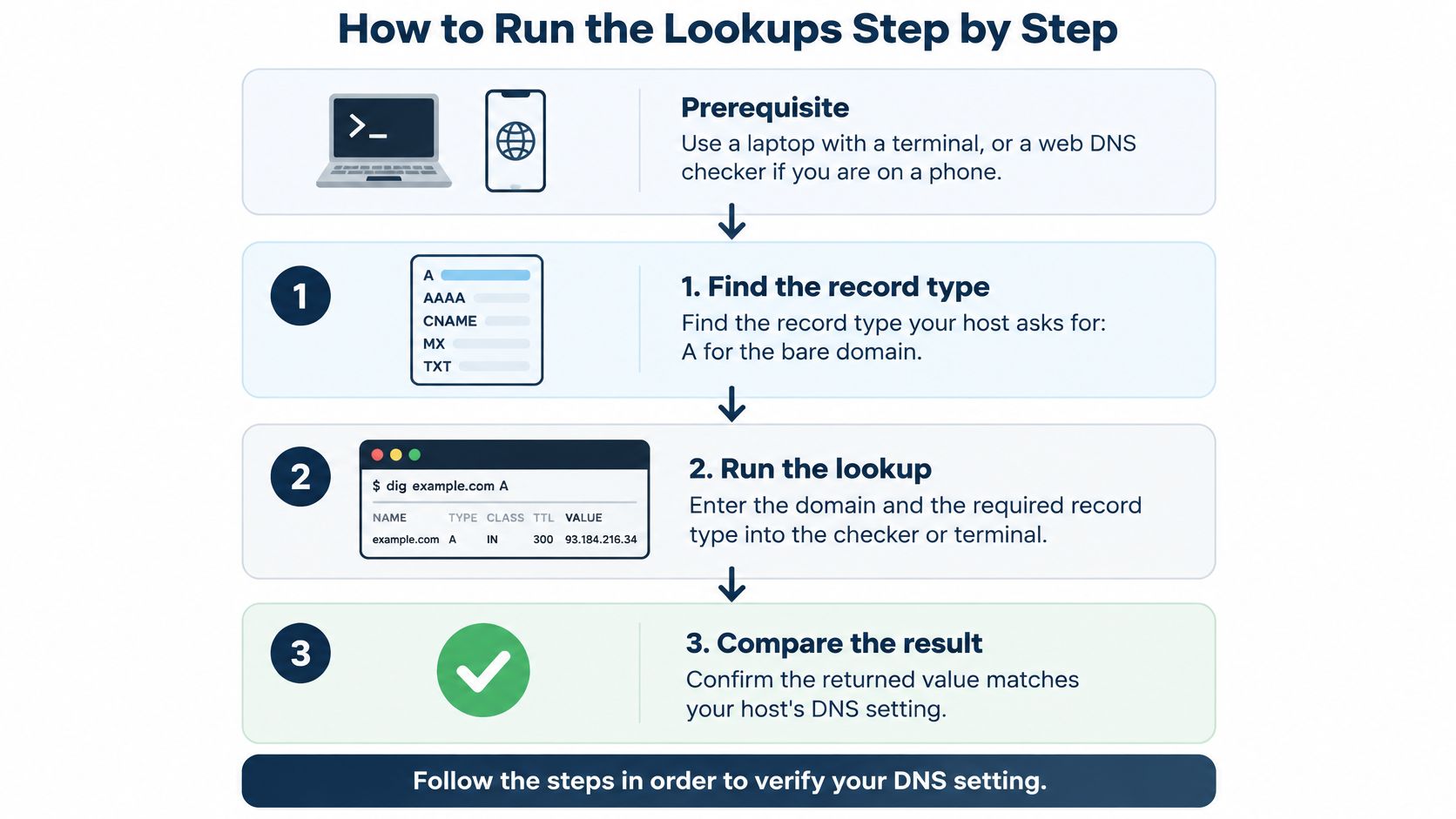
The numbered routine
- Find the record type your host asks for. That is usually an A record for the bare domain, like yourdomain.com, and a CNAME for www.
- Find the authoritative nameservers with
dig NS yourdomain.com. Authoritative means the provider whose records count as the original. - Ask one of those nameservers directly with
dig @ns1.provider.example yourdomain.com A +noall +answer, replacing ns1.provider.example with a name from step 2. This answer decides your next move: a wrong answer here means fix the zone, not wait. - Ask two public resolvers with the same query, changing only the address after @ to 8.8.8.8 and then 1.1.1.1. Resolvers are the services browsers ask, and they may still hold an older cached answer.
- On Windows, use PowerShell instead. Run
Resolve-DnsName yourdomain.com -Type A, ornslookup yourdomain.comif you prefer the older tool. - Read the TTL column in each answer and note when you changed the record. That tells you how long an old answer can fairly survive.
- Open https://yourdomain.com in a private window. Check the padlock, the hostname in the address bar, and that the page is the one you expected.
A clean pass looks like agreement between the authoritative server and at least two geographically separate recursive resolvers, plus an HTTPS request that returns the intended hostname and certificate. If the domain changed recently, different networks can show different answers while caches age out. Google's guidance on DNS and network errors puts the slowest cases at up to 72 hours.
This short video walks through the same lookups visually if you would rather watch before typing.
Don't rely on a screenshot of one lookup. Write down four things for each test.
- Resolver: The server you asked, such as the authoritative nameserver or 8.8.8.8.
- Record type: A, AAAA, CNAME, or NS.
- Command or TTL: The exact query you ran and the TTL in the answer.
- Time and place: When you tested and which network or location you tested from.
If you use a web checker, enter the domain, choose the record type, and note which tool and location gave each answer. Then compare the public answers against the authoritative one from step 3. Agreement points to cache. A mismatch on the authoritative answer points to a record to fix.
How TTL Controls How Long Changes Take
A TTL is a countdown attached to every DNS answer. It tells a resolver, in seconds, how long it may keep that answer before asking again. Set a 24-hour TTL on an A record and change the address at 9 a.m., and a resolver that fetched the old answer can keep serving it until 9 a.m. the next day.
The Cloudflare guide to common DNS issues gives the conversions plainly and notes that most TTLs are six hours or less: 300 means 5 minutes, 3,600 means 1 hour, and 86,400 means 24 hours. The same guide treats 86,400 seconds as a common ceiling for ordinary records.
| TTL or setting | Duration | Best used for | Trade-off |
|---|---|---|---|
| 300 seconds | 5 minutes | Planned cutover or migration | More DNS queries, more load on the provider |
| 3,600 seconds | 1 hour | Everyday sites that change now and then | Balanced speed and freshness |
| 86,400 seconds | 24 hours | Stable sites that rarely change | Fixes can take up to a day to reach everyone |
| SOA minimum | Negative-cache window | Newly created records | Cached "not found" follows the SOA value, not the new TTL |
A long TTL speeds up repeat visits and cuts query load. On migration day it works against you, because every resolver that already holds the old answer can keep using it until its countdown ends. Lower the TTL a day before a planned change, not on the day. Lowering it does not clear answers that resolvers already stored under the old, longer TTL.
The TTL tells you how long an old answer is allowed to live. It does not tell you whether the provider has the right record. Query the authoritative nameserver for that. If the authoritative server returns the new address, the delay is cache. If it returns the old address, the change never landed where it matters, and waiting will not fix it.
The negative caching exception
Negative caching trips people up. If a resolver asked for files.example.com before that record existed, it can remember the "not found" answer. That memory follows the SOA value, which is the zone's basic settings record. Lowering the TTL on your new A record won't clear that earlier "not found". One person sees the new site, another still gets a missing-domain error, and both are telling the truth.
Practical rule: Compare the TTL in the answer with the time since you made the change. If less time has passed than the old TTL, an old answer is still fair game.
Diagnosing Stale Cache, Wrong Settings and SERVFAIL
The most common waste of time here is waiting two days for a change that was saved at the wrong provider. Propagation is resolvers holding cached answers until a TTL runs out. The explanation of DNS propagation on The Bryme frames the question well: how do you distinguish stale cache from an incorrect authoritative configuration? You compare the authoritative answer with the answers public resolvers return.
| Authoritative server | Public resolvers | Likely cause | Action |
|---|---|---|---|
| New address | Old address | Cached TTL still running | Wait for the old TTL to expire, then retest |
| Old address | Old address | Change saved at the wrong provider | Edit the record at the provider the domain actually uses |
| New address | New address | Records are correct | Check HTTPS, certificate and server-side hostname |
| Nameservers differ from registrar | Mixed answers | Wrong delegation | Update nameservers at the registrar |
| No answer or SERVFAIL | No answer or SERVFAIL | Possible DNSSEC or nameserver fault | Run the DNSSEC steps in this section |
The first two rows decide your day. When the authoritative server returns the new address and public resolvers return the old one, waiting is the right move and nothing else needs touching. When the authoritative server itself returns the old address, waiting will never fix it. You edited records at a provider your domain doesn't use, so the live records never changed.
Delegation causes the same dead end in a different shape. If the registrar lists different nameservers from your DNS provider, your careful record edits happen in a zone nobody asks. Delegation is the registrar's pointer to your provider, so fix it at the registrar before you touch anything else. And if your browser, your phone, and a public checker disagree, record which resolver each one used before you trust any of them. A tool like our site health checker can sanity check the live result once DNS itself looks right.
When the answer is SERVFAIL
SERVFAIL means the resolver tried and failed to get a trustworthy answer. When you see it, test DNSSEC before you change hosting records. The Google Public DNS troubleshooting guide for domains identifies a validating lookup that fails while a non-validating lookup succeeds as evidence of a DNSSEC configuration problem.
- Run
dig example.com A +dnssecand look for an RRSIG, which is the signature record, in the answer. - Compare a validating lookup with a non-validating one. If only the validating lookup fails, suspect DNSSEC.
- Confirm the DS record at the registrar matches the active DNSKEY at your provider. Those are the two halves of the signing setup.
- Check that signatures haven't expired and that all nameservers serve the same signed zone.
- Test the resolver with dnssec-failed.org. A validating resolver returns SERVFAIL, while a non-validating one returns NOERROR.
A DS mismatch often survives a provider switch, because the old keys stay at the registrar after the move. The site then fails for visitors whose resolvers validate, and works for everyone else. That split result looks like a caching problem and isn't one.
Checking a Custom Domain on a Static Host
On mariafernandez.design, the bare domain loads the new portfolio. The www version still shows a trial page. The bare domain and www each use a different record, so check them separately.
The bare domain usually uses an A record, plus an AAAA record if the host provides an IPv6 address. The www name usually uses a CNAME pointing at the host's hostname. Fixing one record does not fix the other.
Work through the domain in order
- Confirm the host's required target for each record in its DNS guidance. Copy values exactly, because one wrong character sends visitors elsewhere.
- Delete parking or template records the registrar left behind. New domains often come with placeholder A and CNAME records pointing at a parked page. If you add your records without removing those, visitors can get either answer.
- Confirm www is a CNAME and not also an A record. A name cannot be both. For example, if
dig www.example.com CNAME +shortreturns an IP address instead of a hostname, the www record was added as an A record, and you should replace it. - Confirm no AAAA record points to another server. A correct A record with a wrong AAAA record gives you the classic split result, fine on your laptop, broken on a client's newer phone network.
- Load the domain over HTTPS and confirm the padlock, hostname, and page all match what you expect, for both the bare domain and www.
Leftover records cause more "it works for me" arguments than slow propagation ever will. Remove them before you blame the wait.
Step 2 needs a slow minute. Open the full record list at your provider and account for every line. If you don't know why a record exists and it points your name at a parking service or an old host, treat it as a suspect. Keep records your email depends on, such as those your mail provider asked for. Remove only the website records that conflict with the new host.
If you use a host such as Upfling's free static site hosting, the pattern is the same. Your host gives you the exact target values, you enter them at the provider your domain uses, and you verify with the lookups above. Your domain's DNS configuration stays yours to manage, which is why this check matters.
One more example. The bare domain works but www shows a certificate warning. DNS may be correct for both names, while the host has not been told to serve www yet. Add both names in the host's domain settings, then retest. DNS delivers visitors to the door. The host still has to recognize the name they knocked with.
Confirm the Records Before You Change Anything Else
A lookup for shop-example.com returns the new address from the authoritative server, yet a phone on a different network still shows the old page. That split means one job remains. Decide whether to wait or to fix.
The recap is short. Section 4 gave the table for the three cases. Correct at the source and stale elsewhere means waiting helps. Wrong at the source means editing helps. Use that same split here and stop rechecking everything else.
Set a retest time and stop once the authoritative answer is correct. Write down the resolver you used, the record type, the exact time, and the location of the test. One line per check is enough. Example: 14:05, Cloudflare resolver, A record for www.shop-example.com, office connection, old IP. Repeat the same line at 15:05. The comparison shows movement. Without those four details you argue from memory.
Those four details also give support something useful if the problem persists, far better than a vague report. If you are still deciding what kind of site you are connecting, our guide to what a static website is covers when a simple static setup is enough.
Run the authoritative check first. If it is wrong, change one record at a time and test after each change, so any new fault has an obvious cause. If it is right, close the DNS panel and let the caches expire. Slow networks catch up on their own schedule. Retest from a second resolver after the old TTL passes.
Once your records check out, you still need somewhere simple to put the site itself. Upfling turns an uploaded folder, ZIP, or single file into a live link in seconds, with free SSL and custom domain support, so you can connect the domain you just verified and share the result. Upload your files, point your DNS as checked above, and send the link.