How to Encrypt a Folder on Windows, Mac and Linux
Learn how to encrypt a folder on Windows, macOS and Linux, with 7-Zip steps, recovery tips and safe sharing advice for beginners.
You just dropped last year's tax PDFs into a folder named Taxes, and that laptop also sits on the kitchen table where someone else does homework. Or a client wants a folder of contracts tonight, and a plain email feels too open. You need to encrypt a folder before another person can read it, and you need a way back in if the password disappears.
Locking the folder is the easy part. The part that hurts is losing the password or the recovery key, then staring at files you still own but can't open. Private storage on one computer and a package someone else can open are two different jobs. Pick the job first.
Pick the Right Folder Encryption Method
Will anyone else need to open this?
If the answer is no, tie the lock to your account or to the whole drive. If the answer is yes, make a password-protected package that can travel. The table sorts the common choices. You only need the first private-folder row or the archive row.
| Method | Platform | Best for | Opens on another device? | Difficulty |
|---|---|---|---|---|
| Windows EFS (Encrypt contents to secure data) | Windows Pro or Enterprise, NTFS drive | Private folder on one PC | No, tied to your Windows account | Easy |
| BitLocker | Windows Pro, Enterprise or Education, whole drive | Protecting a lost or stolen laptop | Only with the drive and its recovery key | Easy |
| 7-Zip AES-256 archive (.7z) | Windows, Mac, Linux | Sending or carrying a folder | Yes, with the password | Easy |
| ZIP with AES encryption | Windows (7-Zip), Mac, Linux | Quick shares with a single file | Yes, if the recipient's app supports AES ZIP | Easy |
| Mac encrypted disk image | macOS | Tax papers or client files on a USB drive | Yes, on any Mac with the password | Easy |
| GnuPG symmetric encryption | Linux, Mac (Terminal) | Scripted or archived folders | Yes, with the passphrase | Medium |
| eCryptfs home directory | Linux (Ubuntu) | Encrypting a whole home folder at setup | No, bound to the user account and machine | Advanced |
Windows EFS is the right row when two people share one Windows PC and only your account should read a folder. You stay signed in, and the folder opens like any other folder. It is a poor way to hand files to someone else.
BitLocker protects the whole drive, which is what you want if the laptop itself might be lost. Microsoft's device data protection training draws the boundary: BitLocker protects files while they remain on that drive, and copying an ordinary file to a plain USB stick does not keep the copy protected. EFS protection can follow the file, but only while the authorized account and permissions are still available.
A 7-Zip AES-256 archive is the row for sending or carrying a folder across Windows, Mac, and Linux. A Mac encrypted disk image fits tax papers that will be opened on another Mac. AES ZIP is a quick single-file share when the other app supports it. GnuPG fits a scripted archive. eCryptfs locks a whole Linux home folder to that account and machine, not one folder you plan to mail.
Match the row to the person who must open the folder. A tool that only works on your PC will not become a sharing format later.
How to Encrypt a Folder on Windows
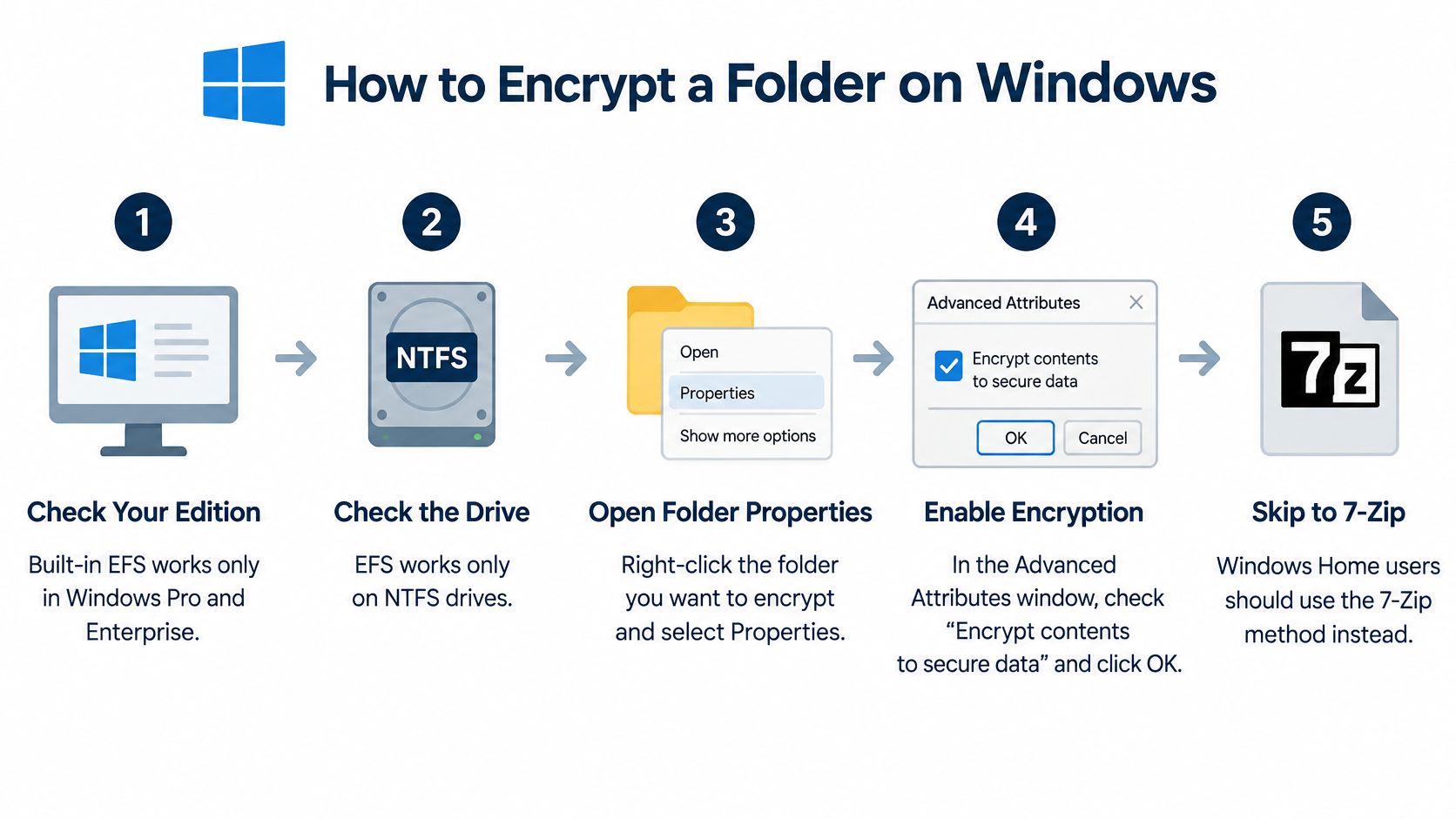
Start with the edition and the drive. Built-in Encrypting File System (EFS) works on NTFS volumes in editions such as Pro and Enterprise. Windows Home does not include this checkbox, so skip to the 7-Zip method instead of hunting for a missing button.
Turn the folder lock on
Microsoft's EFS documentation) describes this as protection for individual files on NTFS, not as a sharing format. The same security baseline treats AES-128, AES-192, and AES-256 as acceptable strengths, names GCM/GMAC and CCM as acceptable authenticated modes, and disallows obsolete two-key Triple DES for modern use.
- Right-click the folder in File Explorer and choose Properties, so you are changing that folder rather than a shortcut.
- On the General tab, click Advanced. The encryption switch lives in Advanced Attributes, not on the Security tab.
- Tick Encrypt contents to secure data and click OK. That flag is what marks the folder for EFS.
- Choose whether the change applies to this folder only or also to subfolders and files, then click OK. Include existing contents if those files are already inside.
- When Windows offers to back up the encryption certificate, export it to a USB drive and protect that file with a strong password. Do not leave the only copy on the same PC.
Anything you add to that folder later is encrypted automatically. Your signed-in account still opens the files with a normal double-click, because Windows releases the key at login. EFS does not replace account passwords, antivirus, or backups.
Prove another account is refused
Sign out, sign in with a different account on the same PC, and try to open the folder. You should be refused. Then sign back in as yourself and confirm you still can. If you lose the Windows account password and you never exported the certificate, those files can stay encrypted and unreadable even though they are still on the disk.
How to Encrypt a Folder on Mac
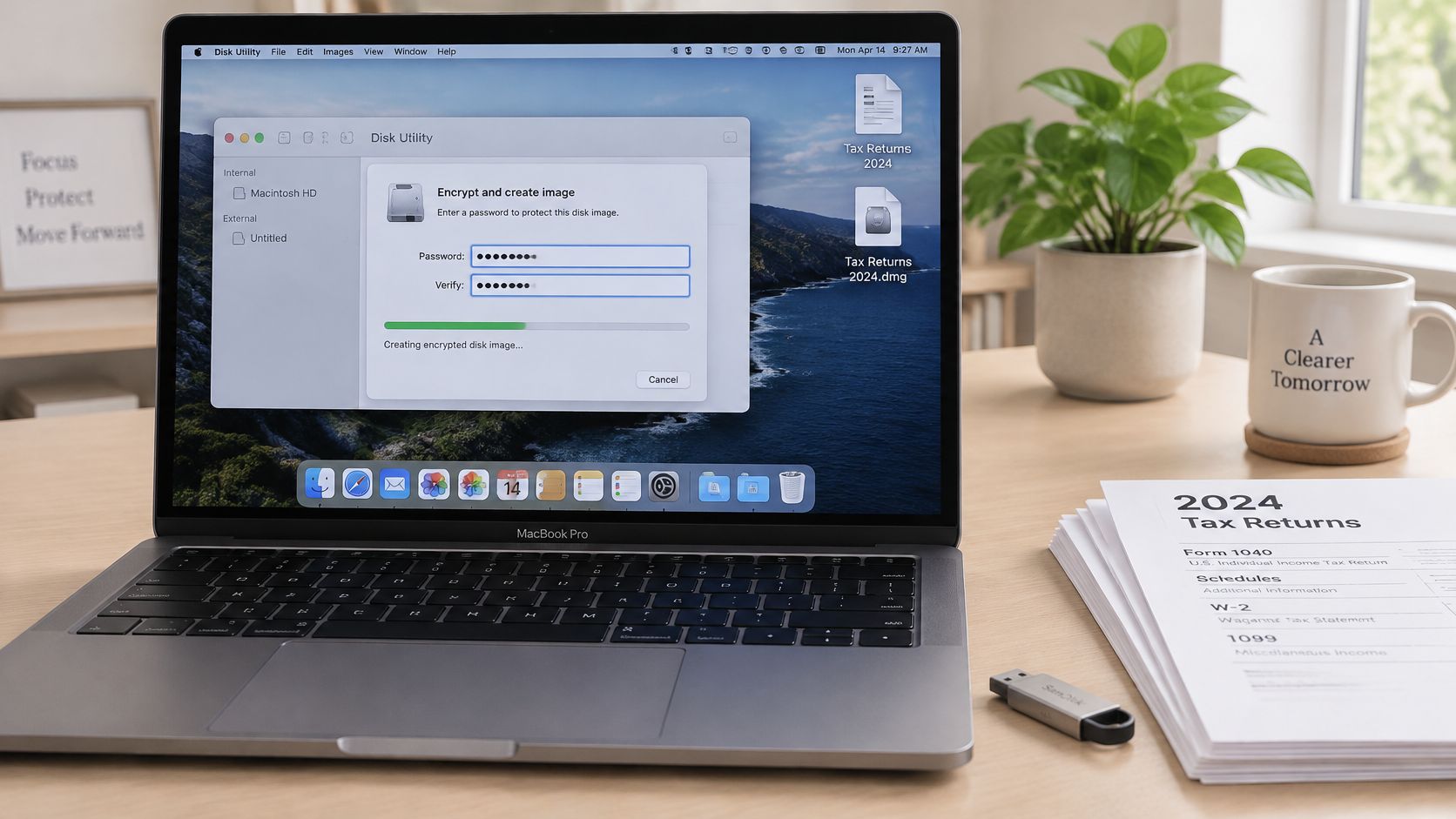
Say your tax documents need to sit on a USB stick that you will plug into another Mac. Disk Utility turns that folder into one encrypted image file. After the password, the image mounts like a normal drive, and you can open, copy, and move files the usual way.
Build the image
Apple's security guide supports 128-bit and 256-bit AES for these images, and it warns that a forgotten password blocks the files because Apple can't recover them.
- Open Disk Utility from Applications, then Utilities.
- Choose File, New Image, Blank Image.
- Name the image, pick a location, and set a size slightly larger than the folder's contents so you have room to drop files in.
- In the Encryption menu, choose 256-bit AES. The stronger option costs you nothing extra at this size.
- Enter the password twice. Save it to Keychain only on a personal Mac you control.
- Click Save, open the mounted image, and drag the folder into it.
- Eject the image before you copy it to the USB drive. Ejecting writes the closed file you want to carry.
The image opens on any Mac that has the password. It is a file, not a live folder, so later edits in your original Taxes folder do not flow back in. Drag the changed copies into the mounted image again, then eject.
Store that password somewhere you can still reach after the USB stick is in a drawer. There is no reset link.
How to Encrypt a Folder on Linux
Install the package first. It is p7zip-full on Ubuntu or Debian and 7zip on Fedora, so sudo apt install p7zip-full or sudo dnf install 7zip puts the 7z command on your path. Everything below runs from that one binary.
- Open a terminal and
cdto the folder that contains the one you want to protect. Running the command from the parent keeps the archive beside the original. - Run
7z a -t7z -mhe=on -p secure-folder.7z secure-folder. This creates a 7z archive, prompts for a password, and hides the filenames inside. - Type the password twice and wait until
secure-folder.7zappears. - Test it with
7z t secure-folder.7z. A message that there are no errors means the archive can be read.
If you would rather not touch the terminal, right-click the folder in your file browser and use the archive manager to build a 7z file with a password. That is the same procedure used on Windows and Mac, and the archive opens on either.
When the folder is already a tarball, GnuPG gives you one locked file: gpg --symmetric --cipher-algo AES256 archive.tar writes archive.tar.gpg, and gpg -d archive.tar.gpg restores the tarball on any machine with GnuPG installed. The passphrase is the only key to that file. Lose it and the contents are gone, so write it down somewhere other than the disk holding the archive.
eCryptfs, the install-time option in the method table above, encrypts an entire home folder rather than one folder you might hand to someone else.
Make an Encrypted Folder That Opens Anywhere
Use this when the folder has to leave the device, by email, USB stick, or cloud. Do not use the built-in Windows "compressed folder" command. That ZIP does not encrypt. Old ZIP encryption is weak even when a password box appears.
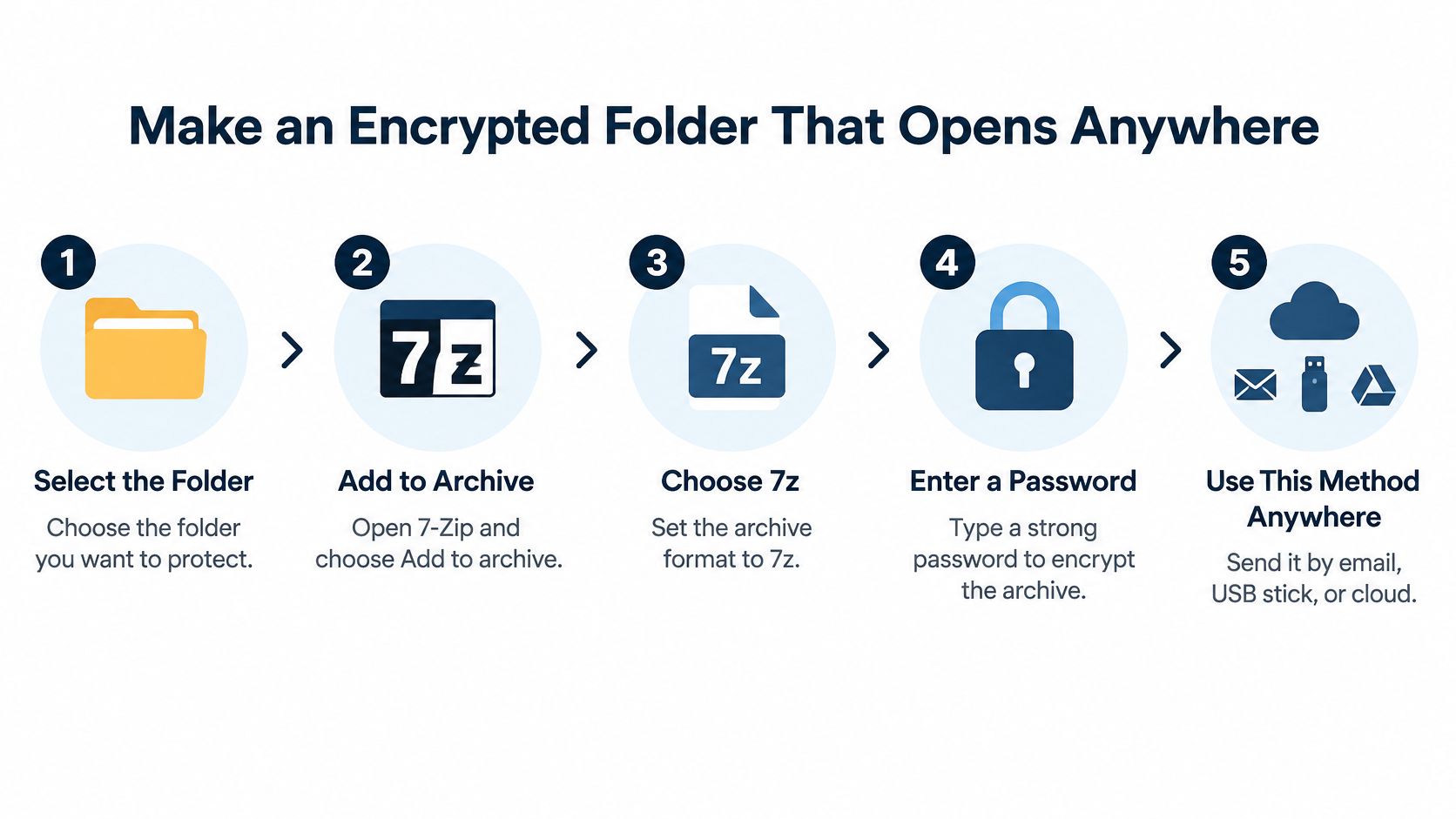
The 7-Zip manual specifies AES-256 and an SHA-256-based key derivation function. Repeated hashing makes password guessing slower.
- Select the folder and choose Add to archive.
- Set the archive format to 7z.
- Enter a long, unique password twice. Generate it in a password manager rather than reusing a phrase.
- Select AES-256, turn on header encryption so filenames are hidden, and create the archive.
Open the archive on a different device and confirm every required file opens before you delete the original. Recipients need 7-Zip on Windows, Keka or The Unarchiver on Mac, or p7zip on Linux. Send the password by phone, text, or a password-manager share, never in the same message as the file. A direct file link is a different job from this archive, and it does not replace the password. One archive is not a backup. Keep at least two encrypted copies of anything sensitive.
Keep Passwords and Recovery Keys Safe
An encrypted folder you can't open is as lost as one an intruder took. Confidentiality encryption stops unauthorized reading. Ransomware encryption makes data unavailable to its owner. Both fail when there is no tested way back. Sophos reported in 2025 that 97% of organizations whose data was encrypted by ransomware recovered it somehow, while only 49% paid the ransom and got their data back, and backup-based recovery had fallen to its lowest rate in six years.
| Method | What you need to get back in | Where to keep it | If you lose it |
|---|---|---|---|
| Windows EFS | Your Windows account password and the exported certificate file | Password manager and a USB drive kept apart from the PC | Files stay encrypted and unreadable |
| BitLocker | The 48-digit recovery key | Microsoft account or a printed copy in a safe place | The drive stays locked |
| 7-Zip .7z archive | The archive password | Password manager, separate from the archive | No way to open the archive |
| Mac encrypted disk image | The image password | Password manager | Apple cannot recover the files |
| GnuPG or eCryptfs | The passphrase or account login | Password manager and a sealed backup | Data cannot be decrypted |
Generate long, unique passphrases and keep them in a reputable password manager, not in a desktop note. Keep recovery material apart from the encrypted files. Never send the password on the same channel as the archive. Keep at least one isolated copy, such as an external drive stored away from the computer. Restore one sample file every few months.
For a shared folder, at least two trusted people should know where the password is kept. A hosting service is not your only copy of anything you care about, and we should not be treated as that only copy. A locked folder also fails if the same papers sit in a PDF whose hidden text remains. Some PDF redaction stays recoverable after the page looks blank.
Decide Between Private Storage and Safe Sharing
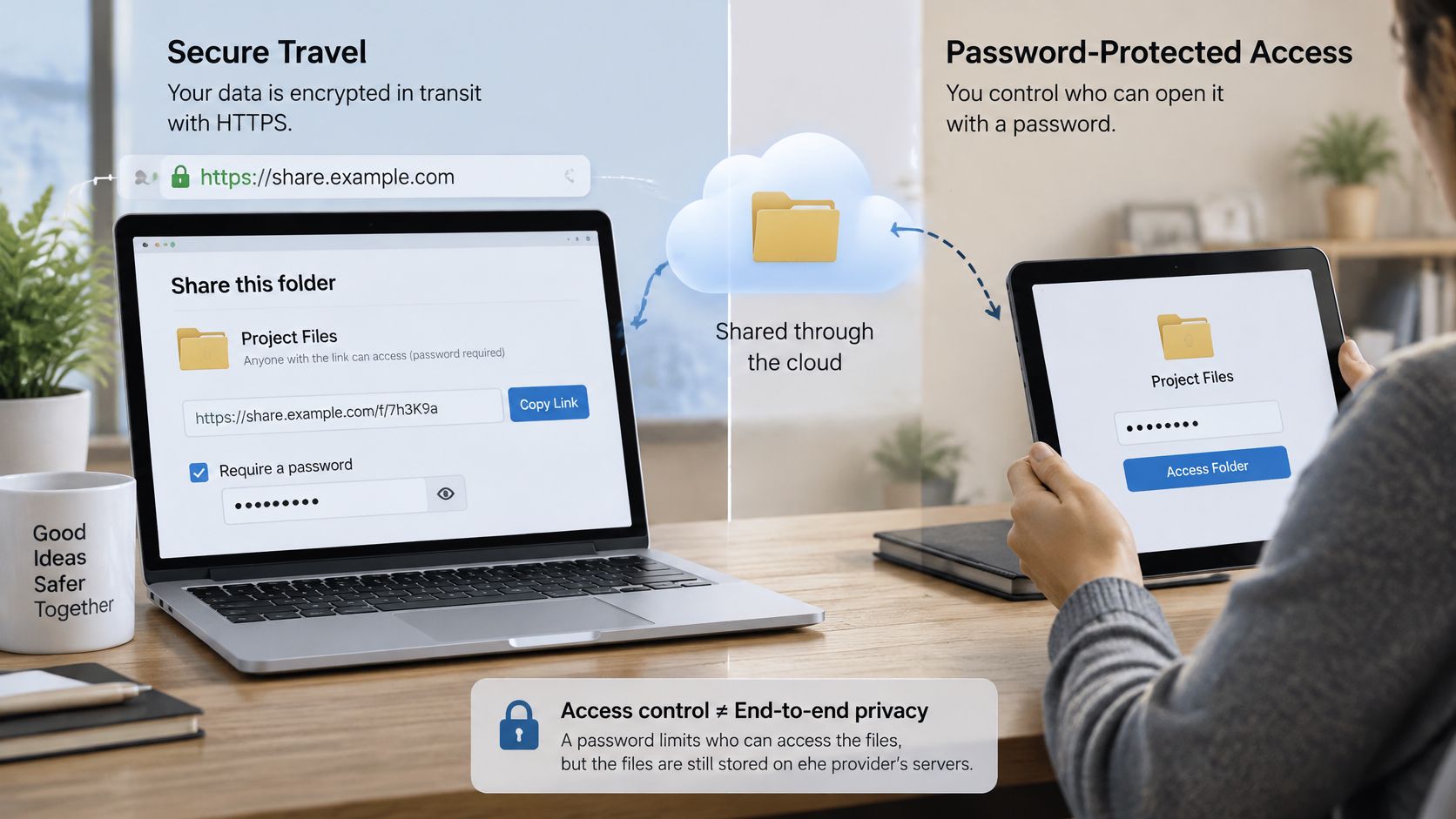
Sharing changes the question. People often assume a link is encrypted because the address starts with HTTPS, or because the page asks for a password. Microsoft's file and folder encryption guidance is about protecting the files themselves. HTTPS protects the trip. A password on a public page controls who can open that page. Neither one automatically means the uploaded contents are end-to-end encrypted.
Three paths
Keep it private. Stay with EFS, BitLocker, or a Mac image when the folder should not leave your control. Another person does not get a password, because the lock belongs to the account or the drive.
Send a package. Use the 7z archive when a specific person must open the files on their own computer. Give them the password on a separate channel. They can work offline, and you are not relying on a website login.
Publish for viewing. Use hosting when the goal is a page or a document someone should read in a browser, not a vault for sensitive originals. We put a folder, PDF, image, document, or ZIP online in about 20 seconds by a drop onto the site. Password protection is available on Lite, Pro, and Business plans. You can replace files without changing the URL, rename the slug, put a password on a link, edit in the browser, or delete with one click. That fits web pages, PDFs, and documents meant to be viewed. If the file is a PDF you want people to open in a browser, you can share a PDF online after you have already decided it is safe to publish.
A viewable link is not a substitute for an encrypted archive. Encrypt first when the contents themselves must stay unreadable to anyone but the recipient.
Before you share anything:
- Encrypt a copy of the folder you intend to hand over, and leave your master files untouched.
- Test that copy on another device so you know the password and the format work.
- Store the password in the password manager, away from the file.
- Then choose the path, private storage, a traveling archive, or a viewable link.
If a finished folder, PDF, or ZIP is meant to be viewed rather than locked in a vault, we turn that upload into a shareable HTTPS link in about 20 seconds, with password protection available on paid plans. That publishing step still sits beside folder encryption, not instead of your own backup. Visit Upfling when the file is ready to go online.