What Is a ZIP Archive? Uses, Internals, and Safety
Learn what is a ZIP archive, how ZIP files package and compress content, when to use them, and how to handle ZIP files safely.
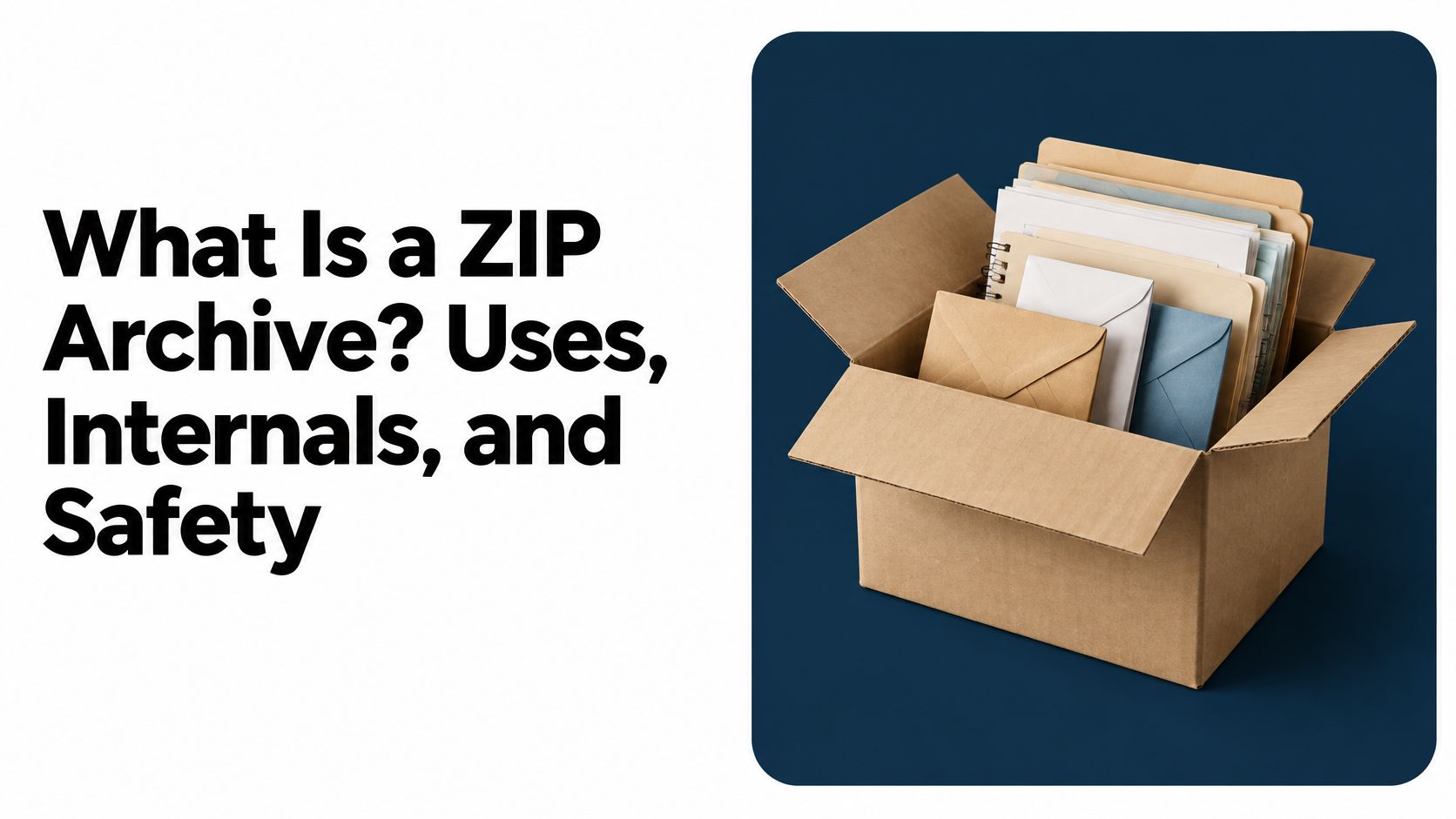
A ZIP archive is a single container file that packages one or more files and folders, optionally compressing each entry to reduce storage or transfer size. It lets you move a collection as one package instead of handling every item separately.
Perhaps you've just downloaded course materials, received a website folder from a freelancer, or found an unfamiliar .zip attachment in your inbox. Before you click anything, it helps to understand what's inside, what extracting does, and which checks deserve your attention.
Why People Use ZIP Archives
A freelancer finishes a client's website and needs to hand over the pages, photographs, and supporting files. Sending everything separately would leave the client sorting attachments and wondering which folder each item belongs in.
Putting the project into a ZIP archive gives the freelancer a single package to send. The recipient can recover the filenames and directory structure rather than reconstructing the project from loose attachments.
Organization comes before compression
The same approach works for ordinary paperwork. Consider these everyday uses:
- Course submissions: A student can group an assignment, supporting notes, and illustrations into a clearly named package.
- Tax records: Someone preparing documents for an accountant can keep statements and receipts together.
- Project handoffs: A designer can deliver related documents and images without asking the recipient to organize each download.
These are illustrations of ZIP's role as a portable container, not claims about particular users. Its usefulness doesn't depend on making every file smaller.
ZIP's long history helps explain its familiarity. The format originated in 1989 with Phil Katz's PKZIP utility, and its public-domain release allowed other developers to make compatible readers and writers without licensing fees, as described in the history of PKZIP and the ZIP format.
Decide what the recipient actually needs
A package makes sense when someone needs the underlying files. A published page is more appropriate when they only need to view a finished website.
For example, a client reviewing a landing page may prefer a browser address over a folder to unpack. A free static-site hosting workflow addresses that different goal: making a site available to visit.
Choose the delivery method around the task. Sending project materials and presenting finished work aren't always the same job.
What Is a ZIP Archive
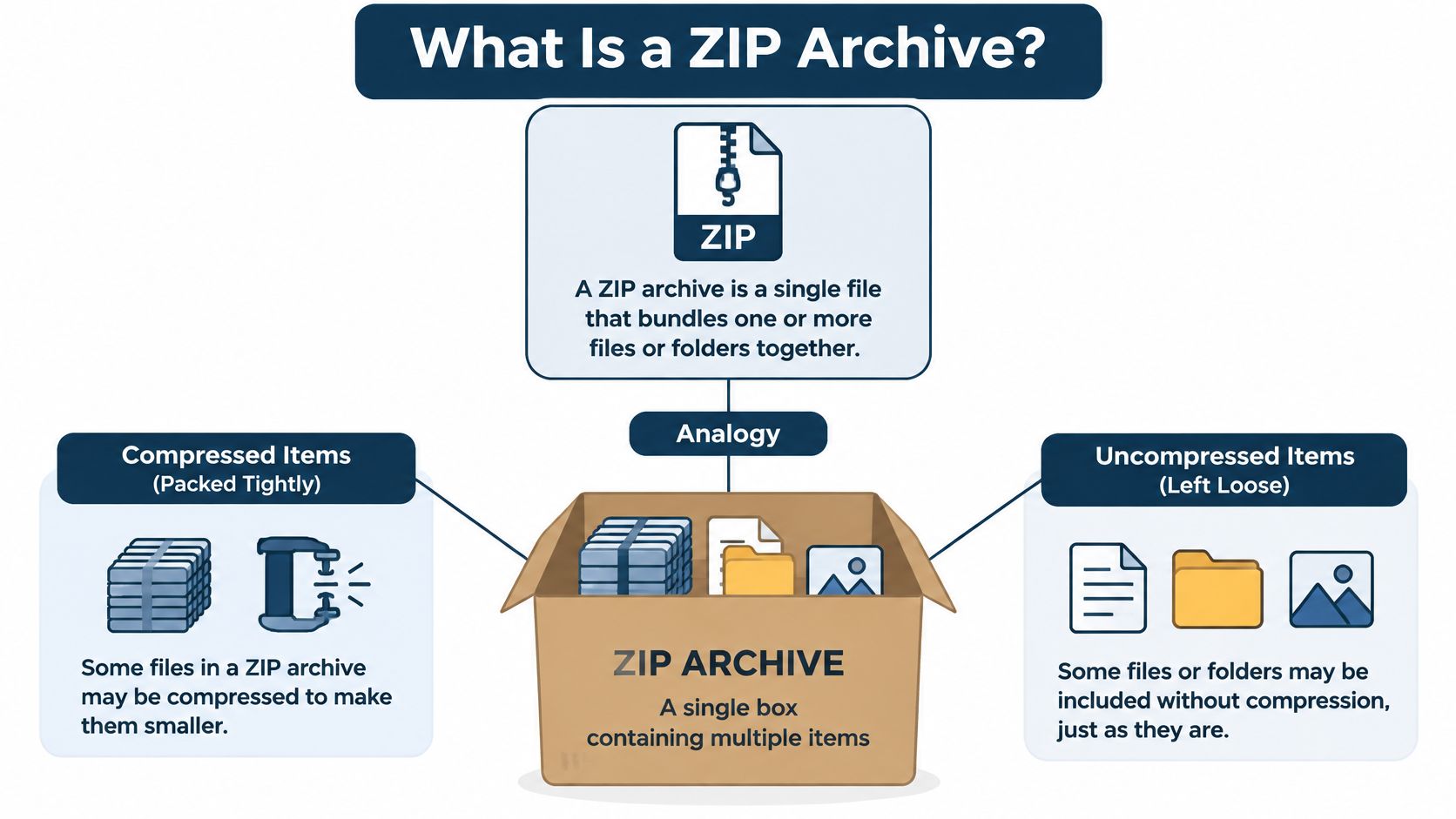
A ZIP archive is a container that holds separate file entries, optionally compressed, inside a single file. Think of a labeled storage box: the box is one object to carry, but the items inside remain distinct.
Some items can be packed tightly. Others fit better unchanged. Either way, putting them in the box doesn't turn them into the same kind of item.
The storage-box analogy makes the relationship easier to see.
Read the extension as a package label
The .zip extension identifies the outer archive. It doesn't tell you whether the contents are photographs, documents, website files, or a mixture.
For example, suppose a course folder contains notes and three PDFs. Packaging that folder as course-materials.zip creates one transportable object, while the documents remain separate entries inside it.
Those entries have names and paths. A path is an item's location within the folder arrangement, such as a receipt inside a folder called receipts. Metadata is the accompanying descriptive information, such as file sizes and compression choices.
The ZIP file-format overview) describes this per-file structure and the format's ability to hold both compressed and uncompressed entries.
Separate archiving from compression
Archiving means collecting items into a package. Compression means representing their data more compactly.
They often happen together, but neither word means the same thing as extraction, which is taking the contents back out as ordinary files and folders. You don't need to understand the archive's technical layout to use those distinctions.
A useful question is not just “What is a ZIP archive?” but “What do I need from this package?” You might want to inspect its contents, recover a document, or unpack an entire project.
A ZIP archive packages files together. Making those files smaller is an optional part of the job.
How ZIP Archives Store Files
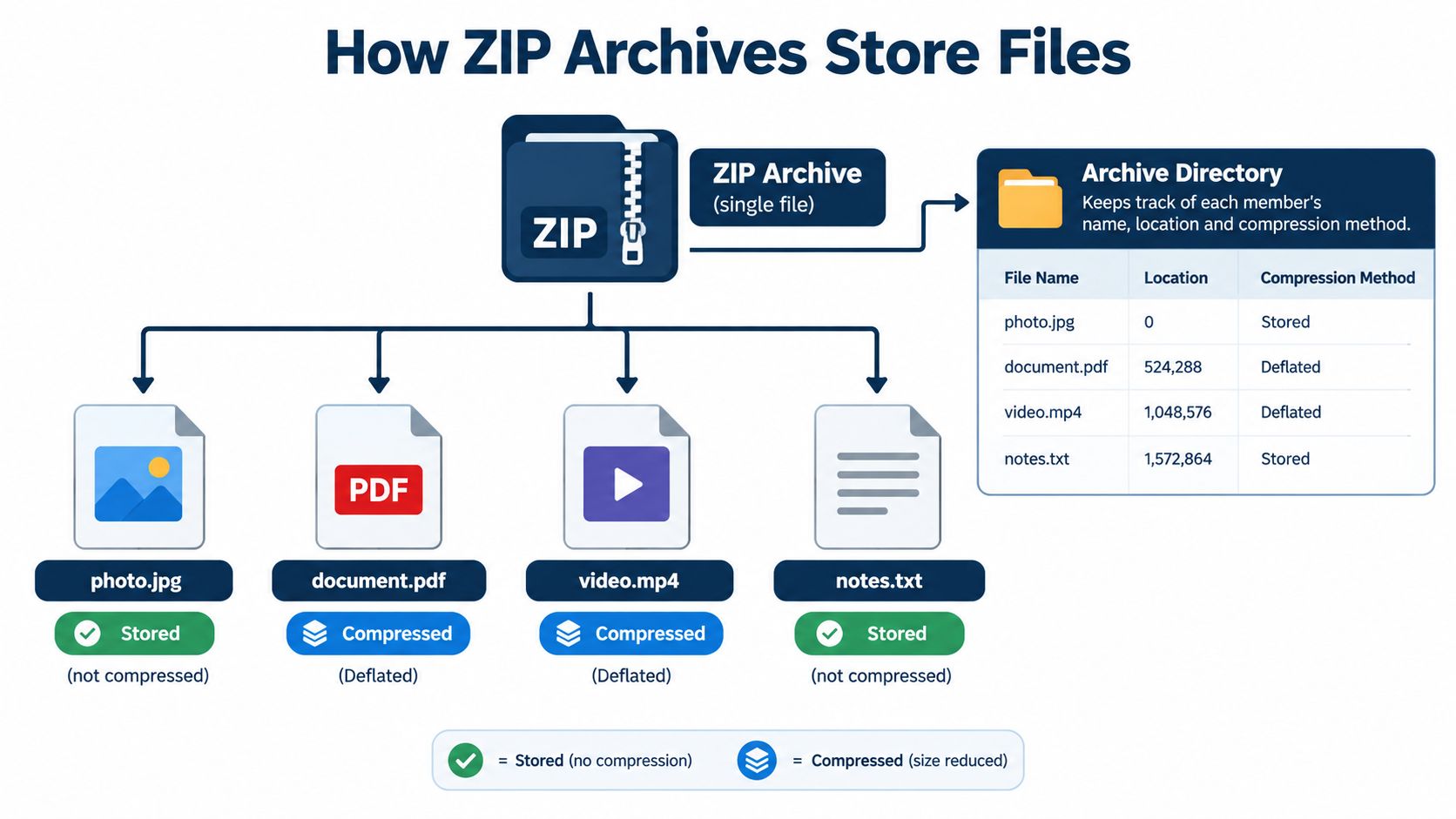
Inside a ZIP archive, the contents aren't necessarily one continuous compressed block. Each member, the technical name for an individual entry, has its own record and storage method.
A typical record begins with a local file header, followed by that member's compressed or uncompressed data. Think of the header as an identification slip attached to an item.
The archive also includes a central directory near its end. This acts like a contents map, recording filenames, paths, sizes, compression methods, and offsets, which are positions within the archive.
The directory helps software find an item
When you open a ZIP and see a file list, the extraction software can use that directory rather than unpacking every member first. If you choose a particular document, the software can locate its data directly.
The technical documentation for ZIP handling explains the archive's directory information and support for different per-file compression methods. The practical result is selective access: looking at the list and extracting the contents are separate operations.
This diagram shows the relationship between the members and their directory.
| Archive component | Plain-language purpose |
|---|---|
| Local header | Identifies an individual member and its properties |
| Member data | Contains the stored or compressed file contents |
| Central directory | Helps software list members and locate them |
A readable file list isn't a complete check
ZIP metadata also records CRC-32, a value an extractor can use to detect many corruption cases after decompression. The ZIP integrity and extraction documentation describes these checks and warns about handling untrusted archives.
Seeing filenames successfully doesn't prove that every payload will extract correctly. Nor does an integrity check establish that a file is harmless.
Keep the outer package and the contained file type separate in your thinking. If an extracted item has an unfamiliar extension, follow guidance for that format, such as this guide to opening a 3MF file, rather than assuming that unzipping answers every compatibility question.
Why ZIP File Sizes Change
Compressing a folder of text is different from compressing a folder of holiday videos. The difference lies in how much repeated or already-compressed data the files contain.
Think of packing a suitcase. Loose clothing offers room to squeeze things closer together; a tightly packed pouch offers much less. Compression has a similar limit: some content has more opportunities for a compact representation than other content.
Compare the contents, not just the folder size
| Content you're packaging | What to expect |
|---|---|
| Plain-text notes, CSV data, HTML, or source code | Repeated patterns can often be represented more compactly |
| JPEG photographs or MP4 video | Existing compression may leave little room for further reduction |
| PDF documents | Results vary because many PDFs already contain compressed content |
| Mixed project folders | Different members may produce different savings |
These differences are described in the technical explanation of ZIP compression methods. They're why a nearly unchanged archive size isn't, by itself, evidence that something went wrong.
Store and DEFLATE do different jobs
Store leaves a member uncompressed. DEFLATE uses repeated-pattern matching and coding to represent suitable data more efficiently.
For everyday use, these are the most relevant methods to recognize. ZIP supports other methods too, but a recipient's extraction software must understand whichever method the creator selected.
A practical example is a folder containing a text-based report and photographs. The report may shrink noticeably while the photographs change little, even though they're all inside the same package.
Practical rule: Expect compression to depend on the contents. Don't treat
.zipas a promise of a particular size reduction.
You usually don't need to choose advanced settings. For a routine handoff, prioritize a conventional, compatible archive that the recipient can open over chasing the smallest possible package.
Everyday ZIP Archive Examples
ZIP is easiest to understand when you connect it to a task you already recognize. The important question is what you want the recipient to do after receiving the package.
Photo sharing is a familiar example.

Submitting work and handing over a website
For a class assignment, a student might place the final document at the top level and keep supporting images in a clearly named folder. Before submission, the student should inspect the package and remove drafts that the teacher doesn't need.
A freelancer handing over a static website has a different concern. The HTML, stylesheet, JavaScript, images, and fonts need to stay in their intended arrangement.
Extraction isn't deployment. A site can still fail if its entry page is missing, its relative paths are wrong, or its files require a build step before publishing. The ZIP format description for digital preservation provides background on the container format; treating a website as deployable requires checking the project itself.
Upfling is one publishing option for folders and ZIP site archives, with entry-page detection and a live address. That hosting step serves a different purpose from unpacking files on your computer.
Sending photographs or retrieving a resume
For family photographs, the organizational benefit may matter more than compression. Give the package a descriptive name, then check that it contains the intended pictures rather than unrelated files.
If you're sending tax records instead, select only the documents the recipient needs. Keeping materials together shouldn't mean including every file in your personal records folder.
Sometimes you need only a resume from a larger archive. You can extract that item rather than unpacking everything; the original archive normally remains available afterward. If the goal is sharing the resulting document, a file-to-link workflow is another delivery choice.
For a visual companion to these file-handling examples, use the video below.
- For a handoff: Include the materials someone needs to continue working.
- For review: Consider whether a viewable page or document would be more convenient.
- For personal retrieval: Extract only the item you need.
How to Extract ZIP Files Safely
Opening an archive may let you inspect its contents. Extracting, also called unzipping, creates ordinary files and folders at a destination you choose.
A common desktop workflow is to right-click the archive, choose Extract All..., and follow the prompts. You can also open the archive and drag a selected item to another location, as described in the documented ZIP extraction workflow.
Follow a deliberate pre-extraction routine
- Verify unexpected deliveries: Contact the supposed sender through a separate, familiar channel. Don't rely only on the name displayed in an email.
- Inspect the contents: Check whether filenames and extensions match what you expected to receive.
- Scan before use: Use current security software, and scan extracted content as well.
- Choose a known destination: A dedicated folder makes it easier to review what appeared.
- Extract selectively: Recover only what's needed when the rest of the package is irrelevant.
For example, an unexpected invoice.zip that contains a program instead of an invoice deserves a pause, not a double-click. Treat an unexplained executable, script, or instruction to run software as suspicious.
Passwords don't establish trust
An encrypted archive may prevent security tools from inspecting its contents until a password is supplied. Receiving the password doesn't prove that the sender or the files are trustworthy.
The cybersecurity advisory on malicious compressed attachments explains that ZIP and other compressed formats can conceal malware downloaders. That calls for care, not a blanket assumption that every archive is dangerous.
An archive that opens successfully hasn't necessarily passed a safety check.
Give unusual archives extra attention
A small download can expand substantially. If extraction reports unexpected space requirements or produces an unfamiliar arrangement of nested folders, stop and assess whether it matches the intended contents.
For organizations accepting uploads, sensible controls include independent limits on compressed bytes, expanded bytes, file count, path length, and nesting depth. As noted in the integrity documentation earlier, upload systems should also normalize paths, reject traversal components such as ../, and inspect extracted content rather than trusting metadata alone.
ZIP Archive Checklist and Final Takeaways
Before creating or opening an archive, decide what job it needs to do. A package for handing over a project needs different preparation from a document you only want someone to read.
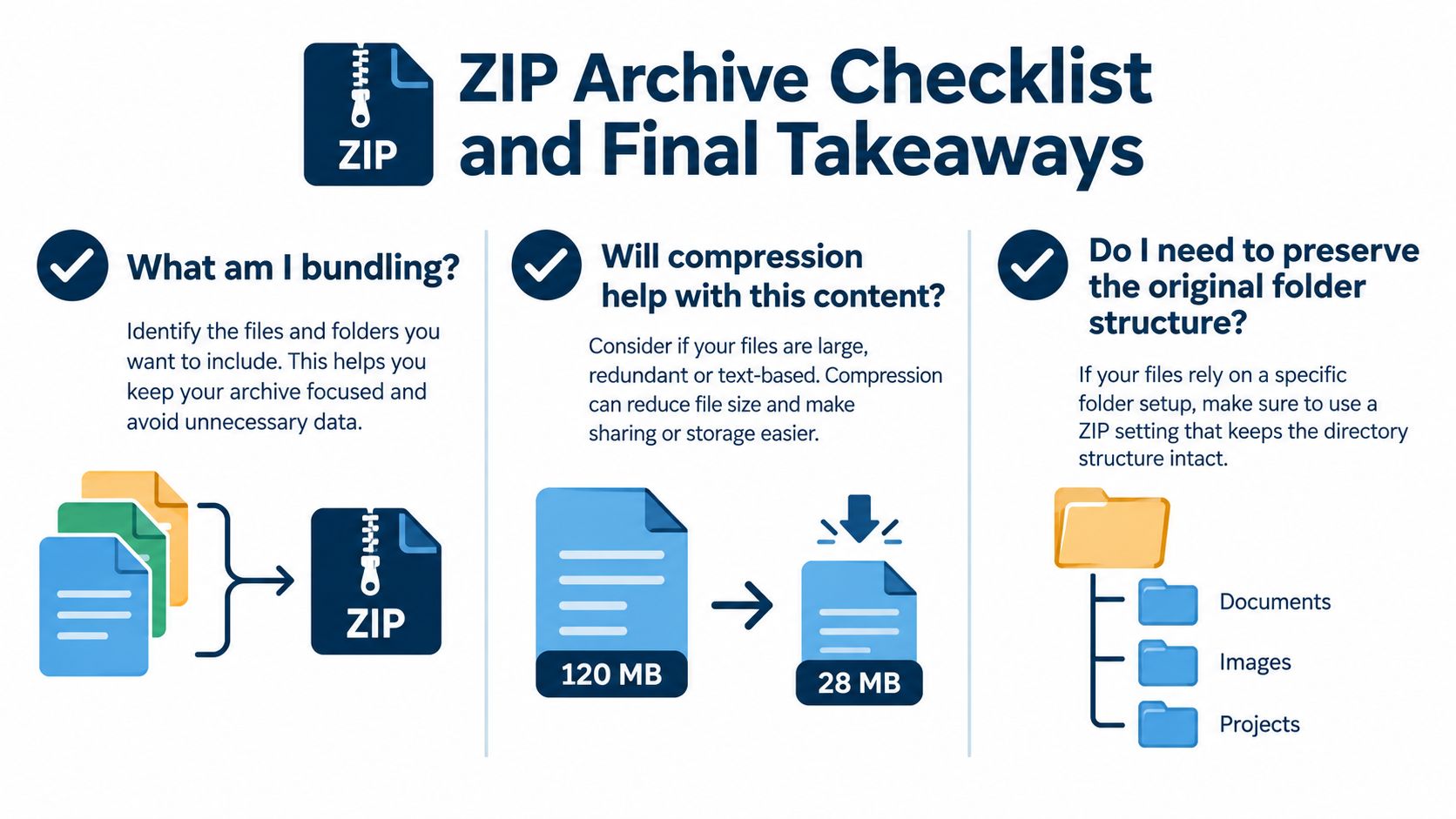
Use this checklist to connect the contents with the next action.
Check the package before proceeding
- What am I bundling? Include the intended files, remove unrelated material, and inspect the final file list.
- Will compression help? Set expectations according to the file types, not a hoped-for reduction.
- Does structure matter? Keep project folders and relative paths intact.
- Is this appropriate to open? Verify unexpected deliveries and review unfamiliar contents.
- What happens afterward? Choose a known extraction folder, or use a publishing workflow if the goal is a live website.
Match the action to the outcome
Packaging, compressing, extracting, and deploying are different actions. Knowing which outcome you want prevents the common mistake of treating a downloaded archive as a finished, published website.
A ZIP archive is a portable container for files, not an automatic guarantee of smaller size, safety, or readiness to publish. Inspect the package first, then take the next step deliberately.
Upfling offers file sharing and static-site publishing from uploaded folders and ZIP site archives. If your package contains a website you're ready to publish, visit Upfling, upload the site archive, and check the published pages and assets before sharing the address.