How to View Docs Online Using Links and Viewers
Learn how to view docs online using hosted links, browser viewers, or embeds while protecting private files and improving accessibility.
You're ready to send a proposal, but the attachment still has an old filename. Your client may open it on a phone, your latest changes aren't in the emailed copy, and you don't want the pricing forwarded. A document link could simplify the exchange, provided you choose how people should read it, who should have access, and what happens when you update it.
Choose the Right Way to View a Document
A freelancer sending a proposal doesn't necessarily need a collaborative workspace. The client may only need to read the scope, check the price, and reply. A browser-accessible page can suit that exchange, but the delivery method should match the task rather than whichever upload button is closest.
To view docs online, readers might open a dedicated hosted page, use a document viewer, or read an embedded file within a website. Those experiences aren't interchangeable. A recruiter needs a clear resume, a student needs readable instructions, and a client may need a private review space.
PDF is familiar because it preserves a document's text, images, and layout across computers and applications, as explained in this history of the PDF format. That makes it useful when appearance matters, but consistent layout doesn't automatically mean comfortable reading on a small screen.
Choose a Document Delivery Method
| Need | Useful approach | Why it fits | Main caution |
|---|---|---|---|
| Send a finished resume | Standalone document page | Gives the recipient a direct destination | Remove information you wouldn't publish |
| Distribute a worksheet | Browser viewer with a download option | Supports reading and printing | Test the actual student experience |
| Present material within a website | Embedded document | Keeps supporting context nearby | Check the available reading space |
| Share a confidential proposal | Controlled-access page | Adds an access requirement | Check what recipients can still copy or download |
Use this comparison to separate quick access from controlled delivery.
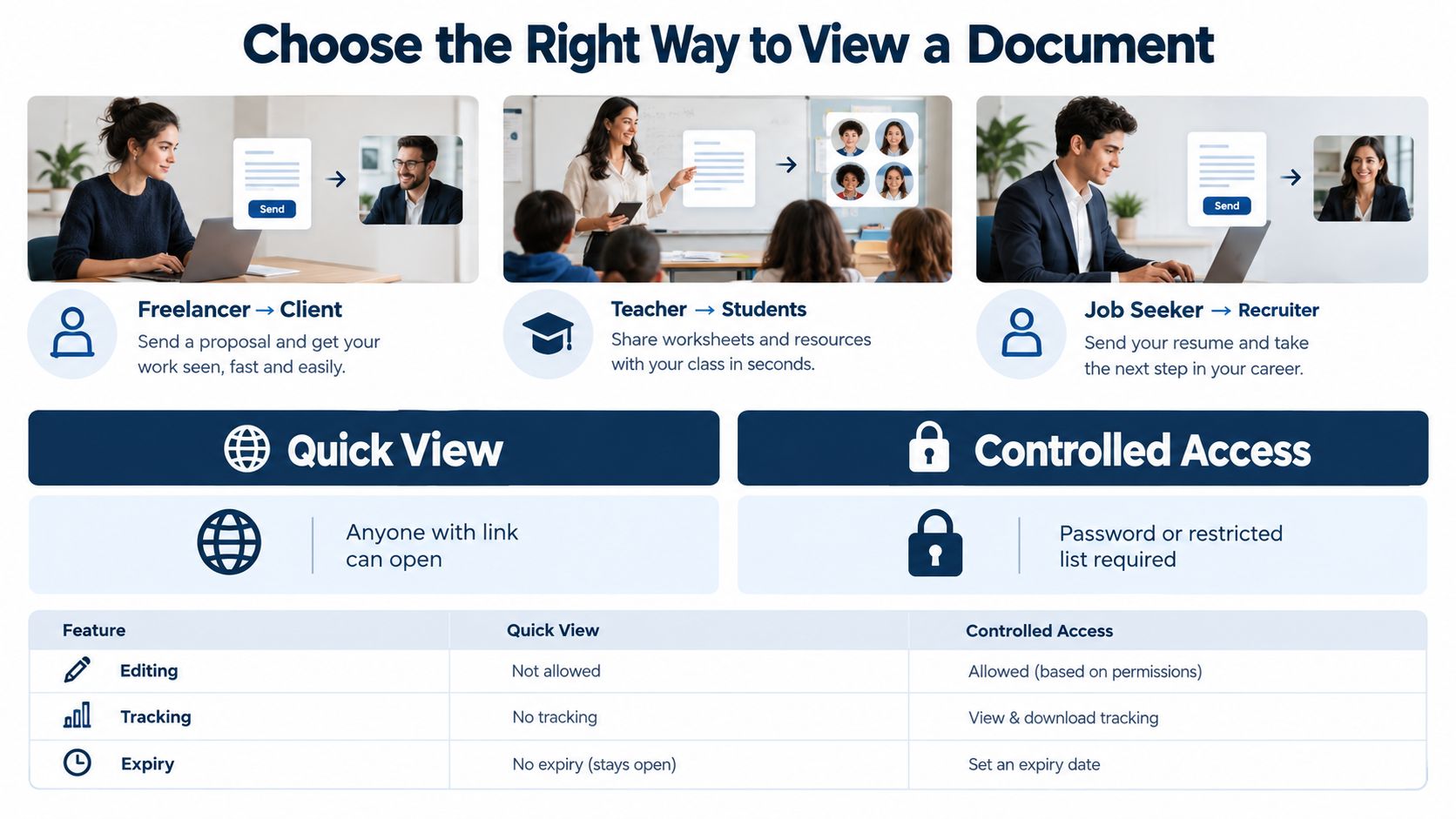
Practical rule: Choose the reading experience and access requirements before choosing where to upload.
Ask whether the page should stand alone, whether the original file must remain available, and whether recipients need to respond or edit. Then reserve time for privacy and accessibility checks. A working address is the beginning of delivery, not proof that the document is ready.
Prepare the File Before Publishing It
Start with the file you intend to publish, not the folder containing every draft. Open it from beginning to end and check that the content is complete. A successful upload won't fix missing pages, unresolved comments, or an old price copied into the final proposal.
For a freelancer, Garden Studio Proposal.pdf is clearer than a string of initials and revision abbreviations. If the material will change, add a visible revision date inside the document rather than relying entirely on the filename. Readers may save a copy under a different name.
Clean Up the Recipient's Copy
Prepare a separate publishing copy so that your working material stays separate from the deliverable.
- Check completeness: Remove duplicate pages, blank leftovers, and instructions intended only for the author.
- Resolve review material: Decide whether comments, tracked edits, and annotations belong in the recipient's version.
- Inspect personal details: Look for private contact information, student names, internal notes, and unrelated client material.
- Simplify archives: Keep only the files the recipient needs, with understandable names and folders.
For example, a teacher preparing a lesson ZIP should open the archive and inspect its contents, not just trust the folder name. Keep the worksheets students need, but remove the answer key, classroom records, and unrelated downloads unless they're deliberately part of the lesson.
Make Scanned Pages Usable
Try selecting a sentence and searching for a word you can see. If neither works, the page may be an image rather than searchable text.
Optical character recognition, or OCR, can create a text layer from a scan, but check the result against the page. Names, punctuation, tables, and faint print deserve particular attention. The document-accessibility guidance collected by Langara identifies searchable text and scanned-document handling as important parts of accessible delivery.
Save the publishing copy, reopen it, and confirm that it's the version you meant to send. Keep the editable original separately so future corrections don't depend on reconstructing a published file.
Compare Links Viewers and Embeds
Choose between a hosted page, a browser viewer, and an embed by thinking about the recipient's next action. Do they need to read, download, comment, or edit? Don't assume that a file appearing in a browser means all those actions are available.
Hosted Pages and Browser Viewers
A hosted page gives the document a destination of its own. This suits a resume shared in an application or a proposal sent directly to a client. The recipient arrives at the material without navigating the rest of your website.
A browser-based viewer suits a document that's already managed within a sharing environment. Before using it, test whether the recipient needs an account and whether you've granted viewing rather than editing access. Your own signed-in session may hide those requirements.
For standalone drag-and-drop publishing, Upfling is an option that accepts document uploads without a Git repository or build process. It fits a publishing task rather than a shared-authoring task. If the recipient needs to revise the underlying document, choose an editing workflow instead of treating a published preview as an editor.
Embeds Need Room and Context
An embed places the document inside another page. An agency might put a proposal beneath a project summary, while an educator might place a worksheet beside lesson instructions.
The surrounding page can help explain what the reader should do, but it also leaves less space for the document. Test whether menus, page margins, and the viewer's controls make the actual text difficult to reach.
| Decision point | Standalone page | Browser viewer | Embed |
|---|---|---|---|
| What surrounds the document? | A dedicated destination | Viewer controls | Your website's content |
| What should you test? | Direct arrival and file behavior | Permissions and available actions | Width, scrolling, and navigation |
| What fallback helps? | Clearly labeled original file | Download or alternate reading view | A standalone opening option |
For a resume, favor a destination that makes the applicant's name and document purpose obvious. For a course worksheet, make printing or downloading easy to identify when students need it. For an agency proposal, keep the review instructions close to the document.
Don't choose an embed solely because it looks tidy on your laptop. If readers struggle with nested scrolling or cramped pages, a direct opening option is more useful than keeping every interaction inside your website.
Publish and Test a Shareable Document Link
A shared link is only finished once you have opened it the way your recipient will. Publishing turns a prepared file into a destination, and your job in this step is to verify that destination before anyone else relies on it.
Open Upfling and create or access your account. Choose the prepared publishing copy, then drag the PDF, image, document, spreadsheet, or ZIP into the upload area. Start with the intended deliverable rather than your whole working folder, so a stray draft does not go live alongside it.
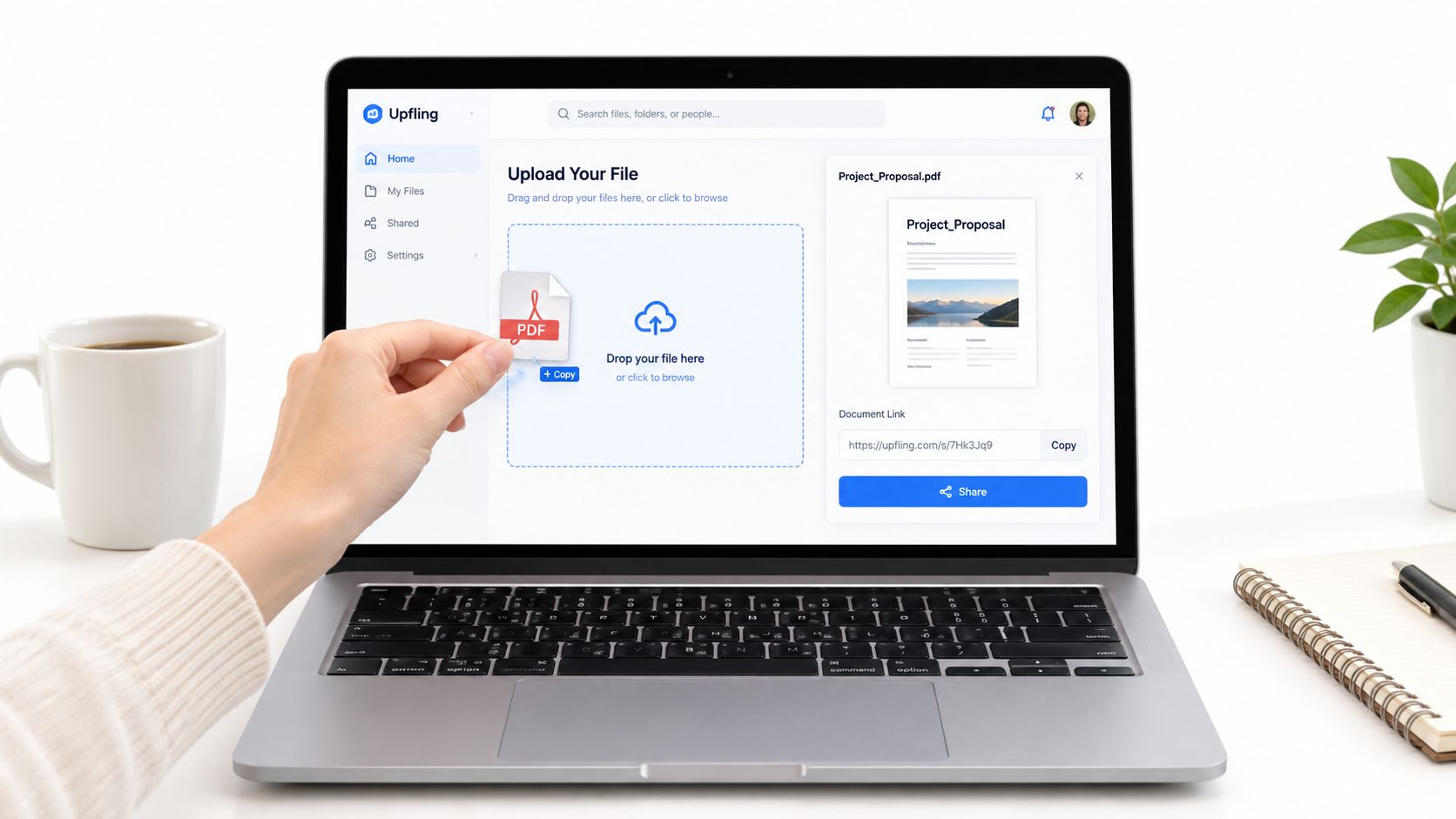
Upfling turns uploaded folders, ZIP archives, HTML, PDFs, images, and documents into live, shareable URLs in about twenty seconds. The file-to-link workflow gives the published file a stable address you can keep through later revisions, which matters more than raw upload speed once a document is in circulation.
Inspect the Published Result
Open the result in a separate browser tab and confirm the title, opening page, and content match the intended file. This sounds obvious until you publish the wrong one of three similarly named drafts.
Then read the assigned address before copying it anywhere. Rename the slug if a clearer name would help the recipient, and keep confidential details out of the address itself, since it will travel into messages, calendar invites, and possibly printed material.
- Check the opening experience: confirm whether the file displays inline, opens in a viewer, or prompts a download.
- Check the recipient's access: use a signed-out or private browsing session, because your own account view can hide permission problems.
- Check the destination on a phone: open the exact address you plan to send, not a preview from your dashboard.
- Check the sharing message: state what the document is and what response you need.
The working order is upload, inspect, test, share. Free SSL, optional custom domains, and automatic QR codes are useful extras, though none of them need configuring before an ordinary document goes out. SSL protects the connection in transit. Your access settings decide who can read the file.
A short demonstration of the publish step appears below.
Test an Update Before Depending on It
If revisions are likely, learn how replacement works before the link circulates. Keep your local source file, give the published document a visible revision label, and confirm the replacement appears when you reopen the address.
A freelancer correcting a project's scope can swap the proposal file while the public address stays the same, so the client returns to a known destination instead of digging through attachments. Verify the revised scope displays before telling the client the update is ready.
Check Mobile and Screen Reader Access
A document that opens successfully can still be difficult to use. Small text, awkward scrolling, and an incorrect reading order can prevent someone from completing the task even when every page is visible.
A review of 20,000 papers found that only 3.2% satisfied all assessed PDF accessibility criteria, while 74.9% failed every assessed criterion, according to Langara's accessibility coverage. Those findings concern academic papers, not every shared document, but they demonstrate why appearance alone isn't a sufficient test.
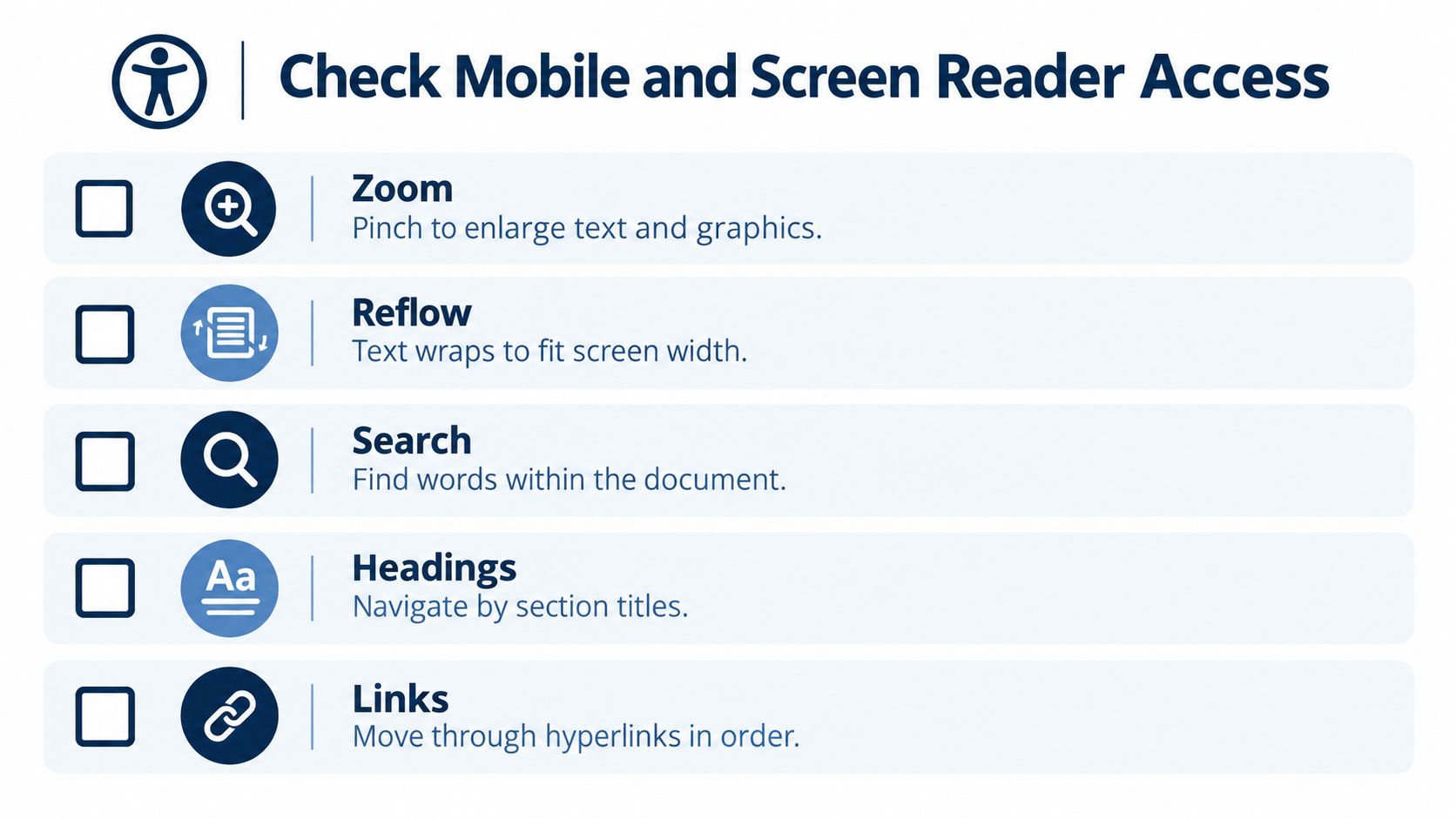
Use this checklist to inspect what readers can do.
Test Reading Rather Than Loading
On a phone, enlarge the text and try reading a full paragraph. Notice whether the text wraps to the available width or requires repeated sideways movement.
Then test the document's structure and controls.
- Search: Find a distinctive word and confirm that the result points to the right passage.
- Headings: Check that section titles are actual headings, not merely large or bold text.
- Keyboard navigation: Move through links and form fields without a mouse, checking that the current position is visible.
- Reading order: Ask a screen reader to read a representative page, especially around columns, tables, and captions.
- Language and images: Set the document language and provide meaningful alternative text for informative images.
- Contrast: Check that text and important graphics remain distinguishable from their backgrounds.
If you can't inspect these settings yourself, ask the author for an accessibility check or a tagged export. Tagged structure tells assistive technology what content represents, including headings and paragraphs. It's different from making text look organized.
Offer an Adaptable Reading Option
A scanned worksheet needs the OCR preparation described earlier, followed by a check that its instructions remain understandable. Recognized text alone doesn't establish sensible reading order.
For a long report, consider a responsive HTML page or a rendered Markdown version alongside the original. Let readers use the adaptable view for reading and retain the original download when exact page layout matters.
Making a file visible is a publishing task. Making it usable requires a separate check.
Don't describe a document as accessible merely because it works in your browser. Test representative content and provide a way for readers to request another format.
Protect Private Documents Without False Confidence
Decide who should read the document before publishing it. A public portfolio and a draft contract need different access arrangements, even if both happen to be PDFs.
An analysis of 63 million cloud documents found that 23% were publicly shared, and one in ten broadly shared files exposed sensitive or regulated data, as reported in BetterCloud's discussion of cloud-sharing blind spots. The practical lesson is to inspect access settings rather than assume a share button creates an appropriately private exchange.
Check the sharing settings before distributing the finished address.
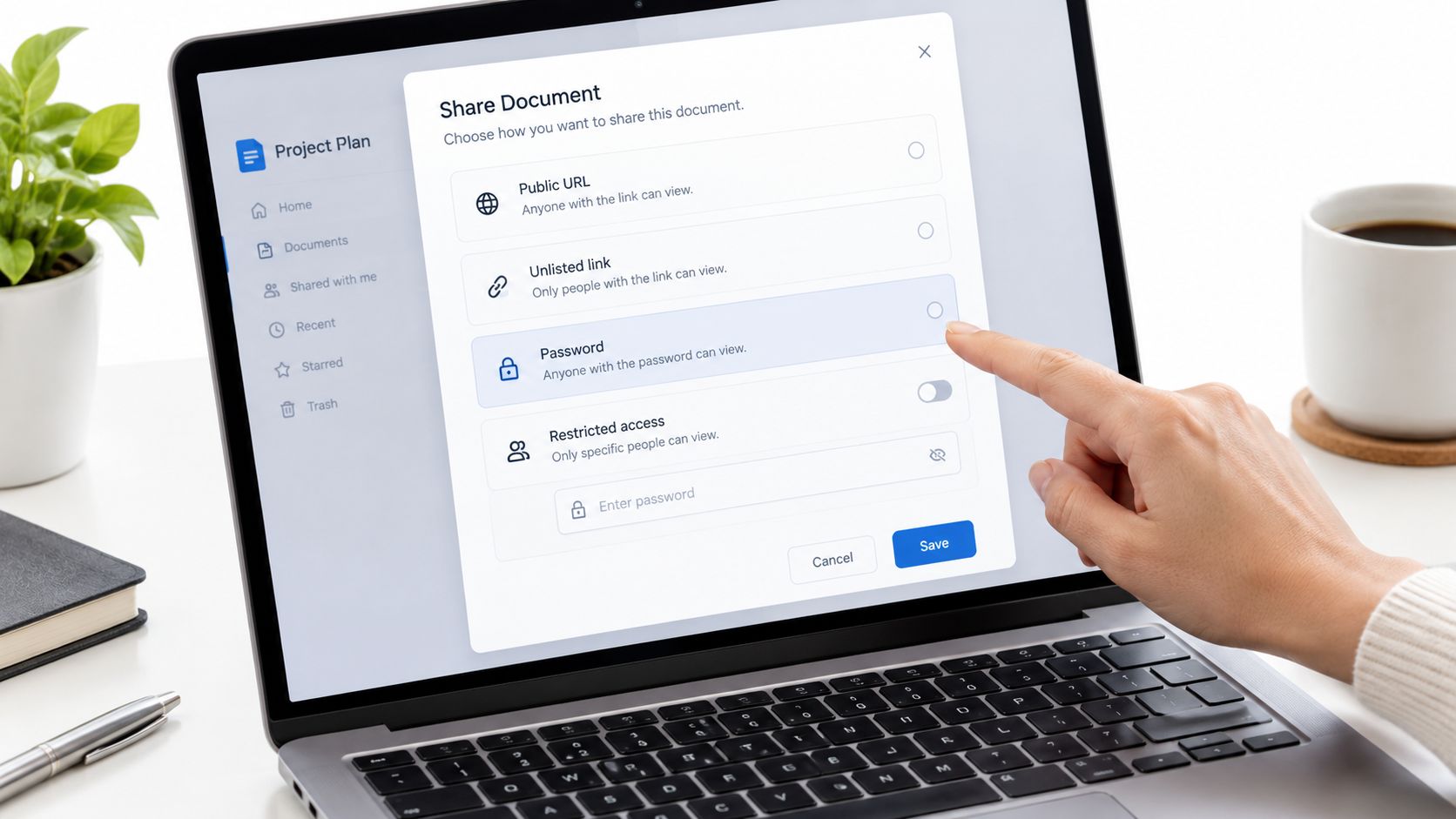
Match Access to the Material
| Access choice | What to understand |
|---|---|
| Public URL | Treat the material as suitable for public distribution |
| Unlisted address | A hard-to-find address isn't an identity check |
| Per-link password | Recipients may still share the password or retain content |
| Restricted audience | Confirm that access requires the intended identity |
| Expiring access | Check what expires and what recipients could already have saved |
Upfling supports per-link password protection and persistent URLs. These serve different purposes: a password adds an access requirement, while persistence keeps an address usable through updates. Neither should be treated as a promise that recipients can't copy, photograph, or redistribute the content.
Remove unnecessary sensitive information before upload. A public resume may not need a home address, and a teaching resource shouldn't accidentally include student records. For confidential material, review whether PDF redaction can be recovered rather than assuming a visible covering has removed the underlying information.
Separate Privacy From File Safety
Scan files before publishing and be cautious with unexpected documents. CISA's counter-phishing guidance recommends detecting and quarantining malicious files and blocking higher-risk file types. Don't bundle unnecessary programs with an otherwise ordinary document.
Verify the intended recipient and the destination you paste into your message. When using a password, send it separately and explain what the recipient should expect.
An agency can share a password-protected draft, replace it with the approved proposal, and tell the client which revision is now available. If the approved document requires a permanent record, preserve that copy separately so later updates don't blur what was agreed.
Verify and Maintain Your Document Links
Before sending, open the exact address copied into your message. Confirm the revision, mobile readability, password behavior, and intended download action. Share the smallest useful set of files and complete the safety checks before making them public.
For ongoing work, use permanent document links deliberately. Assign someone to maintain the destination and decide when the material should be updated, archived, or withdrawn.
Final check: The intended reader should reach the intended revision, understand what to do, and encounter no unnecessary access or reading barriers.
Apply that check to the actual exchange:
- Freelancer: Confirm that the proposal matches the scope discussed with the client.
- Educator: Open the worksheet as a student would and check the instructions.
- Professional: Verify that a report excludes internal notes and has a clear owner.
- Job seeker: Check that the resume is current and its contact details are suitable for sharing.
A polished page doesn't prove that its sender is legitimate. Keep using judgment with unexpected requests, attachments, and destinations, consistent with CISA's phishing guidance. The right delivery method remains readable, appropriately private, maintainable, and simple for the recipient.
Upfling turns uploaded documents and folders into shareable URLs, with options for password-protected access and replacing files at the same address. Visit Upfling, publish a prepared document, and test the finished link on your phone before sending it to its intended reader.