Upload a Video for Sharing and Get a Link
Upload a video for sharing as MP4 or WebM, copy one HTTPS link, and set who can watch it without an account.
You've got a video ready to send, but the person waiting for it doesn't want to install an app, create an account, or wrestle with a huge attachment. The reliable approach is simple: make one playback-tested copy, upload it, and send a link that opens on a phone or laptop. Keep the camera original somewhere safe offline. Treat the shared link as an address you can protect, update, or take down.
Choose MP4 or WebM Before You Upload
Maya, a freelance designer, has a 90-second portfolio clip on her phone. Her client wants to watch it on a laptop and won't install another app. Maya's first decision is which copy of the clip to upload.
For browser playback, MP4 with H.264 video and AAC audio is the safest everyday choice. MDN describes MP4 as an industry-standard format with broad support across devices and browsers, and identifies this video-and-audio combination as broadly supported by major browsers. WebM is designed for modern web use too, and it's a sensible pick when a screen recording already came out as .webm. Either way, play the actual file on a phone before sharing it. The codec inside the file affects playback even when the extension looks right, as explained in MDN's guide to media containers.
A camera original makes a poor sharing copy. A large 4K or raw file takes longer to upload and stutters on a weak connection. For portfolio clips, class recordings, and product walkthroughs, a 1080p compressed copy hits the practical balance. Keep the original on your computer. Upload a copy you're comfortable having forwarded.
| What you have | Upload this | Why |
|---|---|---|
| Phone or camera clip already MP4 with sound | MP4, H.264 video and AAC audio | Plays in major browsers on laptop, phone, and tablet |
| Screen recording saved as WebM | The .webm file | Built for the modern web; still test it on the viewer's phone |
iPhone or camera .mov | A fresh MP4 export from the editor | The container name doesn't change the video inside |
| Huge 4K or raw original | A 1080p compressed copy; keep the original offline | Faster upload and fewer playback failures |
| Clip also headed to LinkedIn | An MP4 within LinkedIn's current file limits | The platform rejects files outside its posted size range |
| Clip also headed to X | An MP4 or MOV within X's current limits | Limits differ by network, so one master rarely fits all |
Maya should export a fresh MP4 from her phone or a video editor, then play it through before uploading. Renaming video.mov to video.mp4 doesn't convert the video. It only changes the label, while the video and audio streams inside remain the same. If the clip also needs to go to a social network, check that network's help page and make a separate export when its requirements call for one. A single upload-ready file is a useful starting point, but it won't necessarily fit every service's size and format rules.
Practical rule: Keep the camera master offline. Upload one tested sharing copy, not the only copy you have.
Once that copy is up, the link works like an address: something you can protect, replace with a corrected export, or take down entirely, while the master stays safely on your drive.
Upload the Video and Copy a Stable Link
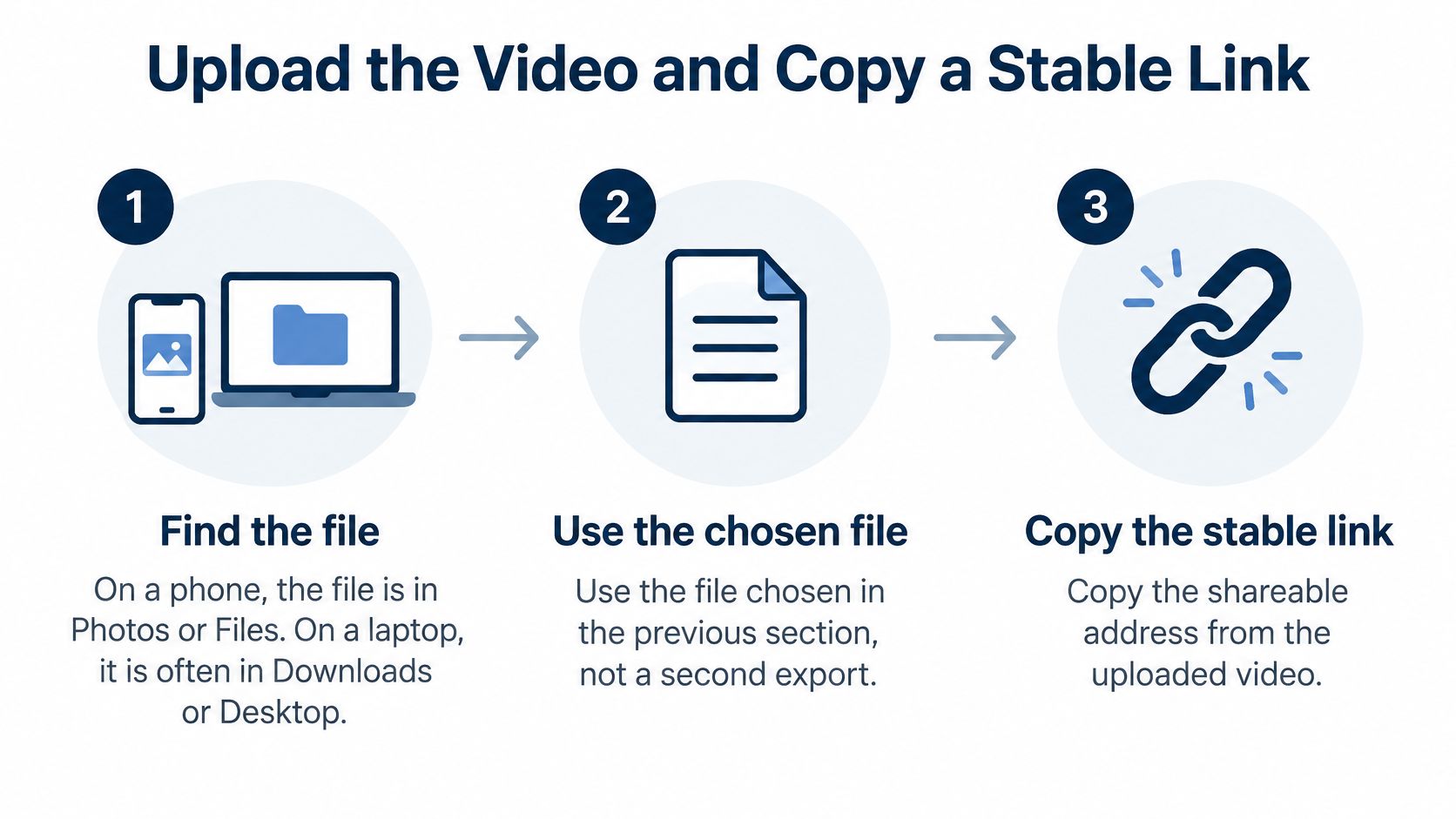
Once you've picked the file, don't make another export just to upload it. Use the exact copy you tested. That keeps the uploaded version consistent with the one you checked for picture and sound.
Find and check the chosen file
- Find the file. On a phone, look in Photos or Files. On a laptop, check Downloads or Desktop. The name may be something plain like
intro.mp4ordemo.webm. - Play it once locally. Watch a few seconds and listen. This catches a silent export, a sideways picture, or an unintended opening before the file reaches anyone else.
- Sign in to the host in a browser. A free account without a payment card is enough if the service supports the file size and access you need.
Upload once, then copy the address
- Drop the chosen video into the upload area. Upfling accepts MP4 files (
.mp4and.m4v) and WebM files (.webm) on all plans, and you can upload a file and get a link with a drop-and-publish workflow. No Git, no build step. - Wait while the host prepares the file. The service scans the upload, stages it, and allocates a URL in about 20 seconds.
- Copy the HTTPS link. The file is served over HTTPS at an Upfling subdomain, or at a custom domain on a paid plan.
- Send the address in chat, email, or a profile bio. A viewer can open the link and watch without creating an account.
Use a clean file name that helps you recognise the right cut, such as portfolio-intro.mp4 or recital-june.mp4. The link points at the hosted copy, not at whatever you have saved locally.
Treat that link as an address you control. A teacher might upload recital.mp4 and text the link to parents the same afternoon. If the performance is revised later, replace the hosted file and the address stays the same. You can also add a password to a link meant for a smaller audience, or take the page down entirely once it has served its purpose. On the free plan, video files up to 25 MB are covered, so a short demo fits while a long 4K lecture needs compression or trimming first.
The host claims no ownership of your upload; you keep every right you already had in it. Responsibility for your own copies also stays with you, so a shared link should never be the only copy of a video you care about.
Help the Video Stream on Phones and Laptops
A link can be correct and still deliver a frustrating watch. Start with the viewer's likely device, not the resolution your camera can record. For a portfolio clip, class excerpt, or product walkthrough, a clear 1080p copy is usually a more useful everyday choice than a massive file that stalls on a phone connection.
Test the link in three ways before you send it widely:
- Open it on your own phone using mobile data. This gives you a quick check that the video can start away from your home Wi-Fi.
- Open it in a private browser window. That helps catch access problems that your signed-in session might hide.
- Ask someone to try it on another laptop if you can. A second device can expose playback trouble you didn't notice on your own.
Don't just glance at the thumbnail. Watch the opening seconds, then jump to a point where someone speaks. Confirm that the picture isn't sideways and the audio is present. Rotate the phone to horizontal as well, since a clip recorded vertically can look cramped on a laptop screen. If the progress bar sits still, make a smaller export or try a fresh export with H.264 video and AAC audio instead of uploading the same problem file again.
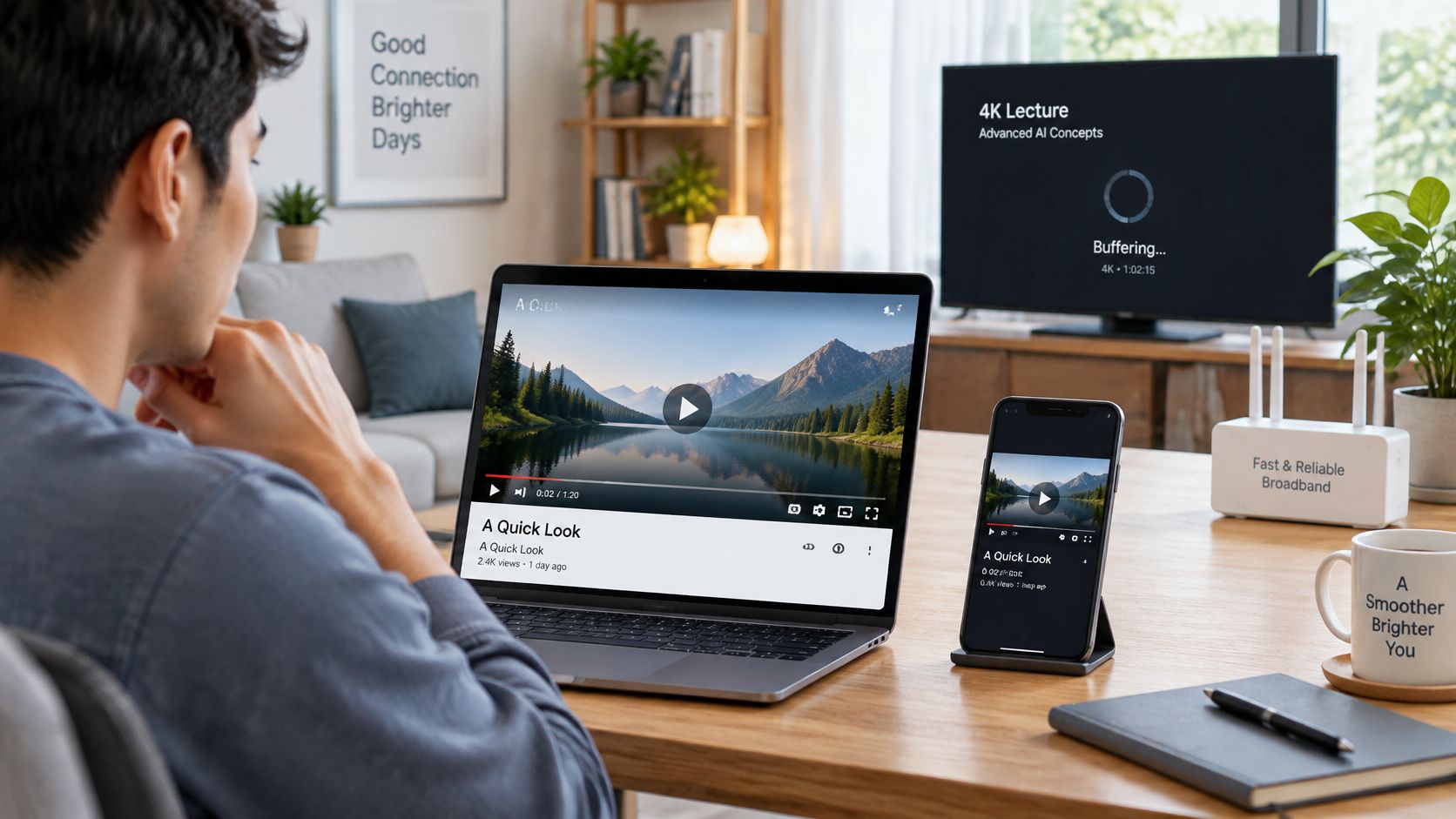
For a stricter check, watch the first minute on a weak connection rather than your fastest Wi-Fi. A video that buffers there will buffer for some viewers no matter how clean it looks at home. One tested copy is what you upload; the camera master stays offline on your own machine, and the hosted address is the thing you can later swap or take down.
Put the link in the email body rather than attaching the same large file. Attachments can hit mailbox size limits or leave the recipient waiting for a download when all they wanted was to watch. If someone needs to keep a master, send the viewing link and provide a separate download only when they ask.
The same check-before-you-send habit applies to other uploads, whether you post a clip or share a PDF online: give the recipient an address they can open, and confirm it plays before it leaves your hands.
Control Access and Check the Link Before Sending
A reel meant for strangers can sit on an open link. An unfinished client cut on that same open link is one forward away from trouble. Pick the access option that matches the video before you paste the address anywhere: an open link makes watching easy but travels beyond the person you send it to, while a password adds a step for the viewer and keeps casual passing around in check.
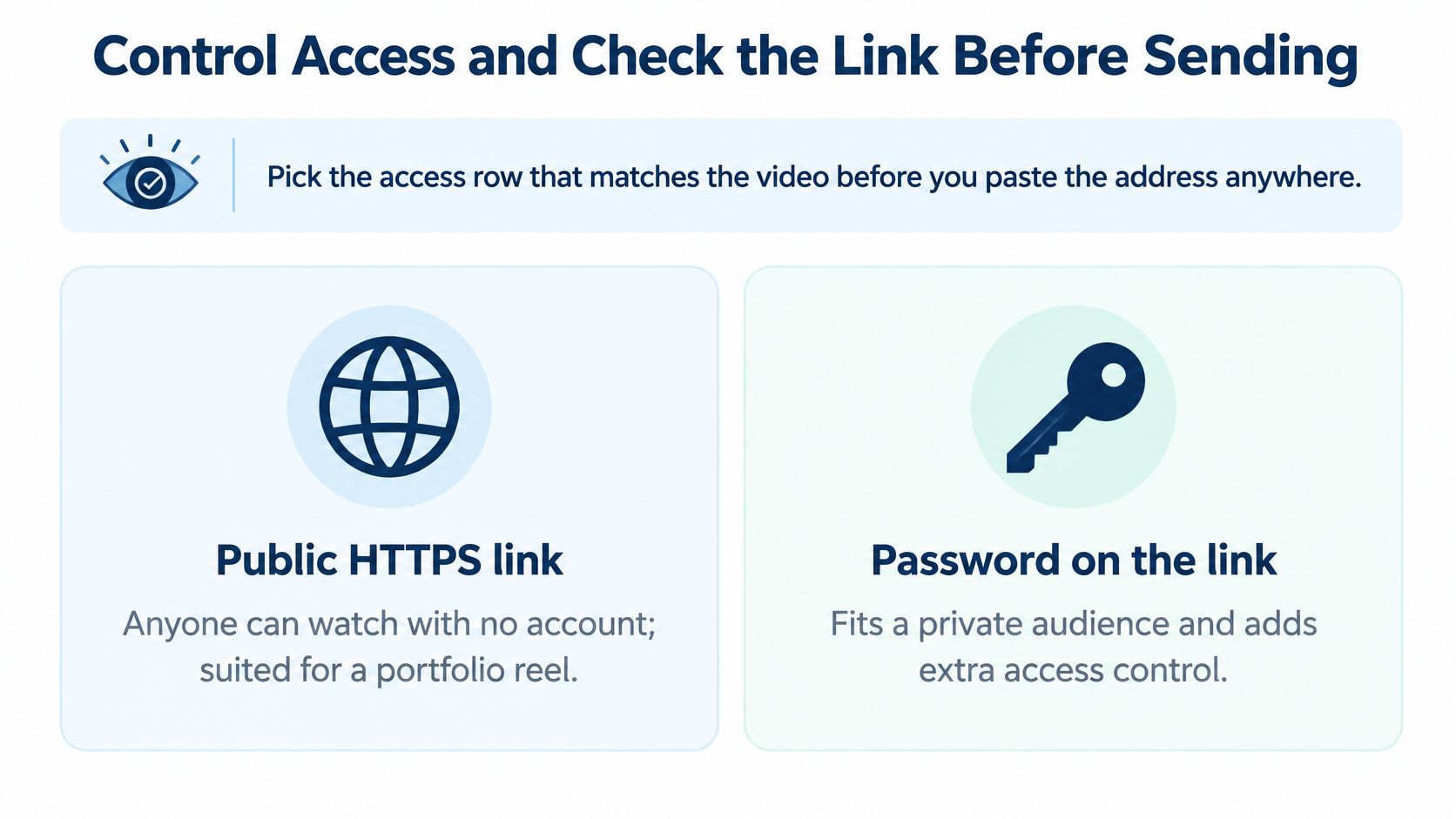
| Situation | What you set | What the viewer does | What can still go wrong |
|---|---|---|---|
| Public reel or class sample you want passed on | Open HTTPS link | Clicks and watches, no account | Anyone who receives the link can forward it |
| Client draft, interview, or student work | Password on the link | Opens the link, types the password | A forwarded password still works until you remove it |
| New cut after feedback | New file on the existing link | Refreshes the same address | People who downloaded the old file still have it |
| Review period is over | Delete or unpublish | The old link no longer plays | Copies already saved elsewhere stay saved |
Send the password in a separate message from the link. If the email carrying the address gets forwarded, the video stays locked behind a detail that never travelled with it. For client review work, that split keeps a forwarded email from becoming an open door.
A link controls the hosted copy alone. Even if a page isn't listed for search, a viewer can forward the address or save what plays. The address works like a key you still hold: lock it with a password while the cut is under review, and take it down when the review period ends so the video stops playing.
Before sending, read the address rather than relying only on the preview. It should begin with https and show the exact hosting domain you expect; a shortened or lookalike address is a reason to stop. HTTPS encrypts the connection, though it says nothing about whether a page is honest. The U.S. Cybersecurity and Infrastructure Security Agency's phishing guidance advises checking where a link goes and avoiding suspicious links or attachments, urgent unexpected requests, and requests for personal or financial information.
If the video link goes into a QR code on a handout, the code is only a shortcut to an address. QR codes can rebuild damaged data through error correction, up to 25% of codewords at the maximum documented level, according to DENSO WAVE's QR Code error-correction explanation. That correction won't rescue a tiny, badly blurred, or heavily covered code. Preview the decoded address on your phone before the handouts go to print.
Keep the message to the viewer short: "A 90-second intro, no download needed." Send any password separately. For a review link you can update or take down after feedback, use a host that gives you persistent video links with managed access.
Fix Upload and Playback Problems
Start with the symptom the viewer reports. Most sharing failures have a practical fix: make a smaller copy, export the right audio, or check that the viewer is opening the current link.
The upload is rejected or the file is too big. Check the file size first. A long 4K original can exceed the video limit on your plan, so export a compressed 1080p copy, trim unnecessary opening footage, or move to a plan with enough capacity. Renaming the file does nothing for size.
The video plays, but there's no sound. The export may not include an AAC audio track. Export a fresh MP4 with AAC audio, play it locally, and upload that new copy.
The video won't play after you changed its name. The rename rule from the format section applies here. Open the original in an editor or export tool, create a new MP4 with compatible video and audio, and upload that file.
The link shows an error after you replace the video. Open it in a private browser window and reload. Your usual browser may still be displaying an old cached copy, so test the address in a fresh session before replacing the upload again.
The viewer sees the old cut. Ask them to refresh the page and check that they're opening the link rather than a previously downloaded file. If they saved the old file, replacing the hosted one won't update their saved copy. Send the link again only if the address itself changed.
The progress bar doesn't move on a phone. The file may be too heavy for that connection. Make a shorter or smaller sharing copy, then test it on home Wi-Fi and mobile data before sending it again.
The link still misbehaves after a file replacement. Open the address on a second device, ideally a phone on mobile data. If it plays there, the problem sits with the first device's cache or player, not with the upload.
Drop your video onto Upfling, copy the HTTPS link, and replace the hosted file whenever the cut changes. The address stays the same for your viewer, and the camera master stays offline.