Static Website Hosting Explained for 2026
Static website hosting stores ready files and serves a link over HTTPS. Compare no-build and Git hosts, then publish a simple page.
You've finished a résumé page, a café menu, or a client preview. It opens on your laptop, and the photos look right. Then someone asks for the link, and you realize that a folder on your desktop isn't something another person can visit.
Static website hosting puts those finished files online. You don't necessarily need a developer's workflow, a code repository, or a terminal. For most non-technical publishers, the sensible starting point is the folder they already have. The important decisions are what goes inside it, who should see it, and how it behaves on someone else's phone.
What Static Website Hosting Means
Start with a folder called my-site. Inside, you have index.html, a stylesheet, and a few photos. The HTML file contains the page's words and structure. The stylesheet controls its appearance. The photos are separate files that the page asks the browser to display.
Static website hosting stores those finished files and sends them to visitors. When someone opens your address, the host returns the matching file. It doesn't assemble a fresh page from a database at the moment of the visit.
That file-to-address pattern goes back to the web's beginnings at CERN, where Tim Berners-Lee's first website answered a browser's request by returning a document. Modern hosting adds conveniences around that basic exchange, but publishing a finished document remains a useful way to put information online.
A website can be a small collection of files
Say you teach a pottery workshop. Your folder contains a page describing the class, a photograph of the studio, and a downloadable handout. Visitors can read the schedule, view the photograph, and open the handout without your host running a custom application.
The same arrangement suits several everyday jobs:
- A résumé: A page with your experience, contact details, and a downloadable document.
- A café menu: Opening hours, food descriptions, prices, and photographs.
- A one-page offer: A description of your service and a way to contact you.
- A portfolio: Examples of your work with captions and project summaries.
“Static” doesn't mean the page must look frozen. A menu can expand, a gallery can switch photographs, and a calculator can update an answer. Those actions can happen inside the visitor's browser.
Finished pages and remembered information are different
A shopping cart, member account, or saved booking needs something beyond the uploaded files. A service must receive information, check it, and usually store it. Your static page can connect to that service, but it can't provide those functions by itself.
Practical rule: If visitors only need to read, view, or download your material, start with files. Add a separate service only when visitors need to submit something or retrieve private information.
Before uploading, check the folder's organization. Most hosts look for index.html as the home page. Keep references such as assets/photo.jpg relative to the site folder, rather than pointing to a location on your laptop. That small distinction often separates a working public page from a page with missing pictures.
Benefits and Limits of Static Hosting
A café owner updating a small menu can publish the finished files without running a database or application server. That means fewer software parts to maintain. The main benefit is less application maintenance. Speed and security still depend on the host and the files.
The hosting provider still runs the servers, network, and storage. Your own website has fewer moving parts, while the provider handles the underlying infrastructure.
What becomes simpler
A designer sharing a portfolio can focus on project descriptions and image quality instead of maintaining an administrative dashboard. A café owner can update a menu without keeping an unused booking system running.
The practical gains are straightforward:
- Fewer dependencies: The page does not rely on a database connection that could fail when someone visits.
- Straightforward sharing: People can open a public address on a phone or laptop without installing anything.
- Portable content: You can keep a local copy of your files instead of depending entirely on one editing interface.
- Predictable delivery: The host serves prepared files, rather than generating each page for every visit.
For a small menu site, this can mean maintaining the finished page files instead of paying to run and update a separate application and database. Hosting plans still have different costs, and large image files can still take time to load. The files you upload shape both the work involved and the visitor's experience.
What remains your responsibility
A contact form can look complete while sending no messages. HTML can draw fields for a name and message, but a separate service must receive the submission. Test the full process before publishing a form.
Privacy also takes attention. The static-site hosting market overview discusses reduced application-layer risks. Fewer application components do not, on their own, establish privacy compliance. Hosts may keep access logs, and analytics, embedded scripts, or externally loaded fonts can expose information about visitors.
Check what gets recorded, where it is processed, how long it remains, and what deletion means. An aggregate visitor chart does not show whether underlying metadata was collected.
A page without a database can still reveal information about its visitors.
Before uploading a class handout, remove student names and private notes from the folder. For a client preview, separate material approved for publication from material still awaiting approval.
Use static hosting for information people should read or download. If the site needs to remember visitors or process transactions, give those tasks to a suitable dedicated service.
Five Ways to Put the Files Online
How people publish a static site
| Method | Fits this job | What you need | First live link | Custom domain |
|---|---|---|---|---|
| Folder or ZIP drop, no build | Résumé, menu, generated page, PDF, client preview | The files and a browser | About 20 seconds with our drop workflow | Often a paid add-on; free plans use a subdomain |
| Git-connected static host | Documentation or blogs already in a repository | A repository account and sometimes a build command | Allow time for initial setup; later pushes trigger updates | Yes, after DNS setup |
| Object storage plus a CDN | Large file sets run by a developer | Cloud account, storage bucket, and permissions | Plan a setup session for storage, delivery, and access rules | Yes, with certificate or CDN setup |
| Classic web host over FTP | Someone who already has email hosting | FTP login and a public folder | Upload after locating the public folder and confirming access | Usually supported through the hosting account |
| Laptop only | Private drafts not meant to be shared | Your existing files | No public link | None |
Start with the workflow you already understand
If you already have working HTML, a folder drop is usually the shortest route. You select the folder or its ZIP archive, upload it, inspect the resulting page, and share the address. A ZIP is a package containing the folder and its contents.
With our folder-to-website publishing workflow, you can drop a folder, PDF, image, document, or ZIP and put it online in about 20 seconds. There's no Git requirement, and the free starting option doesn't require a credit card.
That's a good match for someone who has received files from a designer or exported a finished page from an editor. Check that you have the actual website files, though. A screenshot of a page isn't an editable website, and a folder containing unfinished source code may still need conversion into publishable files.
Git is a system for recording changes to files. A repository is the project collection it tracks. A Git-connected host makes sense when you already use that system, particularly when several people edit the same website.
A build is the preparation step that turns source material into finished website files. For example, it might turn written articles and templates into HTML pages. If you don't already have that workflow, you don't need to adopt it just to share a menu.
Choose extra configuration only when it serves a purpose
Object storage organizes files inside containers commonly called buckets. A content delivery network, or CDN, can distribute copies nearer to visitors. This approach suits a developer managing a large collection, but storage permissions and delivery settings become part of the job.
FTP means file transfer protocol. A classic hosting account may give you an FTP login and a public directory, often called public_html. If you already maintain a website this way, uploading another finished page can be convenient. Keep local backups and take care not to overwrite unrelated files.
For an unpublished draft, your laptop is a legitimate destination. Opening the file locally lets you check wording and layout without publishing it.
- Freelancer's client preview: Drop the finished folder and arrange appropriate access before sending the review address.
- Founder's landing page: Choose a folder upload unless an existing development workflow already handles updates.
- Student handout: Publish the document or a small page with a clearly labeled download.
Stay in the laptop-only row when the file must remain private and you haven't arranged suitable controlled delivery. A public address isn't a substitute for permission to publish.
How a Browser Gets the Page
A visitor doesn't receive your whole folder as a single bundle. The browser requests the page, reads it, and then requests the images, stylesheets, and other files the page refers to. That's why missing files or incorrect paths can leave a page partly working.
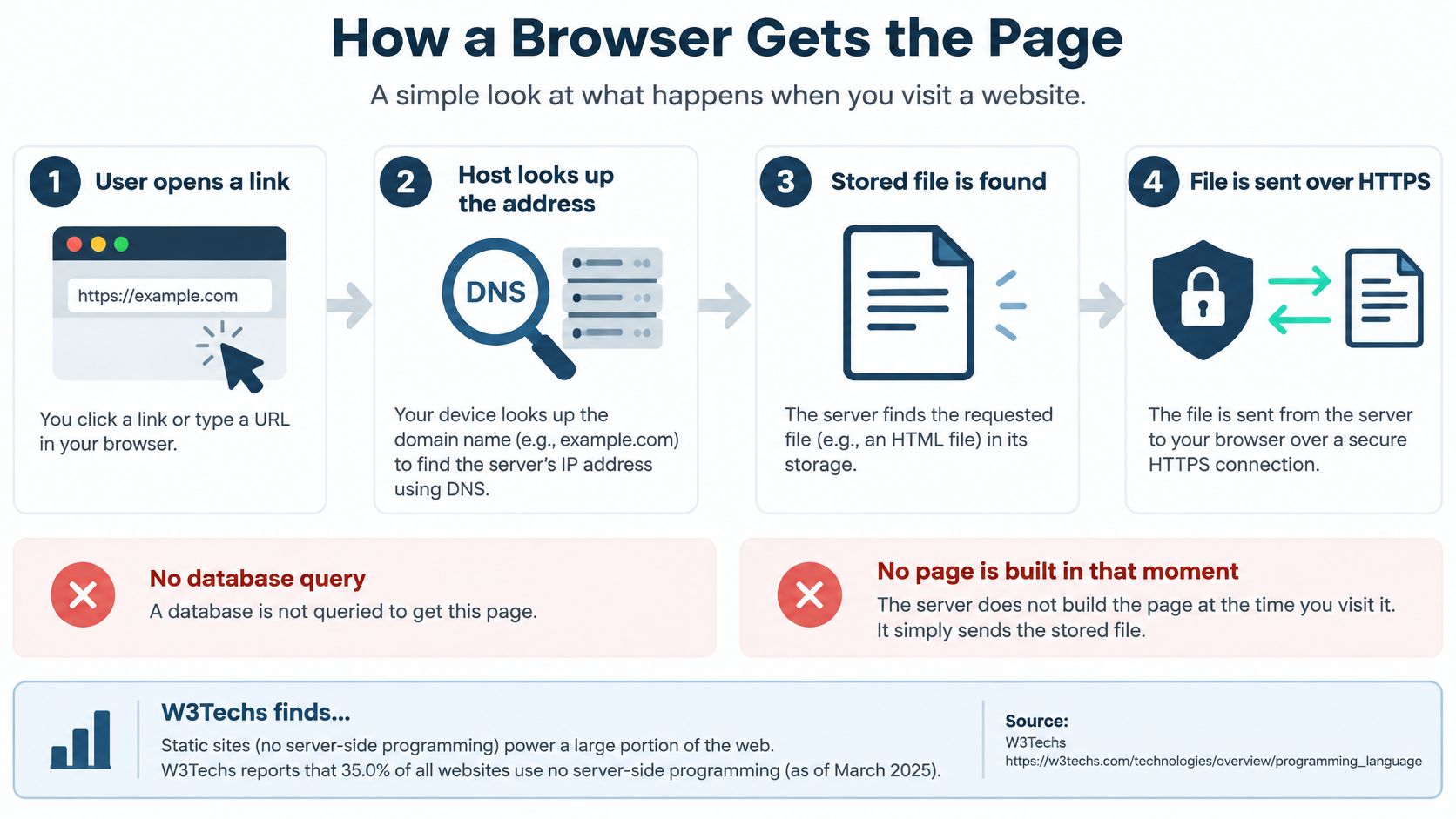
The basic request follows this route.
Follow a visitor's click
- The visitor opens an address. The browser identifies the host responsible for serving it.
- The host checks the requested path. The home address usually leads to the home page, while a document address identifies that particular file.
- The stored file is found. The host doesn't need to query your website's database or create a page for this visit.
- The response travels over HTTPS. The browser receives the file and displays or processes it.
W3Techs reports that static files are the detectable server-side technology on 2.1% of websites whose server-side programming language is known. That's not a count of every website using images or CSS. Dynamic websites deliver those files too; this category identifies sites whose principal detected server-side job is serving static files.
For a publishing walkthrough alongside that request diagram, the following video provides another format.
Publishing and visiting are separate operations
Our upload process has three steps: drop your site, let us pack and stage it, then share the address. During staging, we find the home page, scan every file, and allocate a URL in about 20 seconds.
We serve the uploaded files as they are. There's no server-side code execution, database, form handling, or build step. Anything interactive within that arrangement runs in the visitor's browser.
A button that reveals a hidden description can work because the browser already has the description. A booking form that must reserve a place needs a separate receiving service. Uploading its visible fields won't reserve anything.
Caching introduces another practical detail. A cache is a saved copy that a browser or delivery network can reuse. The MDN Cache-Control reference explains how freshness and revalidation rules control that reuse: renamed, versioned assets can be cached for a long time, while HTML should refresh or be checked for changes.
When replacing a stylesheet, a versioned filename helps browsers recognize the new file. For frequently replaced documents, check the host's replacement and cache-refresh behavior.
Before sending anything, open the public address rather than the file on your desktop. Click the download, inspect the pictures, and try the navigation. You're testing what the recipient will receive, not what exists on your computer.
HTTPS Domains and Who Can Open the Link
You send a client proposal while connected to café Wi-Fi. HTTPS helps protect the proposal as it travels between the host and the client's browser. The same applies to a handout shared over school Wi-Fi.
Google's HTTPS guidance explains that encryption helps prevent others on the network from reading or changing content in transit. Google recommends HTTPS even for websites that don't collect passwords or payments, because ordinary pages also need privacy and integrity while being delivered.
That protection covers the connection, not who can access the document. Anyone who can open a public PDF may also be able to download it, copy its contents, or forward its address.
Treat transport and access as separate decisions
Keep three questions distinct:
- HTTPS protects the journey: It encrypts communication between the visitor and the host.
- Access controls protect the doorway: They determine who may retrieve the content.
- Your publishing judgment protects the material: You choose what to put online and who should receive it.
For a client draft, a password can add a gate before someone opens the preview. When you share a website with a client, choose access settings that suit the material and make clear whether the link is intended for the client alone.
Before sharing: Remove hidden notes, unused documents, and private source files. Check the whole uploaded folder, not just the page you expect the recipient to see.
Highly confidential or regulated documents may require authenticated delivery, access records, and retention controls beyond a simple protected page. Choose a method that meets the relevant requirements; a password by itself does not establish compliance.
Recheck security after connecting a domain
A custom domain is a website name you choose. DNS is the address-book system that directs browsers to the right host. Follow the host's domain instructions, then open the finished public address to check the connection.
Google's explanation of automated HTTPS describes how free, automated certificates make encrypted publishing easier. It also explains that HTTPS alone does not guarantee every page or request is secure.
Open the final address after connecting your domain. Check that it uses HTTPS, then look for mixed content: a secure page that still requests an image or script over unencrypted HTTP. Replace those embedded addresses or remove the dependency.
A public résumé or menu can use a public address. For a confidential client file, use access protection suited to the material, or choose a different delivery method.
Speed Checks and Phone Tests for Simple Pages
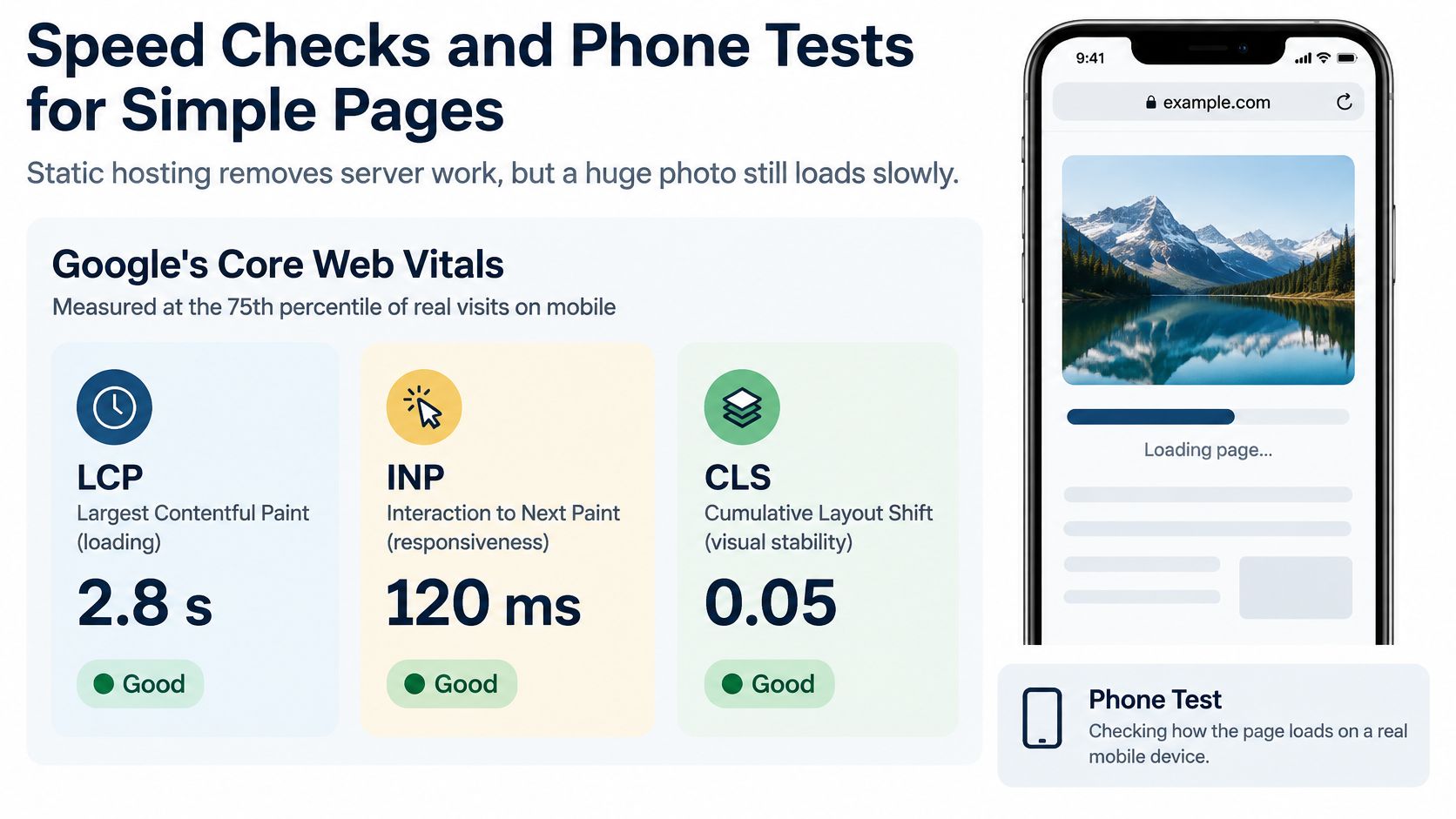
A static page can still feel slow when it contains a large photo, video, or unnecessary script. Google's Core Web Vitals guidance sets useful targets for the 75th percentile of visits, measured separately on mobile and desktop.
Speed targets for a simple published page
| Check | Aim for | Poor if | What to change |
|---|---|---|---|
| Largest Contentful Paint | At most 2.5 seconds | Over 4 seconds | Resize the main photo and skip a hero video |
| Interaction to Next Paint | At most 200 milliseconds | Over 500 milliseconds | Remove unused scripts and trackers |
| Cumulative Layout Shift | At most 0.1 | Over 0.25 | Set image width and height so the page doesn't jump |
| Mobile patience | First view under 2 to 3 seconds | Google's mobile-speed analysis reported that 53% of visits were abandoned after 3 seconds | Test the public address on a phone |
The mobile-patience row gives context, not another Core Web Vital or a promise about how your visitors will behave.
The graphic shows the three checks: loading speed, responsiveness, and layout stability.
Match the phone test to the visitor's task
Google's later mobile landing-page analysis found an average full load time of about 15 seconds, with 70% taking more than five seconds to display above-the-fold content. Check whether the page lets someone complete the task they came for.
- Job seeker: Put the résumé page or PDF at a stable address. Open it on a phone before sending it to recruiters.
- Café owner: Upload a menu folder with compressed photographs. Keep the phone number near the top and check that it's readable.
- Instructor: Keep the workshop page and handout PDF separate. Scan the printed QR code before class, then open the handout.
- Freelancer: Confirm
index.htmlis the home page and remove laptop-specific paths. Before publishing, check generated HTML for common problems, then inspect the live result.
Every Upfling site gets a clean URL and QR code for sharing in messages, documents, and publishing pages. Before sharing, resize photos, keep PDFs as optional downloads, remove unnecessary fonts and trackers, and open the public address on your phone.
Publish the Folder You Already Have
A résumé, PDF, or simple web page can start with the files already on your computer. If they fit the Free plan's storage allowance, it costs $0 per month and includes 2 sites, 25 MB storage, video files up to 25 MB, an Upfling subdomain, free SSL, API and MCP access, and email support. No credit card is required. For a custom domain, password protection, analytics, or more storage, Lite costs $3.99 per month billed monthly, or $3.33 per month with $40 billed annually. It includes 5 sites, 4 GB storage, video files up to 100 MB, a custom domain, unlimited traffic, no Upfling branding, password protection, analytics, and API and MCP access.
Choose for the job in front of you
Start with a folder upload. API and MCP access can be added later for automation.
Choose the plan around the files and sharing needs in front of you. A résumé or short menu may need little storage, while a larger collection of files needs more room. A client preview may also need password protection.
Before publishing, prepare the folder:
- Keep the right material: Include the page, its images and other assets, plus any downloads you intend to share. Remove drafts and private notes.
- Check the entry page: For a website folder, confirm that
index.htmlopens the intended home page. - Keep a local copy: Save the folder somewhere you can find it when you need to make an update.
Sign in or sign up at Upfling, then drop your folder or ZIP file into the upload area. You can also upload a PDF or image. Check the staged result, publish, and open the address on your phone. Make sure the page or file works for the person receiving the link before you share it.
Choose what to upload based on who should see it. A public résumé should contain only material you're ready to share. For a client draft, password protection can limit who opens the link.
Upfling turns website folders and individual files into shareable HTTPS addresses without a repository or build pipeline. Start at Upfling, upload the files you already have, and check the published result on your phone before sharing.