PDF to Link: How to Turn a PDF Into a Shareable URL
PDF to link in minutes: upload your file, copy a shareable URL, set access rules, and check it opens on any device.
You've finished a portfolio, attached it to an email, and hit Send. Say you're a freelance copywriter whose 6 MB PDF bounces back from a client's inbox. The client needs your work, not another attempt at squeezing it through their email system.
Turning that PDF into a link solves the delivery problem. But uploading is only part of the job: you also need to decide who can open it, what information you're publishing, and what happens when the document changes.
Five Ways to Turn a PDF Into a Link
A PDF link is an address for a copy of your document stored on a server. The recipient clicks to view it in a browser, with downloading usually available as a separate option. You share access to a hosted copy; nothing new lands in their inbox.
Readers already encounter PDFs routinely. In 2023, 77% of the documents among selected U.S. government agencies' top downloads were PDFs, according to the U.S. General Services Administration's Section 508 analysis described by the Bureau of Internet Accessibility.
Methods for turning a PDF into a link
| Method | Link type | Setup time | Control after sending | Best for |
|---|---|---|---|---|
| PDF hosting service (Upfling) | Permanent public HTTPS URL | About 20 seconds | Replace file at same URL, rename slug, password-protect the link, QR code | Client files, resumes, handouts you update |
| Cloud storage share link | Storage-hosted link | Under a minute for a straightforward share | Access controls depend on the account's settings | Recipients already using the same storage |
| Self-hosted page on your own server | URL on your own domain | Upload to the server, confirm the path resolves | Full control; you maintain the file and access yourself | Sites you already run and update |
| Email attachment | No link; a copy is sent | Instant once attached | None once sent | One-off file to one person, small size |
| Embedded page on a website or Notion | Link on your own page | Upload, add the embed, then publish the page | Host settings govern access and replacement | Portfolios and course pages |
Setup times cover the share itself; add time to prepare and review the PDF. An embedded page takes more work because you're arranging a presentation around the file.
Treat the choice as a publishing decision. Sending the link is only step one; you're also deciding who can open the document afterward and what happens when it changes. Answer these questions first:
- Who needs access? A recruiter shouldn't have to request permission to read a public portfolio. A client reviewing sensitive work needs deliberate restrictions, such as a password on the link.
- Will you revise it? A hosted document is easier to maintain when recipients return to the same address. On Upfling you can swap the file without changing the public URL, on every plan. An attachment gives each recipient an independent copy frozen at send time.
- How long should it stay live? A link you can delete with one click is easier to retire than an attachment sitting in a hundred inboxes.
A file-to-link workflow suits documents you'll revise or distribute repeatedly.
Practical rule: Use a hosted link for repeat sharing and updates. Use an attachment for a one-off document to one person.
What a Public PDF Link Reveals
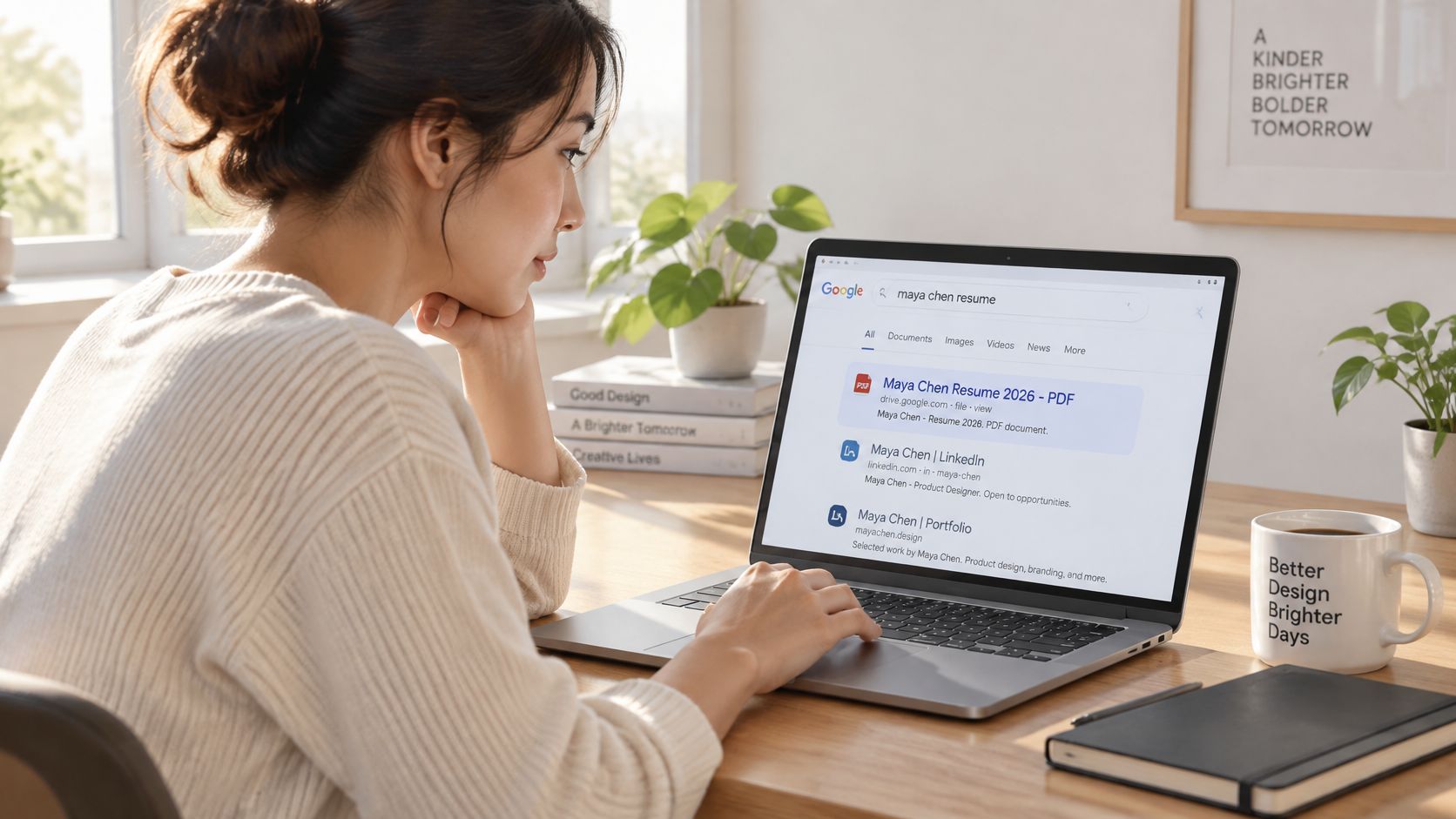
A recruiter found the résumé in a Google results page three weeks after the application closed. The address had been sent to only a few inboxes, yet it behaved like a public page. An unlisted URL is still public to anyone who has it.
Check what you're exposing
- Search visibility. Search engines can discover and index publicly accessible documents. An indexing exclusion can reduce discovery; it does not control who opens an address already shared.
- Forwarding. Anyone holding a public URL can pass it along. The document may circulate after the application, proposal, or workshop has ended.
- Document metadata. Open File > Properties in your PDF editor. Inspect the author, company, title, and subject fields; then review comments, attachments, hidden layers, and retained editing information.
- Delivery-page tracking. The page that serves the file may count visits or collect visitor information. Decide whether that collection fits your audience before the link leaves your outbox.
A University of Melbourne privacy research paper examines tracking signals beyond obvious cookies, including fingerprinting and session recording. Evaluate the hosting page as well as the PDF, and look for clear explanations of visitor-data retention.
Removing visible text needs separate care. A black rectangle placed over an address can leave the underlying text recoverable; use actual redaction and check the saved result. The guide to recoverable PDF redaction explains that distinction.
A password controls entry. It doesn't stop an authorised recipient from downloading, screenshotting, or forwarding the contents.
Make the legitimate document obvious
Lookalike links and attachments can impersonate trusted senders. CISA's phishing guidance recommends avoiding suspicious links and attachments, so tell recipients which domain to expect and when a file should never demand an unexpected program download.
Treat publication as a small release checklist: clean metadata, set the indexing policy, choose who can open the link, and arrange expiry or revocation when access should end. Keep a stable address only while ongoing access serves a purpose, and replace the file at that address when the document needs a correction rather than minting a second URL.
Make the PDF Usable for Screen Readers
A scanned resume can look polished while giving a screen reader nothing useful to read. Optical character recognition, usually labelled OCR, adds recognised text, but you still need to check its accuracy and document structure.
Even selectable text doesn't prove accessibility. The World Wide Web Consortium's PDF accessibility guidance identifies Tagged PDF as the most reliable foundation because tags preserve the structure and reading order screen readers need.
A visual review and a listening test answer different questions.

Prepare the source document first
Fixing the original document is usually easier than repairing its exported PDF. For a resume, keep the name, contact details, work history, and qualifications in a logical order rather than arranging everything in floating text boxes.
- Set identification fields. Give the document a meaningful title and set its primary language in document properties.
- Use real headings. Apply heading styles rather than making ordinary text larger and bold. Export with document tags enabled.
- Describe meaningful images. Add alternative text to charts and informative images; mark purely decorative elements appropriately.
- Support navigation. Add bookmarks to long portfolios and use descriptive link text, such as View my case study, instead of Click here.
Test beyond the checker
Try selecting and copying a paragraph. If the pasted text is scrambled, investigate reading order or character recognition before uploading.
Then press Tab to move through links and confirm you can activate them without a mouse. Open the PDF in a screen reader, such as NVDA on Windows or VoiceOver on a Mac or iPhone, and listen to the opening content. Does it announce the name before the job history, or jump between columns?
Built-in accessibility checkers in Word or Acrobat can flag missing information, but they can't reliably judge whether an image description makes sense or a table reads coherently. Manual testing is still necessary.
For course materials and public-sector documents, an accessible HTML version can make mobile reading and navigation easier. Offer an accessible downloadable PDF when readers need printing or a stable layout; conversion alone doesn't guarantee either format is usable.
Choose Who Can Open Your Link
Set access before you copy the address. A public link opens for whoever holds the URL, including people it gets forwarded to later. A password-protected link asks for a secret first. A restricted link limits opening to named or checked recipients. Editing permission is a further choice: keep a PDF view-only unless recipients must edit it.
A practical check is to imagine the link traveling. A resume meant for recruiters can stay public if you have already removed details you do not want widely available. A draft contract belongs behind a password or restricted access, because the cost of the wrong person opening it is higher than the extra step for the right one. On Upfling, you can put a password on a link, and you can replace the file later without changing the URL, so a corrected version keeps the same address.
Link access levels and what recipients can do
| Access setting | Who can open it | Can they download? | Suits |
|---|---|---|---|
| Public link (anyone with the link) | Anyone who has the URL, including forwarded recipients | Treat it as downloadable once opened | Resumes, brochures, published guides |
| Password-protected link | People who have both the URL and the password | Usually yes after entry, unless the viewer limits saving | Client review drafts, unpublished reports |
| Restricted link | Approved people only, such as named recipients or signed-in users | Depends on the viewing role you grant | Contracts, internal documents, private offers |
| Replaced file at the same URL | Existing link holders who still meet its access rules | They see the newest version after caches refresh | Revised resume or handout |
Replacement keeps the address constant. The existing sharing rules still decide who can see the revised document, and anyone who saved the earlier file may keep that copy.
Before sending, answer:
- Is it public, password-protected, or restricted? Test the setting you selected, not the one you intended.
- Can the recipient download it? Viewing and downloading are often separate controls.
- Can they pass it on? Check resharing permissions, and assume copied text or screenshots can still leave the system.
How to Upload a PDF and Copy Its Link
Keep the final PDF in an easy-to-find folder before opening the upload page. Preview it locally and confirm that it's the version you intend to publish, especially if your desktop contains several similarly named exports.
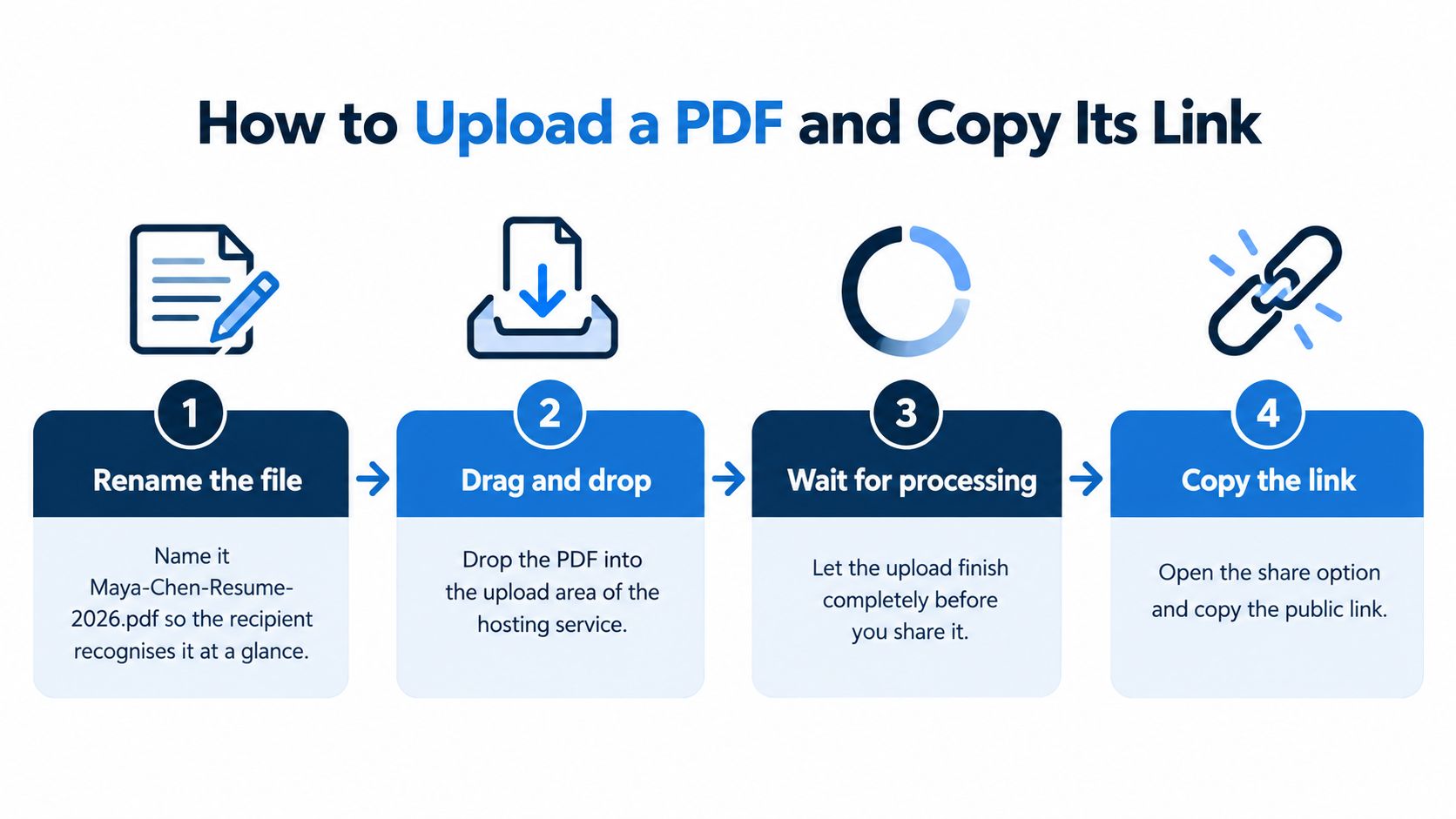
The basic sequence is prepare, upload, wait, and copy.
Prepare and upload
Rename the file clearly. For example, use
Maya-Chen-Resume-2026.pdfrather thanresume-final-final.pdf. Compare its contents with your latest source document so you don't publish an older export.Open the Upfling website in your browser and locate the upload area. Keep that browser tab open beside the folder containing your PDF; a local preview tab isn't the upload page.
Drag the PDF onto the upload area. Let the transfer finish before touching the page. On slow Wi-Fi, the progress bar may pause, so don't refresh just because it stops moving briefly.
Wait for processing to complete. Upfling packs and stages each upload: it finds the homepage for site uploads, scans every file, and allocates a URL in about 20 seconds. For a PDF, wait for the completed result rather than sharing a processing screen.
Copy the final address
Copy the HTTPS link from the result. Use the result's copy control rather than an address bar showing a local preview. A path beginning with
file:points to your computer and won't give someone else access.Rename the slug if the generated address is messy, then copy the final version. The slug is the readable part of the address, and changing it after distribution can leave recipients with an outdated address.
Save the QR code if you'll print the link. Every URL gets its own QR code, which suits a workshop handout or portfolio card. Finish any slug change before saving the code, since the printed code keeps pointing at whatever address was live when you generated it.
Paste the completed URL into email, text messages, or documents. In an email, make descriptive text such as Maya Chen's portfolio clickable; in a text message, paste the full copied address and check that punctuation hasn't become part of it.
The address is a hosted link, so it works on any device that can open a browser. Settle the slug and any password now, because the same address stays valid when you replace the file later. Before the link goes to clients or into print, run it through the acceptance checklist that follows and test it the way a recipient will.
Check the Link Works Before You Send It
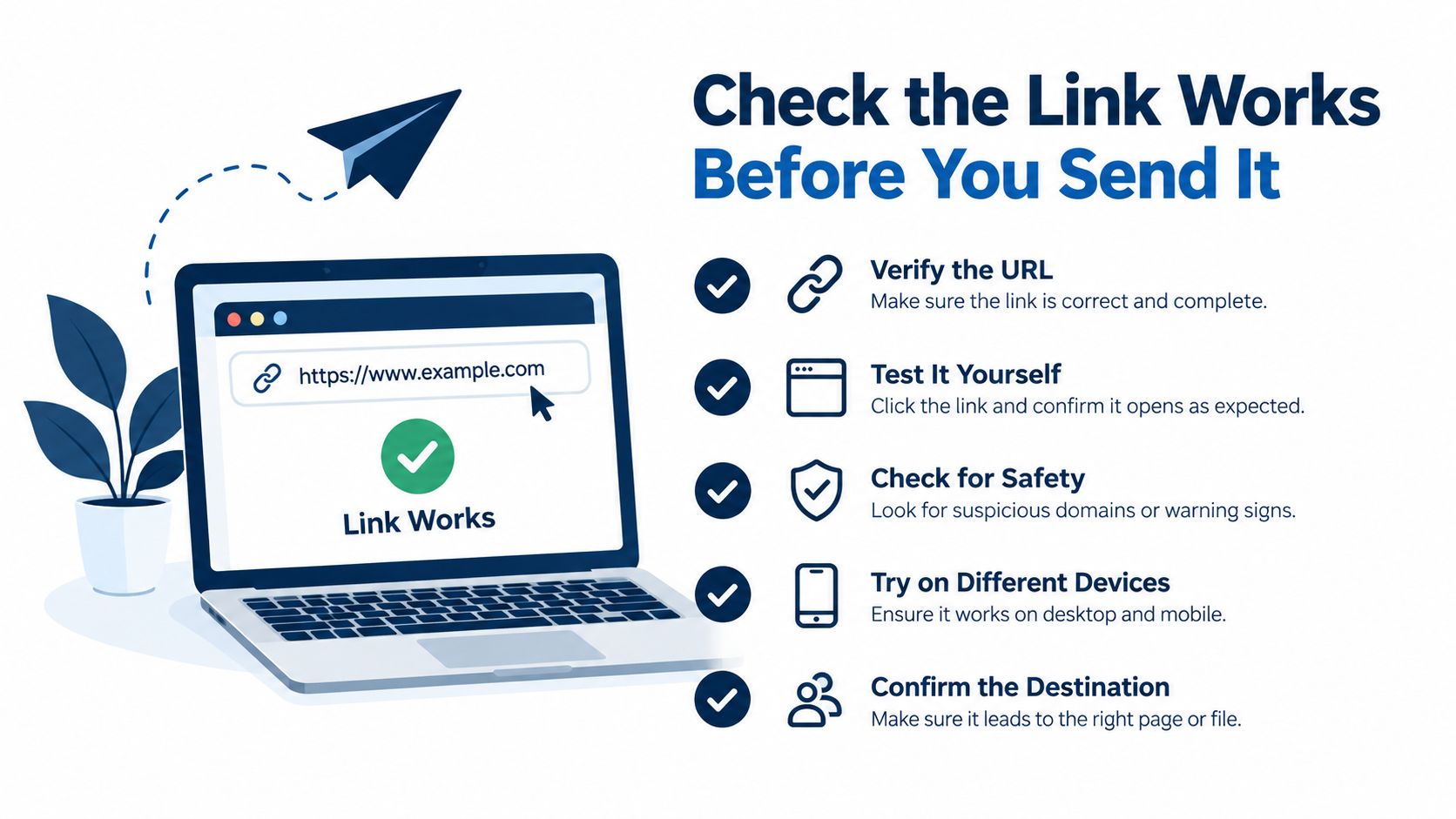
Run a short acceptance check before sending the document to a client or printing its QR code. Test as a recipient, not as the signed-in owner.
- Open on laptop and phone. Use private browser windows and confirm that the first page displays rather than unexpectedly downloading.
- Search the text. Press Ctrl+F or Cmd+F and search for a word you can see on the page.
- Follow internal links. Click every link in the PDF and confirm its destination.
- Test signed-out access. Make sure the document opens, or requests the intended password or permission, without your owner session.
Use this checklist while testing the final address.
Understand slow loading
A well-configured server lets the browser request portions of a PDF instead of waiting for the whole file. Nutrient's PDF performance guide describes byte-range delivery using Accept-Ranges: bytes and HTTP 206 Partial Content.
For a non-technical check, compare a long portfolio with a short PDF on the same connection. If the longer document takes much longer to show its first page, large images, file structure, or server configuration may be responsible. That comparison is a clue, not proof that partial loading is missing.
A website administrator can inspect network requests for range support. Uploaders can start by reducing oversized images while preserving readable text.
PDF link symptoms, causes and fixes
| Symptom | Likely cause | Fix |
|---|---|---|
| Link downloads the file instead of opening it | Server labels the file as a generic download or forces attachment delivery | Re-upload the original PDF, not a ZIP or renamed file; if it persists, request inline PDF delivery |
| Link shows an older version | Browser or server cache retains the previous copy | Replace the file at the same URL, allow cached copies to refresh, then reload in a private window |
| Large PDF loads slowly or shows a blank page | Server may not support partial loading | Split a long portfolio into parts or reduce image size |
| Recipient gets an access denied message | Restricted or password link blocks access | Check the sharing setting and send the password separately |
| Text cannot be selected or searched | File is a scanned image | Run optical character recognition before uploading |
Before sending: Fix the recipient's failure, not just the version that works in your own browser.
A private window helps exclude your browser's saved copy, but it doesn't bypass a server cache. If an old version remains visible there, the host needs to refresh its cached content.
Use the walkthrough alongside your own recipient-side test.
Publish, Replace and Retire the Link
Set access, remove sensitive metadata, and complete the document and delivery checks before publishing. Then copy the final address and keep it with your editable original.
We publish a folder, PDF, image, document, or ZIP file dropped onto our website in about 20 seconds. Every published site gets a clean URL and QR code that works in Notion, Substack, texts, and other places you share addresses.
Keep the address useful
Put it where recipients will notice it. Add a resume URL to your email signature or a QR code to a printed workshop handout. Give the destination a clear label so people know what they're opening.
Replace the hosted file when the document changes, rather than issuing a new address unnecessarily. Our permanent-link workflow lets you replace files without changing the URL; reopen it privately and confirm that the revised content appears. For example, a resume address can stay fixed through a year of applications while you update the underlying PDF.
Manage revisions deliberately. We also let you rename the slug, password-protect a link, edit in the browser, or delete with one click; PDF editing is available on Pro and Business plans. Keep your local original as the master, and replace a workshop handout at the start of each term.
Retire the address when its purpose ends. Restrict access or remove the file when the course or client engagement finishes, and tell anyone who still needs the document where to obtain it. Put the retirement date in your calendar when you publish, not when you happen to remember.
Upfling turns a PDF upload into a shareable HTTPS address with a QR code, and lets you replace the file without sending everyone a new URL. Visit Upfling to publish your prepared PDF, then test the finished link before sharing it.