PDF Link to Page: Open the Exact Spot
Make a PDF link to page with #page= and bookmarks so a hosted file opens on the right page. Covers the printed-page trap and a quick check before you share.
You're about to send a client a proposal, and you want them to check the fees, not admire the cover again. Or you're sharing a workshop handout and need everyone to find the exercise before the session starts. A PDF link to page can take readers straight to the relevant spot, provided you target the page the viewer counts.
Why a PDF Should Open on the Right Page
A client opens your proposal to review the fee table. The PDF loads, but it shows the cover. They must now search for the section you asked them to approve.
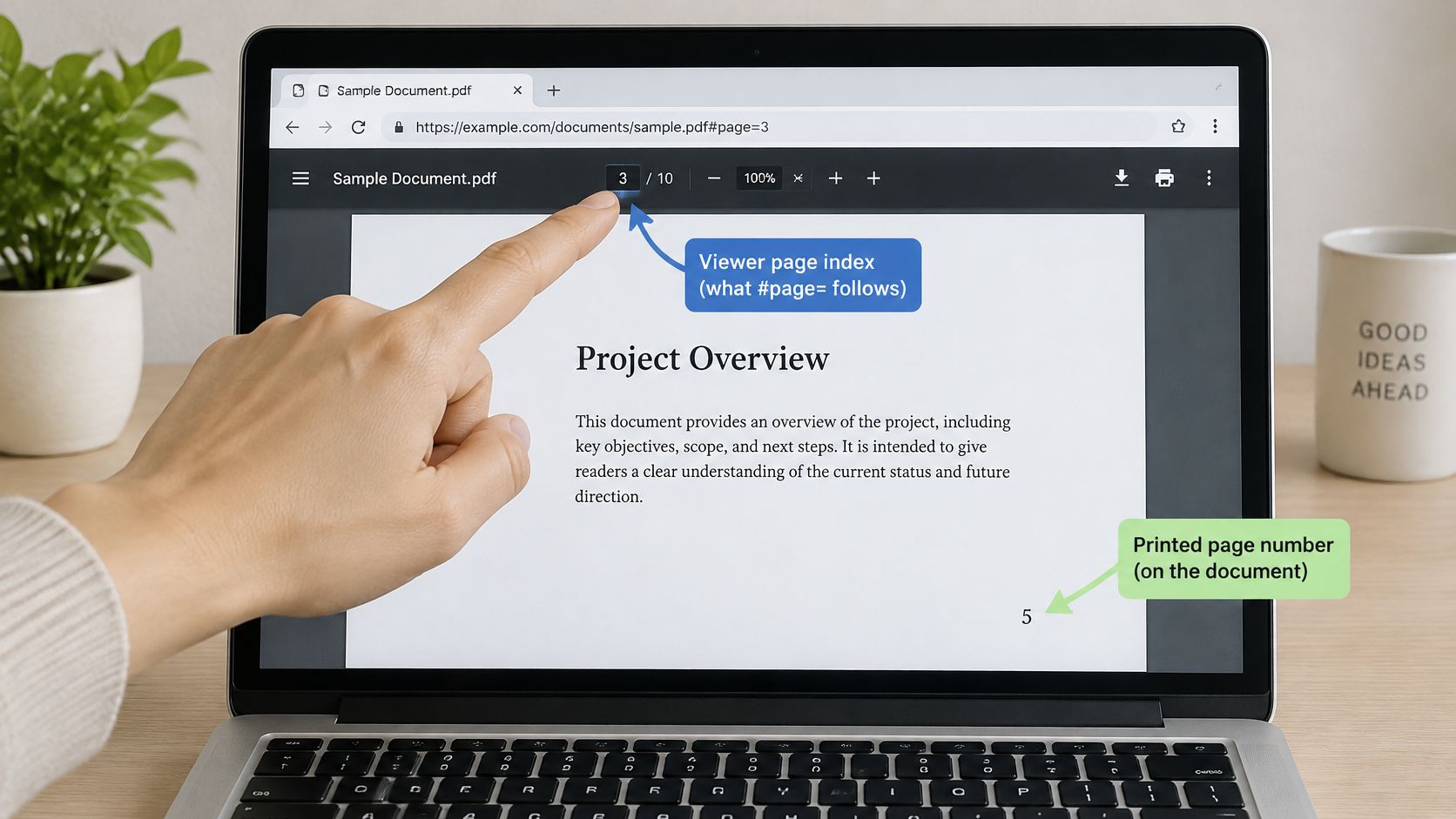
A page link can point to the viewer's page index, the position of a page within the file. That index is different from the number printed on the page. For example, a cover may be the viewer's first page even if the first numbered page displays “1” several pages later. Keeping those two counts separate helps you choose the intended destination.
The link and the document's own navigation have different roles. A page fragment sets the starting point. Bookmarks provide a clickable outline for finding other sections after the PDF opens. Keep both available, especially when a document has several sections. If you re-export the proposal and its pages shift, the same index may point somewhere else, so check the link again.
For the freelancer, a message such as “Please review the Fees section before approving the proposal” names the destination in words. That helps if the viewer ignores the page request, and it gives the reader a clue about what to look for.
Use the viewer's page index as the target, then check that it still leads to the named section after any re-export. A clear label and useful bookmarks give readers more than one way to reach the information.
Build a Link That Lands on One Page
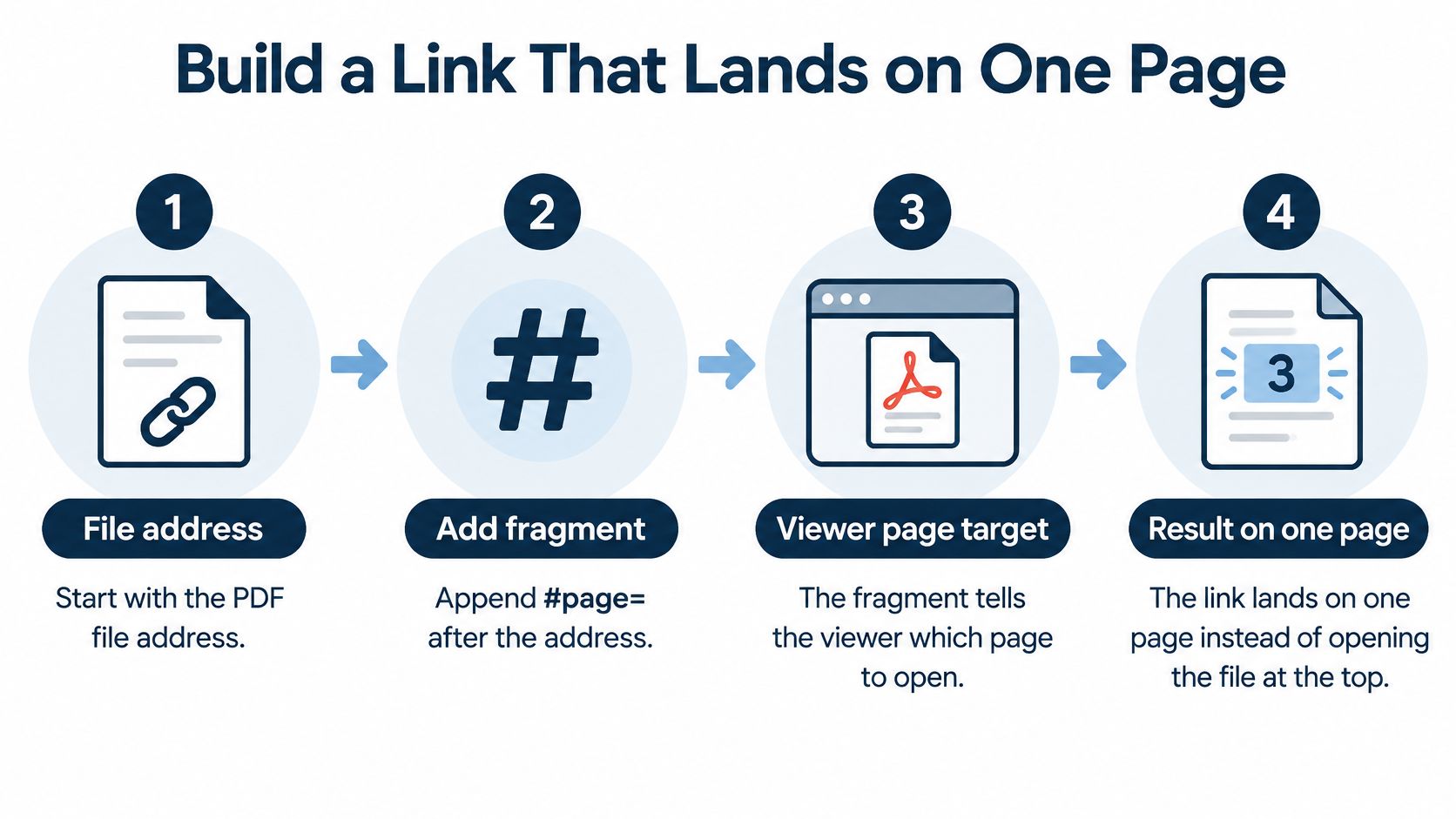
A client needs the fees in your price list, not the pages before them. A page fragment can send them to the intended starting point. It begins with the PDF's web address, followed by a short instruction starting with #.
Write the pattern as code: https://your-real-domain.com/report.pdf#page=10. The address identifies the file, and #page=10 asks the viewer to open its tenth page. Treat this as a format example, not a link to a real report.
For your own price list, copy its hosted PDF address and add #page= followed by the target page's position in the file.
Check the file before editing the address
If the price list is only on your computer, first create a shareable link for the PDF. Copy the published file address, not an upload-screen or account-dashboard address.
Use this order:
- Confirm the file type. The host should serve the document as
application/pdf, the technical label for a PDF. If you can't check this, ask the hosting service to confirm it. - Locate the target. Open the published document and find the price table before adding a page instruction.
- Add the fragment. Put
#page=after the.pdfpath, followed by the target page index. Don't add it to the filename. - Test the link. Open it on a computer and a phone. A successful test on one screen doesn't confirm how another viewer will handle it.
- Give readers a fallback. Link to the document's contents or name the relevant section in the surrounding text.
The viewer interprets the fragment, not the web server. So a page instruction won't fix an inaccessible file, a redirect that prevents the PDF from opening, or an address that serves something other than the document. File type, page target, and display settings affect the result. Use the fragment format supported by the viewer you are testing, and treat #page=N as the essential baseline.
You may also see a fragment such as #page=10&view=fitH. The added setting requests a fitted view when the viewer supports it. Keep it optional: for a price list, reaching the right table matters more than choosing its magnification. The recipient can adjust the zoom after the document opens.
Count the Page the Viewer Actually Shows
You send a proposal link to a client and add a page fragment for the Fees section. The link opens, but the client sees the contents page instead. The likely cause is a mismatch between the printed page label and the page's position in the PDF.
A cover, contents page, Roman-numbered introduction, or other front matter still takes up space in the file. The viewer counts those pages even when the printed numbering starts later.
Find the position, not just the footer
A printed page label may differ from the viewer's actual page position. For example, printed page 1 may be the fifth page in the PDF because four pages of front matter come before it. Using the printed number would therefore send the reader to the wrong content.
Open the proposal and scroll to the Fees heading. Check the viewer's page-position indicator or the thumbnail order. If the viewer also shows custom page labels, use the position in the file as your target.
Record three details beside the address:
- Document title. Name the proposal or handout so you can distinguish it from other files.
- Section heading. Note Fees, Exercise, or the heading your recipient will see.
- Viewer index. Save the verified page position, not the number printed in the footer.
That note makes a later check simple. In your email, say “Open the proposal at Fees” so the reader can confirm the section, not just the page number.
Test the handoff between viewers
Open the same link in a desktop browser and a mobile browser. Then download the PDF and open it in a reader application. Check whether each view starts at the intended section. A downloaded copy may not preserve the page fragment from the web address.
The viewer handles the page request, so behavior can differ. Re-exporting or replacing the file can also change which content sits at a given position.
A link can still open after a new cover is added, yet point to the wrong section.
After each re-export, compare the viewer index with the section heading. Ask, “Does this still open at Fees?” Seeing the PDF appear is not enough.
Use Bookmarks When Pages Will Change
A client report can gain a new cover or revised section before its next export. The page fragment may still open the PDF, yet point readers to a different section. Bookmarks give them a second route: a clickable outline entry tied to a heading.
A named destination labels a location inside the file. It can support references across revisions if it is maintained and the viewer recognizes it. A bookmark helps readers find a section within the PDF, while a page fragment targets a viewer's page index in the current file.
Choose the right navigation
| Method | Best when | What can break |
|---|---|---|
| Page fragment | You want someone to open a verified page in the current file | Pagination changes, viewer support, or the underlying file address |
| Bookmarks | Readers need to browse a long document by section | Missing headings, incorrect targets, or an export that omits the outline |
| Named destination | You need a labeled target that can be maintained across revisions | The destination is removed, renamed, or unsupported by the reader's viewer |
For a document with several sections, use tagged PDF when possible because it preserves a logical reading order, then create bookmarks from the document's heading structure. Before publishing, export the tagged file, confirm the heading hierarchy, generate the outline, and open every bookmark to verify that it reaches the intended section.
Build the outline from headings
Start with heading styles in the source document. Use a main heading for the report title and lower-level headings for sections such as Methodology, Findings, and Recommendations. Bold text alone does not tell the PDF that a heading marks a new section.
Before publishing, check the outline from top to bottom:
- Export with tags. Choose an export option that preserves the document's tags.
- Check the hierarchy. Confirm that headings follow the intended order and levels.
- Create and test bookmarks. Generate them from the headings, then open each one and check where it lands.
- Show the outline on opening. Set the file to display its bookmark pane if the export settings allow it.
For a report that will be revised, repeat these checks after each export. A bookmark can also point to the wrong place if its target was not updated.
In your message, name the section and give the verified viewer index, such as “Open Methodology at viewer page 14.” The bookmark lets readers find the section inside the file, while the page fragment offers a direct jump. Keep both current whenever the PDF changes.
Keep Page Links Usable for Every Reader
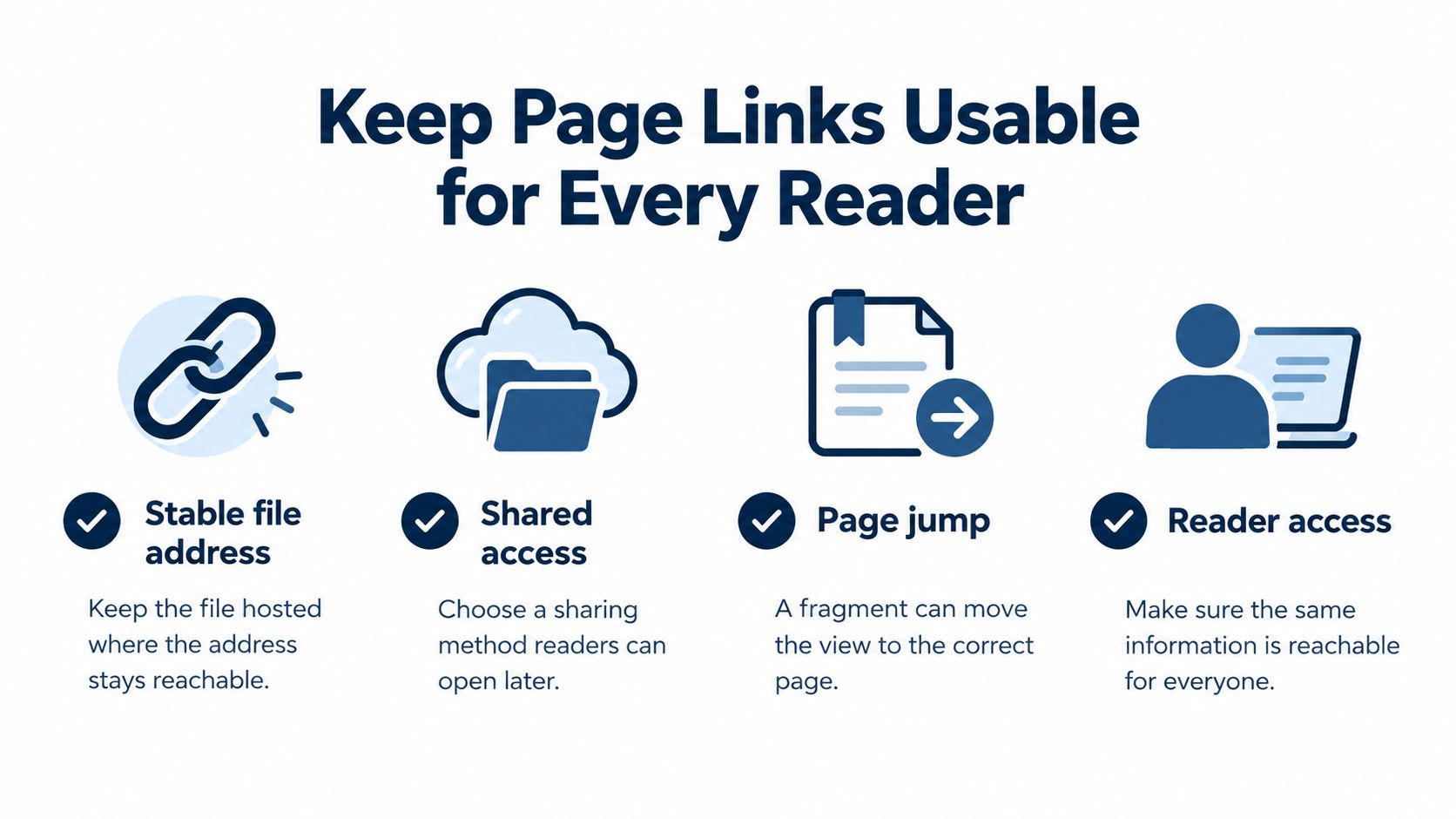
A reader opens a link to a scanned résumé and sees the applicant's work history as an image. The page jump worked, but the text may not be readable by assistive technology. Check both where the link lands and what readers can access once they arrive.
A page jump is a visual instruction. Accessible navigation also depends on meaningful link wording, correctly tagged link objects, a logical document structure, and sensible reading and tab order.
Check what the reader can actually reach
For a résumé made by photographing pages, the applicant's name, contact details, and work history may be pictures rather than selectable text. Use a text-based PDF when possible. If the file is a scan, run text recognition and inspect the result for errors.
Use a short pre-share routine:
- Set the language and title. Add meaningful document details so readers and assistive technology have context.
- Use structural headings. Check that section titles are marked as headings, not just enlarged text.
- Describe meaningful images. Write alternative text that explains a diagram's purpose.
- Check reading and tab order. Follow the content in sequence, then move through interactive elements using a keyboard.
- Inspect tables and links. Identify table headers and use link wording that explains the destination.
These checks are useful for forms, multi-column layouts, charts, and scanned pages. See government guidance on PDF accessibility basics for more details.
Give critical information a plain backup
Read the link label without the surrounding email. “Workshop handout, practice exercise” tells the reader what to expect. “This” does not.
For a public handout, repeat critical information in the accompanying web page or email. If students need to bring materials or finish a task before class, include that requirement in plain text rather than relying on a page-specific PDF link alone.
Before publishing: Use an automated checker to find likely problems, then ask a person to review the wording, reading order, and image descriptions.
A clean checker report cannot confirm that every reader will understand the document. Pair a verified page link with a clear label, an outline, readable text, and a plain-language backup.
Pick a Host That Keeps the Address Stable
The address before the fragment needs attention too. Your recipient can't reach the fee table if the file has moved or the sharing page asks them to request access.
Choose the sharing method around the recipient's job. Do they need a fixed copy for their records, or a link to the current document? Those are different needs.
Compare the sharing routes
| Sharing method | Useful for | Check before sending |
|---|---|---|
| Email attachment | Giving someone a separate copy | Whether the recipient can find the relevant section and identify the version |
| Permission-controlled cloud link | Sharing with a defined group | Whether the intended reader already has access |
| Stable hosted PDF address | Pointing people to a maintained online file | Whether it delivers the PDF, supports the intended access, and remains reachable |
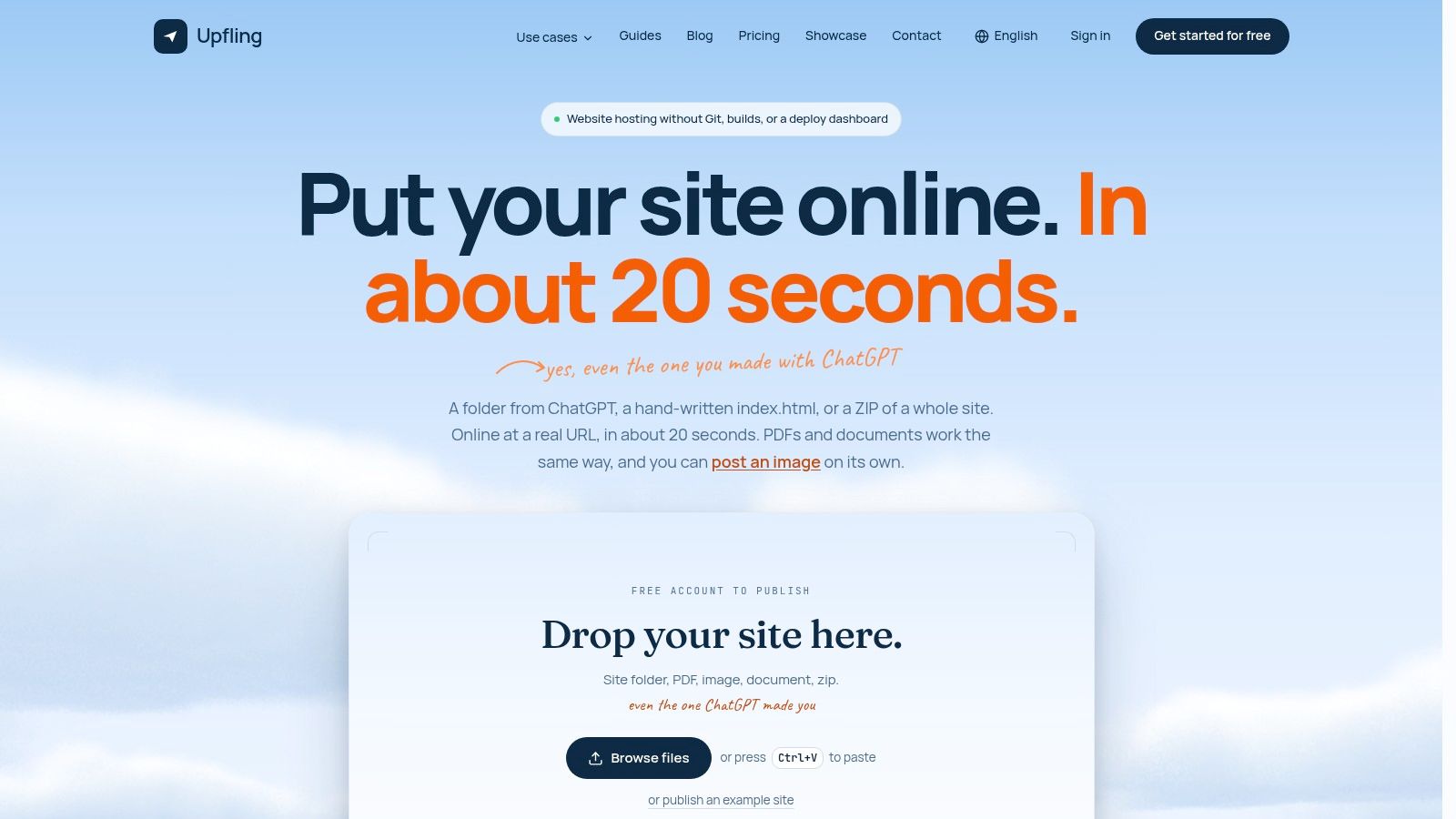
Upfling is one option for the hosted route. You can drop in a PDF, ZIP archive, or another supported file and receive a live shareable URL in about twenty seconds, with free SSL, no Git or build step, optional password protection, and an automatic QR code for every URL.
It also supports replacing a file without changing its public address. Those persistent file links are useful when you need to correct a document without updating every email or printed handout.
Treat print as another entry point
A classroom poster or printed resume can point to the online document through a QR code. A U.S. Census Bureau working paper on QR-code use reports that 89 million U.S. smartphone users scanned a QR code in 2022, up 26% from 2020.
Print readable destination text and a fallback address beside the code. Someone may not be able to scan it, and they should still know what document it opens.
Also check what the QR code encodes. A code for the base file address isn't necessarily a code for your page-specific address. If the printed piece promises the Fees section, test that exact print-to-phone journey.
A stable address keeps a printed code useful after an update. It doesn't guarantee that the same page position still contains the same information. File replacement and page-target verification remain separate checks.
Test the Link and Share It Today
Open the finished link on your laptop, then on your phone. Check the content you see, not just whether the PDF loads. The section heading should match the destination you meant to share.
Click the bookmark for that section as well. Then read the surrounding email sentence and ask whether someone could still find the information if their viewer ignored the fragment.
Make the final check about the reader
Use this compact review before pressing Send:
- Correct destination. The link opens at the intended heading or table.
- Useful recovery. The bookmark reaches the same section, and the outline is understandable.
- Clear wording. The linked text names the document or section instead of saying “click here.”
- Current file. Any replacement or re-export has been checked for changed pagination.
- Appropriate access. The recipient can open the published document using the sharing arrangement you intended.
If the page count changed after a replacement, locate the section again and rebuild the fragment before sending. Even if the count stayed the same, check the destination itself. A matching total doesn't prove that the content stayed in place.
Send one purposeful link
To share your PDF online, publish the finished file, copy its live address, and append #page= with the verified viewer index. Paste the result into the email, chat, or handout using wording such as “Fees start on this page.”
For print, use the automatic QR code as a companion to the same address, checking whether it opens the base document or the specific destination. Keep the readable fallback beside it.
The result should be straightforward for the other person. They open a link and see the page that matters. If they need context, the bookmark outline is ready to help them move around.
Upfling offers shareable PDF hosting, file replacement without changing the public address, and an automatic QR code for print sharing. Visit Upfling, upload your finished PDF, and add the verified page fragment before sending your reader straight to the relevant section.