PDF Link to Bookmark: A Practical Guide for 2026
Learn how to turn any PDF link to bookmark in minutes. Step-by-step instructions for Acrobat, Word, and free tools, plus stable sharing tips that actually work.
You're staring at a PDF someone sent by email, and you just need one section, not the whole document. Maybe it's a proposal, a course pack, a resume, or a policy file that keeps getting re-shared with tiny edits. A PDF link to bookmark solves that quiet frustration by letting people jump straight to the right spot instead of hunting through pages.
What a PDF Bookmark Really Does
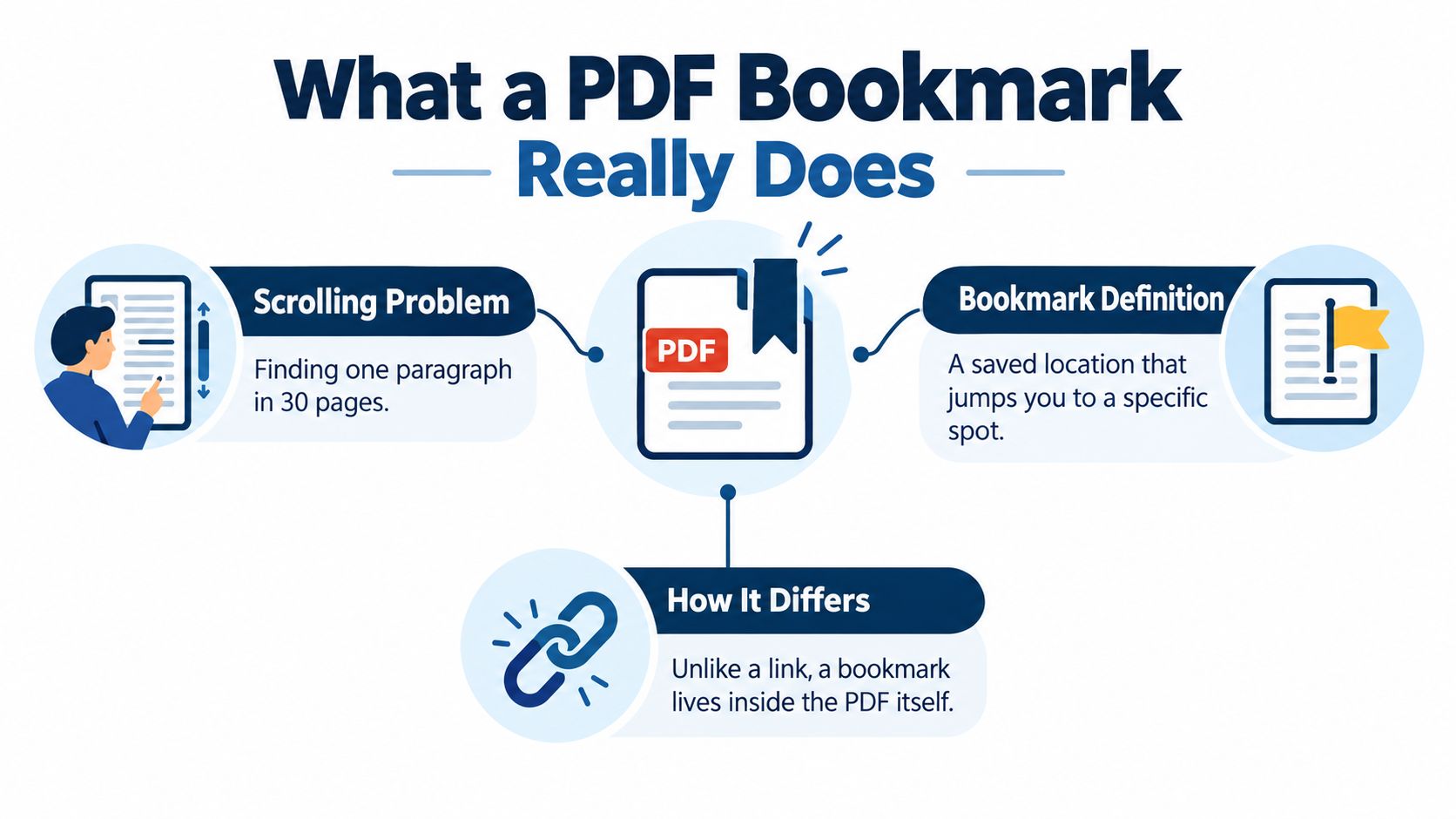
A bookmark is a saved jump point inside a PDF. You can view it as a labeled shortcut in the document's own structure, not a separate web link sitting outside the file. That distinction matters when the PDF is shared through a public URL, because the bookmark travels with the document itself and can help readers move around without scrolling.
PDF bookmarks also belong to a format that has been formally standardized for years, with PDF 1.7 becoming ISO 32000-1 in 2008 and PDF 2.0 following as ISO 32000-2 in 2017. That long standardization history is why bookmarks aren't just a viewer trick, they're part of a durable navigation model for reports, manuals, resumes, proposals, and research files PDF standardization history.
Why this helps when the file is shared
A public PDF URL may be opened on a laptop, a phone, or a dedicated reader, and each one handles scrolling a little differently. A bookmarked file gives the reader a built-in table of contents feel, which is much friendlier than a flat attachment. That's especially useful when someone opens the link remotely and wants one section fast.
Practical rule: if a document has more than one major section, bookmarks make the file easier to scan before the reader commits to downloading or searching.
The simplest way to think about it is this, a regular hyperlink sends someone to a location, while a bookmark gives the document its own internal wayfinding. If you've ever wished a PDF felt a little more like a mini-site and a little less like a long scroll, bookmarks are the reason that can happen.
Three Everyday Moments Where Bookmarks Save You
A freelancer sends a 25-page proposal and the client wants to review pricing first. With a bookmark for the pricing section, the client can go straight there, then jump back to the summary without paging through the whole file. If you send client work often, that kind of shortcut keeps the conversation focused on decisions instead of navigation.
An instructor shares a course pack with exercises, and students keep asking where the next activity starts. A simple bookmark tree lets them move from introduction to exercise sections to appendix without losing their place. If the file has repeated references or activities, bookmarks turn it into something students can revisit without frustration.
A job seeker shares a resume package with a portfolio sample and a cover letter in one PDF. A recruiter can open the file, click the section names, and get to the case study without guessing where it lives. That makes the document feel tidy and intentional, which is exactly what you want when someone is reviewing you quickly.
For a simple way to host a document like this as a shareable web link, see this PDF sharing workflow.
Takeaway: proposals, course packs, and portfolio files benefit most when the reader needs to jump between sections more than once.
Creating Bookmarks in Acrobat Without the Headache
Open the PDF in your PDF editor, then show the bookmarks panel from the navigation area. Go to the page you want to mark, adjust the view if needed, and create a new bookmark from that spot. Name it clearly, because that title is what readers will see in the navigation pane.
Keep the structure simple
If the document has sections and subsections, drag bookmarks into a parent-child order so the outline mirrors the headings. That gives the reader a clear path through the file instead of a cluttered list of entries. The goal is not to add every possible bookmark. It is to build the right ones in the right order.
A common beginner mistake is assuming that visible text in the PDF automatically becomes a bookmark. It does not. A heading on the page, a hyperlink in the body, and a bookmark in the sidebar are separate things, and each one has to be set up on purpose.
Don't rely on the page number alone if the document might change later.
If you want the PDF to start with a useful outline, begin in the source document. Use heading styles before export so the PDF can inherit a logical navigation structure. That gives you a head start, because the outline can come from the document's headings instead of being built from scratch afterward.
A clean bookmark structure also makes later sharing easier. If you replace the same PDF with an updated version, readers can return to the familiar section names instead of relearning a new layout each time. That matters when the file is reused, revised, and sent again.
The safest habit is to build the outline, open every bookmark once, and make sure each one lands where you expect. If a bookmark does not jump cleanly in the final file, fix it before you share the link.
Page Numbers Versus Named Destinations
A page number is simple, and sometimes that's enough. But it's also brittle, because a small edit can shift content and make the old reference misleading. A named destination is more like a label for a spot in the file, so the bookmark can point to a meaningfully named target instead of only a page count.
Consider a recipe card. If the note says “page 12,” you depend on the page staying put. If it says “Pricing section,” you depend on the section itself, which is usually more useful after revisions.
| Aspect | Page-Number Link | Named Destination |
|---|---|---|
| Best for | Short files that won't change much | Files that get edited, replaced, or reorganized |
| Main strength | Quick to set up | More stable after layout changes |
| Main weakness | Breaks easily when pages move | Takes a little more planning |
| Reader experience | Fine for a one-page or static PDF | Better for long or updated documents |
For a one-page flyer, a page-number reference is perfectly fine. For a handbook, proposal, or report that gets revised, named destinations are the safer choice. The rule of thumb is simple, use page numbers for static files, and use named destinations when the PDF might be edited later.
Writing a PDF Link That Actually Opens the Bookmark
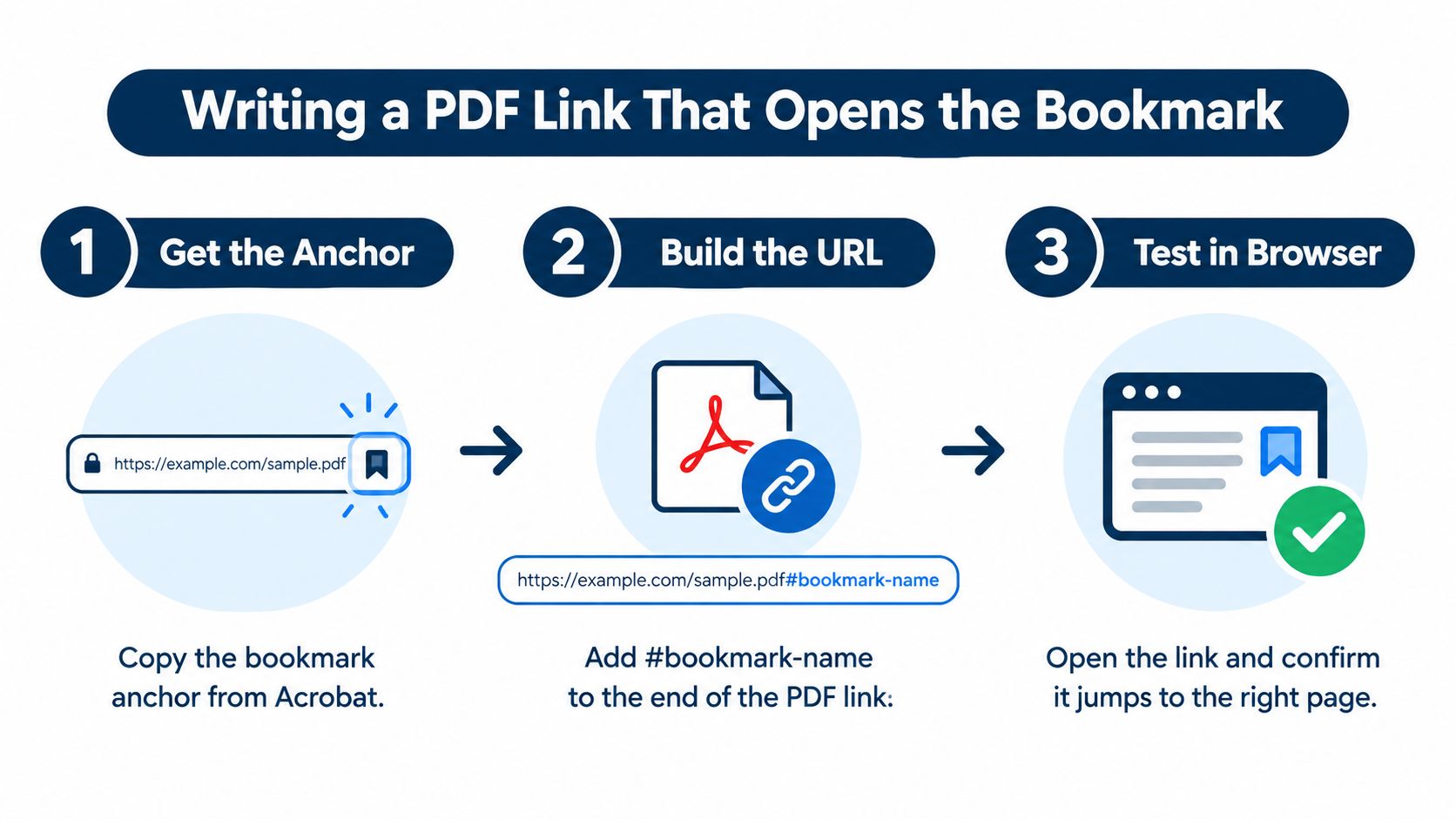
The missing piece is the bookmark anchor at the end of the URL. In a browser or shared link, that usually means adding the fragment after a # so the file jumps to the bookmarked location. If the anchor name is off, the PDF may still open, but it will stop at the wrong spot.
A simple pattern to copy
Start with the public PDF address, then add the bookmark name after the hash symbol. The anchor text has to match the bookmark name used in the file, because a small mismatch is enough to break the jump.
The character to watch for is #, because it tells the link to go to a specific bookmark target.
A quick test usually saves time later. Open the link in a browser first, then paste it into an email draft, then try it from a phone message. Those three checks catch the small problems that frustrate beginners, like copied spacing, truncated text, or a bookmark that works in one place but not another. If the file opens and the section is still wrong, the anchor name or the destination inside the PDF usually needs attention.
For another way to think about direct file access and sharing, see this file-to-link workflow.
Send the link to yourself and open it from the received message. That shows the experience, not just what looks right in your editing window.
Keeping the Link Working After Edits, Replacements, and Shares
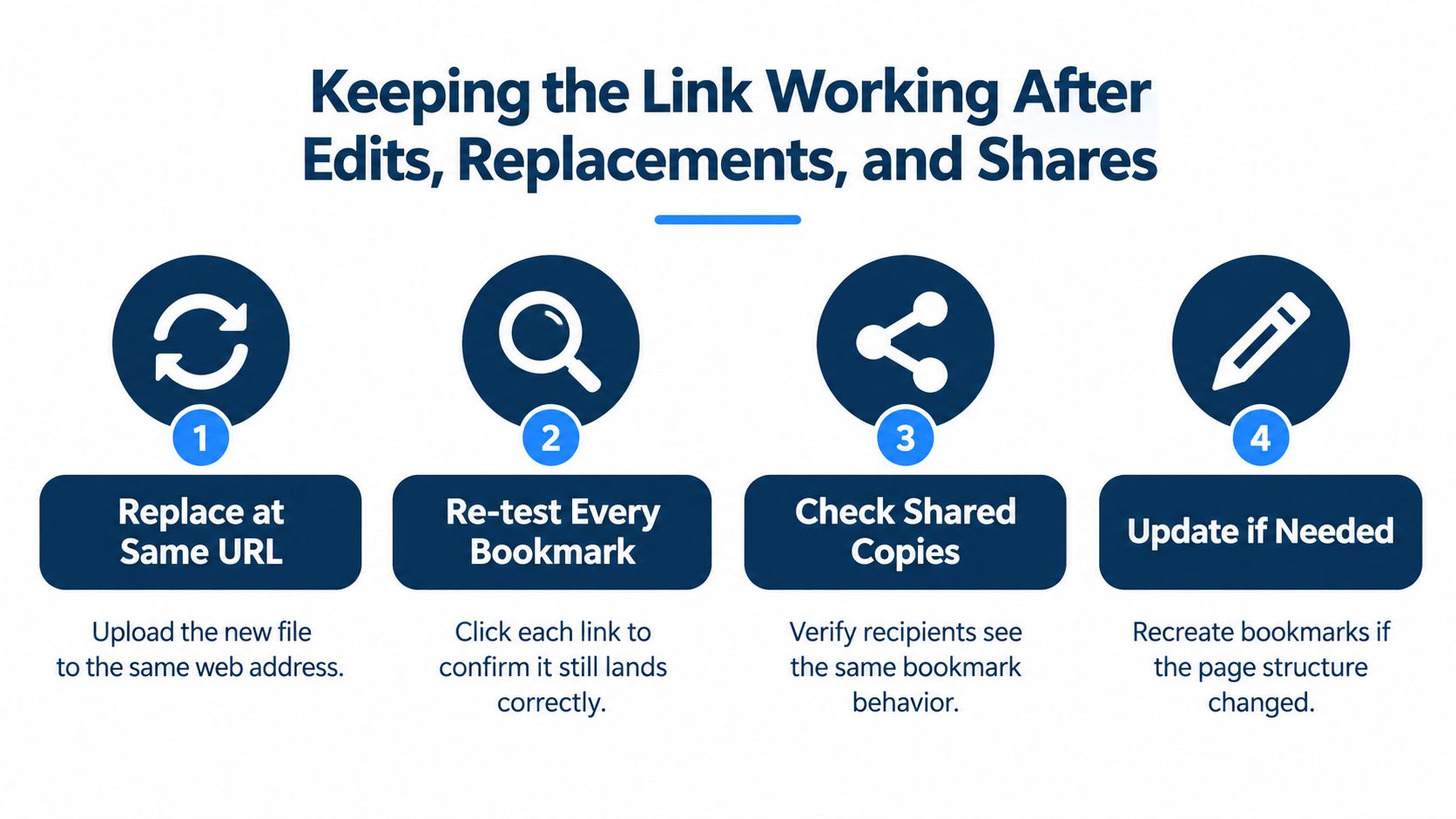
The trouble usually starts after the first upload. Someone asks for a revision, you replace the PDF, and the bookmark labels may no longer line up with the page structure the way they did before. If the public URL stays the same, the outside link can still do its job, but the navigation inside the file needs another check.
The habit that saves you later
Keep the file at the same public address when you want readers to keep using the same outer link. Then open the updated version and click every important bookmark again. If a section moved, rename or rebuild the bookmark so the label still matches the content.
That matters for accessibility too. Good bookmark coverage should follow the heading hierarchy, use meaningful labels instead of vague text, and be checked in more than one viewer. The North Carolina accessibility guidance also notes that documents longer than two pages with logical heading structure need a manual bookmark check, because software can tell that a bookmark exists, but not whether it makes sense PDF accessibility handbook.
A few practical habits make the review easier:
- Use descriptive labels: “Pricing,” “Methods,” or “Appendix” is clearer than “Click here.”
- Keep nesting shallow: too many layers make the outline harder to use.
- Retest after every replacement: a file that was fine last week can become confusing after a layout shift.
- Choose sharing permissions on purpose: view-only for final files, comment access for review rounds, and revoke access if the wrong person gets the link.
Most file-sharing controls separate viewer, commenter, and editor access, and let the owner limit downloading or copying when needed sharing permissions guide. For a hosted PDF that keeps the same public address while the file gets updated, this permanent link workflow is the cleanest habit to borrow.
After each replacement, reopen the public URL and click Pricing, Methods, and Appendix to confirm each bookmark still lands correctly before resharing.
Quick Answers to the Questions People Ask Next
If you rename a bookmark after sharing the link, the old anchor may stop matching. The safest move is to rename the bookmark only after you've checked the public file again, then resend the updated link if the destination changed.
If you merge two PDFs, bookmark behavior can survive, but the outline often needs cleanup. The new file may keep some structure and lose other pieces, so it's smart to open the merged version and verify the hierarchy instead of assuming it copied perfectly.
If a bookmark shows in Acrobat but vanishes on a phone, the file may still be there, but the viewer may present it differently. That's why a mobile test matters, especially when the document is meant to be read from a shared URL.
More bookmarks don't automatically mean better navigation. Three clear, well-named entries are usually more helpful than ten vague ones, because readers need accuracy more than volume.
If you want a simple way to publish PDFs as live, shareable URLs without fighting deployment steps, Upfling lets you host the file itself and keep the public link stable when the document changes. That makes it easier to pair a clean outer URL with a bookmark structure people can use.