Markdown Preview Online: 7 Tools Compared for 2026
Compare 7 Markdown preview online tools for non-technical users, with pros, cons, and real examples for sharing notes, proposals, and handouts.
You've finished a client proposal in Markdown. The headings are tidy, the bullet points are clear, and you're ready to send it. Then you open the file the way your client would and see rows of hash symbols, dashes, and asterisks that look like clutter.
That's the gap a Markdown preview online closes. You paste or upload the plain text and see the styled page your reader should see. But a preview alone doesn't answer the next question. Can that client, student, or recruiter open it without installing anything?
This list separates two jobs that often get mixed up. Some tools are best for a quick formatting check while you write. Others turn your file into a live link you can send. I judge each one on a shareable outcome, such as a proposal, class handout, or résumé page, because that's where the differences matter.
Markdown itself was built for this split between writing and presentation. According to a history of Markdown on DEV Community, John Gruber published the first specification on March 15, 2004, with Aaron Swartz credited as a major collaborator. You write plain text once. The preview proves it reads well.
1. Upfling
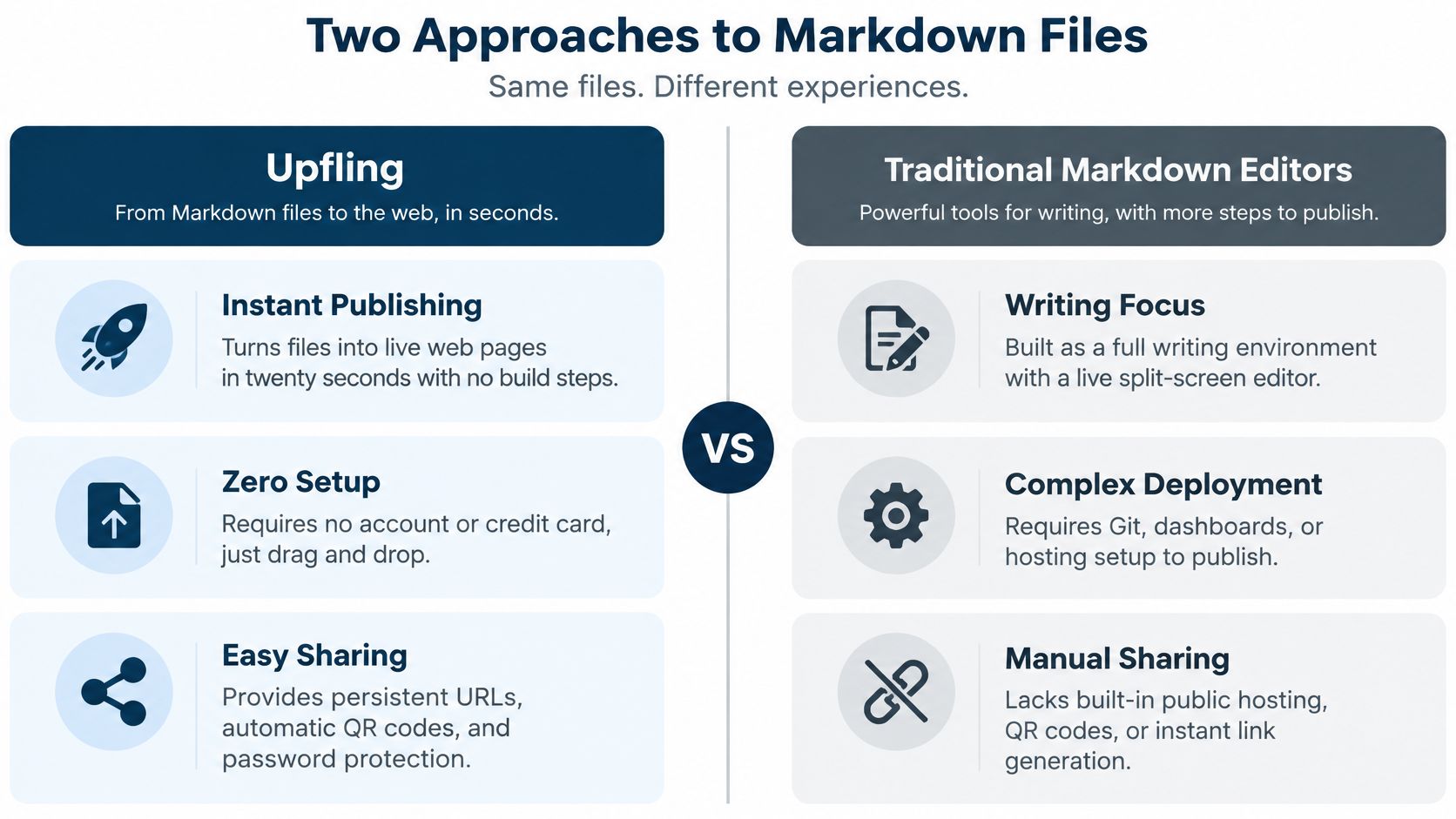
A client needs to review a proposal on their phone, without downloading a file. Upload the Markdown document to Upfling, and it renders as a styled page with a shareable URL. Each link also gets a QR code, useful for handing out a class handout or opening a proposal during a meeting.
How to Get a Clean Result
Keep the Markdown structure simple: use # for the title, ## for sections, and short paragraphs beneath them. A job seeker can publish a résumé page and password-protect its link for selected recruiters.
- Set a password: Restrict access to a link containing private client information.
- Replace the file: Update the page while keeping its existing URL.
- Use plain headings: A clear heading hierarchy makes the page easier to scan on phones.
The trade-off is that the service focuses on publishing, rather than providing an editing toolbar for drafting Markdown. Write the document in your preferred editor, then use free static site hosting to publish it without a build step.
Practical rule: For a reader who needs to open the finished document, choose a tool that provides a shareable link as well as a preview.
2. StackEdit
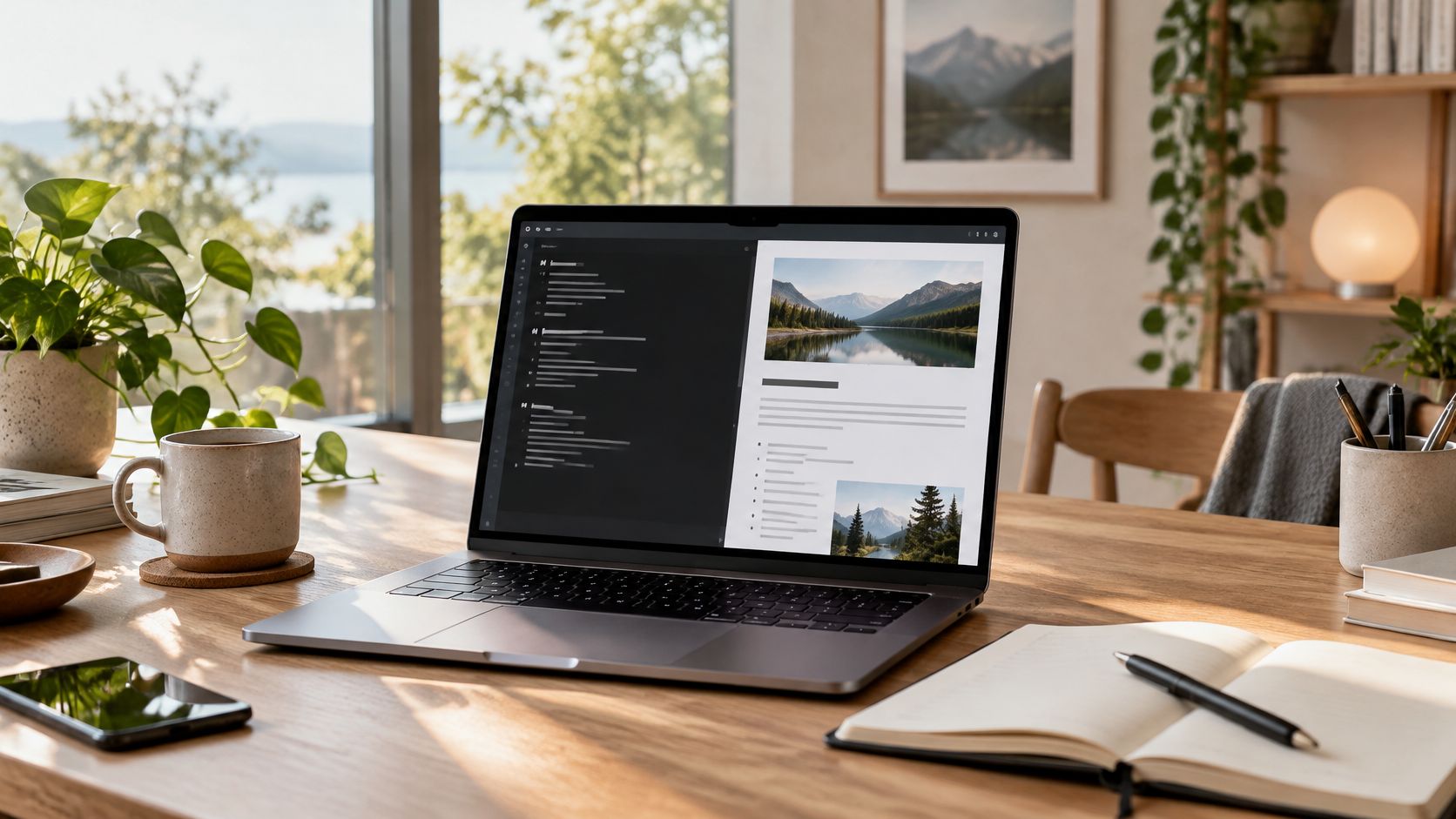
StackEdit puts your text and a live preview side by side in the browser. You type on the left and watch headings, bold text, and lists form on the right. For a beginner, that instant feedback teaches the symbols faster than any guide.
Documents save in your browser, and you can sync them with cloud storage. Finished work exports to HTML or PDF. That makes StackEdit a sensible drafting desk, not just a checking tool.
Who It Suits
Say a student drafts a research summary with headings and bullet points. She checks the preview, then exports a PDF to submit. A small business owner can do the same with a newsletter, preview the layout, and export HTML for an email tool.
Adoption helps explain why this workflow feels familiar. In a survey of technical communicators on I'd Rather Be Writing, 37% of respondents used Markdown as their source format, compared with 15% for HTML. Many people write in Markdown first and convert later, and StackEdit fits that habit.
- Connect cloud storage: Back up drafts so they don't live only in one browser.
- Use the toolbar first: Click buttons, notice the symbols they insert, then type them yourself.
- Preview the export: Check headings and lists in the exported file before you send it.
The limit is sharing. You still export and send a file. If your reader needs a link, you'll need another step after StackEdit.
3. Dillinger
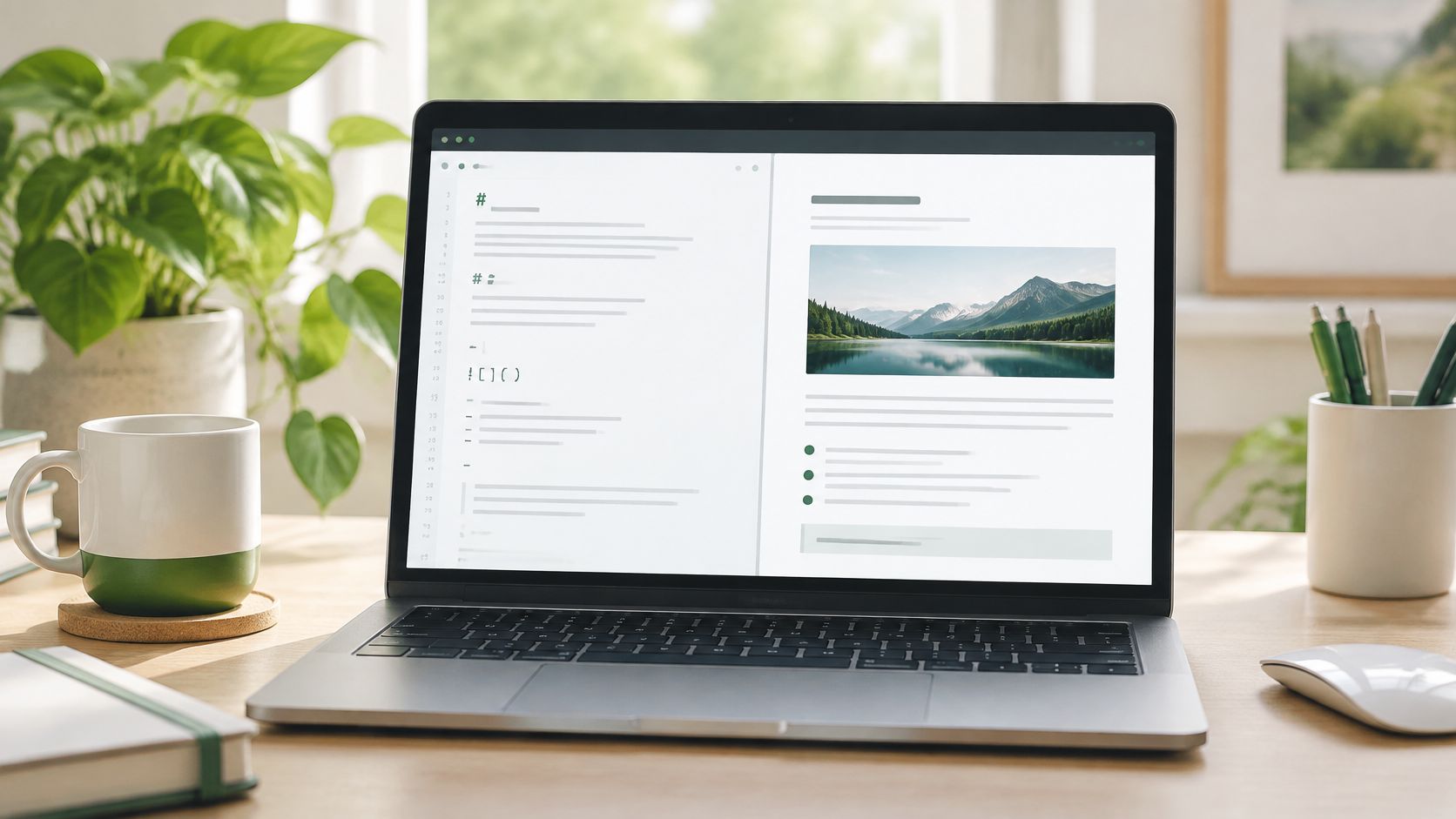
Dillinger keeps Markdown editing simple: write in one pane and see the rendered document beside it. For a volunteer preparing meeting notes, that makes it easy to check action items, then export a PDF to email. You can also export to HTML or connect cloud storage to save your files.
A Good First Editor
Dillinger suits a blogger who wants to check a post's headings and captions before copying the HTML into a website. It also works for short handouts or proposals that need a quick PDF export. The preview helps catch formatting problems while you write.
- Keep the preview open: Check changes as you make them.
- Start with the basics: Headings, bold text, and bullet lists cover many everyday documents.
- Check the PDF export: Review page breaks and spacing before sharing. Keep headings as Markdown headings in the source so they remain headings in the exported document.
Dillinger produces a file, not a shareable public URL. If you need to send a PDF as a link instead of an attachment, use a service for sharing PDFs online.
4. HackMD
When students or colleagues need to shape one document together, HackMD keeps the writing and preview in a shared workspace. Several editors can work in the same document, and the preview updates as they make changes. That makes it easier to review a class report or event plan without passing around separate drafts.
Keeping Shared Writing Tidy
Agree on ownership before editing. Assigning one person to each section reduces overlapping changes, while checklists make shared tasks easy to scan.
- Use view-only access for a finished draft: This helps prevent accidental edits.
- Assign sections by name: Each person knows which part to maintain.
- Format tasks as checklists: Readers can see what remains to be done.
Markdown extensions can behave differently across tools. CommonMark's list of deployed extensions documents optional features such as tables and task lists. Check those elements in the destination where the document will be used.
5. Markdown Live Preview
This tool does one thing. You type or paste Markdown, and a second panel shows the formatted result. There's no sign-up and almost nothing to configure.
Use it for the check you'd otherwise skip. A job seeker can test bullet points and bold job titles before pasting text into a résumé template. A parent can draft a classroom announcement, confirm the layout, and print it.
What to Check in Thirty Seconds
Headings are the fastest win. GitHub's basic formatting syntax guide explains that a heading uses one to six hash symbols followed by a space. So # Résumé becomes your title and ## Work Experience becomes a section. If a heading stays plain text, check the space after the hashes first.
- Copy your text out: Save the raw Markdown before you close the tab.
- Watch blank lines: A blank line usually starts a new paragraph.
- Move long work elsewhere: Drafts that matter belong in an editor that saves files.
That's the honest limit. There's no account, no library, and no link to send anyone. For a quick check of how a formatted page behaves in the browser, pairing it with an HTML tester view can help, but long documents deserve persistent storage.
I reach for this tool for a paragraph, not a project. It answers "does this render" and nothing more, which is sometimes exactly the question.
6. GitHub Gist
GitHub Gist suits Markdown drafts that need a GitHub-based file history. Save the file with a .md extension to display formatted Markdown. Version history lets you return to an earlier draft if an edit goes wrong.
A trainer could use that setup to maintain a workout plan, or a cook to keep a recipe draft. For a client proposal, class handout, or résumé page, consider whether the recipient is comfortable opening a GitHub page.
Getting the Settings Right
Set the filename and visibility before sharing the document.
- Use a
.mdfilename: GitHub will render the file as Markdown. - Choose visibility carefully: A secret Gist is not listed publicly, but anyone with its link can open it.
- Review version history: Use it to recover an earlier draft after an unwanted edit.
The Stack Overflow 2025 Developer Survey reports a 75.8% admired rating for Markdown among respondents. That makes familiarity with the format useful, but it doesn't settle whether GitHub is the right place for every reader.
Gist's file history suits people already comfortable with GitHub. Readers who rarely use developer tools may find the surrounding interface less familiar, even when the Markdown itself is clear.
7. Visual Studio Code for the Web
This is the browser version of Microsoft's code editor, and it looks like it. Panels, menus, and file trees surround your text. Ignore most of them. The built-in Markdown preview is straightforward once you open it beside your file.
I recommend it for people who expect their needs to grow. A freelance designer can keep project notes beside client files and preview as she writes. A student can keep a course journal and review the formatted version before submitting it.
Finding Your Way Around
Open the side by side preview command and leave it open. Changes appear as you type, just like the simpler editors. Focus on two panes, the editor and the preview, and the rest can wait.
- Save to a cloud account: Browser work shouldn't vanish when a tab closes.
- Ignore unused menus: You don't need extensions to preview a handout.
- Check indentation in examples: Pasted text often loses its spacing.
That last point catches real errors. The CommonMark specification states that indented code blocks require four or more spaces at the start of each line. One line with too little indentation falls outside the block, and the preview shows it instantly. Fenced blocks with triple backticks are easier for many writers.
For growing skills: Choose this if you'll write Markdown weekly. Choose a simpler editor if you only need an occasional check.
It won't publish a public link for you, and beginners may find the interface heavy. Its strength is headroom.
How the Seven Markdown Preview Online Tools Differ for Everyday Use
The key difference is what happens after the preview: some tools show formatted text, while others can publish it as a page or shareable link. For a client proposal, class handout, or résumé page, the table focuses on publishing options rather than comparing editor features.
| Publishing option | Best for | Cost detail | Shareable link | Collaboration |
|---|---|---|---|---|
| Upfling | Turning a Markdown file into a styled web page | Free plan available | Yes, with a persistent URL | No live collaboration |
| A collaborative Markdown workspace | Co-writing and sharing a document | Free and paid tiers | Yes | Real-time collaboration |
| A code-hosting snippet service | Sharing Markdown notes alongside version history | Free to use | Yes | No real-time collaboration |
Upfling suits a reader who wants the Markdown page online, rather than a preview that must be copied into another service. It renders Markdown as a styled page, with the source and a download available. Its free static hosting keeps the workflow simple; editing the source still requires a Markdown editor.
Pick the Tool That Matches Where Your Markdown Needs to Go
Choose based on what the reader needs to do next: check formatting, revise the document, or open it at a stable address. A preview is enough for a quick syntax check. For a proposal, class handout, or résumé, consider how the recipient will access the finished page.
Before sharing, scan the rendered result against the Markdown source. A heading such as # Workshop Notes, a subsection like ## Materials, and a link are enough to reveal common formatting slips. GitHub's quickstart for writing on GitHub explains how Markdown punctuation controls formatting. Check that headings, links, and indentation appear as intended.
When the Reader Must Open It
A file attachment can be hard to find later, and separate copies can leave readers unsure which version is current. A shareable page gives the recipient one address to open. For a client proposal, class handout, or résumé, prioritize a readable page and a stable link.
Accessibility belongs in the final review. Keep heading levels in order, write useful alt text for images, and use actual headings instead of bold text that only looks like one. These choices help people using screen readers understand the document's structure.
Upfling renders a Markdown file as a styled page at a shareable URL in about twenty seconds. You can replace the file without changing the URL, so readers can return to the same address for the updated document.
Drop your finished .md file into Upfling and get a styled, shareable page with a clean link and QR code in about twenty seconds, no hosting setup required. Replace the file later and the same URL stays live, so your proposal, handout, or résumé never needs re-sending. Start free today and send your next Markdown document as a link your reader can open.