Linking PDF to Excel: Hyperlinks, Hosted Files and Tables
Linking PDF to Excel without broken links: clickable hyperlinks, hosted URLs and extracted tables, with steps, a method chart and fixes.
You've finished the expense workbook, attached the receipts, and sent it to the accountant. Then a reply arrives: none of the PDF links open. They worked on your laptop, but the accountant doesn't have your folders, your drive letters, or your access permissions.
Linking PDF to Excel means choosing both a connection method and a home for the document. A clickable invoice, a self-contained attachment, and a table you can total are different jobs. The right choice keeps the document available to the person who needs it, without turning every folder change into a workbook repair.
Which PDF Link Method Fits Your Workbook
The finance drive gets reorganized a week before month-end. Your formulas still calculate and the linked cells still work on your laptop, but someone opening the copy elsewhere gets an error. Nothing in the worksheet warns you that the supporting records are unreachable until they try one.
A PDF link is a record you have to keep alive. Excel can store an address for the document, a copy inside the workbook, or figures copied out of it. Each record survives a different kind of change.
Four ways to connect a PDF to Excel
| Method | What the workbook stores | Works on | Breaks when | Best for |
|---|---|---|---|---|
| Local file hyperlink | Path to the PDF on your computer | Same computer or a shared drive that keeps the same path | The PDF or workbook is moved, renamed or sent alone | Personal files kept in one folder |
| Hosted URL hyperlink | Web address of the PDF | Any device with internet access and permission | The hosted file is deleted or access is revoked | Clients, teammates and reviewers on other devices |
| Embedded PDF object | A full copy of the PDF inside the workbook | Computers with compatible desktop Excel and PDF-object support | The source PDF changes and the embedded copy goes out of date | Self-contained reports that rarely change |
| Extracted table data | Numbers and text copied into cells | Any computer with Excel | Rows, merged cells or scanned text are misread | Totals, filtering and analysis |
Use a local file link only when the workbook and its document folder are managed together. A hosted URL travels with the workbook more reliably, but the document still has to remain online and the recipient has to retain permission.
Embedding makes the workbook larger and creates another document copy to manage. It also needs testing on the recipient's setup, particularly when they use a browser or a different operating system.
For recurring tables, Power Query is more useful than repeated copy-paste because it creates a refreshable connection. The Microsoft PDF connector documentation describes importing detected tables and transforming them before loading, but refreshability doesn't guarantee correct interpretation.
Platform support matters. Microsoft community guidance describes the PDF connector as limited to certain Windows Microsoft 365 configurations, with scanned PDFs needing another route. Mac users should confirm availability before committing to that workflow.
Choose by the job: Where will the PDF live, who will open it and on which device, and do you need its figures for totals or filtering?
How to Insert a Clickable PDF Link in Excel
A click on a linked cell can open a PDF stored on the same computer. For an invoice register, keep the invoice number in column A and use column B for a readable document label rather than a long file path.
Microsoft's guide to links in Excel supports linking from either a cell or a graphical object to an existing file. The PDF opens through the computer's associated application.
Add the invoice link
- Select the cell that will hold the link, such as B2.
- Open the link dialog with Ctrl+K on Windows, Cmd+K on Mac, or Insert > Link.
- Choose Existing File or Web Page in the Windows dialog. On Mac, use the corresponding file or web-link option.
- Locate the PDF by browsing to it or pasting its full file path into the address field.
- Enter useful display text, such as Open invoice 1042, in Text to display.
- Select OK to save the hyperlink.
- Test the cell by following the link and confirming that the correct invoice opens.
The short visual sequence below shows the same basic operation.
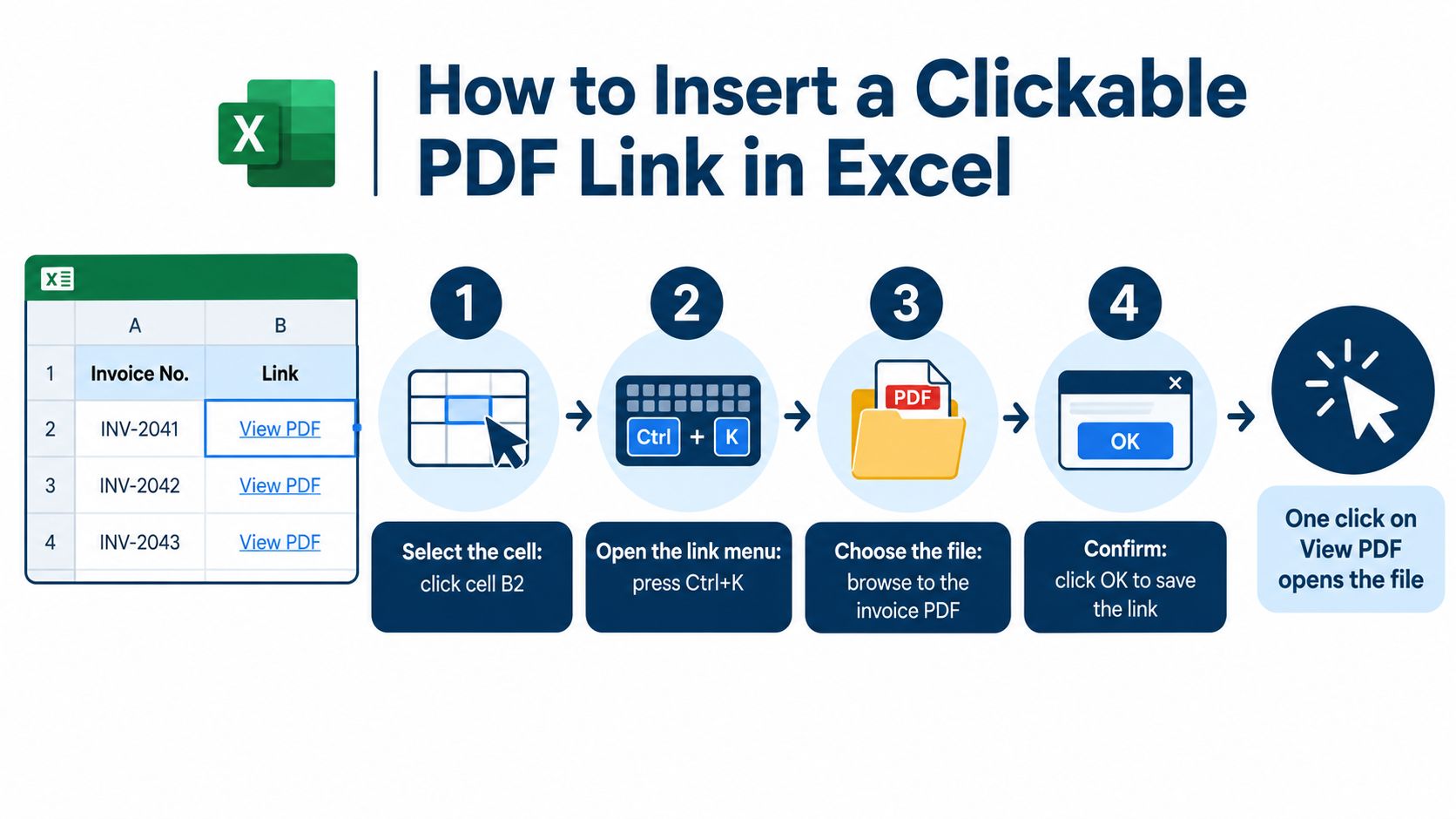
The workbook stores an address, not the PDF's contents. Linking an invoice won't put its line items, tax, or balance into cells. If you need arithmetic, enter or extract those values separately and retain the document link as evidence.
Keep the folder repairable
Keep the workbook and its PDFs together in a clearly named project folder. Name each PDF with the invoice identifier used in column A, so you can match a broken reference to the correct document without opening every receipt.
For a visual contract index, insert a picture or shape, right-click it, choose Link, and select the PDF. That can make a dashboard easier to move through, although ordinary linked cells are simpler to sort and maintain.
A document icon is only a clickable button unless you deliberately embed the file.
If Excel reports that it can't find the file, right-click the affected cell and choose Edit Link or Edit Hyperlink. Point it to the PDF's current location, then test again. You don't need to rebuild the invoice list.
If the recipient won't have access to that folder, use a file-to-link workflow instead of sending a workbook full of addresses that only work on your machine.
Linking to a PDF Hosted Online
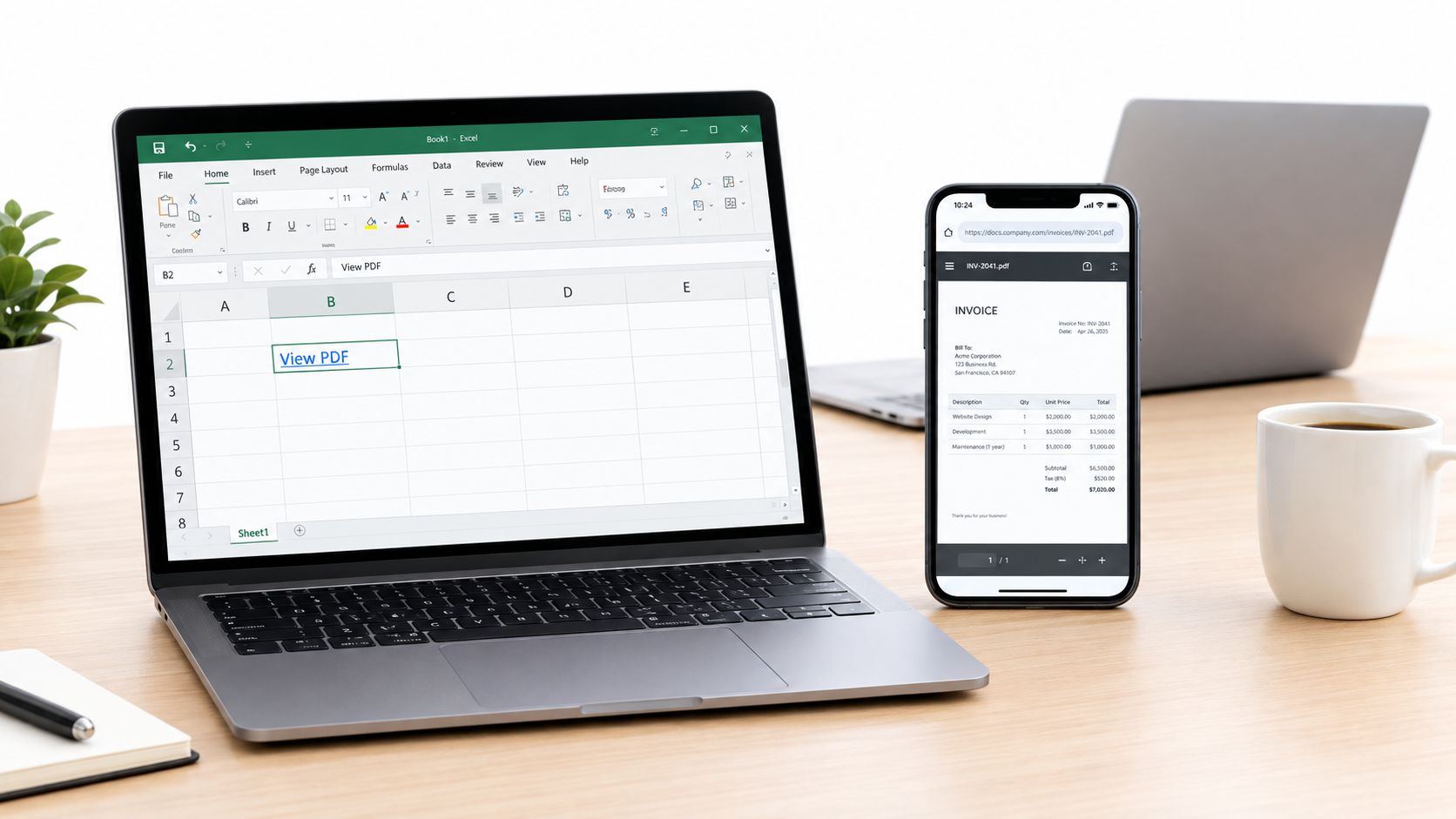
A client on a phone can't open a path pointing into your laptop's user folder. Neither can a teammate on another computer unless they have access to the same shared location. A hosted PDF gives the cell a web address instead.
The practical test is whether someone can reach the document from their own device, not whether you can open it while signed in.
Create and test the address
- Upload the PDF. With our upload process, dropping a folder, PDF, image, document, or ZIP file onto the website puts it online in about 20 seconds.
- Copy the HTTPS address provided after upload.
- Open Excel's link dialog from the destination cell with Ctrl+K or Cmd+K.
- Paste the address into the web-address field, add display text such as View contract, and select OK.
- Open the address on a phone, outside Excel, to confirm that the document is reachable.
For the document-sharing route, use the share a PDF online workflow, then place the resulting address in the workbook.
Decide who should have access
A public address isn't an access restriction. Anyone holding it may be able to open the document. Invoices, resumes, contracts, and records containing personal details may need a password or restricted access before you distribute the workbook.
Test with a recipient's account or a signed-out browser, not just your own session. Otherwise, you may mistake your existing permission for universal access.
For documents that change, keep the address stable when replacing the hosted file. However, preserve a dated source copy when the workbook must support a historical transaction, since an updated contract shouldn't silently replace the evidence for an earlier payment.
Check the address again after a few weeks. When the project closes, remove access if recipients no longer need it.
Pulling a PDF Table into Excel Cells
Exporting creates a new spreadsheet copy, not a live link. The original PDF remains the record, and editing the workbook won't update it. Adobe's PDF-to-Excel instructions describe this export workflow and automatic text recognition for scanned documents.
Follow the export sequence shown below.
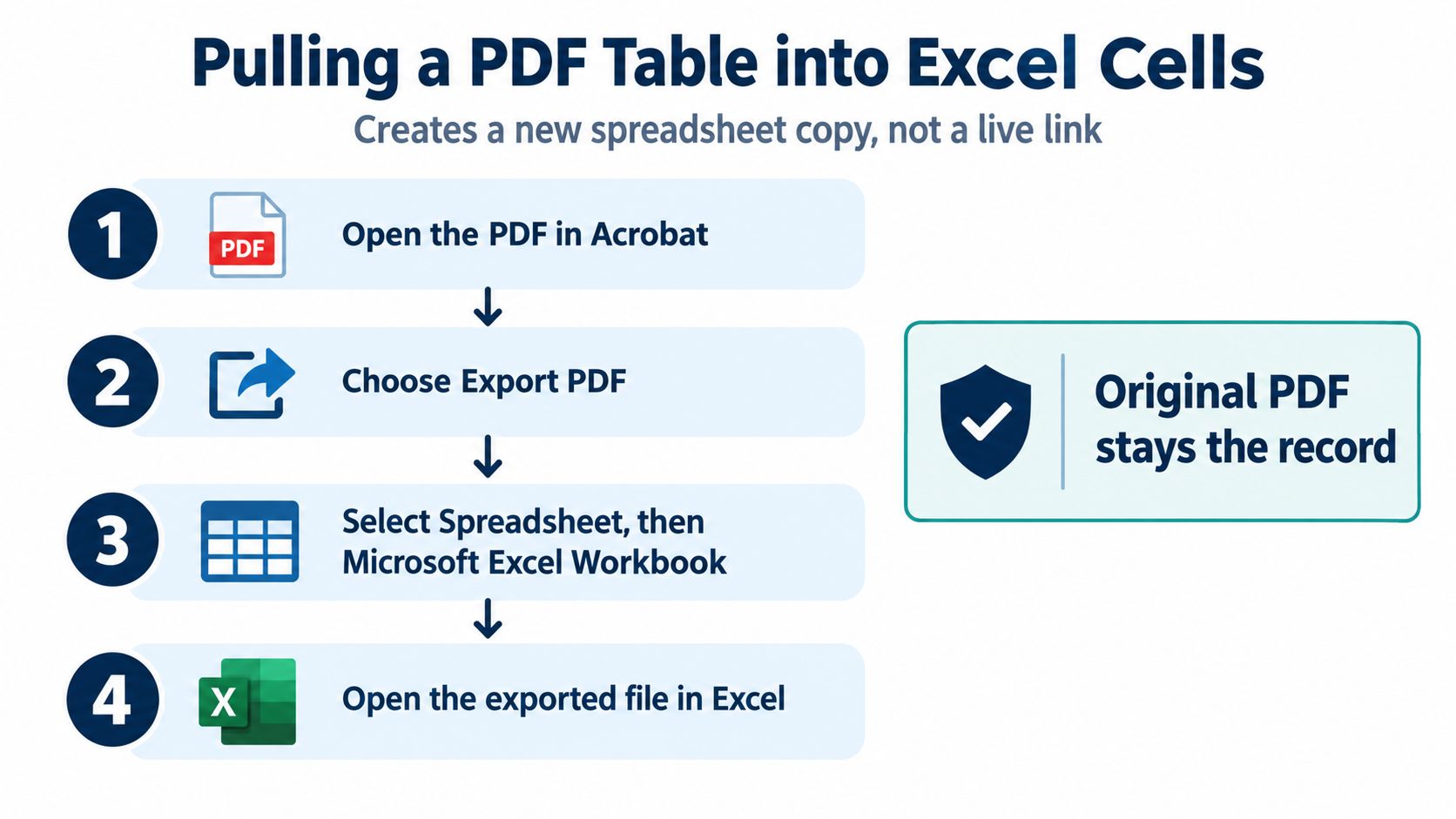
- Open the PDF in Acrobat.
- Choose Export PDF.
- Select Spreadsheet, then Microsoft Excel Workbook.
- Click Export and save the XLSX file.
For a single table inside a long report, select the table, right-click, and export the selection. Adobe's selection-export walkthrough describes saving selected content rather than converting unrelated pages.
Acrobat export settings and what they change
The Adobe export-settings guide documents worksheet structure and numeric separators, including how to handle values such as 1.234,56.
| Setting | What it changes | Use it when |
|---|---|---|
| Worksheet for each table | Every detected table gets its own tab | A long report holds many separate tables |
| Worksheet for each page | Every PDF page gets its own tab | An expense report should mirror the source page by page |
| Worksheet for the entire document | All content lands in one worksheet | A single-table PDF needs filtering or totals |
| Decimal and thousands separators | Sets how regional number formats are interpreted | European-style figures would otherwise become text or incorrect values |
A scanned monthly statement can become sortable transaction rows, but recognition still needs checking. Confirm dates, negative values, and currency amounts before using formulas.
The video demonstrates the export operation.
Automating Extraction for Recurring PDFs
A supplier statement arriving every month is a good candidate for Power Query. You define the cleanup once, then refresh the same steps against each new file.
Check your Excel installation before building this process. If From PDF isn't available, particularly on Mac, export the document to XLSX and build your analysis from that file instead. An image-only statement also needs text recognition before it can supply usable table data.
Build a small working query
- Open a blank workbook and choose Data > Get Data > From File > From PDF.
- Select the source PDF to open the Navigator's detected tables and pages.
- Choose the relevant table, then select Transform Data.
- Clean the result by removing repeated headers and footers, setting data types, and recombining wrapped records.
- Choose Close & Load to send the result to a worksheet, or use the available load options for the data model.
Numbers in a preview do not prove you have the right table. A page heading, account summary, and transaction listing can appear as separate candidates, and picking the summary leaves you with a tidy-looking query holding almost no records. Choose the table that holds the records you need.
Control what the connector reads
The query function Pdf.Tables exposes settings that help when automatic detection struggles.
| Setting | Practical use |
|---|---|
StartPage | Begin extraction at the relevant page |
EndPage | Stop before unrelated content |
MultiPageTables | Combine similar tables across consecutive pages |
EnforceBorderLines | Treat drawn borders as cell boundaries |
Start with a single page, inspect the output, then expand to a small page range. Check the record count and totals before parameterizing the source location for recurring files.
Narrow the page range first whenever detection is unreliable. Disable MultiPageTables only for very large tables, then check how the pieces recombine. With the setting off, each page arrives as its own table, so decide whether to append them or keep them separate.
Refresh isn't approval: A query can complete successfully while placing a payment amount beside the wrong invoice.
The file path is part of the query, so treat it like a living record. Keep incoming files in a controlled folder and preserve the expected layout, because moving or renaming the source breaks the connection on the next refresh. If the query points to a fixed filename, replace that input deliberately and archive the previous source elsewhere. If you use a filename parameter, change it explicitly for each reporting period.
A supplier's redesigned statement deserves a fresh inspection. A new column order or a newly added summary box can leave old cleanup rules operating on the wrong fields.
Checking Extracted Numbers Before You Use Them
A figure sitting in a cell looks finished. The PDF behind it often disagrees, so treat every extraction as a draft until it passes review.
In an Adobe Research evaluation of 447 PDF documents containing 1,171 tables, only 11 tables, approximately 0.94%, were correctly extracted and parsed for dynamic visualization, and in its 17-user evaluation people averaged about 2 minutes per table repairing the output. The tested documents were complex, which is the warning that matters here: an early table-boundary or row-detection mistake can shift columns, misread merged cells, and corrupt totals downstream without any visible warning. Build review time into every import, because a plausible-looking spreadsheet is no proof of a correct extraction.
Run the checks before calculating
- Compare row counts. Account for headings, continuation rows, and records split across pages.
- Reconcile subtotals and grand totals against the PDF, including credits and negative amounts.
- Filter numeric columns for unexpected text, errors, and blank cells.
- Inspect difficult pages, especially merged cells, scanned images, rotated text, and repeated headers.
- Check OCR substitutions, including confusion between the digit one and lowercase l, or zero and uppercase O.
- Compare five random rows by eye, checking that each amount belongs to the correct invoice, date, and description.
Keep this visual checklist beside the workbook during review.
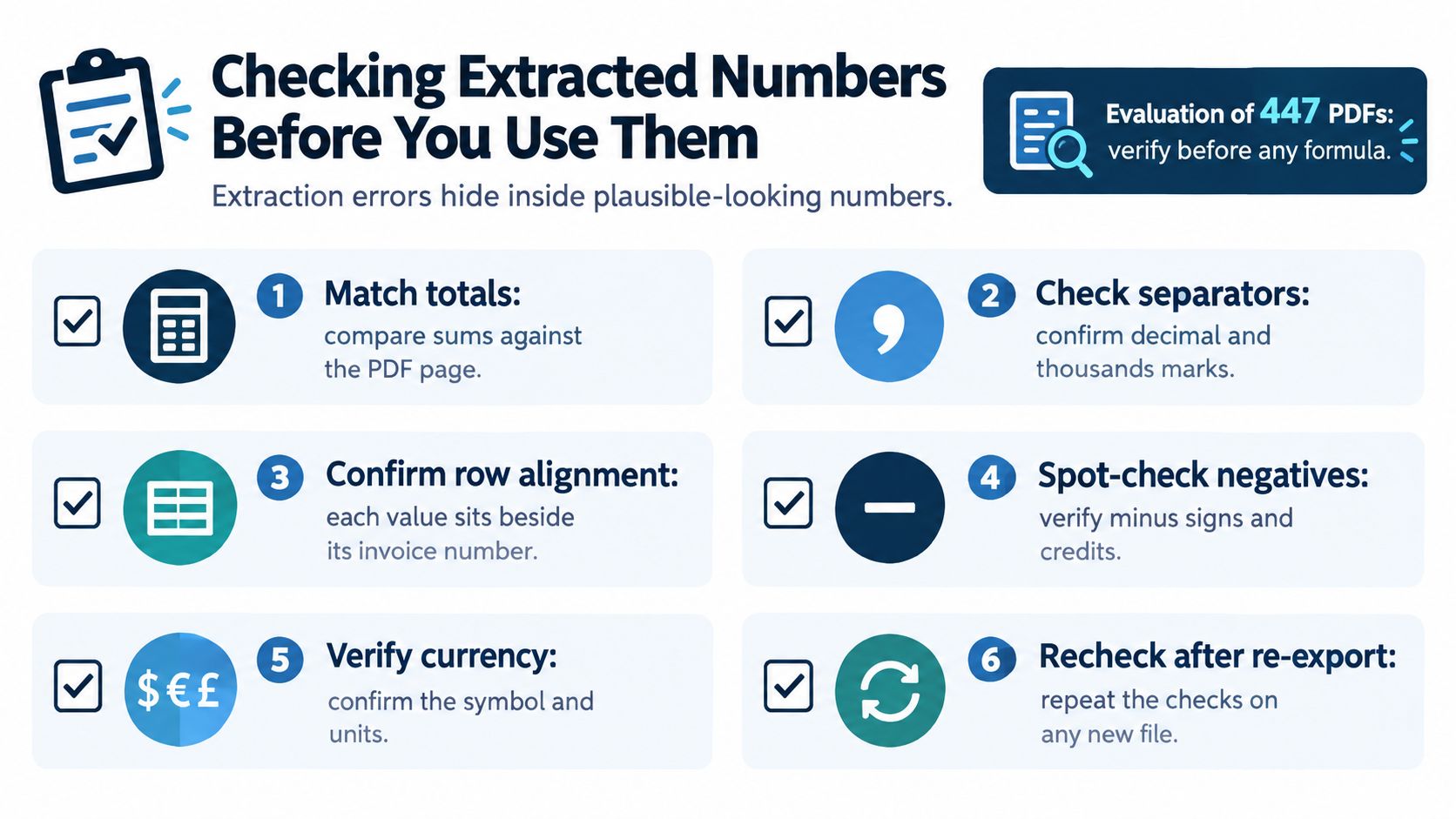
For an expense register, add Source PDF, Source page, and Review status columns. Source PDF records where the file really lives, a folder path or a hosted address, so the evidence trail survives when the document later moves. Source page sends a reviewer straight to the right page instead of the whole file. Review status shows who checked the row and when. A correct total alone will not reveal that an amount landed beside the wrong supplier, and these fields are what let someone investigate without searching through the entire document collection.
When a total fails to match, inspect the PDF page first, then the extraction settings, then the source arithmetic. Overwriting a suspicious cell to force agreement only hides the problem, and the next refresh may restore the same mistake.
Test One Link Before You Share the Workbook
Open one invoice link on a phone before you send the file. If it fails there, the address still depends on your laptop, and the recipient will hit the same wall.
Use a local link for personal files, a hosted address for recipients elsewhere, and extracted cells for calculations. Then give the chosen address an owner: where the PDF lives, who can open it on each device, and what happens if the file is replaced or moved.
Run a recipient-style test
- Use a second device. Confirm that the PDF opens without relying on your laptop's folders.
- Check the document identity. Match the invoice number, supplier, and reporting period.
- Test the permission boundary. Sensitive files should require the intended password or authorized account.
- Record the handoff. Note who maintains the source documents and when access should end.
A shared drive or secure file service can work well if it supplies an address the recipient can use in practice. For hosted references, treat permanent links as maintained addresses: keep the source PDF, replace the file without changing the public URL when the document is revised, and remove access when the engagement closes.
Send the workbook after the four checks above pass on a device you do not control.
Upfling offers PDF hosting, file-to-link conversion, and permanent links, so you can give an Excel cell a shareable document address instead of a laptop-only path. Visit Upfling, upload a PDF, and test its address from another device before sharing your workbook.