How to Link PDF Pages the Right Way
Learn how to link PDF pages inside a document and build URLs that open a hosted PDF at a specific page, with practical examples for non-technical users.
You've emailed a client a proposal and they reply, “Which page has the pricing?” You know it's in the PDF, but the file opens at the beginning, leaving them to scroll, search, or guess. A link to the document isn't always enough. Often, the useful link is one that takes someone to the page or section they need.
There are two ways to do that: add clickable jumps between pages inside a PDF, or share a URL that opens a hosted PDF at a chosen page. Both can save time, but neither is foolproof. A viewer may ignore a URL fragment, and the number printed on a page may differ from its position in the PDF. Knowing which approach fits, and how to test it, makes it easier to share a link that works as expected.
Why PDF Links Always Land on Page 1
A plain PDF URL points to a file, not necessarily to a specific spot in it. Many viewers open the document at the beginning, so a client who needs the pricing section of your proposal must find it themselves. That may be manageable in a short file, but it's a nuisance when the reader needs one clause, résumé section, or workshop exercise.
The fix depends on where the link lives. An internal link is clickable text or an element inside the PDF that jumps to another location in that same file. An external page link is a URL you share outside the PDF, set to open the hosted file at a selected page. For example, you can make a workshop handout's contents page clickable, then email a direct URL to the page containing a particular exercise.
Practical rule: A link should tell the reader what they'll find and help them get there. The URL alone doesn't guarantee either.
Page numbering introduces a common snag. A PDF viewer counts physical pages from the first page of the file, while a document may print its own labels, such as Roman numerals for front matter or section-specific numbering. The page printed “7” might not be the seventh page in the PDF.
Viewers also vary. One may honor a page fragment; another may open at the start. A scanned document can create further problems if its pages are images rather than searchable text. The dependable approach is to choose the right kind of link, label the target clearly, and test the final file in the viewers your recipients are likely to use.
Direct Page Links Using URL Fragments
For a hosted PDF, append #page=N to its HTTPS URL. N is the physical page number, with the first PDF page numbered 1. If the file is hosted at https://example.com/proposal.pdf and the desired location is the seventh page in the file, the link is https://example.com/proposal.pdf#page=7.
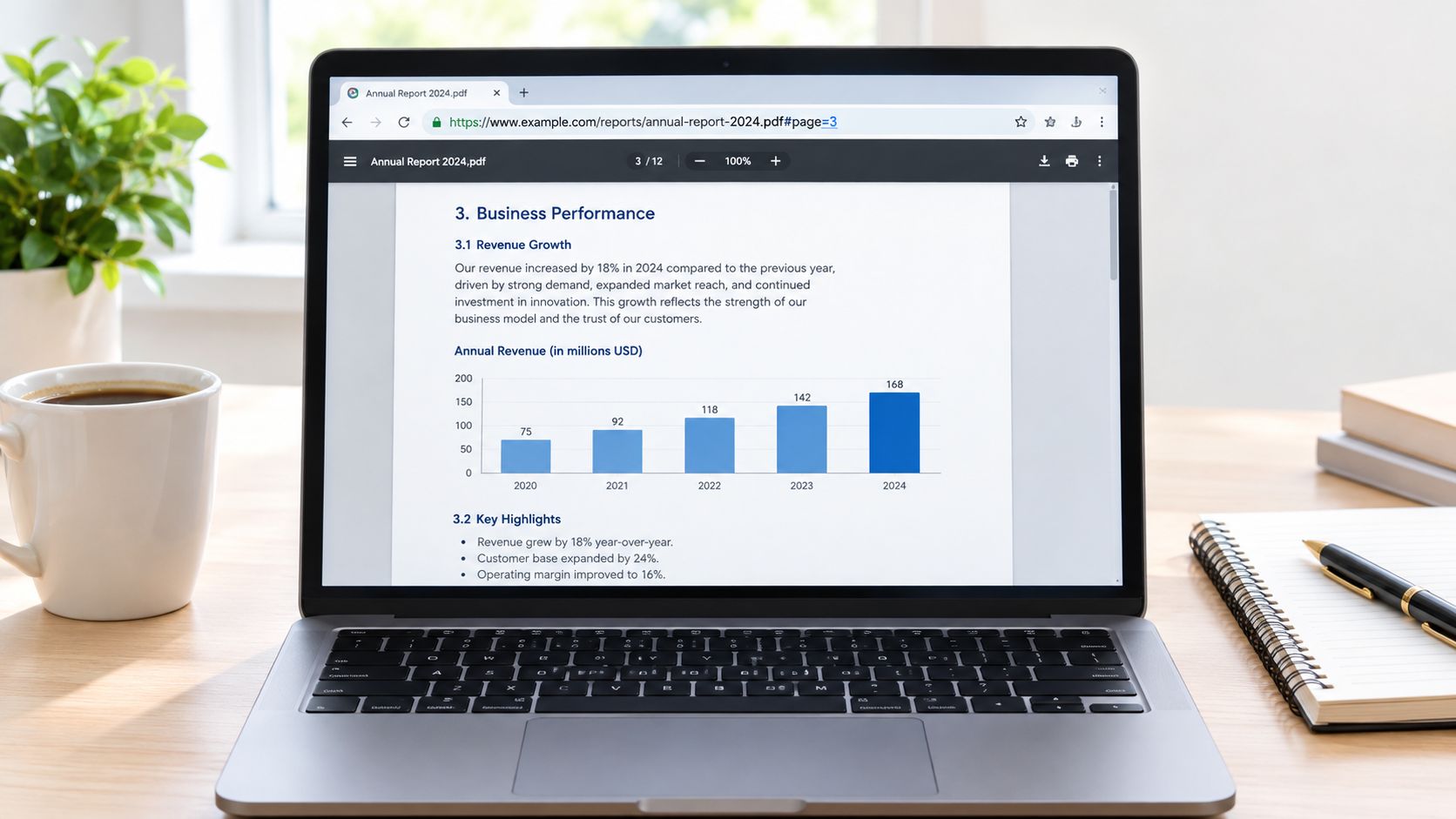
Build and check the URL before sending it:
- Confirm the file is hosted over HTTP or HTTPS. A page fragment points to a location in a hosted PDF, not a file sitting only on your computer.
- Count the physical pages. Open the PDF and find the target by its position in the file, not just the number printed on the page.
- Add the fragment. Put
#page=7at the end of the PDF address for the seventh physical page. Viewer documentation from the major PDF reader vendors describes this page-number format and notes that opening parameters are processed from left to right, so later parameters can override earlier viewing instructions. - Test the finished URL. Open it in the browser or viewer your recipient is likely to use, and check it on desktop and mobile.
You can also use parameters such as zoom and view to influence the opening view. Keep the address simple unless you need those options, and check the order if you combine parameters. Extra instructions don't make a link more reliable if the viewer handles them differently.
Physical position matters more than printed labels. If a résumé has cover material before its printed page "1," a fragment targeting physical page seven may open somewhere other than expected. Confirm the destination visually, then give the recipient a useful label such as "Pricing section, page 7 of the PDF." If the file isn't online yet, you can publish a PDF at a shareable URL first, then add the fragment to that address.
If the link opens at page one, the viewer is probably ignoring the fragment. Don't assume the URL is correct just because it looks right. Test the exact link, then provide the page label and section name as a fallback so the reader can still find the content.
Adding Internal Links Inside a PDF
Internal links let readers jump between locations without leaving the PDF. They're useful for a contents page, a “return to overview” link, or a workshop handout where each session title takes the reader to its instructions.
In a common PDF editing workflow, select the link tool and draw a box around the text or area you want people to click. Choose an action that goes to a page or location in the current document, then select the destination. The action might be labeled Go To Page, Go to a page view, or something similar, depending on the editor.
The important distinction is the action type. Go To Page points to a location inside the current PDF. Open Web Link takes the reader to a web address, such as an online resource. If a table-of-contents entry is meant to open the handout's “Session Two” page, choose the internal destination, not a web-link action.
A typical process looks like this:
- Choose the clickable text. Use a session title or a phrase that clearly describes the destination.
- Draw the link area. Place it over the text, not across unrelated content.
- Set the internal destination. Select the target page or view in the same document.
- Test the exported PDF. Click the link and check that it opens at the intended content.
Some editors show link outlines while you work; those outlines may not appear in the final file. What matters is that the clickable area is easy to find and the link text makes sense when read on its own. “Session Two: Practice Exercise” is clearer than “Click here,” especially for someone navigating through links with assistive technology.
For a workshop handout, an instructor can link each session heading in the contents to its corresponding section. Readers can move directly to the exercise they need rather than scrolling through the whole document.
When Named Destinations Beat Page Numbers
A page fragment targets a position by number. A named destination points to a saved location with a descriptive name, such as Pricing or AppendixA. That distinction matters when a document changes: inserting a cover page can make a raw page-number link point to the wrong content, while a named destination can remain associated with its intended section if it survives the PDF export.
| Aspect | #page=N Fragment | Named Destination |
|---|---|---|
| Stability | Can point to the wrong content if pages are added, removed, or reordered | Can remain tied to a named target despite pagination changes |
| Viewer support | Common, but viewers may ignore fragments | Depends on the PDF and viewer handling the destination |
| Best use case | Quick links to a stable PDF, such as a finalized handout | Sections that may shift, such as pricing or an appendix |
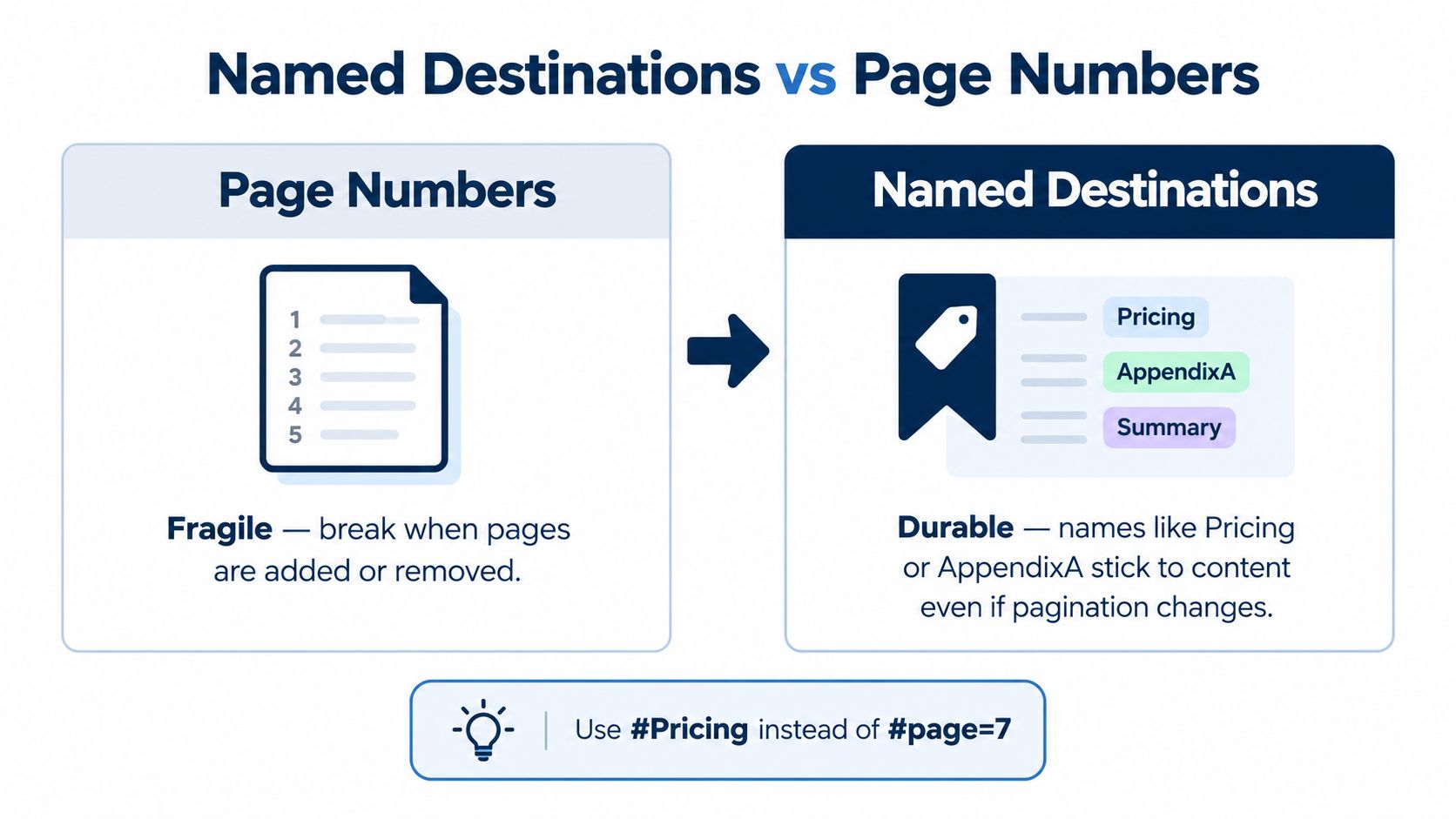
Creating a named destination usually means opening the PDF in an authoring tool, navigating to the target, saving a destination with a concise name, and linking to it. Names may be case-sensitive, and the software that generates or exports the PDF may not preserve them. Always verify the uploaded file, not just the working version.
Use a page fragment when the file is stable and a quick link is all you need. Consider a named destination for a document that will be revised, especially when the target is a meaningful section rather than an arbitrary page. For important links, add a visible section name and page-label fallback in the surrounding message in case the viewer doesn't follow the destination.
Making Links That Survive Real-World Use
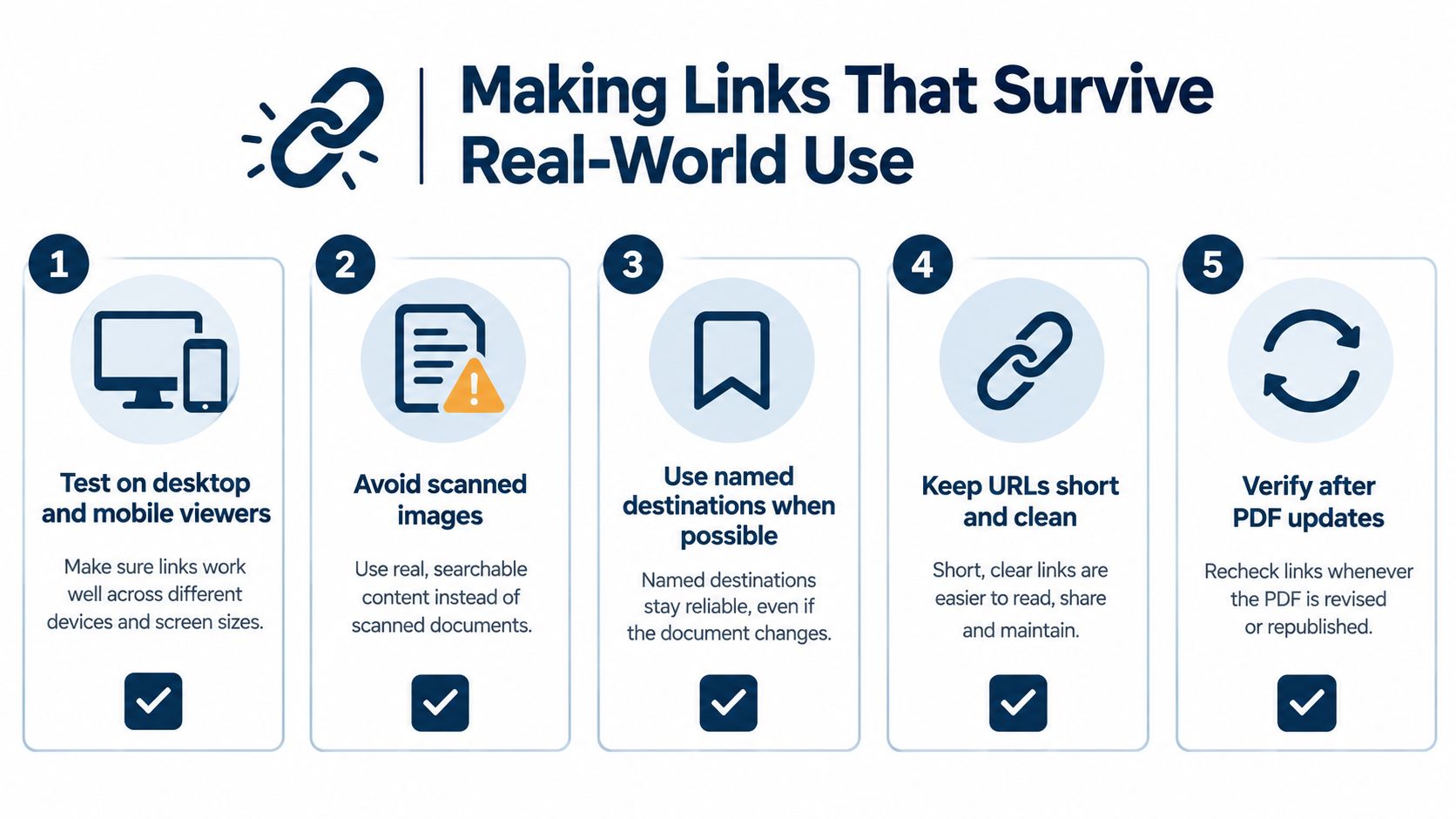
A link that works on your computer hasn't necessarily been tested for the recipient. Browsers, embedded viewers, and mobile apps can handle PDF page fragments differently. A mobile reader may download the file or open it in another app, so check the route people will take to reach the document.
Scanned PDFs need special attention. A scan may look like a normal document while each page is really an image. That can make text harder to search and can undermine accessibility. For a page link, the fragment may still open a physical page, but the person arriving there may not be able to search for the clause or read the content with assistive technology. Where possible, share a PDF with searchable text and an accessible structure.
Keep the destination clear. If a URL goes into an email or QR code, retain the #page=N portion. A QR code that opens only the base PDF URL loses the direct page target. Add a short description beside it, such as “Open the installation checklist.”
File replacement can break an otherwise stable link. If you insert or remove pages while keeping the same public address, a page-number fragment may lead somewhere different. A persistent hosting address is helpful, but it doesn't make page references immune to document changes. For a shareable file address that can stay in use when an updated document replaces the original, see persistent links for shared files.
Before publishing or sending a replacement, check the important links:
- Open the exact URL on desktop and mobile.
- Confirm the target content and its page label.
- Check the PDF itself for searchable text and useful reading order.
- Test after updates if pages or sections have changed.
- Keep a fallback label that names the section as well as the page.
A Simple Pattern for Sharing Any PDF Page
Use one repeatable pattern: host the PDF at a stable address, decide whether a page fragment or named destination better fits the target, and test the final link. Then label the destination in the email, handout, or QR-code caption with both the section name and the page label. That way, readers have a fallback if their viewer ignores the link instruction.
For a finalized résumé or a short proposal, a page fragment may be all you need. For a document likely to gain an appendix or have its sections rearranged, a named destination is worth considering. In either case, check the exported and uploaded PDF after changes, rather than assuming the working copy and published file behave identically.
A stable hosted URL also makes ongoing sharing simpler. Upfling lets users publish PDFs at shareable URLs and replace files without changing the address; you can share a PDF online and add the page-specific instruction to the URL when appropriate. Use the same approach for proposals, class handouts, client reviews, or portfolios: stable address, clearly identified target, tested link, and a human-readable fallback.
Upload your PDF to Upfling to create a shareable URL, then add a page fragment when you need readers to open a specific page. Visit Upfling to publish a PDF and share a link that's easier for clients, students, and reviewers to use.