How to Upload a PDF File and Share It with a Link
Learn how to upload a PDF file in about 20 seconds, check size limits, set access and test the link so it opens on any phone.
You've finished your résumé, invoice, or club newsletter, and now someone's waiting for it. You don't want a heavy email attachment that bounces, and you don't want a link that works for you but fails for them. Learning how to upload a PDF file properly means checking the file first, choosing who can open it, and testing the link the way your reader will see it.
Check Size and Format Before You Upload
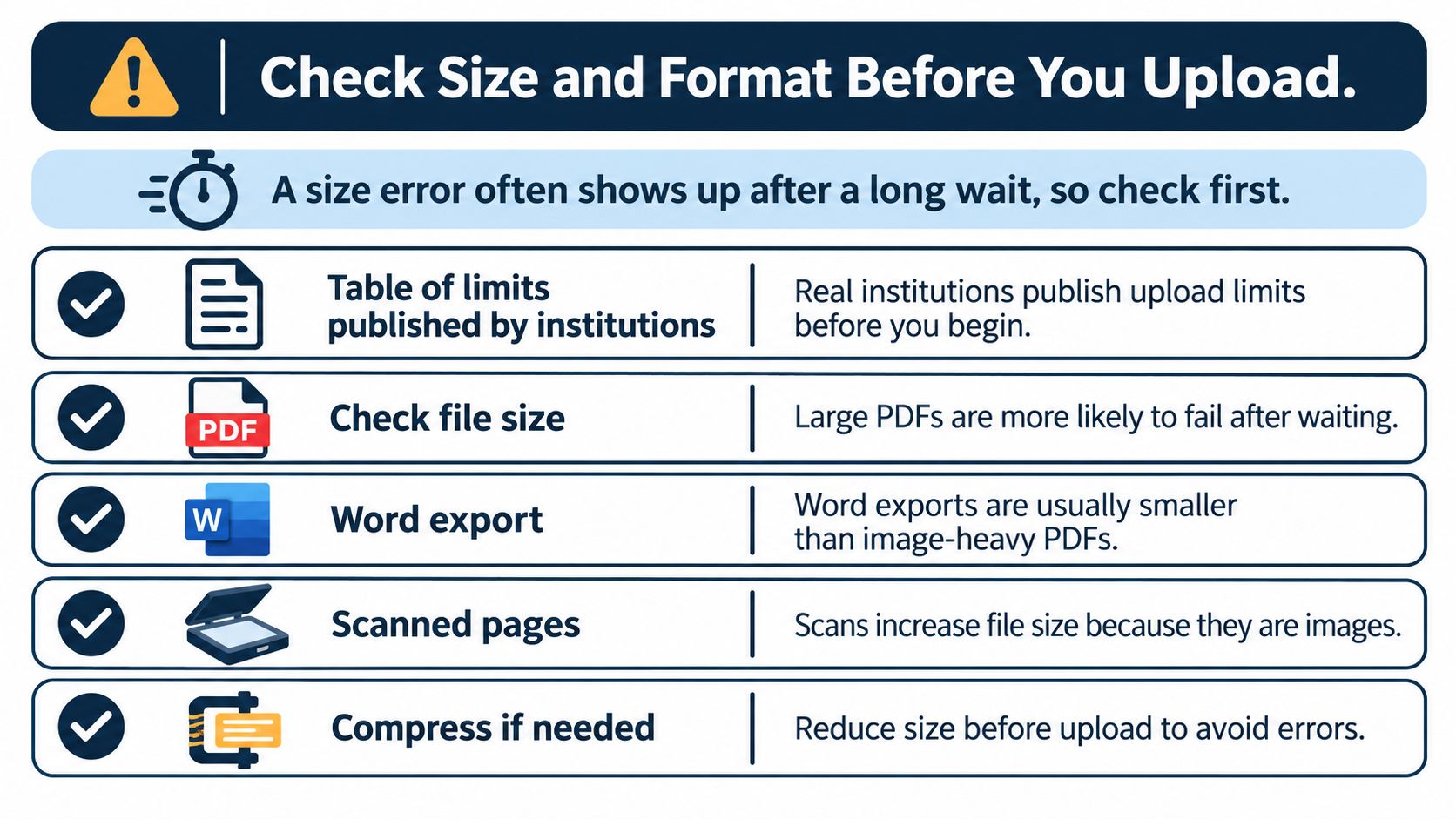
A PDF can look modest on screen and still take a long time to upload, especially if it contains scanned pages. Check its file size before you start, then compare it with the limit set by the site or service receiving it.
| Source | Limit | What it means for you |
|---|---|---|
| U.S. federal courts | 50 MB per PDF | Scanned manuals can exceed this; compress or split them |
The U.S. federal court guide on large document uploads sets a maximum of 50 MB for a single PDF. Limits vary by destination, so check the instructions for the site where you plan to upload.
Why some PDFs are huge
A PDF exported from Word often contains mostly text. A scanned PDF stores page images, which can make the file much larger. A short résumé exported from Word may be easy to upload, while a scanned manual may need compression or splitting.
To check the size, right-click the file in Windows and choose Properties. On a Mac, select the file and press Command-I.
If your file is too big
- Export again from the original program: Replace full-size phone photos with smaller images if they are making the PDF large.
- Choose a reduced-size PDF option: Look for a setting that reduces file size when saving or exporting.
- Split the document: If it still exceeds the destination's limit, create clearly named files such as Manual-Part-1.pdf and Manual-Part-2.pdf.
Before uploading, check that the filename ends in .pdf, the file is under the destination's size limit, and it opens on your computer. Scroll through it to make sure the pages are there.
A file that opens cleanly is ready for the next check: whether its contents are readable to your audience.
Make Sure Every Reader Can Read It
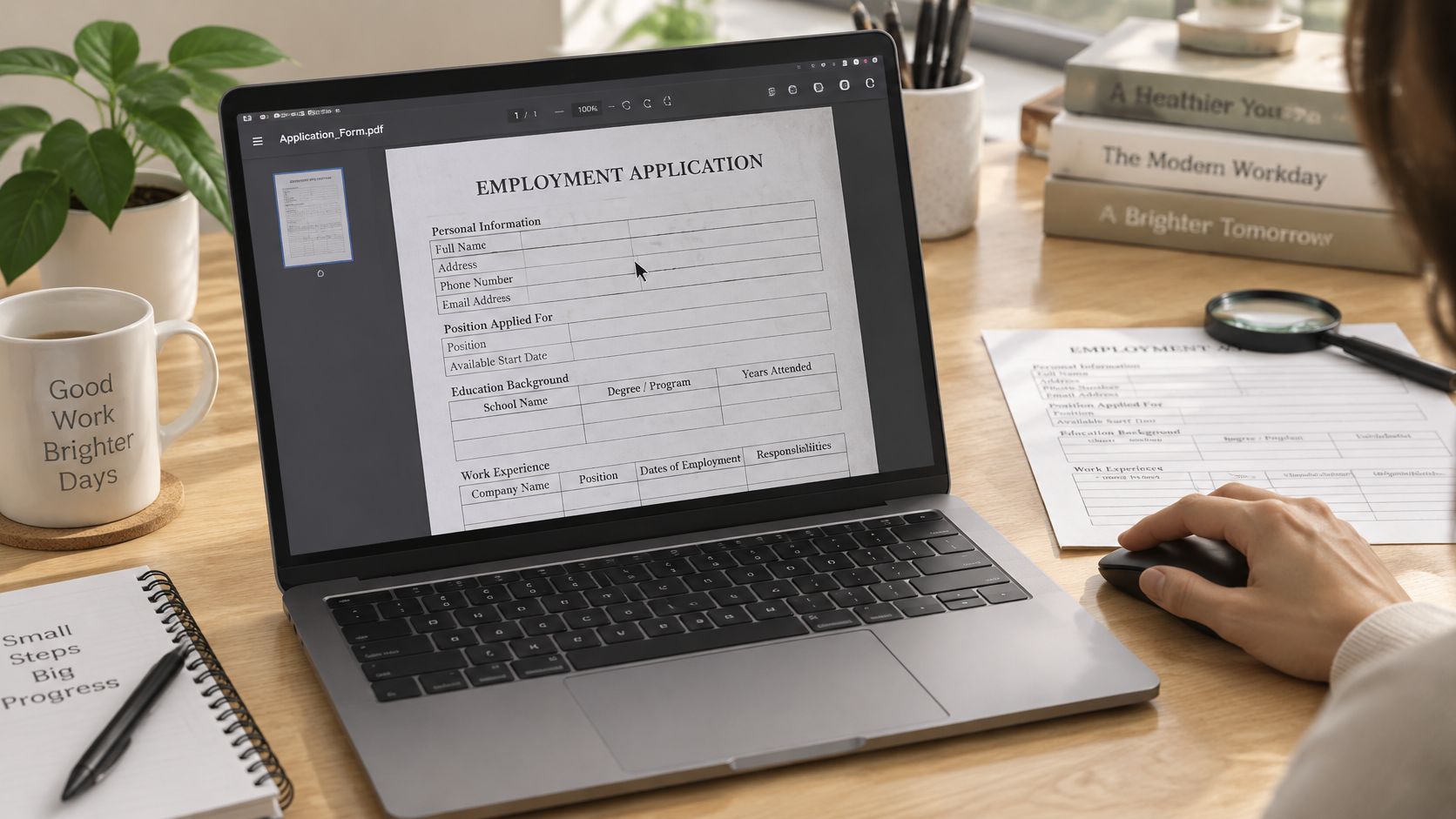
Try this test first. Open your PDF, drag your mouse across a sentence, and see if the words highlight. If nothing highlights, your PDF is probably a scanned image, not real text, and many readers won't be able to use it at all.
Scanned pages need text recognition
A scanned form, a photographed letter, or a receipt from a scanner app is just a picture of words. A screen reader can't read a picture, and your reader can't search it, copy an address from it, or zoom in without it going blurry.
Turn on text recognition, often called OCR, in your scanning app if it offers that setting. Then check the result carefully, especially names, dates, and numbers on an invoice or application form. One misread digit in a bank account number or a due date causes real trouble.
Text PDFs need structure
North Carolina State University's accessibility guidance says an accessible PDF needs selectable text that works with screen readers, correctly tagged headings and structure, a logical reading order, and alternative text for meaningful images.
In plain terms, headings such as Experience and Education on a résumé should be marked as headings, not just made bigger and bold. A company logo or a sales chart should have a short, useful description. The reading order should follow the page the way you'd read it aloud, top to bottom, not jump from a sidebar to a footer and back.
Say you build a résumé in a word processor using its built-in heading styles, then export it. That structure usually carries over. Paste the same résumé into a design tool, arrange text boxes freely, and print it to PDF, and that structure can vanish even though the page looks identical.
That's why you should use Save As or Export to PDF from the original document instead of Print to PDF. Printing can remove tags and accessibility formatting that screen readers rely on.
Before sharing anything sensitive, also think about what's hidden under black boxes or covered text. Our guide to whether redacted PDF text can be recovered explains why covering words isn't the same as removing them.
Finish with a human check. Ask a colleague to listen to the first page with a screen reader, or use the read-aloud feature on your own phone. If it reads your résumé, syllabus, or invoice in a sensible order, you're in good shape.
Choose Who Can Open Your PDF
Don't pick a sharing setting out of habit. Match it to what's in the file.
Public link. A wedding menu, a club newsletter, a price list, or a community handout can go to anyone who has the address. You can post it, print it, or forward it without worry.
Password-protected link. A client invoice or a draft contract meant for one person belongs here. Send the link in your email, then send the password in a separate message, for example by text. Putting both in the same email defeats the point. This is the same care you'd take when you share a website with a client for review before it goes public.
Private, not shared by link at all. A medical letter, pay slips, or anything with personal details about someone else shouldn't sit behind a public link. Keep it in a private account or hand it over through a secure system your workplace already uses.
Practical rule: A link is only as private as the people who receive it, because anyone who forwards it passes on access.
There's one more distinction that trips people up. A PDF can carry its own password inside the file, so it asks for that password whenever anyone opens it. That's different from a password on the hosting page, which controls who reaches the file in the first place. You can have one, the other, or both, so be clear which password you're sending.
Decide for your file now:
- Would you pin it on a noticeboard? Use a public link.
- Is it for one named person? Use a password, sent separately.
- Does it contain personal or financial details? Don't use a public link.
Upload Your First PDF in Five Steps
A freelance writer sending a résumé to a recruiter needs one link instead of an attachment. The recruiter should be able to open it on a phone between meetings, and the writer should be able to replace the file later without sending a new email.
The visual below shows the process from upload to shareable link.
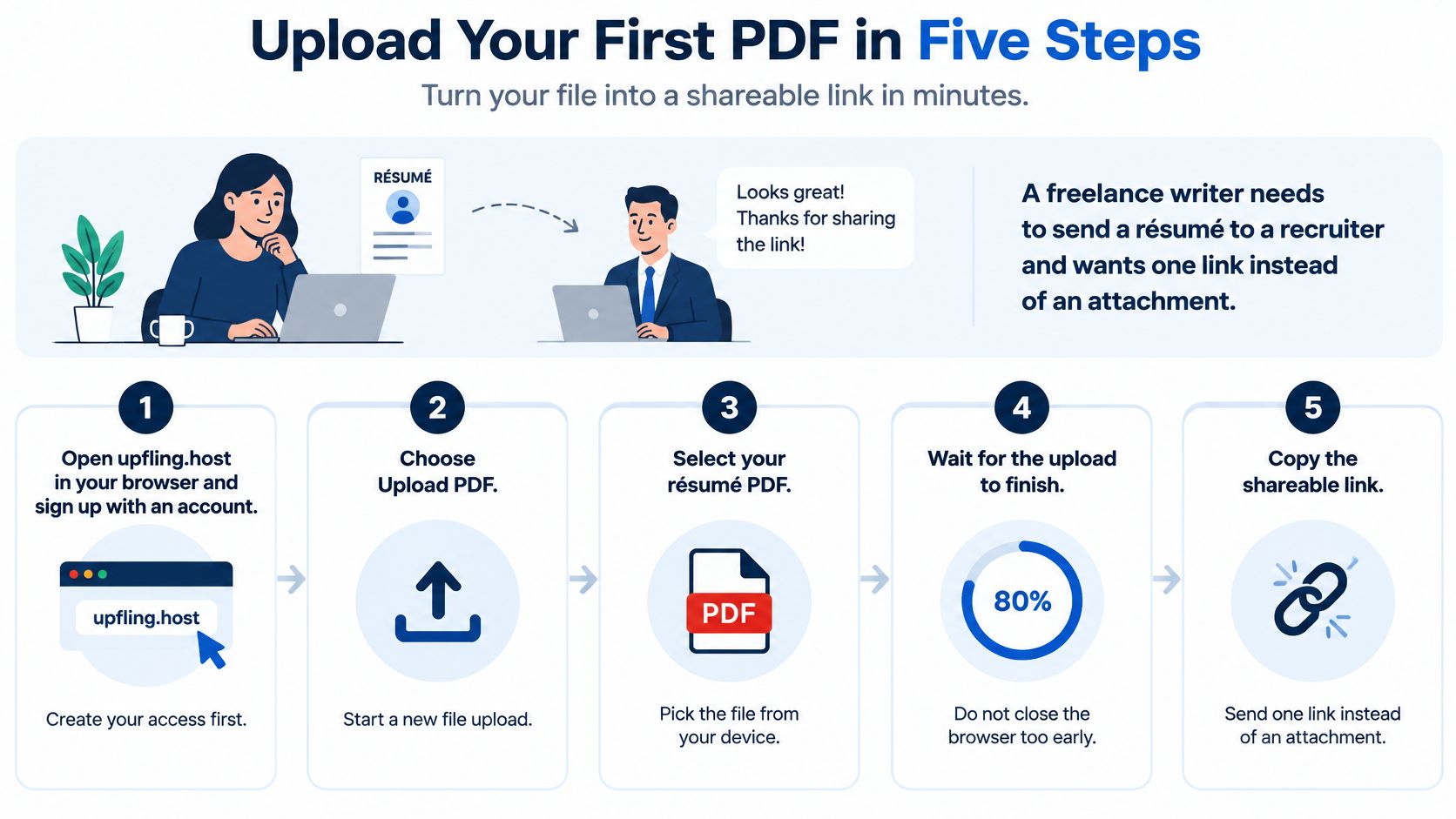
The five steps
- Open upfling.host and sign up with an email address. Use your own account so you can rename, replace, or remove the file later.
- Drag your PDF onto the upload area. On a phone, tap the upload box and choose the file from Files or Downloads. Select the saved file on your device rather than an email preview, which may not contain the complete copy.
- Wait while Upfling stages the upload. It scans the files and allocates a URL in about 20 seconds. Keep the tab open until this finishes.
- Choose a readable link name. For example, jane-smith-resume is easier to recognise and type than document-final-v3.
- Publish and copy the HTTPS link. Save it somewhere handy, then open it to check that the PDF loads.
If you want to see the process before trying it, this short video walks through the same steps.
Common slips are easy to fix: uploading an email preview instead of the saved PDF, choosing a confusing link name, or closing the page before publishing finishes. Check each step before sharing.
You should now have a link to the published PDF. The next check is whether it opens for someone who isn't signed in.
Test the Link the Way Your Reader Will See It
Say a landlord uploads a scanned lease, opens it while logged in, sees it load, and sends the link to a tenant. The tenant gets a login page instead of the lease. The file was uploaded, but it was never live for anyone else.
That gap is normal. The university content-management guide on uploading PDFs shows users choosing an Add Content area, selecting a generic file option, and choosing the correct placement folder, and after submission the files still need to be published. Uploaded and live are two different states.
Run this test every time
- Copy the link exactly as you'll send it.
- Open a private or incognito window. In Chrome or Edge press Control-Shift-N. In Safari choose File, then New Private Window.
- Paste the link and open it without signing in. If you're asked to log in, your reader will be too.
- Send the link to your own phone by text or email and open it there.
- Scroll to the last page, zoom in, then return to page one and check it's readable without sideways scrolling.
If the link only works while you're logged in, the file or its page probably hasn't been published or shared with the right permissions. Go back, publish it, and test again in the private window. Using permanent links helps here, because you can replace the file later without sending everyone a new address.
Keep the test result, not the upload success message, as your proof. When you want to stop sharing, use the unpublish or delete option in your account, then reopen the link in a private window to confirm it no longer opens. And keep your own copy of every file you care about, since a hosting service shouldn't be your only copy.
Logged-in success doesn't count. If it opens in a private window on your phone, it works.
Fix Upload Errors and Slow Phone Loads
Most failures follow a small set of patterns, and the fix is usually obvious once you name the cause.
Upload symptoms, likely causes and fixes
| Symptom | Likely cause | Fix |
|---|---|---|
| Upload bar stops partway | Weak Wi-Fi or file over the limit | Move closer to the router and retry, or split the file |
| File type not allowed | Word or image file renamed to .pdf | Re-export the document as a real PDF from its program |
| PDF asks for a password | File is encrypted | Remove the password in the original program or send it separately |
| Link opens slowly on phone | Heavy, uncompressed images | Compress images and re-export under the size limit |
| Link works on laptop but not phone | Link copied wrong or file not published | Copy the link again and test in a private window |
Good upload pages prevent half of these. The U.S. Department of Veterans Affairs guidance on asking users for files recommends displaying allowed file types and maximum sizes before selection, validating that extensions match MIME types, providing actionable error messages, and detecting encrypted PDFs that require a password.
Three patterns worth knowing
Stopped partway usually means weak Wi-Fi or an oversized file. Move closer to the router, keep the tab open, and retry. If it stops at the same point again, split or compress the file instead of retrying a third time.
File type not allowed often means someone renamed a Word document to end in .pdf. Renaming doesn't convert anything. Open the document in its original program and export it as a real PDF.
Password prompt means the file itself is encrypted. Remove the password in the original program if the document is meant to be public, or send the password separately if it isn't.
For slow phone loads, remember that maximum upload size isn't the same as good delivery. Large, uncompressed PDFs can load slowly, frustrate mobile users, and reduce accessibility. Compress the images, remove unnecessary hidden content, re-export, and offer a browser-viewable link with a download fallback.
Pick Your Setup and Act Today
Match the setup to the document in front of you. A résumé goes out as a public link once the mouse-drag test and the phone check pass. An invoice goes to one client behind a password sent in a separate message. A scanned handout gets text recognition first, then a public link after the screen-reader check.
Your closing checklist
- Confirm the size is under the limit of the site you're using.
- Confirm the text is selectable, or that scanned pages have been recognised and you checked names and numbers.
- Pick the access setting that matches who should open the file.
- Publish and copy the HTTPS link.
- Open the link in a private window on your phone and check the first and last pages.
You're responsible for keeping your own copies of everything you upload, and Upfling shouldn't be your only copy of anything you care about. Keep the original on your computer or a backup drive.
Do this today. Take one PDF you already need to share, run the checklist, upload it, test it on your phone, and send the link only after it passes.
Ready to try it with a résumé, invoice, or handout you're already sitting on? With Upfling you can drop a single PDF onto the upload area, choose a readable link name, and publish a secure HTTPS link you can replace later without changing the address. Upload your first file today, test it in a private window on your phone, and send a link you're confident will open.