How to Create a ZIP Archive on Any Computer
Learn how to create a ZIP archive on Windows, macOS, and Linux with simple steps. Protect files, share folders, and avoid common mistakes.
You've got a desktop folder full of client files, class handouts, or a job application bundle, and your email client refuses to take six separate attachments. A ZIP archive fixes that fast, on Windows, macOS, and Linux, by wrapping the whole set into one file you can send or upload in one move. On Windows, that usually means right-clicking the folder and choosing Send to > Compressed (zipped) folder. On a Mac, it's Control-click > Compress. On Linux, you'll often use the right-click menu or a command line tool for the same result.
A ZIP file does two jobs at once, it archives related files into one container and can compress some of them so they take up less space. That matters when you're sending a resume with a cover letter, sharing lesson materials, or packaging a folder for publishing. It also means the folder structure can stay intact, which is a big deal when someone on the other end needs to see the same subfolders you built.
Compression isn't magic, though. Text files and source files often shrink well, but photos, videos, and existing archives usually don't get much smaller. If you're packaging a webpage or document set for later upload, that distinction matters more than people think, especially if you're planning to share the archive through a service that can turn uploaded folders and ZIPs into a live URL, such as publishing a PDF or ZIP-based share link.
Why ZIP Archives Matter for Everyday File Sharing
The fastest way to understand ZIP is simple, you've got a folder full of files and you need one attachment instead of a mess. That happens with client deliverables, school materials, photo sets, and job applications all the time. A ZIP archive keeps the folder together, so the person receiving it doesn't have to reconstruct your structure by hand.
That's the practical value. A folder named Week-1-materials can become a single ZIP, and the recipient can open it later with the same nested folders and filenames intact. ZIP has stayed useful for more than 35 years because it works across operating systems and file managers, not because one app owns it. The format's long life comes from that interoperability, and the underlying packaging idea hasn't really changed since the late 1980s, when ZIP was released and placed in the public domain.
If you need to send a bundle of documents, the rule is straightforward. Put the files in one tidy folder, then compress that folder into a ZIP. If the contents are mostly photos, audio, video, or files that were already compressed, don't expect the archive to get dramatically smaller.
Practical rule: use ZIP to make the delivery cleaner first, smaller second.
How to Create a ZIP Archive on Windows, macOS, and Linux
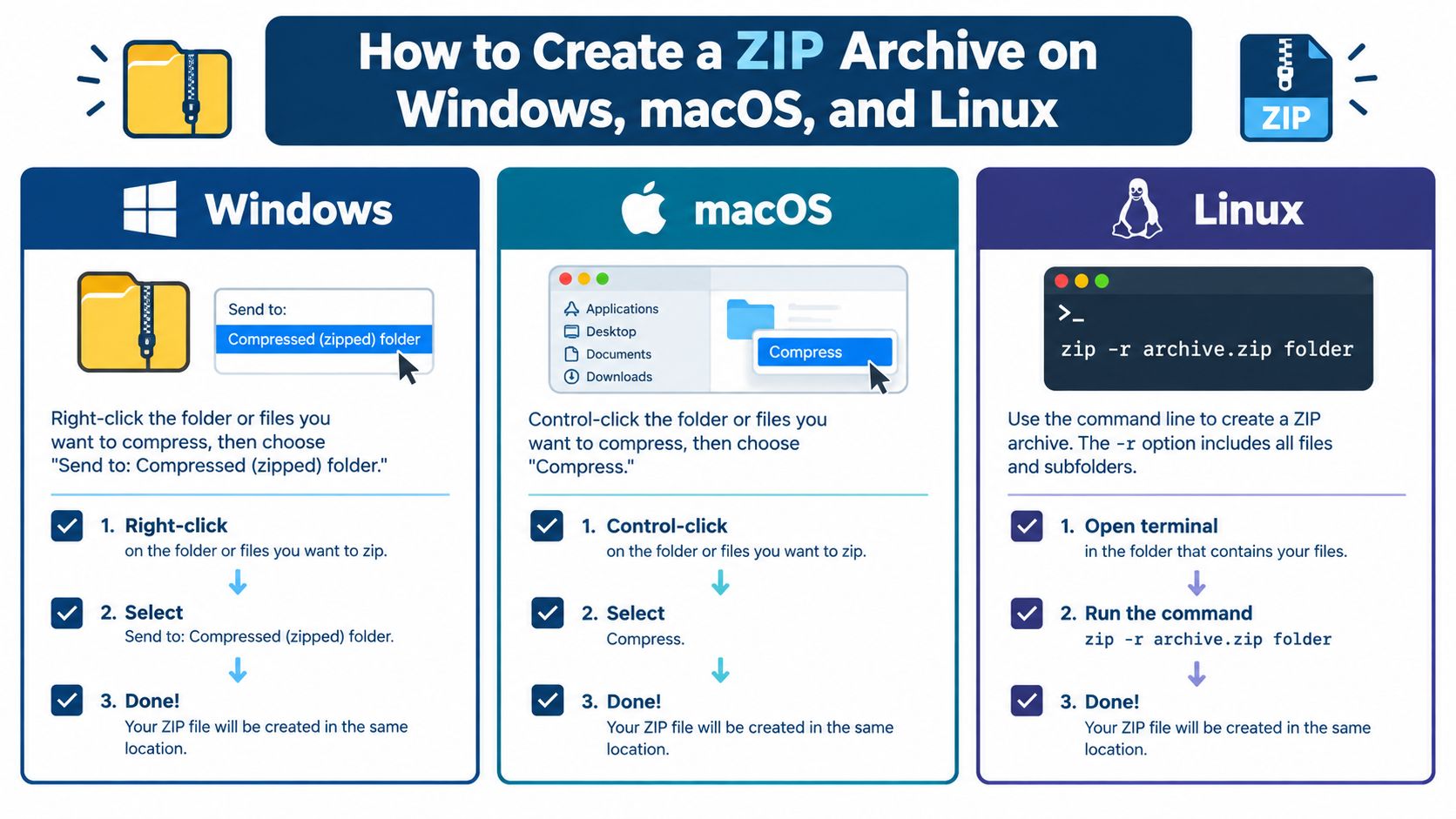
On Windows, File Explorer already has what you need. Find the file or folder, right-click it, choose Show more options if the menu is collapsed, then pick Send to, and finally Compressed (zipped) folder. Windows creates a new ZIP in the same location, usually with the same base name as the original item. Rename it right away to something useful, like Client-Proposal-2025.zip, so you don't leave it as a generic archive name.
On macOS, Finder does the same job from the shortcut menu. Control-click one file or folder and choose Compress, and macOS makes a ZIP with the original name plus .zip. If you select several items first and then compress them together, macOS creates a single archive you can rename afterward. That works well when you need to combine a resume, cover letter, and portfolio PDF into one attachment.
On Linux, the right approach depends on what's installed, but the task is the same. Many file managers offer a right-click compression option, and the built-in command line is common for repeat work, especially when you want a predictable archive name and folder layout. A typical command-line pattern is zip -r archive.zip folder, which packages the folder and its contents into one archive. If you're doing this often, the command line is handy because it makes the process repeatable.
For a folder-based handoff, keep the top level clear and intentional. A single root folder with a clean name is easier for recipients to open than a scattered set of unrelated files. If you're preparing files for a web upload or client handoff, that clean structure is the difference between a smooth handoff and a support ticket.
Choosing Between Graphical Tools and Command-Line Methods
Some archives are one-off jobs, and some are part of a daily routine. That distinction drives the decision. If you just need to pack up a folder before sending it, the mouse is faster. If you need the same archive shape every day, the command line is less annoying.
| Method | Best For | Skill Level |
|---|---|---|
| GUI | Quick one-off archives, non-technical users, everyday sharing | Low |
| Command line | Repeatable jobs, scripted workflows, consistent folder output | Medium |
The GUI path is usually the right answer for a parent, student, freelancer, or office worker who just wants one tidy file. The command line becomes useful when you need to exclude specific items, automate a routine export, or keep the archive structure identical every time. In practice, both produce a ZIP file that serves the same purpose. The difference is speed and repeatability, not archive quality.
If you're publishing folder-based content, the process can be even simpler. A file-to-link workflow can take a ZIP archive and turn it into a shareable page without dragging you into build steps or repository setup. That matters when the primary goal is delivery, not file-system management.
Good default: use the graphical route unless you already know you'll repeat the task.
Common ZIP Creation Mistakes and How to Avoid Them
The broken archive usually comes from a small mistake, not a big technical failure. They often only notice after they've already sent the file and someone else can't open it.
The mistakes that create support headaches
- Compressing already-compressed files: JPEGs, MP4s, MP3s, PDFs, and existing ZIPs often won't shrink much. Fix: use ZIP for packaging and structure, not just size reduction.
- Zipping the archive into itself: It happens when the output file gets saved inside the folder you're compressing. Fix: save the ZIP outside the source folder, or name it before you start.
- Using absolute paths: If the archive stores full local paths, the recipient can end up with a messy or broken extraction. Fix: preserve relative folder paths from one clear root.
- Relying on ZIP64 without checking compatibility: ZIP64 expands the older limits, but some extraction tools can't open it. Fix: check archive size, file count, and recipient software before choosing it.
- Skipping the extraction test: A ZIP that writes successfully can still fail later because of metadata problems or central-directory damage. Fix: reopen it and test extraction before you send it.
ZIP also deserves a safety check beyond pure file handling. Archive contents can include tricky paths, so extraction should always happen into a clean destination and the file list should be inspected first. That's especially important if you got the files from different sources or from an automated workflow.
Rule of thumb: if a ZIP matters enough to send, it matters enough to test once on another machine or in a temporary folder.
Your Pre-Share ZIP Archive Checklist
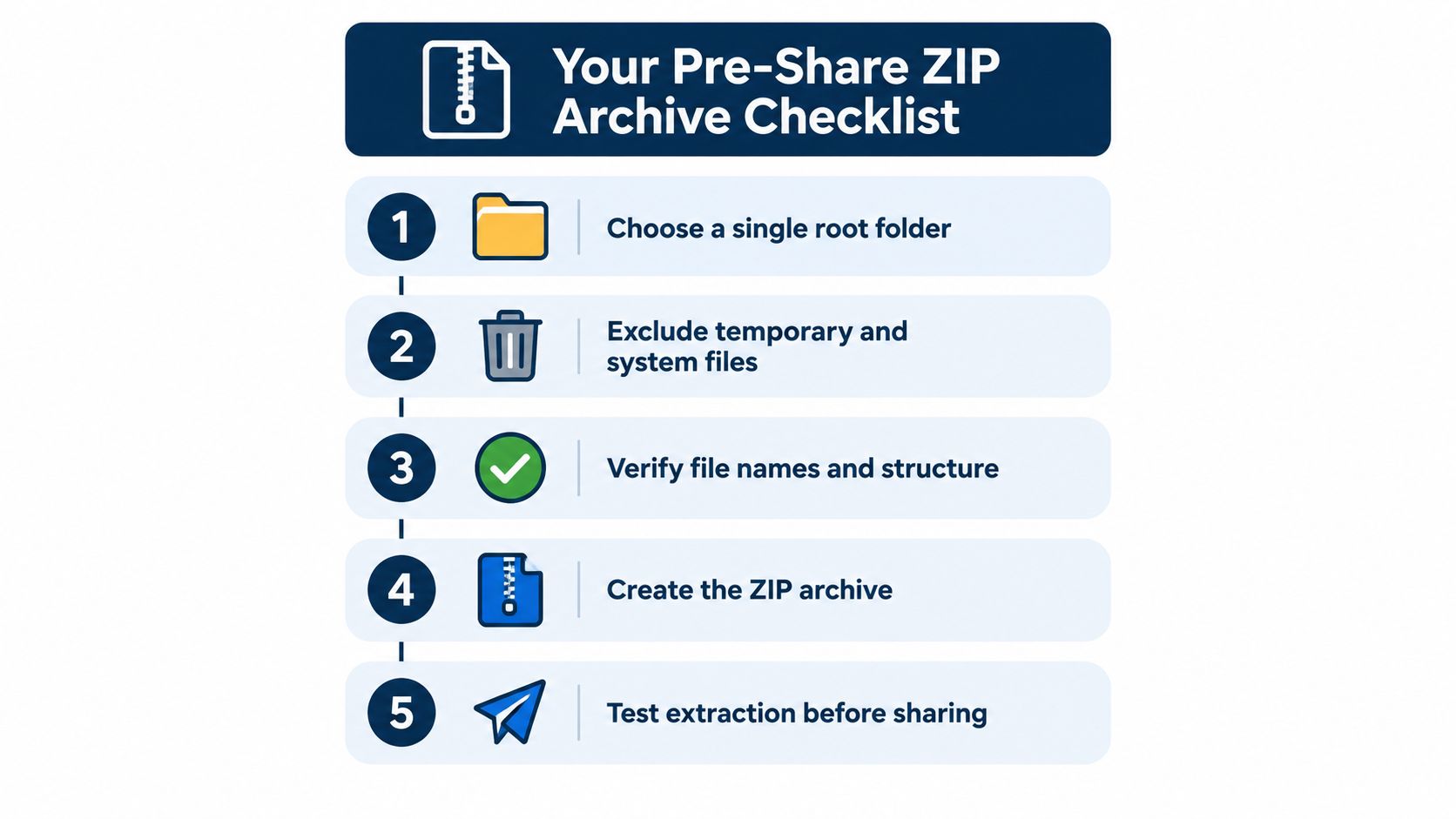
- Choose one root folder. Put the files you want to share into a single, clearly named folder before you compress anything.
- Remove junk first. Exclude temporary files, secrets, and anything you wouldn't want a recipient to open.
- Check names and structure. Keep filenames readable, avoid weird path habits, and make sure the entry file is indeed inside the folder.
- Create the ZIP archive. Use the built-in tool on your computer, then rename the output so it's obvious what it contains.
- Test extraction before sharing. Open the archive in a temporary folder or on another machine, then confirm the contents match the source tree.
That workflow is easy to reuse for client deliverables, workshop materials, or a static site upload. If you're packaging content for sharing as a file link, convert the ZIP to a link only after you've confirmed the archive opens cleanly and the structure looks right. For public-facing handoffs, that final check saves more time than any compression setting ever will.
Upfling turns uploaded folders and ZIP archives into live, shareable URLs, so the archive you just built can become a link instead of a bulky attachment. If you need to publish static files, documents, or a ZIP-based site handoff, visit Upfling and use it to share the finished archive cleanly.