Example of Static Web Page: 7 Fast Publishing Ideas
See a practical example of static web page design and learn how to publish portfolios, landing pages, and guides by uploading files.
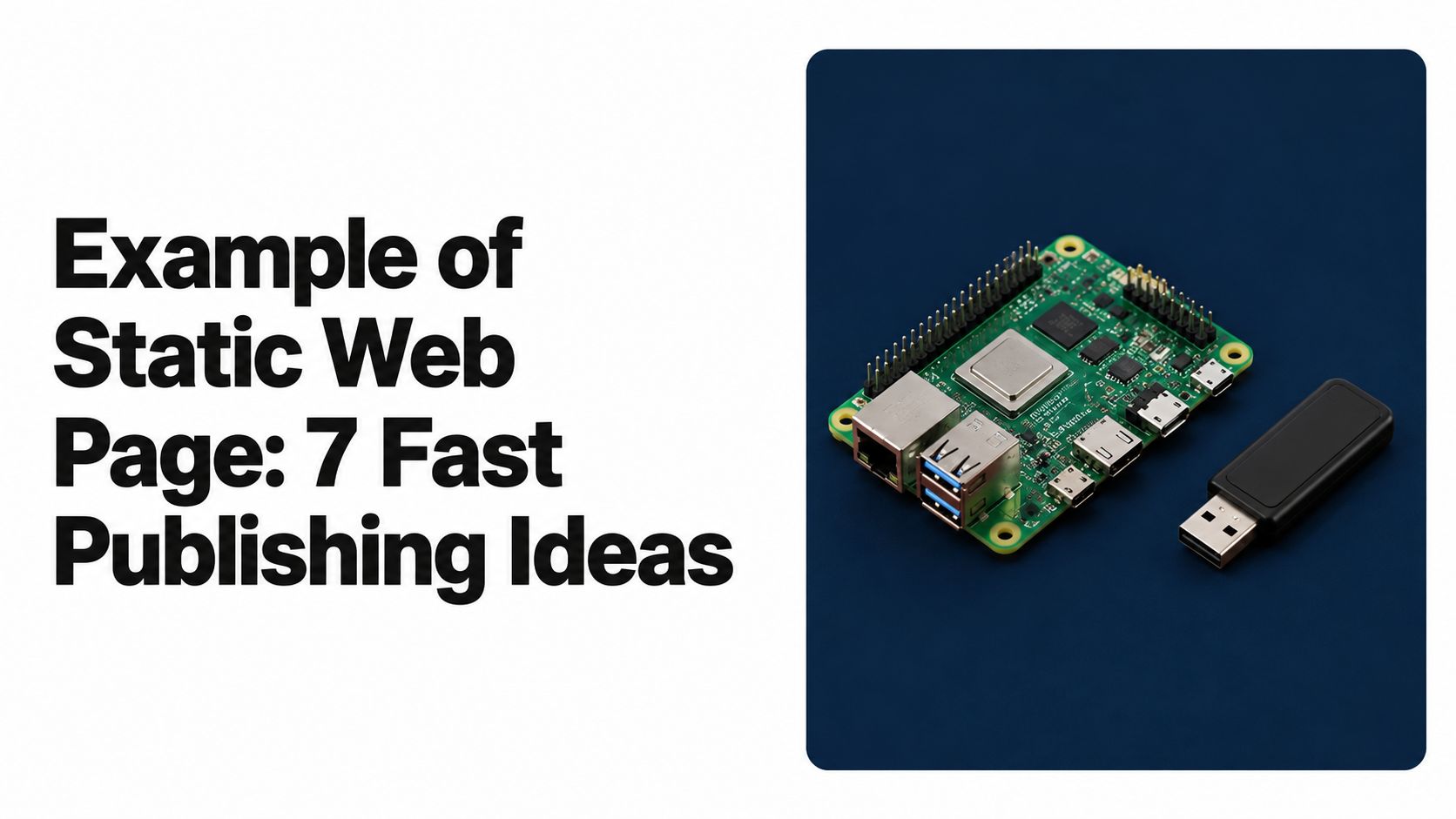
Your résumé PDF is finished. Your portfolio folder opens on your laptop, and the workshop handout is ready to send. But sharing still means attaching files, explaining which document to open, or wondering whether someone else can access the folder. You don't need a complicated website. You need a small site with one job and one dependable link.
A static web page is prebuilt content delivered from the same files to every visitor. The server returns the prepared page rather than assembling it from a database for each request, as explained in MDN's introduction to static content. That makes it a practical choice for portfolios, landing pages, documentation, client review sites, and shareable documents.
Static doesn't mean frozen forever, and it doesn't mean buttons can't work. You can replace the files, change the design, and add browser-based interactions. The important distinction is how the content gets delivered.
These seven examples move from a personal page to a more involved prototype folder. Each is a publishing pattern, not just a visual style: what to upload, who benefits, what won't work without extra services, and how to keep the resulting page useful.
1. Personal Resume and Portfolio One-Pager
A hiring manager needs to understand your work, see relevant examples, and find your contact details. A one-page résumé and portfolio can do all of that without making them download anything first.
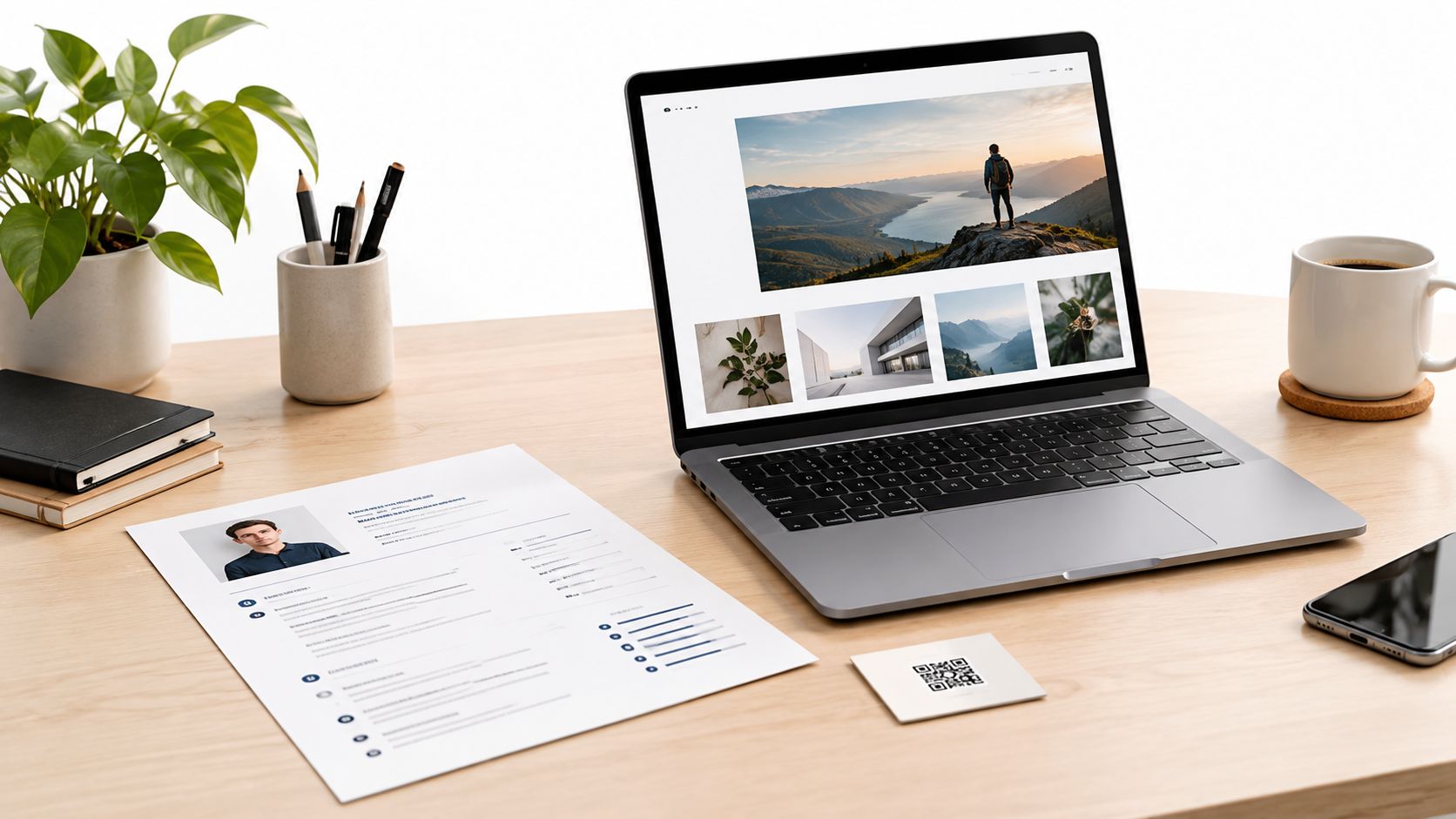
For a graphic designer, the folder might contain index.html, a stylesheet, an images subfolder, and a résumé PDF. The page presents selected projects, a short biography, work history, skills, and a clearly labeled contact link. A photographer can use the same arrangement for galleries, replacing photographs as their work develops.
Keep the proof easy to reach
Name the main page index.html and keep supporting files in their original relative locations. Upload the whole folder or its ZIP archive, not just the HTML file. Otherwise, you may publish the text while leaving the photographs and styling behind.
With Upfling, folder uploads become shareable pages, and file replacement lets you update the portfolio without changing the address already sent to recruiters. Its image portfolio hosting is relevant when showing visual work is the page's main purpose.
- Keep the résumé downloadable. Add a PDF button for applications that require a conventional document.
- Prepare images for phones. Compress them, include dimensions, and write useful alternative text.
- Print a fallback address. Put readable address text beside a QR code on networking cards or paper résumés.
Static delivery suits this example because visitors need the same professional information. A gallery can be interactive, but private recruiter accounts, saved favorites, and application tracking would require additional functionality. Don't add those features unless they solve a real problem.
2. Single-Page Product Landing Page for a Solo Founder
A solo founder testing a scheduling app doesn't need an entire product website before asking whether people want it. A focused landing page can explain the problem, show the proposed solution, link to a demo, and invite visitors to join a waitlist.
A bakery could use the same pattern for a seasonal product, with a packaging QR code pointing to ordering information. An author could publish a book description, retailer links, and a sample chapter PDF.
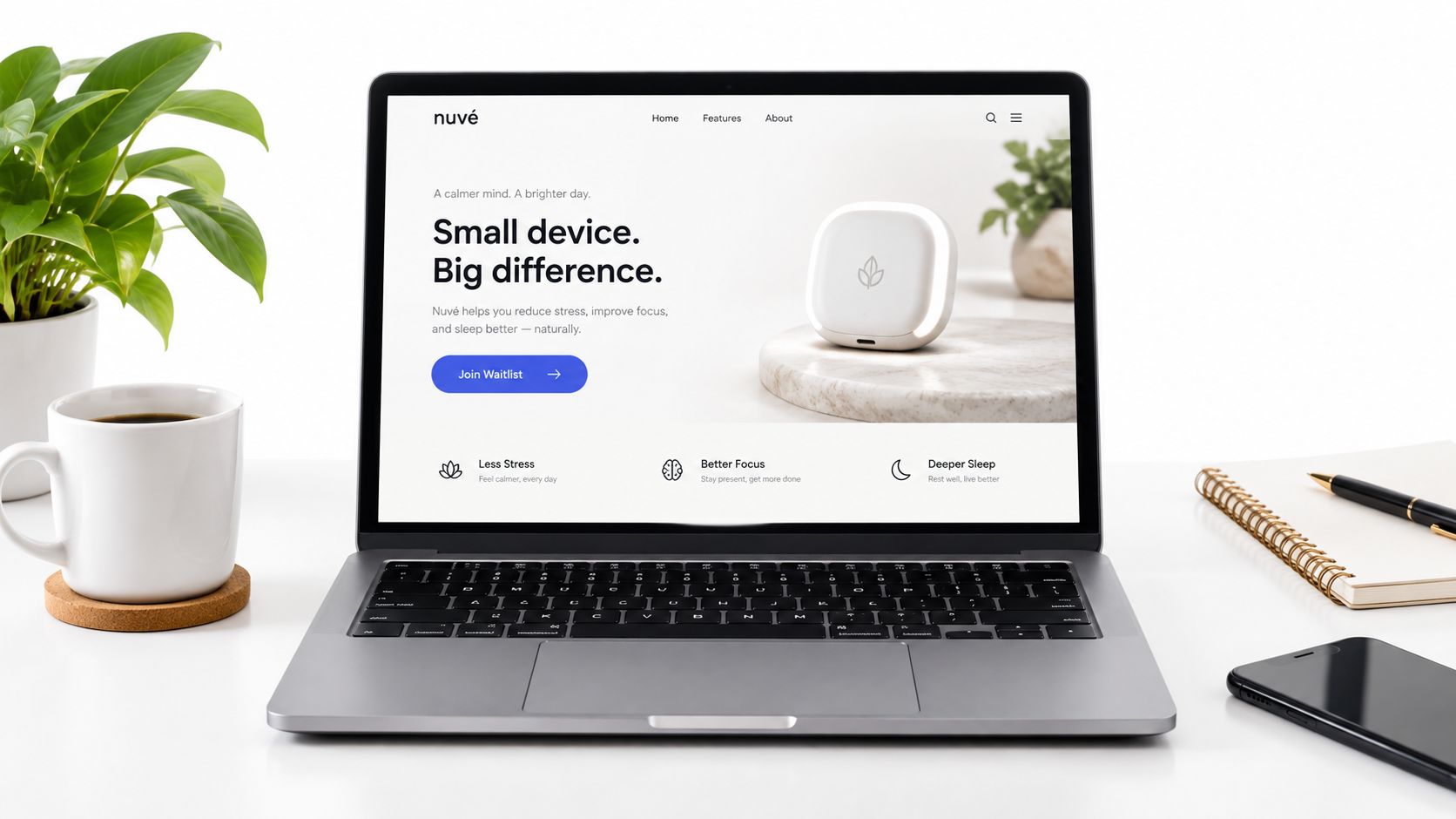
The upload folder stays modest: index.html, CSS, product images, and any downloadable sample. Put the value statement and main action before visitors need to scroll, especially on a phone. Don't spend the opening screen on decoration that postpones the explanation.
A static landing page can describe an offer. Collecting an email address or taking payment needs a working service behind the button.
Upfling offers custom domains, free SSL, visit and referrer analytics, and email capture on higher plans. These support publishing and collecting interest, but they don't turn an unfinished product into a working application.
Test the action, not just the appearance
Upload the folder, open the live address, and complete the intended visitor journey yourself. Submit the email form, open the sample chapter, and check that retailer buttons reach their intended destinations.
Connect a custom domain before printing packaging or promotional material, if that's the address you intend to keep. Review referrer and device analytics weekly, but distinguish visits from expressed interest. A page view isn't a waitlist signup, and a polished demo isn't proof that the product works.
3. Password-Protected Client Review Site
Client review works best when everyone returns to the same address. Sending a fresh attachment after each revision makes it harder to know which draft people are discussing.
A design agency could publish homepage concepts in a folder containing an entry page and separate mockup pages. A copywriter could share a brochure PDF with a summary page, while a freelance developer could upload a clickable prototype before starting the full build.
Treat protection as a hosting decision
The static files provide the presentation. The hosting service provides access control, so a password prompt drawn into the HTML isn't a substitute for actual protection.
Upfling supports per-link passwords, readable slug names, analytics, and replacing files without changing the public address. Its client website sharing workflow fits review material that needs a stable destination rather than a separate staging setup.
- Separate the password from the link. Send it through another message or channel.
- Make the address recognizable. A slug such as
clientname-homepage-reviewhelps recipients identify the project. - Label the current revision. State what changed on the page so reviewers don't have to infer it.
- Replace rather than republish. Keep the shared address consistent across feedback rounds.
Static delivery works because invited reviewers are looking at the same prepared material. It becomes less suitable when they need inline comments, tracked approvals, individual permissions, or a discussion history. Collect feedback through an agreed channel instead of pretending the preview page provides those features.
Analytics can help indicate whether someone accessed the review page. They don't prove that the client read the latest draft or approved it. Ask for explicit confirmation before treating the work as signed off.
4. Course Hub and Workshop Handout Site
Students shouldn't have to search an email thread to find today's exercise. A course hub gives them a home page with the schedule, lesson links, reading lists, and downloadable materials.
For example, a web design instructor could organize a six-week course with a page for each week, an MP4 demonstration, and a PDF exercise. A community workshop leader could publish a simpler hub and print its QR code on the event flyer.
The folder might contain index.html, a lessons folder, exercise PDFs, and demonstration videos. Keep lesson names descriptive, and give each lesson a route back to the home page.
Publish materials, not a learning-management system
Upload the prepared folder together so its links retain their intended structure. If you're writing in Markdown, Upfling can render those files as styled pages; alternatively, upload HTML pages already generated from the notes.
Use MP4 or WEBM for hosted demonstrations, but don't force students to download a large video just to read the exercise. Keep written instructions available independently.
A video can sit alongside the written materials rather than replace them.
For printed flyers, include an action label and a readable address beside the QR code, following QR accessibility guidance for printed materials. Students should be able to type the address if scanning doesn't work.
Teaching boundary: A shared password can restrict access to course materials. It isn't individual enrollment, progress tracking, or assignment submission.
Use protected links for restricted cohorts and public links for open workshops. Static delivery suits schedules and handouts, but graded work and student records need a system designed to handle them.
5. Documentation Site Generated from Markdown Files
For a volunteer handbook or product setup guide, editable text matters more than elaborate design. Markdown lets an author work with headings, paragraphs, lists, and links without maintaining page layouts by hand.
A nonprofit could keep separate files for volunteer responsibilities, safety procedures, and contact information. A small business could publish setup instructions reached from packaging, while a consultant could share an onboarding guide that clients can read online or download.
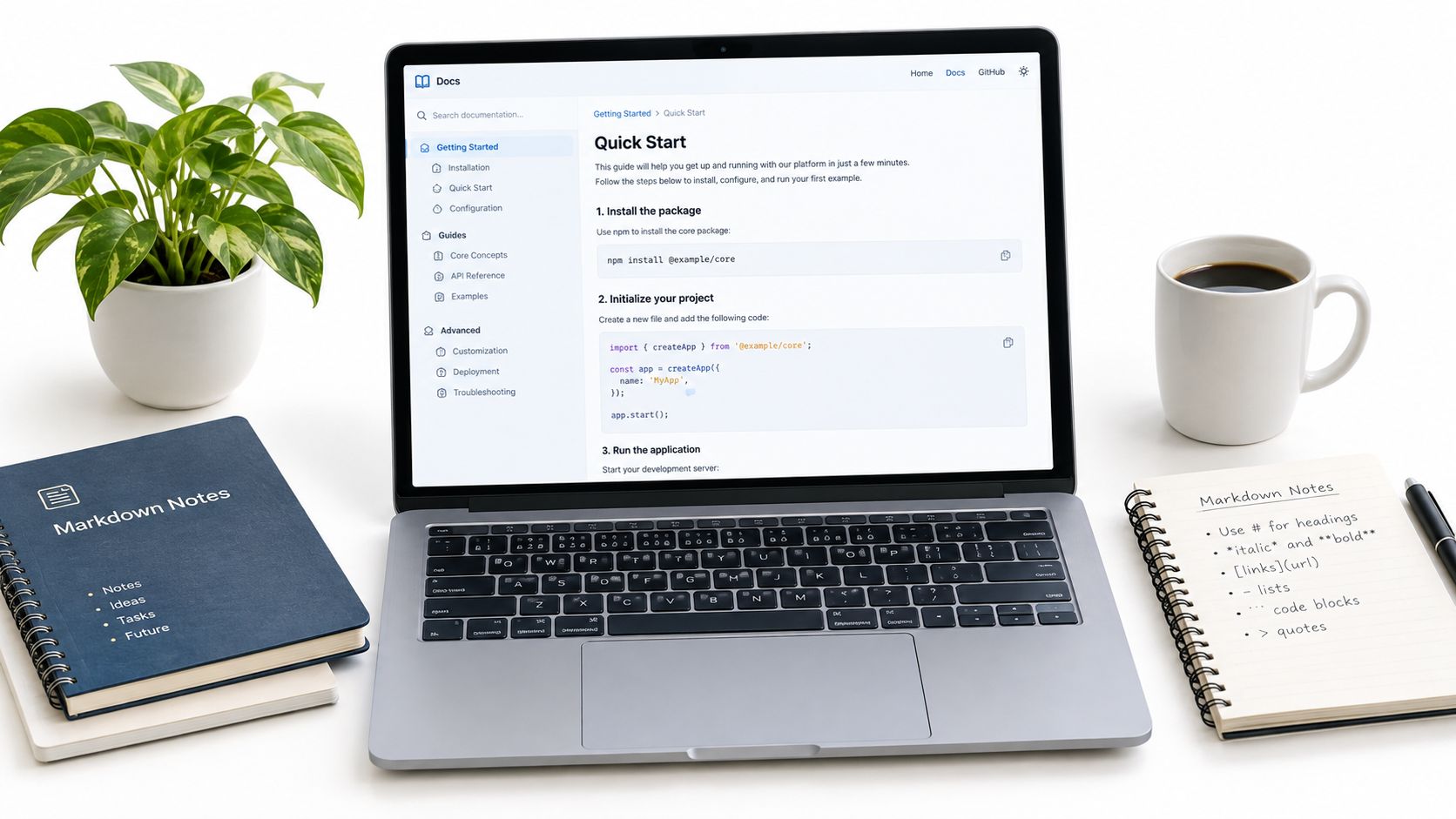
There are distinct publishing routes. A generator can convert Markdown into a complete static HTML site before upload. Upfling also supports direct .md rendering with styled output, viewable source, and a download option, which avoids a separate generation step for simpler guides.
Organize the folder around readers' questions
- Keep one topic per file. Separate installation from troubleshooting so corrections stay manageable.
- Provide a home page. Link to every major section instead of expecting readers to find filenames.
- Use descriptive headings. Name the task or question rather than labeling everything “Information.”
- Offer an offline copy. Make the download option visible for readers working away from a connection.
Upload the rendered website folder when using a generator, or the supported Markdown files when using direct rendering. Check the live links, since a link that works inside your writing tool may not point to the right published destination.
Static documentation works well when readers need shared reference material. A consistent menu is straightforward, but search isn't automatic just because the files are Markdown. If search is included, test it; if it isn't, make navigation clear enough that readers can find the answer without it.
6. PDF and Document Showcase Page
A document link answers “Where is the file?” A showcase page also answers “What is this, who is it for, and what should I do next?” That context is especially useful for reports, proposals, property brochures, and spreadsheets.
A consultant could publish a proposal behind a password with a summary explaining its scope. A real estate agent could combine property photographs with a downloadable floor plan, while a researcher could give conference attendees an abstract and report download.
The folder can contain index.html, the PDF, and supporting images. The browser retrieves the resources referenced by the page separately, as described in MDN's explanation of serving pages and supporting files.
Don't make the PDF carry every essential instruction. Put the document's purpose and the next action in readable page text.
Give readers a choice
Write a short summary at the top, identify the document's version, and provide an obvious download button. An embedded preview can be helpful, but readers shouldn't have to wrestle with it to obtain the file.
Compress the PDF before uploading and check that its text remains readable. For printed brochures or signs, include both a QR code and an address people can type.
Upfling supports PDFs, images, and documents as standalone shareable pages, with analytics and persistent URLs. You can also upload a custom HTML wrapper when the document needs more explanation, then replace corrected files without resending the address.
Views aren't acknowledgments. A static document page can distribute a proposal, but it doesn't establish acceptance, collect a signature, or manage spreadsheet collaboration. Use a separate approval process when those outcomes matter.
7. AI-Generated Website Prototype Folder
An AI-generated page may look finished in a preview while still being awkward to share. The useful next step is to export a self-contained static folder, not send someone a screenshot of it.
A small business owner could generate a menu page and upload the exported ZIP. A product manager could share a Figma Make prototype with stakeholders, or an event organizer could publish an invitation page and distribute its QR code.
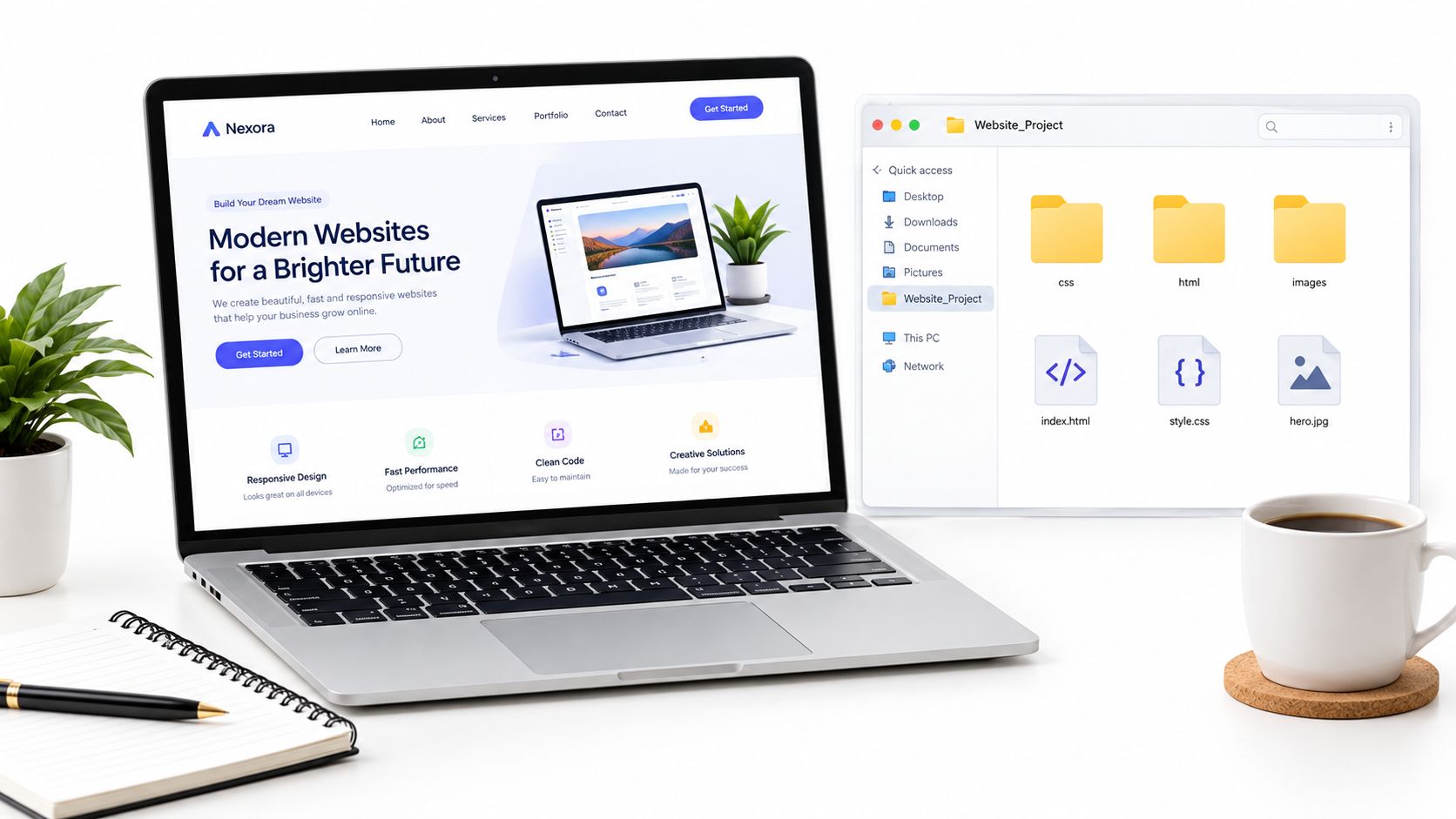
Ask the builder to produce index.html, CSS, browser-based JavaScript, and local image files with relative links. A source project isn't necessarily an upload-ready website. If the output requires a server or a build command, ask for a static export before hosting it.
Inspect the prototype as a visitor
- Check every button. A convincing form or checkout screen may only be a visual placeholder.
- Test on a phone. Look for clipped text, tiny controls, and oversized images.
- Protect unpublished work. Apply hosting-level password protection before circulating sensitive previews.
- Keep the review address stable. Replace files as the design changes.
Upfling detects entry pages in supported exported folders and provides API and MCP publishing integrations. Its guide to hosting an AI-generated website is relevant once you have files ready to upload.
Don't assume generated pages are fast because they're static. The 2025 Core Web Vitals data summary reports that only 48% of mobile websites passed all three Core Web Vitals. Keep assets modest, check keyboard navigation, and verify that the prototype's visible promises match its actual behavior.
Comparison of 7 Static Web Page Examples
| Example | Implementation Complexity | Resource Requirements | Expected Outcome | Ideal Use Case | Key Advantage |
|---|---|---|---|---|---|
| Personal Resume and Portfolio One-Pager | Low | One HTML page and assets; no database | Fast, shareable professional profile | Job seekers and creatives | Stable link and QR-code sharing |
| Single-Page Product Landing Page | Low | Static page; optional email and analytics services | Product interest, sign-ups, or early feedback | Solo founders testing an idea | Quick, low-cost launch |
| Password-Protected Client Review Site | Low | Static files and password protection | Secure preview link for client review | Freelancers and agencies sharing drafts | Revisions can keep the same URL |
| Course Hub and Workshop Handout Site | Medium | Linked pages, handouts, and optional media | Organized, self-service access to learning materials | Educators and workshop leaders | One link gathers course resources |
| Documentation Site Generated from Markdown Files | Medium | Markdown files and a page structure; search may need extra tooling | Navigable guides and reference materials | Teams and organizations publishing documentation | Simple-to-edit, versionable content |
| PDF and Document Showcase Page | Low | Document files and a summary page | Mobile-friendly document access with view tracking | Professionals sharing reports or proposals | Trackable alternative to email attachments |
| AI-Generated Website Prototype Folder | Low | Exported HTML, CSS, and image files; no backend for static use | Live prototype link for feedback | Non-developers and makers sharing AI-built pages | Publishes prototypes without deployment setup |
Publish the Page, Keep the Link
The strongest example of a static web page is the one that removes a specific obstacle for its reader. A portfolio makes personal proof easy to inspect. A landing page presents an offer and tests interest, while a protected review folder gives clients a consistent place to examine unfinished work.
Use a course hub when students need organized materials, and Markdown guides when authors need straightforward editing. Choose a document showcase when a file needs context and a dependable download destination. Upload a prototype folder when generated work needs to become something another person can open and test.
None of those situations automatically calls for accounts, databases, or elaborate deployment systems. But none makes usability automatic, either. The foundational static publishing pattern is requesting an address and receiving a prepared document, illustrated by the first website created at CERN. Your responsibility is to make that document useful.
Check the upload before sharing
- Confirm the entry page. Use
index.htmlfor an HTML site and include every referenced asset in the upload. - Compress media. Reduce image, video, and PDF weight without making the content difficult to read.
- Test on a phone. Open the live page, follow its links, and try its primary action.
- Check basic accessibility. Use meaningful headings, image alternatives, readable contrast, and keyboard-operable navigation.
- Protect sensitive material. Apply appropriate hosting access controls rather than hiding content behind a decorative prompt.
- Connect a domain when appropriate. Decide which address you'll print and share before distributing permanent materials.
- Replace files without changing the URL. Preserve the address people already saved, and verify the updated page afterward.
Keep a local copy of the published folder so you know exactly what's live. When you revise it, check the main page and supporting downloads together; changing a filename can leave an old button pointing nowhere.
The best static page isn't the most complex one. It's the clearest experience that solves one real communication or access problem, with an address you can confidently keep sharing.
Upfling turns uploaded website folders, ZIP archives, HTML, PDFs, images, and documents into live, shareable URLs, with file replacement that preserves the address. Visit Upfling, upload your finished page or document, and test the resulting link on your phone before sending it to clients, recruiters, or students.