Embed Pdf Document in Html
Embed pdf document in html. Learn how to embed a PDF document in HTML using iframe, object, and PDF.js, with responsive tips and fixes for cross-browser issues.
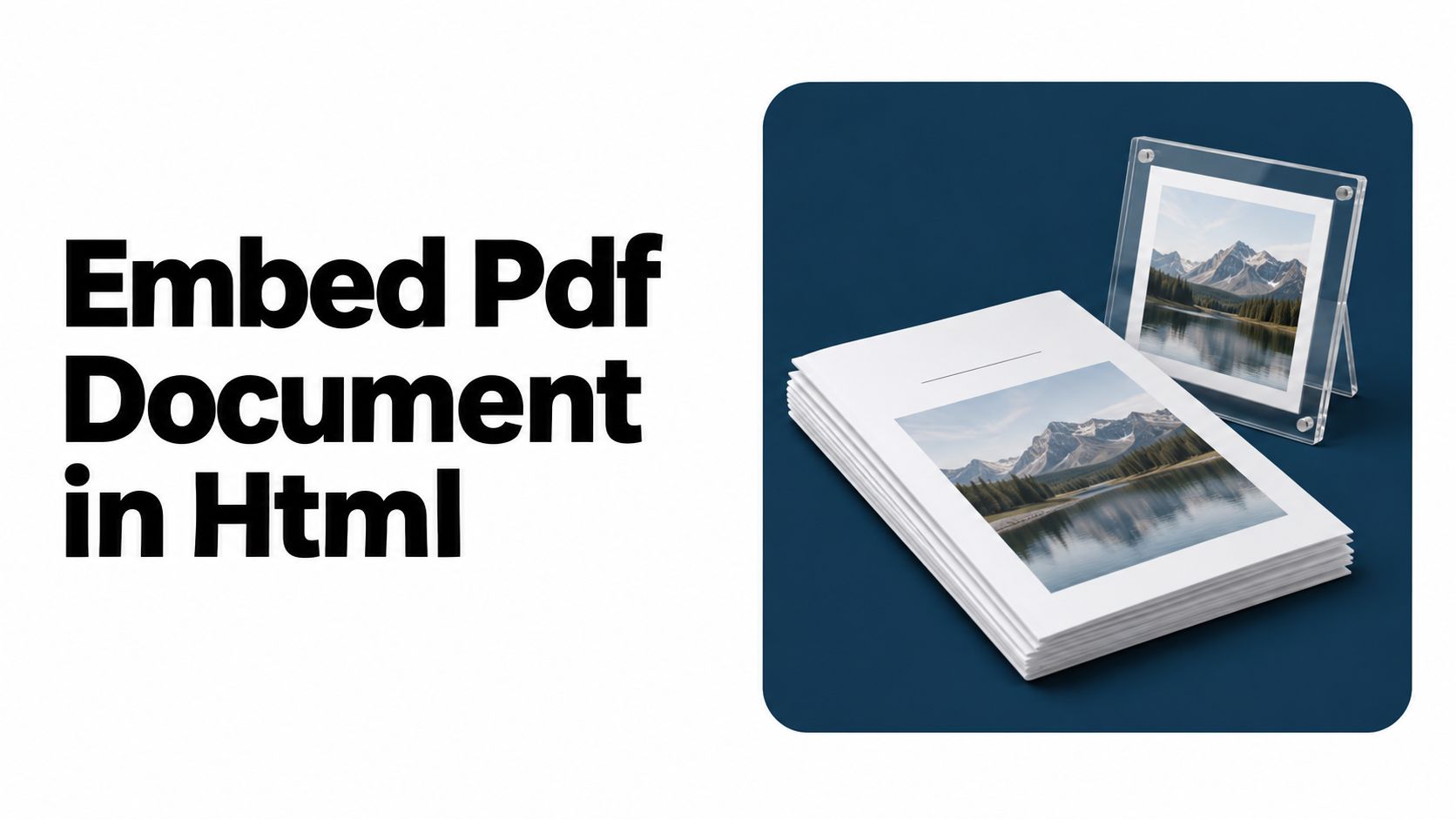
You've got a polished PDF, and you want it to show up neatly inside a webpage without turning into a mess on phones, tablets, or screen readers. That sounds simple until the first test fails, the file opens in a new tab, or the preview area looks blank on a device you didn't expect.
The clean way to think about an embed PDF document in HTML setup is not as one trick, but as three layers working together. The HTML page around the viewer needs to be usable, the viewer element needs the right attributes, and the PDF file itself needs to be structured well enough for people and assistive tools to read it.
Why Embedding a PDF Is Trickier Than It Looks

A lot of people start with a single snippet, paste it into a page, and call it done. Then the surprises begin, the PDF opens fine on one desktop browser, downloads on a phone, and disappears for a visitor who relies on a screen reader.
Three different jobs, not one
The first job is the HTML page. It needs a clear label, a usable link, and a layout that still makes sense if the embedded viewer fails.
The second job is the viewer element. That's the frame or embed box itself, and it has to be sized and labeled correctly so browsers know what to do with it.
The third job is the source PDF. If the file isn't tagged, ordered logically, or readable by assistive technology, the embed only hides the problem inside a pretty rectangle.
Practical rule: treat embedding as a convenience layer, not as the only way people can reach the file.
That's why the rest of the page matters so much. If the viewer fails, users still need a direct path to the document, and if the document itself is poorly built, no amount of HTML polish fixes that.
The Three HTML Elements You Can Use
A first PDF preview can start small. The choice is usually between <iframe>, <object>, and <embed>, and each one handles a different layer of the job: the page, the viewer, and the file itself.
Use <iframe> when you want a familiar inline viewer and a separate fallback link beside it. Use <object> when you want fallback HTML inside the element itself. Use <embed> when you want the shortest markup and can live without child fallback content.
1. iframe
<iframe src="document.pdf" title="Annual report" style="width:100%;height:700px;border:0"></iframe>This is the most common starting point for an embedded preview. MDN treats it as the default choice for many page layouts, and it fits well with lazy loading and referrer policy settings MDN iframe guidance.
2. object
<object data="document.pdf" type="application/pdf" title="Annual report" style="width:100%;height:700px">
  <p>Your browser can’t display this PDF. <a href="document.pdf">Open or download the file</a>.</p>
</object>
Use this when you want the browser to try the PDF first, then show helpful HTML if the viewer fails. That makes it a good fit for browsers that block the preview or for pages that need a clear fallback message.
3. embed
<embed src="document.pdf" type="application/pdf" title="Annual report" style="width:100%;height:700px">Use this when you want the simplest possible markup and do not need fallback content inside the element. Give the element a title attribute so assistive technology can identify it MDN embed guidance.
| Element | Best for | Fallback support | MDN verdict |
|---|---|---|---|
| iframe | Modern pages and responsive previews | External fallback link needed | Preferred default |
| object | Inline preview with fallback HTML | Yes, inside the element | Good when fallback content matters |
| embed | Minimal markup | No child fallback content | Works, but no special PDF advantage |
A Production-Ready Responsive Embed
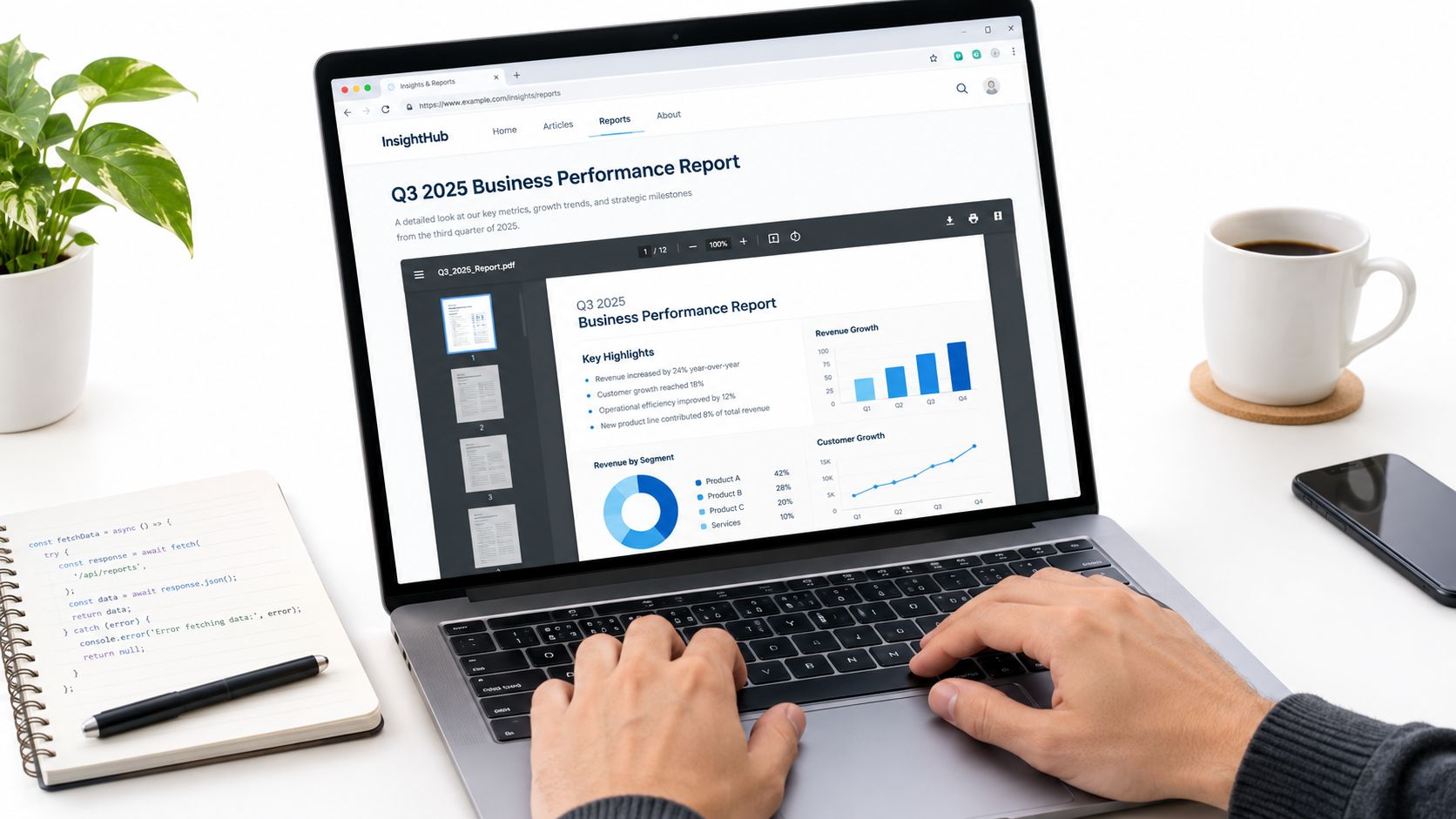
A good PDF preview has three parts working together: the HTML page around it, the viewer inside the frame, and the PDF file itself. If one layer is off, the whole preview feels broken. The example below keeps the frame responsive, leaves room for the document, and gives readers a plain link in case the browser refuses to show the file.
<iframe
  src="/files/report.pdf"
  title="Annual report"
  loading="lazy"
  referrerpolicy="no-referrer"
  style="width:100%;height:80vh;border:0">
</iframe>

<p><a href="/files/report.pdf">Open or download the PDF</a></p>
width:100% lets the embed follow the layout of the page, while height:80vh keeps it sized to the visible screen. loading="lazy" tells the browser to wait until the frame is near view, and referrerpolicy="no-referrer" keeps the request from exposing the referring page. The title gives the viewer a name that assistive technology can announce, which matters because the frame itself is only one layer of the experience.
The link below the iframe is part of the fallback pattern. MDN recommends keeping that path outside the frame, since iframe content does not provide reliable fallback text when the PDF cannot render MDN iframe guidance.
Keep the link outside the iframe. If the viewer fails, the link still works.
The quickest way to test this setup is to load the PDF in a live URL and compare it with the local file. You can try that with this simple HTML embedding tool, then check whether the same source behaves the same way in the browser you expect users to have.
The clip below walks through the testing routine on desktop and mobile, so you can see how the same embed behaves across screen sizes and browser viewers.
When to Reach for PDF.js or a Hosted Viewer
Native browser rendering is fine when you just need a straightforward preview. The moment you need branded controls, search, annotations, or analytics, a custom viewer starts to make more sense than trying to wrestle the browser's toolbar.
Match the tool to the job
| Goal | Native iframe | PDF.js or hosted viewer |
|---|---|---|
| Simple preview | Usually enough | More than you need |
| Search inside the document | Basic or inconsistent | Better control |
| Annotations or collaboration | Not a fit | Much better fit |
| Branding and custom controls | Limited | Strong fit |
| Consistent mobile behavior | Varies by device | More controllable |
The setup details are where people usually get stuck. The PDF should be served over HTTPS, the response should return Content-Type: application/pdf, the viewer's worker and asset paths need to be correct, and large files may need byte-range support so the whole document doesn't feel heavy.
If you're only showing a brochure or a handbook, skip the complexity and stay with the native embed. If you're building a customer-facing reading experience, use a hosted viewer instead of trying to control the browser toolbar and hoping it behaves the same everywhere.
For teams that are comparing options before making a decision, this publishing and licensing note is a practical place to think through the trade-offs around hosted document delivery and embedded viewers.
Accessibility Across Three Layers
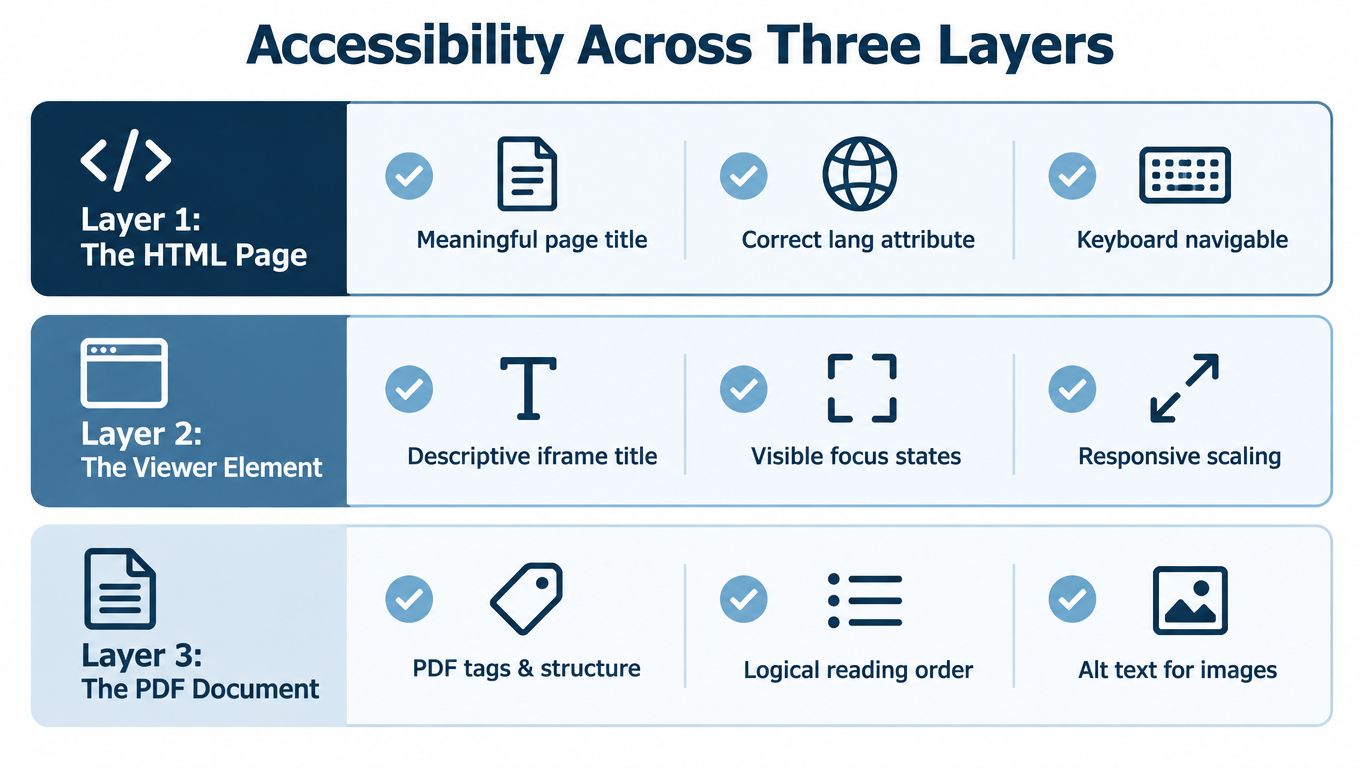
A PDF embed has three parts to get right. The HTML page needs to say what is there, the viewer needs a label, and the PDF itself needs to be readable instead of only printable.
The page around the viewer
Use a clear link label instead of vague text. “Download the 12-page annual report” tells people what they will get, while “Click here” does not.
The page title should also make sense on its own, and the document language should be set correctly. That helps keyboard users and assistive technology users understand the page before they reach the viewer.
The viewer box itself
The viewer's title works like a name tag. Without it, a screen reader can announce an unnamed frame, and the user has to guess what is inside. The W3C also notes that PDF accessibility should not depend on the browser alone, which is why the surrounding page still needs a separate path for people who cannot use the embedded view W3C PDF techniques.
A short plain-HTML summary helps when the document carries important information. If someone cannot read the PDF directly, that summary gives them the key points without forcing them into the file.
The PDF file itself
The source document needs real structure. Tagged headings, readable text, logical reading order, and alt text for images all help the file work beyond a visual page-by-page view.
W3C guidance identifies Tagged PDF as the most reliable path to accessible PDFs because structural tags preserve reading order and support assistive technologies W3C PDF techniques.
If the file is only readable when laid flat on the screen, it is not finished.
An embedded viewer can hide weaknesses in the file. The page may look polished while the document underneath remains difficult to use.
Cross-Browser Fixes for Common Failures
A blank box usually means the browser couldn't render the PDF inline. The first things to check are the file's MIME type, the response headers, and whether the browser is allowed to display the file inside a frame.
If Safari on iPhone downloads the file instead of showing it, don't assume the embed is broken. Mobile viewers often behave differently, and the safest fix is to keep the download/open link visible right next to the viewer.
sandbox can also cause trouble. The browser's built-in PDF renderer already sandboxs executable content, so adding sandbox by default can stop the viewer from loading at all.
For PDF.js-style viewers, broken worker paths are a common cause of a blank or stalled screen. If the file is scanned and image-only, it may look fine to you while staying unusable for a screen reader.
Putting It All Together and Hosting Your PDF
A solid workflow is simple. Prepare a tagged PDF, choose the right element, paste a responsive embed, keep the fallback link visible, and test on desktop and mobile before you publish.
If you want a hosted file URL to test right away, this sharing page gives you a clean public PDF address without extra deployment steps. That makes it easier to verify how the same document behaves when it's loaded from a real HTTPS URL instead of your local machine.
Before you hit publish, check four things, the title is set, the fallback link is visible, the MIME type is correct, and the source PDF is tagged. If the file still misbehaves on mobile, treat the embed as an enhancement and keep the direct link obvious.
If you want a clean place to upload a PDF and get a shareable URL without wrestling with build steps, Upfling turns the file into a live link and keeps the direct download path intact. It's a practical way to test embeds, share handouts, and check how your PDF behaves on real devices.