Creating Web Application: From Folder to Live Link
Creating web application projects without the jargon: choose static or dynamic, check the folder, and publish a shareable HTTPS link.
You've got a folder on your desktop. Maybe an AI chat made it. Maybe you typed it yourself on a Tuesday night. It opens on your laptop, sort of, and now someone is asking for a link.
That's where many people stall. Creating web application pages isn't the hard part anymore. Sorting an imperfect folder, checking what works, and putting only that online is the job. This guide walks through that job with a small, everyday example you can copy.
Choose Static, Browser, or Backend First
Say Maya sells jam at a Saturday market. She has a folder called cafe-menu. Inside is a page that lists today's flavors and prices. She wants a link for the stall sign.
Before she picks any tool, she needs to name what she's making. That one choice decides where the folder can live, what it costs her in effort, and what will break later.
Three kinds of small apps
A static site shows the same files to every visitor. Maya's menu is static. So is a résumé, a one page portfolio, or a workshop handout. Nobody logs in. Nothing gets saved.
A client-side app adds behavior in the browser. Think of a quote calculator for a freelance designer. You type hours and a rate, and the total appears. Or a photo gallery where visitors filter by "weddings" or "portraits," or a short quiz for students. The math and filtering happen on the visitor's device. There's still no database.
A backend app has to remember something. Bookings, member logins, a shopping cart, and saved form replies all need a server. If Maya wants customers to reserve jars for pickup next week and wants to see those orders on Friday, that's backend work.
| App type | What it does | Everyday example | Where it can live |
|---|---|---|---|
| Static site | Same files for every visitor, no database | Résumé, café menu, class handout | Folder host or any static host |
| Client-side app | JavaScript runs only in the browser | Quote calculator, photo filter, quiz | Static host if every file is in the folder |
| Backend app | A server stores logins, replies, or orders | Bookings, shop cart, members area | App platform that includes a database |
| AI-made folder | Generated files that may still be incomplete | ChatGPT or Claude HTML page | Fix paths, then a static host only if it opens locally |
The offline test
Use this test before you publish anything. Save the folder. Turn off Wi-Fi. Open index.html in your browser.
If the page still does its job, it's static or client-side. Maya's flavors show. The designer's calculator still adds up. The quiz still marks answers. If a button must send information away and bring it back later for someone else, it won't pass. Plan a real server, or a hosted form add-on, for that part.
AI folders need this sort most of all. The Stack Overflow 2025 Developer Survey found 84% of surveyed developers use or plan to use AI development tools, while 66% are frustrated by AI outputs that are "almost right" and 45% say debugging AI-generated code takes too much time. An AI chat can hand you a beautiful page with a broken image path, a form that goes nowhere, and a script that expects a server you don't have. That's normal. It doesn't mean the folder is useless. It means you inspect it like a handoff from a helpful stranger.
Check the folder structure. Find the actual entry page. Look for secrets you shouldn't publish. Then match your project to one row in the table and say it in one sentence. "Mine is a static menu." "Mine is a browser-only calculator." Once you can say that, the rest gets much simpler.
The Few Files a Small App Needs
Maya's menu needs three files at most. Each one has a single job, and you can point to it in the folder.
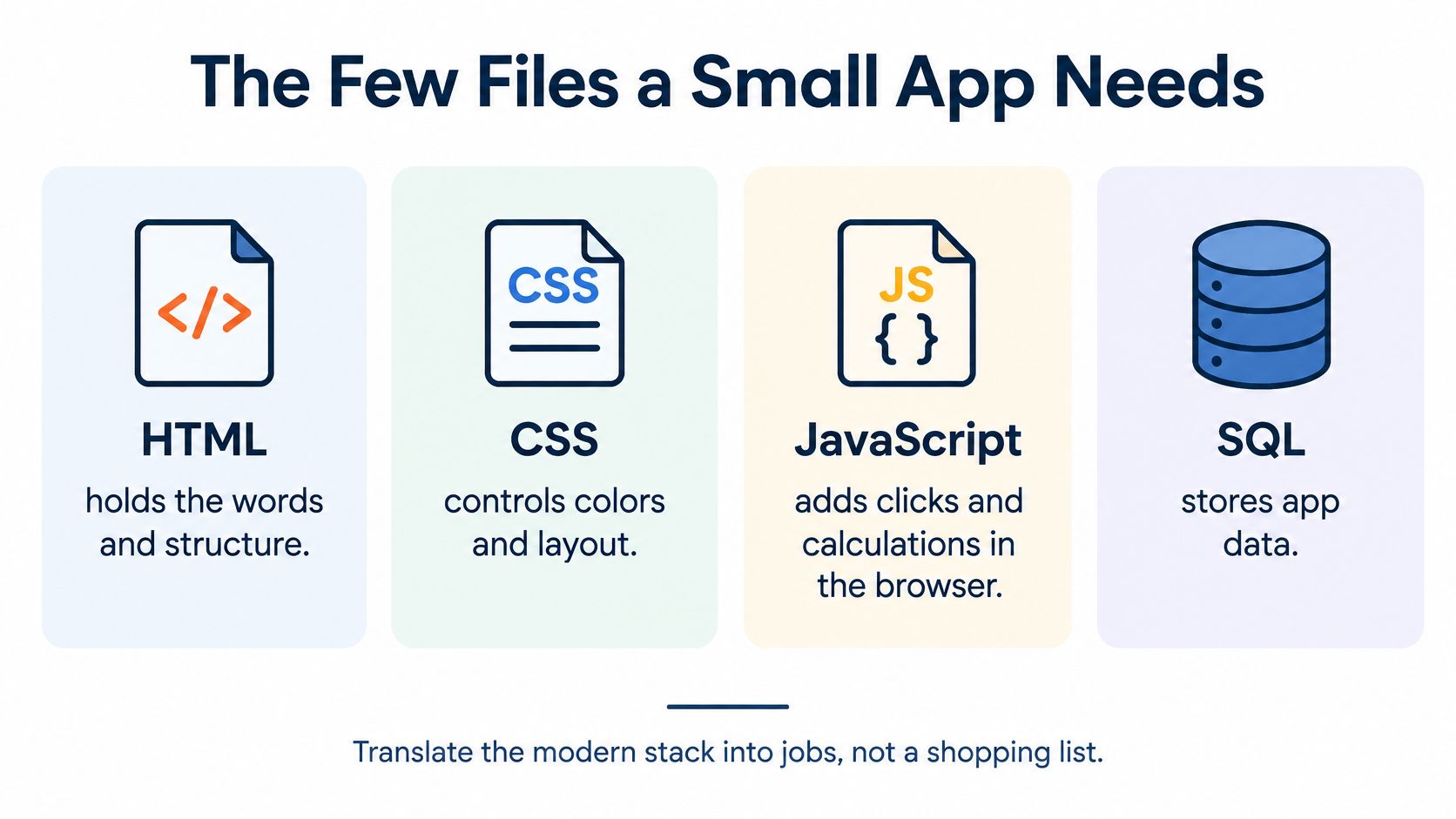
HTML holds the words and structure. Headings, flavor names, prices, and the note about cash or card live in index.html. CSS controls colors, spacing, and layout, so the menu doesn't look like a plain document. JavaScript adds clicks and calculations in the browser, like marking raspberry as sold out.
SQL is different. It stores rows in a database, such as saved orders. Python and TypeScript usually show up when a server is doing work behind the page. If your offline test passed, you probably don't need them yet.
What professionals use, translated
The Stack Overflow 2025 Developer Survey technology results, based on more than 49,000 developers across 177 countries, reported JavaScript at 66.0%, HTML/CSS at 61.9%, SQL at 58.6%, and Python at 57.9%, with Node.js at 48.7% and React at 44.7% on its tools question. Read these numbers as a guide to what employers and teams ask for. Notice the order. The two entries at the top are exactly the files that run in a visitor's browser, which is why a simple folder covers so many small projects. The database language earns its place when data must be kept.
Respondents could pick more than one technology, so the percentages overlap and don't add up to 100. Tools like Node.js and React help teams build larger apps. They don't make a café menu more correct. A freelancer's résumé page doesn't need them. A teacher's handout page doesn't need them.
Plain rule: If you can't name the job a tool does for your visitor, leave it out of this version.
Your starting toolkit is small on purpose. You need a folder on your desktop, any text editor you're comfortable with, and the browser already on your machine. A fancier editor is optional. It's not a requirement for a working page.
The files are rarely the hard part. Sorting them is. Before you publish, you should be able to see index.html first. That's the front door. You may also see style.css for looks and script.js for behavior. If an AI tool gave you twenty nested folders and no clear front door, don't upload yet. Find the page that opens correctly, note where its images and styles sit, and keep those files together.
Build the Page and Test It on Your Laptop
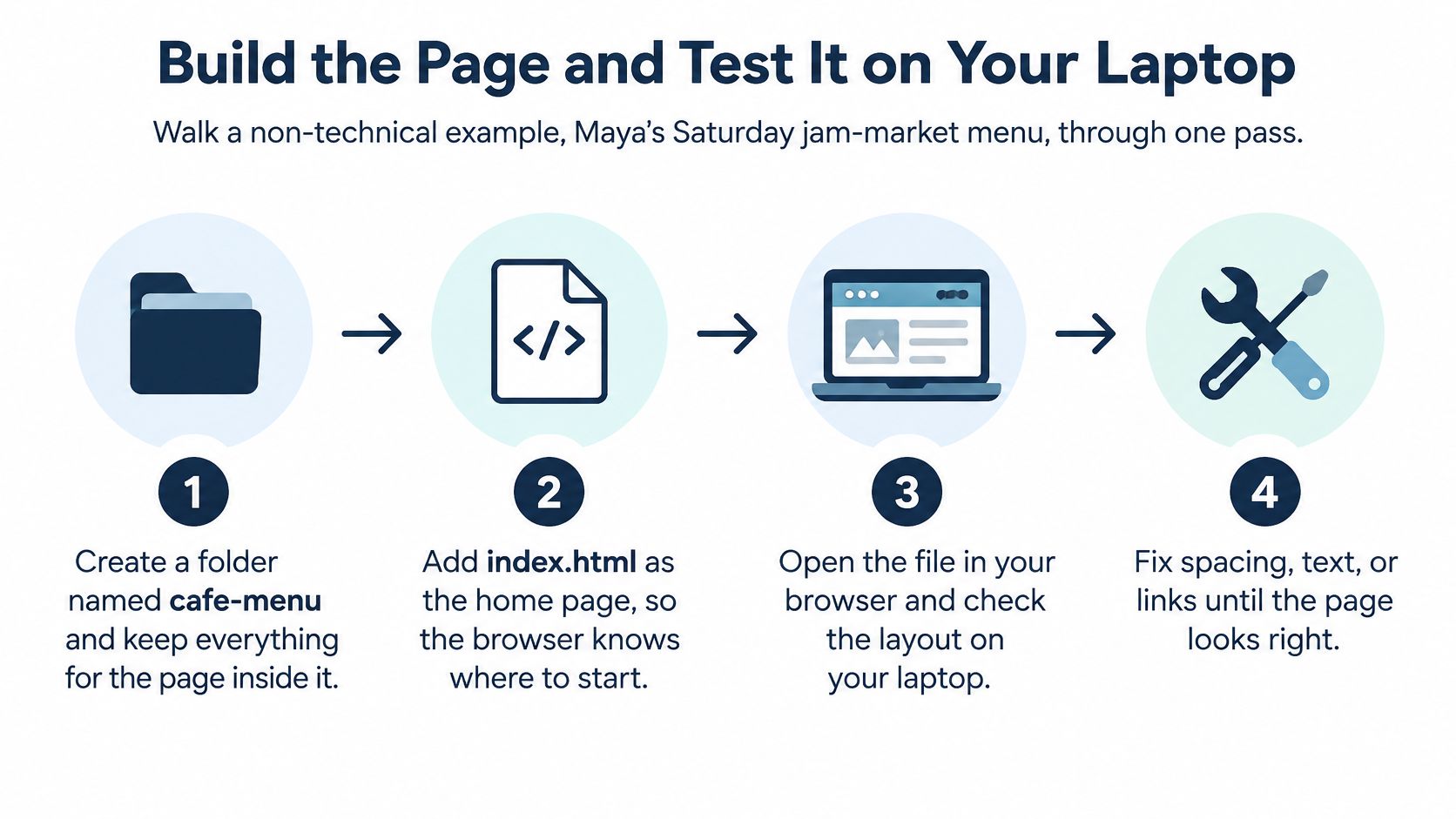
Let's build Maya's menu in one pass. Keep every action concrete, and test as you go. A page that looks right on your laptop is the only page worth uploading.
If you want to try a small change without saving files first, an online HTML tester lets you paste code and see the result. Then save the working version back into your folder, so the folder stays the main copy.
Nine steps for Maya's folder
- Create one folder: Name it cafe-menu and keep everything for the page inside it. This prevents the classic problem where the page works for you because it uses a photo from your Downloads folder, then breaks for everyone else.
- Add index.html: Make this the home page, with a clear heading, today's flavors, prices, stall location, and a short note about cash or card. Browsers and hosts look for this filename first, so it prevents visitors from landing on a blank directory.
- Add style.css only if needed: Use it for color, spacing, and readable text size. Link it with a relative path that stays inside the folder, such as a path pointing to a style file beside the page. Never use a path from your own laptop, because visitors' computers don't have your Desktop.
- Add script.js only for real behavior: Maya might use it to show "sold out" next to a flavor. Read the page with that script in mind and ask what happens if it fails to load. The flavor names and prices should still make sense, because a menu that vanishes without JavaScript helps nobody at a busy stall.
- Set width and height on the jar photo: Give the image its dimensions in the page so the browser reserves space for it. This stops text jumping around while the photo loads on a phone with a weak market connection.
- Open and click everything: Open index.html in your browser. Click every link and button. Shrink the window to phone width. Then turn the network off and open it again. You're checking that the folder is complete, not that your laptop is clever.
- Recheck after AI edits: If an AI chat rewrote the copy or rearranged sections, open the file again right away. Look for a missing image, a renamed file that the page still points to under its old name, or a button that goes nowhere. Small edits often move one piece and forget another.
- Remove private material: Take out API keys, private phone lists, unredacted client names, and draft notes before anyone else sees the folder. A student should do the same with a class roster. A freelancer should do it with a client's unpublished prices. If it's in the folder, assume a visitor can find it.
- Stop at the right line: If the menu only displays information, you're done building. If Maya needs saved orders, keep this folder as the front page and plan that saving part separately. Don't pretend a display page can remember orders by itself.
That last step matters because a simple file host has clear limits. Upfling serves files exactly as uploaded with no server-side code execution, no database, no form handling, and no build step, and anything dynamic runs in the visitor's browser. That's a good fit for Maya's menu and the designer's calculator. It isn't a fit for logins or stored orders.
If you'll upload from a phone, zip the finished folder first and keep the unzipped copy as your backup. Name the zip clearly with the date. You should now have a small folder that opens offline, reads well at phone width, and contains nothing private. That's the version you check next.
Check Speed Access and Privacy Before Sharing
Treat the first public link as a release, not a victory lap. Run this pass on your local folder and a private preview before you text the link to a client, a class, or the stall group chat.
Speed you can measure
Test with a phone-sized view and a realistic photo, not a placeholder image. Google's Core Web Vitals guidance sets the thresholds worth remembering: a good Largest Contentful Paint at or below 2.5 seconds, a good Interaction to Next Paint at or below 200 milliseconds, and a good Cumulative Layout Shift at or below 0.1, with poor results above 4 seconds, 500 milliseconds, and 0.25 respectively.
In plain language, the main content should appear quickly, taps should respond quickly, and the page shouldn't jump while someone reads. Use those numbers as a gate. An average load time can hide the slowest phones, which are often the phones standing in front of Maya's stall.
Shrink the hero image before you upload it. A huge jar photo straight from a camera slows every visit. Keep the dimensions you set during the build, so the reserved space still matches. Don't let analytics or extra scripts load ahead of the menu itself. Check more than the home page, too. Open the linked PDF handout, the photo gallery, and any second page a visitor would tap. If an AI chat assembled the folder, watch for leftover experiment files it added along the way, like a duplicate stylesheet or a test page, and delete anything the pages never call.
Access without a mouse
Now put the mouse aside. Press Tab and move through every link and button. You should always see where you are. Use headings in order, so a screen reader user can hear the structure of the page instead of a flat pile of text. Give the logo or profile image meaningful alt text that says what it is.
The W3C introduction to WCAG 2.2 sets practical checks, including normal text contrast of at least 4.5:1 and pointer targets of at least 24 by 24 CSS pixels at the AA level. The stricter AAA criterion asks for 44 by 44 CSS pixels, which is the size worth aiming for on a phone screen where thumbs are less precise than cursors. Apply that to a "Download résumé" button. It should be readable against its background, reachable with the Tab key, and easy to hit on a phone. Those checks help older users and people in bright sunlight, not only people using assistive technology.
- Keyboard path: Tab from top to bottom and confirm every control can be reached and used.
- Headings and labels: Use one clear page heading, then sub-headings in order, and label every form field in words.
- Phone reading: Check that text doesn't need sideways scrolling and that tap targets aren't crowded together.
Privacy in the same pass
Confirm the preview link uses HTTPS. Remove third-party trackers you can't explain in one sentence to the person whose page it is. Open every document you're about to share and look for private names, home addresses, student details, or client prices that were meant for a smaller audience. A PDF can carry old comments and metadata, so check the file itself, not just the page linking to it.
If it's slow on a phone, confusing by keyboard, or full of someone else's data, it's not ready to text.
Fix the smallest failing item first. Compress one image. Raise one text color. Remove one document. Then run the same checks again on the same phone-sized view, so you know the fix worked.
Put the Folder Online Without Breaking the Link
Match the host to the folder, not to whatever is fashionable. The dividing question is simple. Does your project need a build step before a browser can read it?
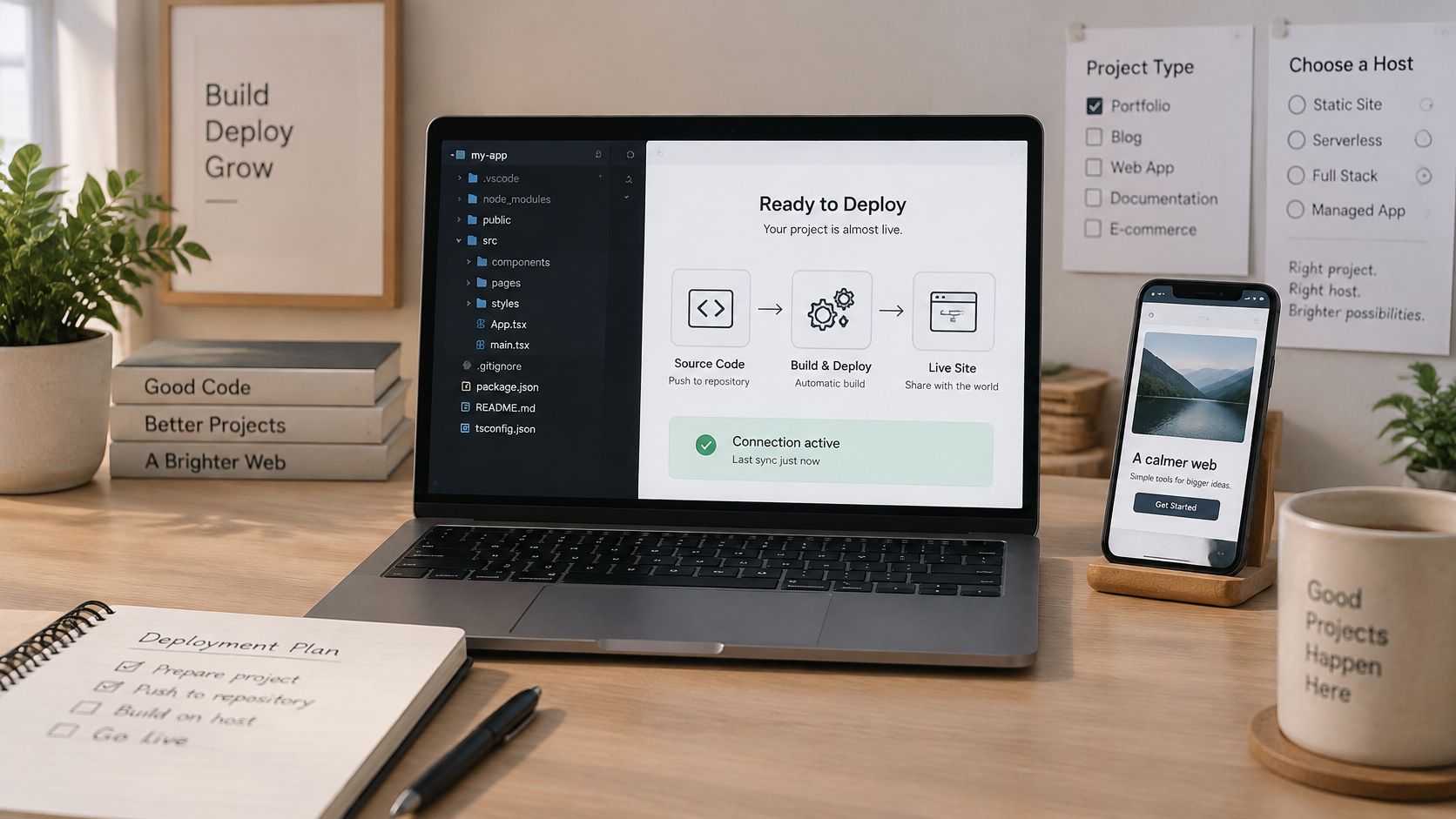
If you already keep code in a repository and your framework must be built, use a build host designed for that workflow. Maya doesn't have that problem. Her cafe-menu folder already opens locally, so she can skip the repository and the pipeline entirely.
For that case, free static site hosting by file drop is the direct path. Drop the folder, a PDF, an image, a document, or a ZIP, and a live HTTPS address is ready in about 20 seconds. The service packs and stages it, finding the homepage, scanning every file, and allocating a URL. Then you share the link. A teacher can use the same flow for a class handout page, and a freelancer can use it for a résumé that opens without a download.
Watch the publishing flow once before you try it with a client preview.
Every site also gets a clean URL and a QR code, and works in a text, a shared notes page, a newsletter note, or on paper. For a client preview, add a password so the link isn't a public announcement. Send the password separately from the link, the same way you'd send a door code separately from an address.
Replace in place, or redirect
When Maya's flavors change on Thursday, she should replace the files and keep the same address. The QR code on the stall flyer still works. Visitors use the link they already have, and the server returns the updated menu. No redirect is needed when the address stays the same.
Redirects matter only when the address itself changes. Mozilla's HTTP redirections guidance identifies 301 as "Moved Permanently" and 302 as "Found", with a 301 communicating a permanent replacement and a 302 indicating a temporary move. If a résumé moves to a new address for good, use a 301. If a campaign page sits elsewhere during maintenance, use a 302.
Choose the lasting address before you print anything. A QR code on menus, posters, or event programs is expensive to reprint because one small address change makes every copy wrong. Static and client-side folders belong on a file drop host. Backend apps belong on a platform that can store data.
Add Forms and Uploads Only When You Need Them
Add this layer only if the offline test failed. Say Maya adds a pickup form. A customer picks a flavor and a time slot, and Maya needs that answer saved. Her menu page can't store it.
She has two sensible routes. A hosted form add-on can email each answer to her, which is enough for a handful of Saturday pickups. An app platform with a database fits when orders must be kept, searched, and reviewed for weeks. Either way, keep the menu page itself as the front, with the form pointing to the service that does the saving.
Uploads need stricter rules, because a filename can't prove a file is safe. The OWASP File Upload Cheat Sheet recommends validating the actual file type rather than trusting the browser-supplied type, and storing files outside the web root where possible. Apply these steps:
- Allow only needed extensions: For a client brief, PDF and JPG may be enough.
- Check file type: Inspect the file on the server, not just its name.
- Cap size and name length: Reject files that are too large or oddly named.
- Rename every upload: Use an app-generated name or internal identifier.
- Limit who can upload: Accept files only from signed-in or invited users.
- Hide raw paths: Store files outside the public area, or serve them through a controlled mapping.
- Scan when available: Use malware scanning or sandboxing for shared documents.
A plain file host doesn't inspect what your visitors send through a form, so don't treat it as an upload system. Publish the page as is, and let a proper form or app service handle anything visitors submit.
Share the Working Folder Today
Maya's menu already loads on her phone and passed the offline test. That folder is done. Publishing it today puts the link in customers' hands by Saturday, while a framework rebuild would add weeks without changing what the page does.
There are assisted routes for people who'd rather not handle files directly. Connect once inside an AI assistant, describe the site in plain language, and a URL comes back in the reply. An assistant-connected publishing tool is what lets Claude and ChatGPT deploy and manage sites that way. It suits a student who built a project page in a chat, or a founder who would rather describe a landing page than sort folders by hand.
Scripted workflows take a different path. A publishing API accepts a ZIP posted with an Authorization header and returns the live URL in the same response, so a CI job or a shell script can ship updates without anyone opening a dashboard. A freelancer sending previews can keep the same replace-in-place habit described for sharing a website with a client: every round of feedback lands on one stable address.
Know what the link you send is. A static host serves the folder exactly as uploaded, with no database and no form handling behind it; anything dynamic already runs in the visitor's browser. The boundary from the forms section still applies: anything visitors submit belongs to the service that saves it, not to a public folder.
So publish the menu, résumé, calculator, or handout that already works. Send the link and the QR code. When the menu changes, replace the files at that same address.
Drop your finished folder, ZIP, PDF, or page onto Upfling and get a live HTTPS link with a QR code in about 20 seconds, with no repository or build step to set up. Publish the static or browser-only app that already works on your laptop, share it today, and replace the files at the same address when you update it.