Creating PDF with Hyperlinks: A Practical How-To Guide
Learn creating PDF with hyperlinks the simple way. Step-by-step methods from Word, Google Docs, Markdown, and HTML plus testing tips.
You're staring at a PDF that looks finished, but the links don't open, jump to the wrong place, or vanish the moment you upload the file somewhere else. Maybe you pasted a long web address into a report, maybe the export stripped out the clickable part, or maybe a screen reader user can't reach the link at all. Creating PDFs with hyperlinks is really about making sure the visible link, the actual link object inside the file, and the accessible text all survive the trip from draft to final document.
Why PDFs End Up With Broken or Missing Links
A freelancer sends a proposal, gets a polite reply, and then hears the worst possible feedback, “the links don't work.” The file looked fine on their laptop, but the clickable parts broke somewhere between the source document, the export, and the upload. That's a common failure pattern, and it usually has nothing to do with the link idea itself.
The four ways links usually fail
The first problem is simple: the author typed a URL as ordinary text instead of creating a real link. The address appears on the page, but there's no clickable object behind it. The second problem happens during export, when the source file loses link annotations and the PDF ends up looking linked without being linked.
The third problem shows up with internal jumps, such as a table of contents or a “go to page 10” link. If pages move, content changes, or the document gets replaced, those destinations can point to the wrong place. The fourth problem is invisible until someone tests with assistive technology, because the link can be present for a mouse user but unreachable or meaningless for someone using a screen reader or keyboard.
Practical rule: A working PDF link has to survive three checks at once, it must be clickable, it must point somewhere valid, and it must still make sense to a reader who never touches a mouse.
| What You're Seeing | Likely Cause | Fix Covered In |
|---|---|---|
| Plain text web address | Not turned into a real link | Adding Hyperlinks in Word and Google Docs Before Export |
| Clickable text that stops working after export | Link annotation got lost | Adding Hyperlinks in Word and Google Docs Before Export |
| Internal jump goes to the wrong page | Source content changed | Adding or Fixing Hyperlinks Directly in a PDF with Acrobat |
| Link works with a mouse, not with assistive tech | Missing accessible structure or naming | What Makes a Link Accessible, Not Just Clickable |
Adding Hyperlinks in Your Source Document Before Export
The easiest way to get a working PDF link is to create it before the file becomes a PDF. Then the link starts as part of the source document, instead of being patched in afterward. For non-technical users, this is usually the cleanest path because the visible words, the destination, and the formatting travel together.
Use descriptive text, then attach the URL
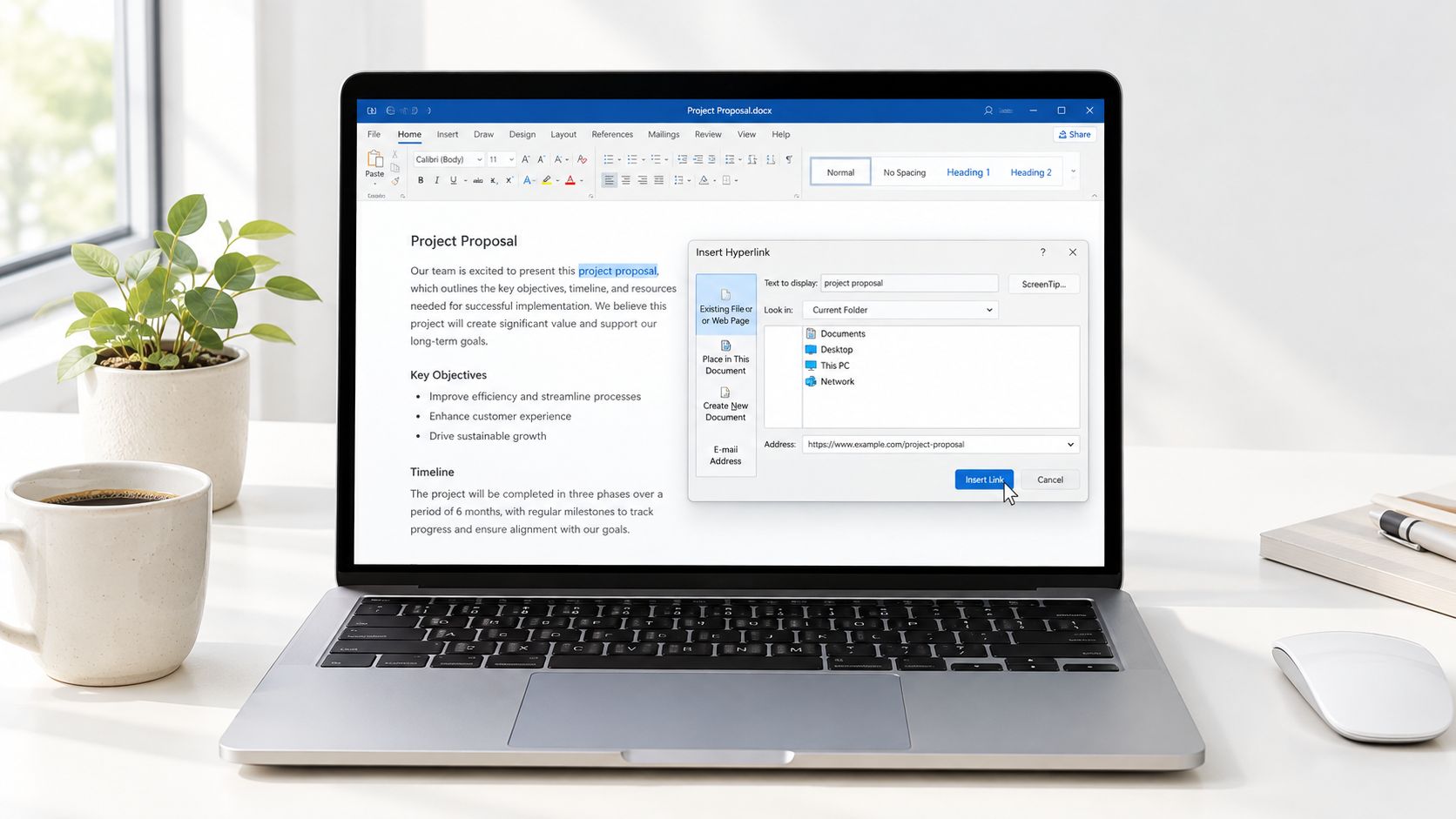
In your word processor, highlight the words you want people to click, such as “Download the 2025 pricing guide.” Open the link dialog, paste the destination, and confirm it. The visible words matter because they tell readers where the link goes at a glance, while a raw web address forces them to read a string of characters first.
The same idea works in your online document editor. Select the phrase, open the link tool, paste the destination, and save the document before exporting. If you are linking within the document, give the heading a named style first so the jump target stays stable when the file becomes a PDF. A named style is just a consistent heading format that the document can keep track of during export.
Keep the source clean before export
Avoid pasting text from random sources when that text brings hidden formatting with it. A messy copy and paste can carry over strange link behavior, broken spacing, or styling that does not survive export cleanly. If a heading needs to act as a destination, build it in the source file instead of relying on a last-minute workaround.
A good link label reads like a sentence fragment, not a file path. If someone can understand the destination from the words alone, the PDF is easier to use, and easier to test later.
Creating PDF Hyperlinks from HTML and Markdown Files
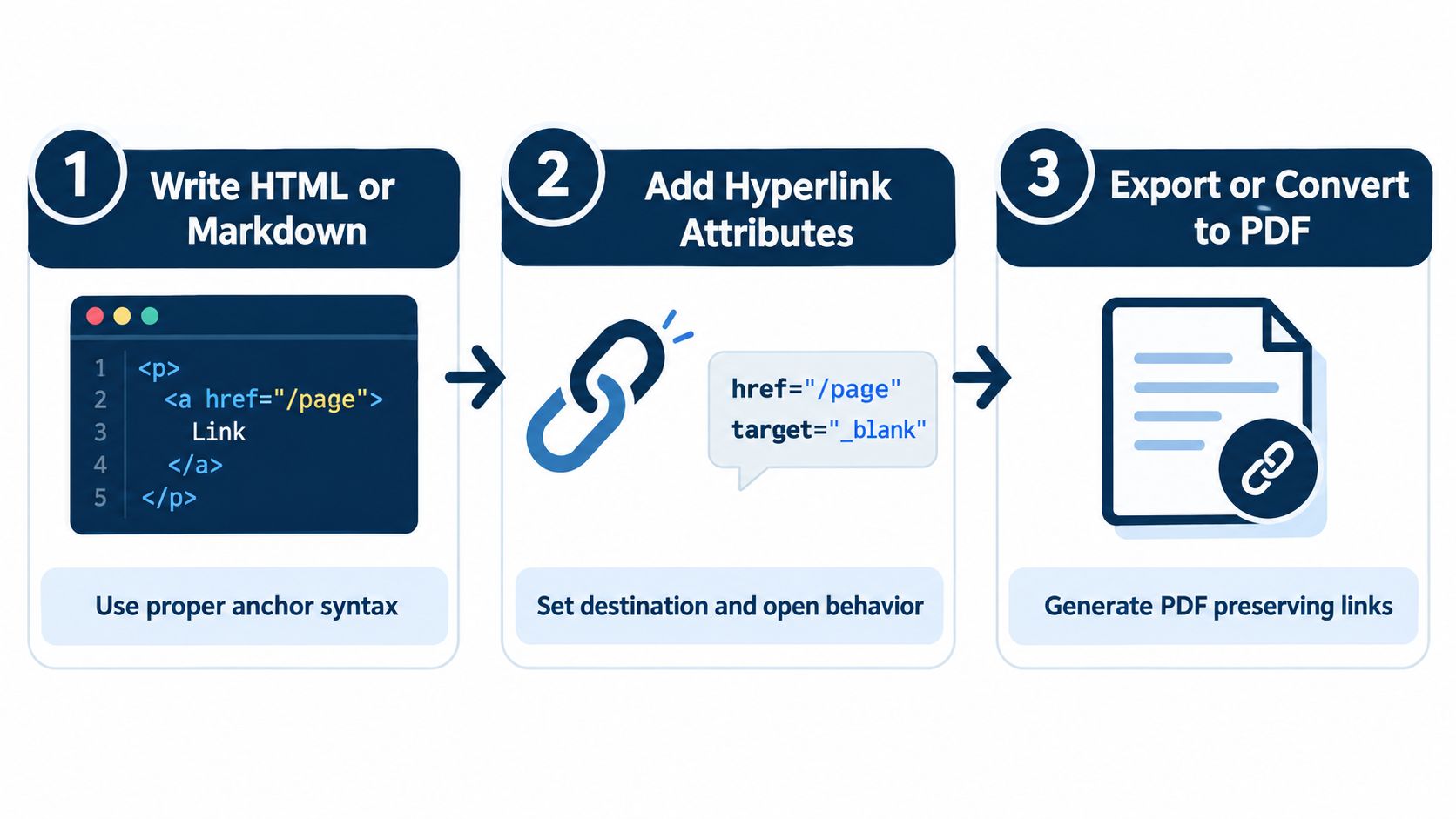
If you already write in HTML or Markdown, you're halfway there. A proper anchor tag in HTML, or a standard Markdown link, usually carries into the PDF when the file is converted or printed correctly. The key is to start with real link syntax, not a plain line of text that only looks like a link.
HTML links need a real anchor
In HTML, a link belongs inside an anchor element, such as <a href='https://example.com'>Download the guide</a>. When that page is saved or printed to PDF, the converter can preserve the hyperlink if it keeps the surrounding structure intact. If the containing element gets stripped during export, the visible words may remain but the clickable behavior can disappear.
A quick sanity check is to open the page or file after conversion and test the link in the output, not just in the browser. If you're building a small page for handouts or client review, a simple test page like this HTML tester can help you confirm that the link syntax itself is correct before you export.
Markdown works the same way
Markdown follows the same logic. Writing [Download the guide](https://example.com) inside a .md file usually produces a link that a PDF converter can carry through. This is especially useful for people who draft in plain text first, then export to a final PDF later.
One mistake breaks links, linking to a local file path that only exists on your computer. A path such as C:\Users\me\guide.pdf can make sense on your laptop, but it's useless for anyone else who opens the PDF later. If the destination needs to be shared broadly, a stable public URL is usually the better choice.
Adding or Fixing Hyperlinks Directly Inside a PDF
Sometimes the PDF already exists, and the link needs to be added or repaired inside the file. That comes up when a designer sends a draft, a client spots a broken button, or a flyer needs a last-minute registration link. In that case, you are editing the PDF itself, not the source document.
Draw the link area carefully
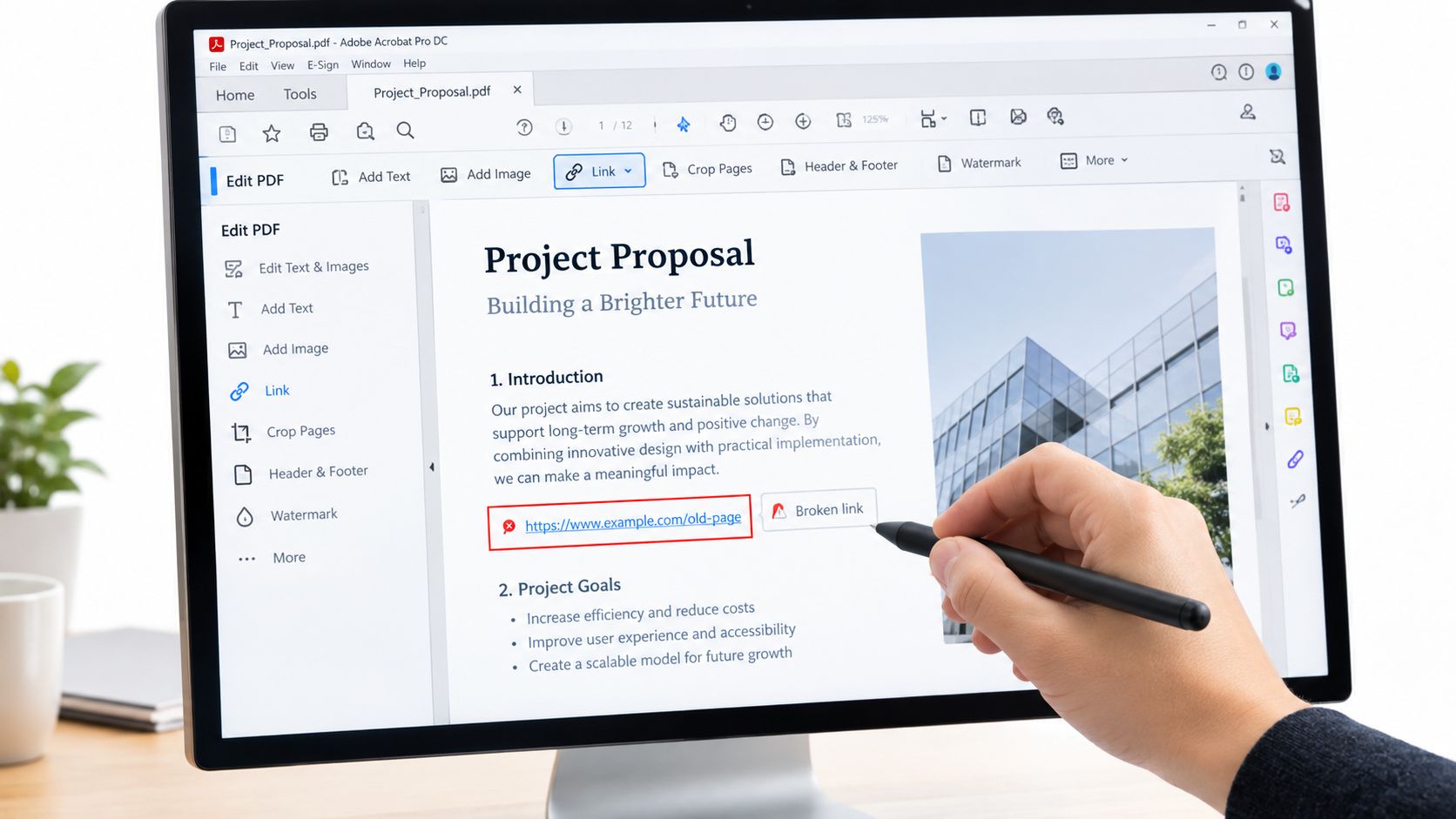
In a PDF editor with link tools, switch to edit mode, choose the link tool, and drag a rectangle over the words, button, or image that should act as the link. The rectangle defines the clickable area, so it should cover the full visible text without spilling into nearby content. If the box is too wide, readers may click the wrong thing.
A flyer with “Register now” is a good example. Draw the box around those words, set it to open a web page, and enter the registration address. If you want the link to be invisible, that can work too, but only when the design calls for a cleaner look and the hidden area still sits exactly where the user expects it.
Choose the right destination behavior
A PDF link does not always open a website. It can jump to a page inside the same PDF, open another file, or run a custom action. For internal navigation, such as a training handout that sends readers from page 2 to page 10, a page-view link often fits better than a web address.
Save the file, then click the link as a normal reader would and check that the destination opens correctly. Test it again after any edit, because a link box that looked right before a layout change can end up covering the wrong text afterward.
Link editing usually requires a paid PDF editor, while free viewers typically open PDFs without giving you link-creation controls.
What Makes a Link Accessible, Not Just Clickable
A link that works with a mouse can still fail for a real reader. Screen readers announce links by their text, keyboard users move through them in order, and some tools need the PDF to expose more than just a visible box. That's why accessible hyperlinks are a different problem from merely clickable ones.
The link needs meaning, structure, and a target
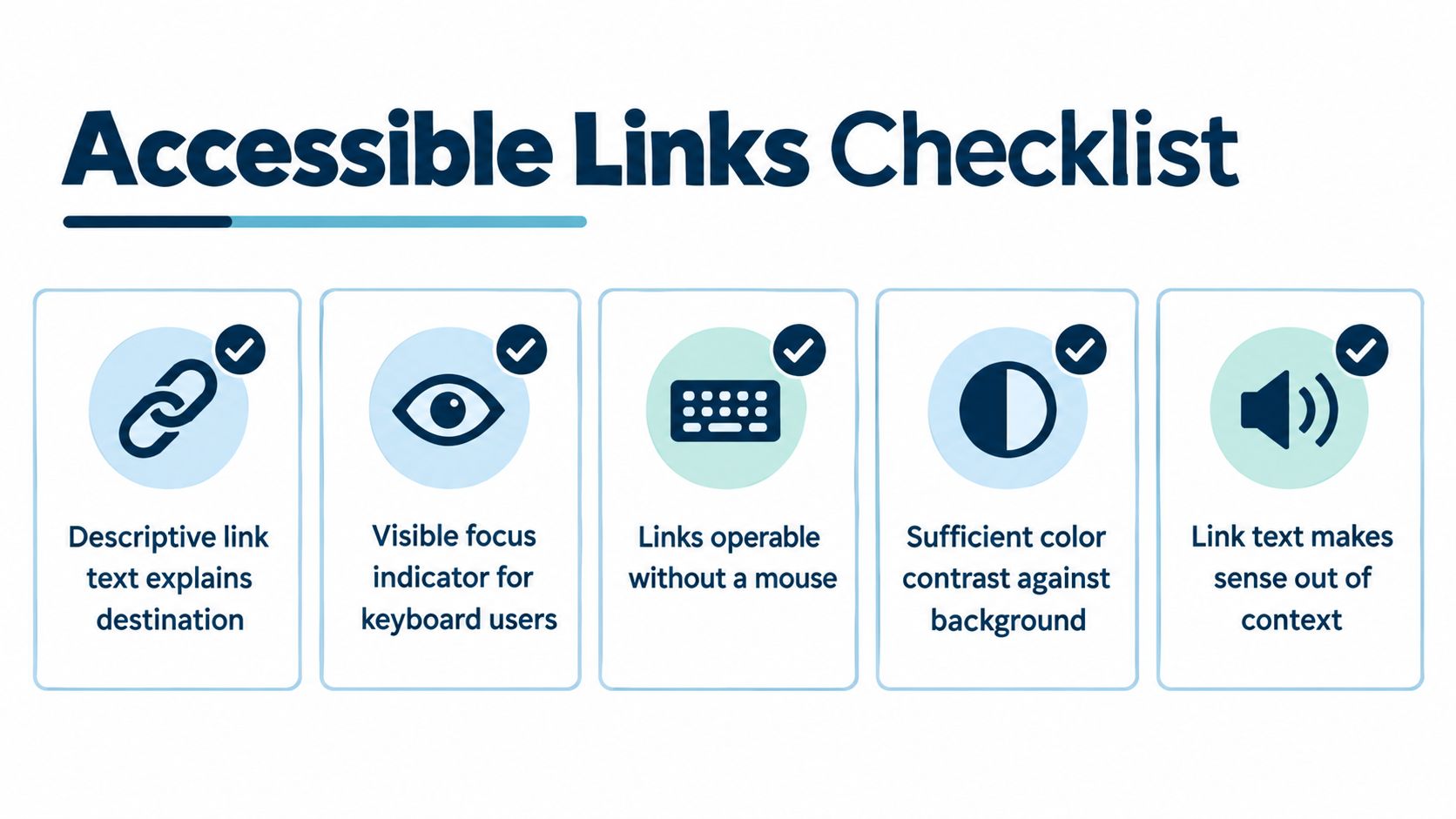
A compliant PDF link needs a tagged /Link structure, a link annotation, and link text that explains where it goes. In plain English, that means the file has to contain the link as a real object, not just as blue underlined text on the page. If you only see the styling but the underlying structure is missing, assistive technology may miss the link entirely.
Here's the simplest upgrade you can make, replace vague phrases and raw addresses with descriptive text.
| Weak link text | Better link text |
|---|---|
| click here | Download the 2025 pricing guide |
| View the application form | |
| read more | Open the safety checklist |
Test the experience without a mouse
Keyboard users should be able to reach the link and activate it without guessing. Screen reader users should hear something that makes sense out of context, because they may land on the link without seeing the surrounding paragraph. If the text only makes sense when the page is visible, it probably needs rewriting.
Accessible doesn't mean complicated. It means the link still tells the truth when it's read aloud, tabbed through, or pulled out of context.
If your PDF tool doesn't expose tagging clearly, treat that as a warning sign rather than a minor annoyance. A document that looks fine visually can still be frustrating or unusable for someone relying on assistive technology.
Testing Links Before You Send the PDF and After You Replace It
The safest moment to test a PDF is before anyone else sees it. Open the file in one viewer, then open it again in a second one, because different readers can handle links differently. Tab through the document, click every link, and confirm that each destination still exists and opens where you expect.
A five-minute routine that catches most problems
Start with keyboard testing. Press Tab and move through each hyperlink in order, then activate it and confirm the target behaves correctly. After that, click each link with a mouse or trackpad, because a link that works one way but not the other usually points to a structure or annotation problem.
Next, test the file on a phone with a screen reader turned on. That's a practical check because many non-technical users already have the device in their pocket, and it reveals whether the link announcement still makes sense when read aloud. If a link is supposed to open a page or file that no longer exists, fix the destination before sending the PDF anywhere else.
Replacing a file can quietly break old links
File replacement is where people get caught off guard. A revised proposal, a new price sheet, or an updated handout can shift page numbers, change internal jumps, or leave a link pointing to an outdated destination. A stable public URL helps people find the file again, but it doesn't automatically repair the links inside the PDF.
That's why a replacement should always be followed by a second pass through the links inside the document. If you've changed the structure, assume the destinations need another check. For a shared file URL, sending the PDF online is only part of the job, the links in the document still need to work.
A Simple Routine for Every PDF You Share
Keep the habit simple. Add links while you're still writing, use descriptive link text instead of raw URLs, and run the five-minute test before you send or replace the file. If a link points to an internal page or a public destination, check it again after edits, because page shifts and file replacement are where hidden failures usually show up.
The easiest way to stay out of trouble is to treat every PDF link as something that has to survive creation, export, and rereading. A file that looks polished but fails on the second click isn't finished. A few extra minutes of checking usually saves a lot of back-and-forth later, especially when the document is going to clients, students, or hiring managers.
If you want a cleaner way to publish files and keep the URL stable while you update the content, turn a file into a link and share it from one place. Upfling helps you host PDFs and other files as live URLs, which makes it easier to replace versions without losing the address people already have. Visit Upfling to publish your next PDF with a link that's easier to share, test, and keep up to date.